

Let's be real—your inbox often feels like a second full-time job. Drowning in repetitive emails is a huge time and energy sink, but you can fight back by setting up automated emails from Gmail. Whether you use its built-in features, dip your toes into some simple scripting, or plug in a third-party tool, automation can handle the boring stuff for you.
Imagine sending weekly reports, chasing invoices, or nudging clients with reminders without lifting a finger. That's what we're aiming for here—freeing you up for the work that actually matters.
Why You Should Automate Emails In Gmail
 If your inbox feels like a battlefield, you're not alone. The average person juggles over 120 emails a day, and for many of us in business, that number is much, much higher. It’s no wonder email automation has become so popular, especially when you consider that Gmail alone processes a mind-boggling 121 billion emails every single day.
But this isn't just about saving time. The data shows that triggered emails can drive a staggering 320% more revenue than your standard broadcast campaigns. That tells you something important: smart automation is a strategic move, not just a productivity hack.
When you automate your Gmail, you’re shifting from being reactive to proactive. Instead of getting caught in the endless loop of sending the same updates and follow-ups, you build a system that runs on its own. This is how you reclaim your focus for the creative, high-level thinking that computers can't do for you.
Reclaim Your Time from Repetitive Tasks
Take a second and think about your weekly bottlenecks. Are you spending every Friday afternoon manually compiling and sending out project status reports? Does the first week of every month involve hunting down late payments with polite-but-firm reminder emails?
These are the perfect tasks to hand over to an automated system.
Here are just a few real-world scenarios where automation can completely change your workflow:
- Project Management: Schedule a weekly progress summary to land in every stakeholder's inbox at 9 AM Monday morning. Everyone stays in the loop, and you don't even have to be online to send it.
- Client Onboarding: Set up a welcome series that automatically sends new clients key info about your services, processes, and who to contact for what. It’s a professional touch that runs on autopilot.
- Financial Admin: Create automated reminders for invoices that are nearing their due date or are already overdue. You'll reduce manual follow-up and improve your cash flow without the awkward back-and-forth.
The principles are universal, no matter your industry. Just look at how an automated real estate marketing system can help an agency scale by getting rid of manual follow-ups. The goal is always the same: cut out the manual work to make room for growth.
The real point of email automation isn't just to send emails without clicking a button. It's about creating consistent, reliable communication that works in the background, freeing up your mental energy for the work that actually moves the needle.
At the end of the day, setting up automated emails is a fundamental part of smart workflow management. If you want to dive deeper into the concept, you can learn more about what workflow automation is and how it can be applied across your business.
Ready to get started? Let's walk through the different ways you can automate Gmail, from simple built-in tricks to more powerful, custom solutions. You'll be able to pick the right tool for the job.
Before you start hunting for third-party tools or wrestling with code, take a look at the powerful features already living inside your Gmail account. It's amazing how many people miss these, but they're a fantastic way to start creating automated emails from Gmail without spending a dime or dealing with a complicated setup.
Think of them as the Swiss Army knife for your inbox. Each tool does one thing really well, but when you start combining them, you can build a surprisingly smart system for handling your routine messages. Let's break down how to put them to work.
Master the Art of Timing with Schedule Send
One of the simplest, yet most useful, bits of automation is Schedule Send. You write an email now, but tell Gmail to deliver it at the perfect time later. It's a lifesaver for keeping a healthy work-life balance while still making sure your messages land when they need to.
Ever finish a client report on a Sunday evening? You obviously don't want to send it then, but you also don't want to forget on Monday morning. Just schedule it for 9 AM. Your email pops up right at the start of their workday, making you look organized and respectful of their weekend. Simple.
Here are a few other times Schedule Send is a game-changer:
- Juggling Time Zones: If you work with people across the globe, you can schedule your messages to arrive during their business hours. This small touch dramatically increases the odds of a quick reply.
- Sending Event Reminders: Got a meeting or webinar planned? Schedule a reminder to fire off an hour before it starts. You'll see attendance go up, guaranteed.
- Pacing Your Follow-ups: Instead of setting a bunch of calendar reminders, you can write and schedule a whole follow-up sequence in one go. Set them to send every few days to keep the conversation alive without you having to think about it.
The real magic of Schedule Send isn't just about delaying an email. It's about taking back control of your communication timeline. It lets you get work done on your schedule, then disconnect, knowing your messages will hit their mark at just the right moment.
Save Hours with Reusable Templates
Gmail Templates (you might know them by their old name, "Canned Responses") are an absolute must for anyone who sends the same kinds of emails over and over again. You save an email draft as a template, and then you can pop it into a new message with just a couple of clicks. It's a core tool for sending efficient and consistent automated emails from Gmail.
To turn them on, just head to Settings > See all settings > Advanced, find the "Templates" section, and enable it. From then on, you can create and save new ones right from the compose window.
Let's say you're a freelancer who sends out a lot of proposals. Instead of typing the same intro, service details, and call to action every single time, you create one solid template. When a new lead comes in, you just insert the template, customize the client's name and project details, and hit send.
That simple change can take your response time from ten minutes down to thirty seconds. Our in-depth guide has more tips on how to send scheduled emails in Gmail and get the most out of features like this.
Create an Organized Inbox with Filters
Filters are the unsung heroes of a tidy inbox. They're like a personal assistant, automatically sorting and acting on incoming mail based on rules you create. This goes way beyond just sending emails—it helps you manage the constant flood of messages coming in.
You can teach filters to do all sorts of useful tricks:
ActionExample Use CaseApply a LabelInstantly tag all emails from "Client A" with their own label so you can find them in a second.Forward ItAutomatically send any email with an invoice attached straight to your accountant.Mark as ReadKeep your inbox clean by automatically marking newsletters you want to save but don't need to read right now.Send TemplateAutomatically reply to common questions with one of your pre-written templates.That last one is incredibly powerful. Imagine you run a small online shop. You could set up a filter that scans for emails containing "Where is my order?" and instantly replies with a template explaining your shipping process and linking to the tracking page.
When you start combining filters with labels and templates, you're not just organizing your mail—you're building a self-managing system. Your inbox stops being a chaotic to-do list and becomes a streamlined command center, letting you focus only on the messages that truly need your brainpower.
Building Custom Workflows with Google Apps Script
When Gmail's built-in features just don't cut it, it's time to pull out the secret weapon: Google Apps Script. This is the scripting platform that lives right inside your Google account, letting you build genuinely custom automations that go way beyond what filters and templates can do. It might sound a little intimidating, but you definitely don't need to be a professional coder to get started.
Think of it as the next level up for your more complex, recurring tasks. Maybe you need to send a detailed weekly performance report to your team every Monday morning, pulling data directly from a Google Sheet. Or what about sending monthly payment reminders to clients on the first of every month, without fail? This is exactly where Apps Script shines, making those specific, rule-based workflows a reality.
Your First Recurring Email Script
Let's dive right in and build something practical. We'll create a simple script that sends a recurring email using information you pop into a Google Sheet. This is a super common use case and a perfect way to get your feet wet with Google Apps Script.
First things first, open up a new Google Sheet. We only need three columns here: Recipient Email, Subject, and Message Body. Go ahead and fill out the first row with the details for the email you want to send on repeat.
It should look something like this:
Recipient EmailSubjectMessage Bodyteam@example.comWeekly Project UpdateHi Team, Here is the status update for this week…Easy enough. Now, from your Google Sheet, navigate to Extensions > Apps Script. This will open a new script editor tab. You can safely delete any placeholder code that's already there and paste in this beginner-friendly script.
// This function sends a recurring email using data from your Google Sheet.
function sendRecurringEmail() {
  // Get the active spreadsheet and the first sheet.
  const sheet = SpreadsheetApp.getActiveSpreadsheet().getSheets()[0];

  // Retrieve the data from the second row (the first row is headers).
  // getRange(row, column, numRows, numColumns)
  const dataRange = sheet.getRange(2, 1, 1, 3);
  const data = dataRange.getValues();
  const row = data[0];

  // Assign the data from each cell to a variable.
  const emailAddress = row[0]; // First column
  const subject = row[1];      // Second column
  const message = row[2];      // Third column

  // Send the email using GmailApp.
  GmailApp.sendEmail(emailAddress, subject, message);
}
As you can see from the comments, the script simply grabs the data from your sheet and tells Gmail to send it out. No black magic here!
Setting Your Automation on a Schedule
With the script saved, the last piece of the puzzle is telling it when to run. This is handled by a time-driven trigger. In the Apps Script editor, look for the little clock icon on the left-hand menu. That's the "Triggers" page.
From here, it's just a few clicks:
- Hit the Add Trigger button, usually in the bottom right corner.
- Choose the
sendRecurringEmailfunction you just created. - Select Time-driven for the event source.
- Pick the type of timer you need, like a "Week timer" for a weekly email.
- Finally, set the specific day and time you want it to run, like every Monday between 8 AM and 9 AM.
Once you save the trigger, Google will pop up a window asking for permission to run the script for you. Grant it, and you're all set! Your custom workflow is now live and will send that email like clockwork, totally hands-free.
This simple concept is the foundation for all sorts of powerful automations. To see how these ideas can be applied more broadly, check out our guide on how to automate tasks for a wider look at building time-saving systems.
By connecting the simple interface of a Google Sheet with the power of Apps Script, you've essentially built your own tiny automation engine. It’s not just a clever workaround; it's a personalized system tailored perfectly to your needs, running quietly in the background.
This is the logical progression of automating your email. You start with the simple built-in tools and then graduate to custom scripts when you need more firepower.
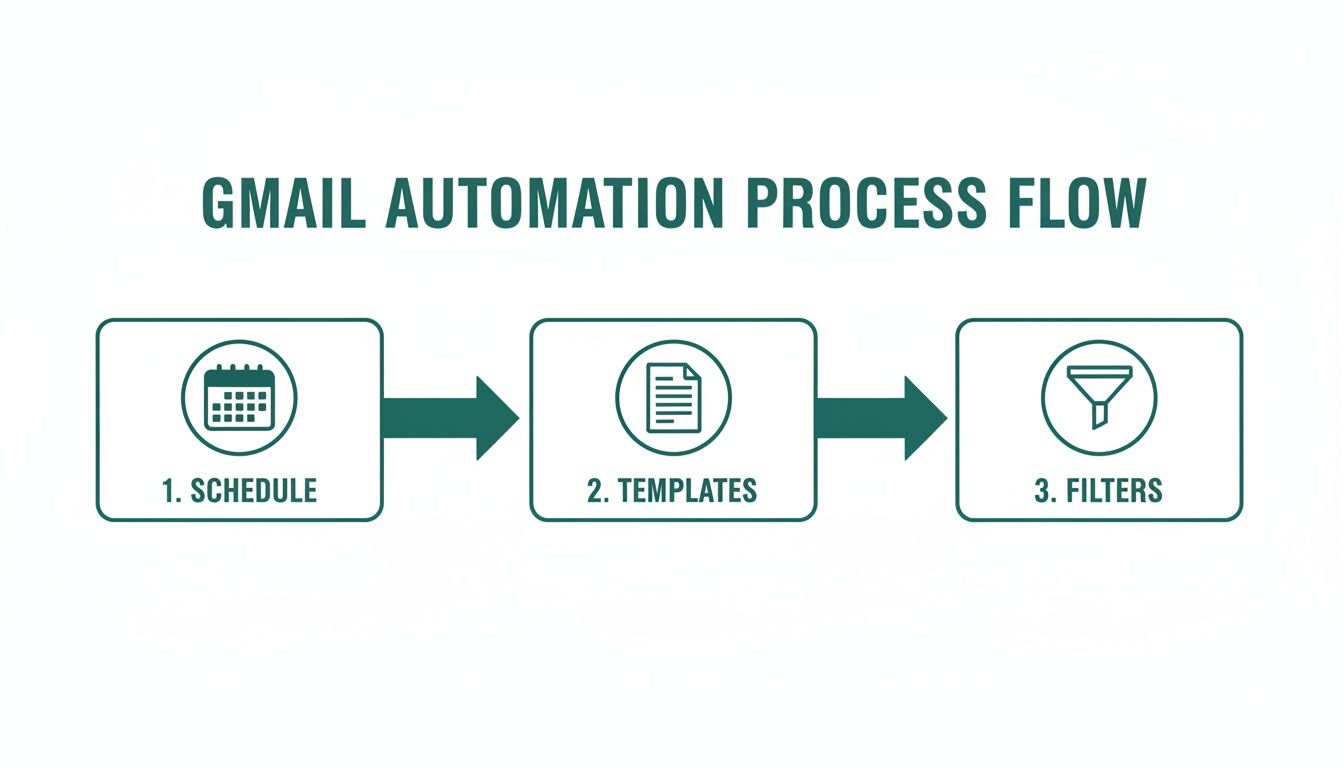 The path is clear: start simple, and add complexity only as your needs evolve. You've got all the tools you need right inside your Google account.
Let's Simplify This: Using Third-Party Tools for Automation
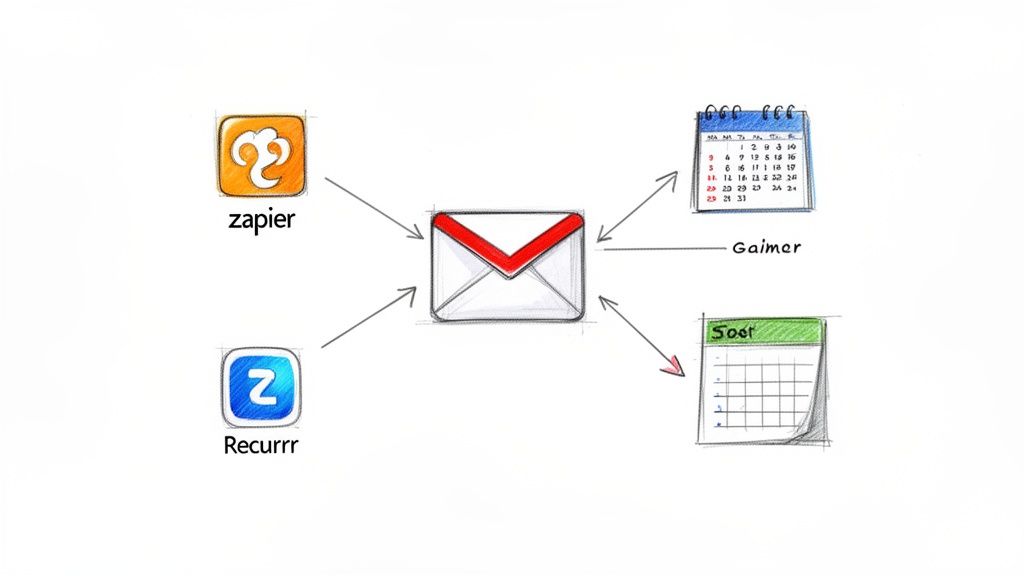 While Google’s built-in features are solid, sometimes you need more muscle without having to write a line of code. That’s where third-party apps swoop in. These tools connect to your Gmail account and unlock a whole new level of sophisticated automated emails from Gmail, often with just a few clicks.
If you’re hunting for powerful, no-code solutions, this is the way to go. They handle all the technical heavy lifting, so you can focus on what matters: designing the perfect workflow.
Powering Complex Workflows with Integration Platforms
For tasks that need to connect Gmail with the other apps you live in every day, platforms like Zapier are the gold standard. Think of Zapier as a digital middleman. It lets you build "Zaps"—simple automations that run on an "if this happens, then do that" logic.
Let’s walk through a real-world example: a new client fills out a Typeform on your website. Zapier can see this happen and kick off a chain reaction.
- First, it zaps the client’s details into a new row in a Google Sheet.
- Next, it fires off a personalized welcome email from your Gmail account.
- Finally, it creates a new task in your project management tool—say, Asana or Trello—to get the onboarding process rolling.
This is where things get really powerful. You're not just automating a single email; you're automating an entire business process that jumps between different services. The only downside? For simple recurring tasks, these platforms can sometimes feel like using a sledgehammer to crack a nut.
Finding Focus with Dedicated Tools
Sometimes, all you really need is to send the same email on a regular schedule. You don't need a complex system that talks to a dozen other apps. You just need a reliable, set-it-and-forget-it solution.
This is exactly where a tool like Recurrr comes into its own. It’s not trying to be your project management app or an all-in-one business suite. It's a small productivity hack—an almost invisible tool that does one thing incredibly well: sending recurring emails.
Think of it this way: while larger platforms offer a massive toolbox with every possible gadget, a dedicated tool is like having the one perfect screwdriver you need for the job. It’s faster, simpler, and gets the task done with zero friction.
Recurrr is built for those routine messages that are critical but painfully easy to forget. It helps you "stress less and live more" by taking those nagging tasks completely off your plate.
Here are a few perfect use cases:
- Personal Habits: Send yourself a daily prompt at 7 AM to journal or a weekly reminder to review your goals.
- Team Check-ins: Automate that Monday morning email asking your team for their weekly priorities.
- Client Management: Send a recurring monthly check-in to your top clients to keep the relationship warm.
The beauty of a focused app is its simplicity. The setup is a breeze, and you can trust it to work every time. You won't get lost in a sea of features you’ll never touch. For a deeper look at your options, this list of the top 11 tools to send recurring emails in 2024 gives a fantastic side-by-side comparison of actual apps designed for the job.
Speeding Up Your Content Creation
Making your email process easier isn't just about scheduling; it’s also about writing the email itself. You can also use AI to write emails and get a first draft done in seconds. This frees up valuable time you can then spend personalizing and perfecting your message.
By combining an AI writing assistant with an automation scheduler, you create a truly efficient system. You can generate a draft for your weekly newsletter, then pop it into a tool like Recurrr to make sure it goes out on time, every single time. This approach lets you focus on strategy while the tools handle the busywork.
Best Practices for Smart Email Automation
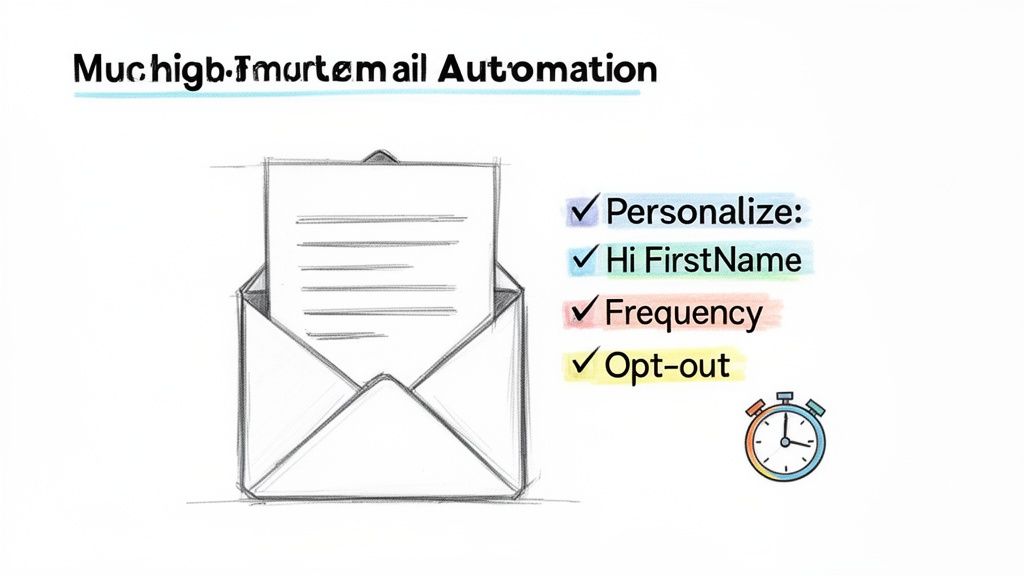 Alright, so you’ve got your automations built. But just flipping the switch is only half the job. Now you have to make sure your automated emails are smart, respectful, and actually helpful.
It's a fine line to walk. Without a thoughtful approach, even the best workflows can feel robotic or, worse, like spam. The real goal here is to get more efficient without losing the human touch that builds actual relationships.
Personalize Beyond the First Name
Dropping a {{first_name}} tag into your email is table stakes these days. It’s a start, but real personalization goes so much deeper. You want the entire message to feel like it was written specifically for the person reading it, not just a boilerplate with their name slapped on.
- Bring up the past. If you’re sending an automated follow-up, reference your last conversation. Something as simple as, "Following up on our chat about the Q3 marketing report…" makes all the difference.
- Segment your contacts. Don't blast the same message to everyone. Group people based on your relationship—new leads, current clients, project collaborators—and tweak the content for each bucket.
- Use conditional logic. This is a bit more advanced, but tools like Google Apps Script let you change parts of the email based on specific data you have about the contact. That's how you get hyper-relevant messaging.
Audit Your Automations Religiously
An automation you built a year ago probably doesn't make sense today. Priorities change, projects wrap up, and people move on. A "set it and forget it" mindset is a recipe for sending awkward or totally irrelevant emails on autopilot.
I make it a habit to do a quarterly check-in on all my active automations. Just ask yourself a few simple questions:
- Is this email still even necessary?
- Is the info in the template up to date?
- Is the sending schedule still right?
This quick audit stops "automation rot" from setting in. Think of it like changing the oil in your productivity engine.
The ultimate goal of automation is to handle the predictable so you can focus on the exceptional. A well-maintained system frees up your mental energy, while a neglected one just creates new problems to solve.
Respect the Inbox and Sending Frequency
Just because you can send an email every single day doesn't mean you should. Hammering your contacts' inboxes is the fastest way to get ignored, marked as spam, or hit with an unsubscribe. Be intentional.
For a recurring client check-in, monthly might be perfect. For internal team reminders, maybe weekly is the right cadence. There's no magic number. Put yourself in their shoes and ask, "Does this email provide value, or is it just more noise?"
This respect for the inbox goes both ways. Fortunately, Gmail is on our side, blocking over 10 million malicious emails every single minute. Its new RETVec tech is 38% better at catching spam and cuts down on false positives by nearly 20%. That means your legitimate automated messages actually have a fighting chance of landing where they're supposed to. If you're curious, you can dig into the statistics on how Gmail handles its massive volume and security.
Got Questions About Gmail Automation?
Once you start automating your emails in Gmail, you're bound to have a few questions pop up. It's totally normal. Getting those nagging little uncertainties cleared up is the fastest way to get confident and really start saving time.
Let's dive into some of the most common questions I hear.
Help! How Do I Stop An Automated Email I Already Set Up?
That flash of panic when you realize an email shouldn't go out? We've all been there. Don't worry, it's almost always fixable. How you stop it just depends on how you started it.
- Used 'Schedule Send'? This one's easy. Just look for the "Scheduled" folder in your Gmail sidebar. Find the email, open it, and hit "Cancel send" at the top. It'll pop right back into your Drafts folder, safe and sound.
- Wrote a Google Apps Script? You'll need to head back to your script's project page. The quickest way is from the Google Sheet you used, via Extensions > Apps Script. Look for the little clock icon on the left menu that says "Triggers." Find the one running your automation, click the three-dot menu next to it, and just hit "Delete trigger."
- Using a third-party tool? For this, you'll have to log back into the platform you used, whether it's Zapier, Make, or Recurrr. Go to your dashboard or list of automations, find the one you want to stop, and you'll see an option to either pause it with a toggle switch or delete it completely.
Can I Automate Emails That Have Attachments?
Absolutely! This is one of the best parts of automation. Sending attachments automatically is perfect for things like weekly reports, monthly invoices, or onboarding documents.
With native Gmail Templates, you can just attach the file once when you create the template. From then on, every time you use that template, the attachment will be right there.
Most third-party tools also have a specific field where you can upload a file for your recurring email. If you're using a Google Apps Script, you can even pull files directly from your Google Drive by adding an attachments option to your GmailApp.sendEmail function. It's a little more technical, but super powerful.
Think about it: automating emails with attachments is a game-changer. Imagine sending out weekly sales reports with a PDF summary or monthly invoices with the file attached, all without lifting a finger. It just happens. That's how you get back hours in your week.
Will My Automated Emails Look… Automated?
Great question. The short answer is no, not if you do it right.
An email sent through automation looks exactly the same as one you typed out and sent yourself. It comes from your address, has your signature, and lands in their inbox just like any other message.
The real trick to keeping it personal is in the writing. Use personalization tokens (like the person's first name) if you can, and make sure the email sounds like you. Avoid stiff, robotic language. As long as the content feels genuine, the recipient will have no idea it was sent by a machine.
What Are Gmail's Sending Limits? Am I Going To Get Blocked?
This is a big one. It's super important to know Gmail's rules of the road to avoid having your account temporarily suspended, especially if you're sending a lot of emails. These limits exist to fight spam, and they apply to everyone.
Here's the breakdown of how many emails you can send in a 24-hour period:
Account TypeDaily Sending LimitStandard Gmail AccountUp to 500 emails****Google Workspace AccountUp to 2,000 emailsAnd here's the kicker: that limit counts recipients, not just individual emails. So, if you send one email to 20 people, that counts as 20 toward your daily limit. If you're just sending a few reminders or reports, you'll be fine. But if you're planning a large-scale outreach, keep a close eye on your volume.
Ready to take the friction out of your recurring tasks? With Recurrr, you can set up automated emails for everything from team check-ins to personal habit reminders in just a few clicks. Stop worrying about what you might forget and start focusing on what truly matters. Try Recurrr today and discover how simple, reliable automation can help you stress less and live more.