

Sending the same email over and over again? It’s a quiet productivity killer, slowly chipping away at your focus and mental energy. Automating these repetitive tasks in Gmail isn't just a nice-to-have; it's a core strategy for cutting down on mistakes and freeing you up for work that actually requires a human touch. It’s about moving from tedious, manual sends to a powerful, set-and-forget system.
Why You Should Automate Repetitive Emails
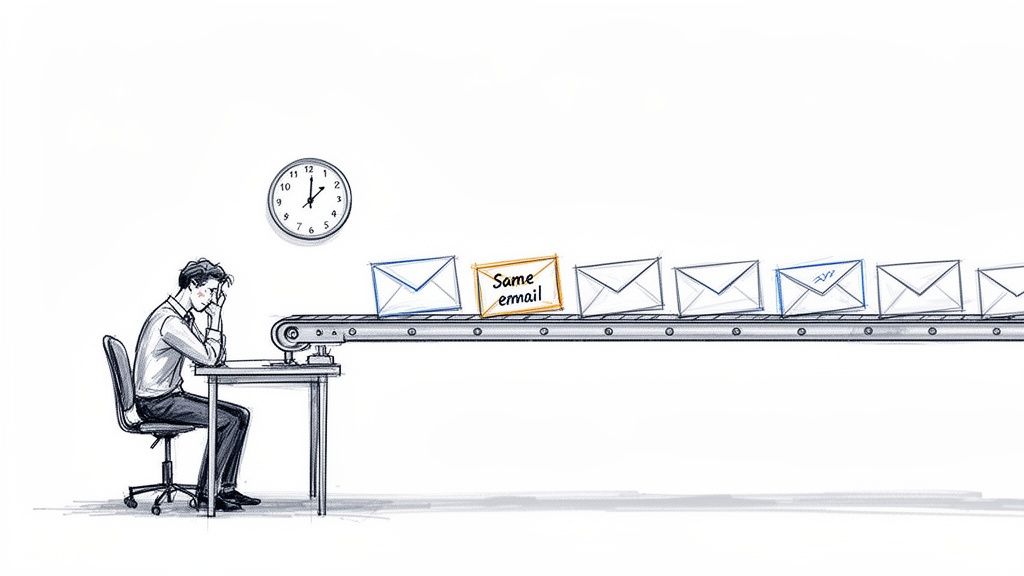
Manually sending routine emails—things like weekly project updates, client check-ins, or monthly reminders—feels like a tiny task in the moment. But those seconds and minutes add up, big time. Over weeks and months, they become a significant drain on your focus and efficiency. It’s not just about the lost time; it's the cognitive load of constantly having to remember to do these simple, yet critical, administrative chores.
This kind of manual repetition is also a recipe for human error. We’ve all been there—forgetting to send a crucial follow-up or a timely report can lead to missed opportunities or frustrating communication breakdowns. Setting up automated emails in gmail takes that risk off the table, ensuring your communication is both consistent and reliable.
 ### Reclaim Your Time and Focus
Consider this: the average professional gets hit with 121 emails every single day. A huge chunk of our work happens right inside Gmail, and with most of us checking email on our phones, managing that constant flow is a real challenge. To stop the cycle of repetitive manual emailing and really level up your outreach, it’s worth checking out some proven email sequence templates to get started on the right foot.
When you automate, you're building a system that works for you in the background. This frees up precious mental bandwidth, letting you concentrate on more strategic, high-impact activities instead of drowning in administrative quicksand.
Automation isn't about being lazy; it's about being smart. It lets you delegate the monotonous parts of your job to technology so you can dedicate your uniquely human skills—creativity, strategy, and problem-solving—to where they’ll make the biggest difference.
The benefits are immediate and obvious. Exploring the many reasons to send recurring emails can shine a light on just how much you stand to gain. Whether it's a simple scheduled send or a more complex follow-up campaign, the tools out there can fit pretty much any need, helping you build a more efficient and less stressful way to work.
You don't always need to bolt on a bunch of fancy software to get your Gmail inbox working for you. In fact, some of the most powerful and practical automation tools are already baked right into your account, just waiting to be discovered.
For everyday, repetitive email tasks, these native features are often all you need. They get the job done without cluttering up your workflow with another app.
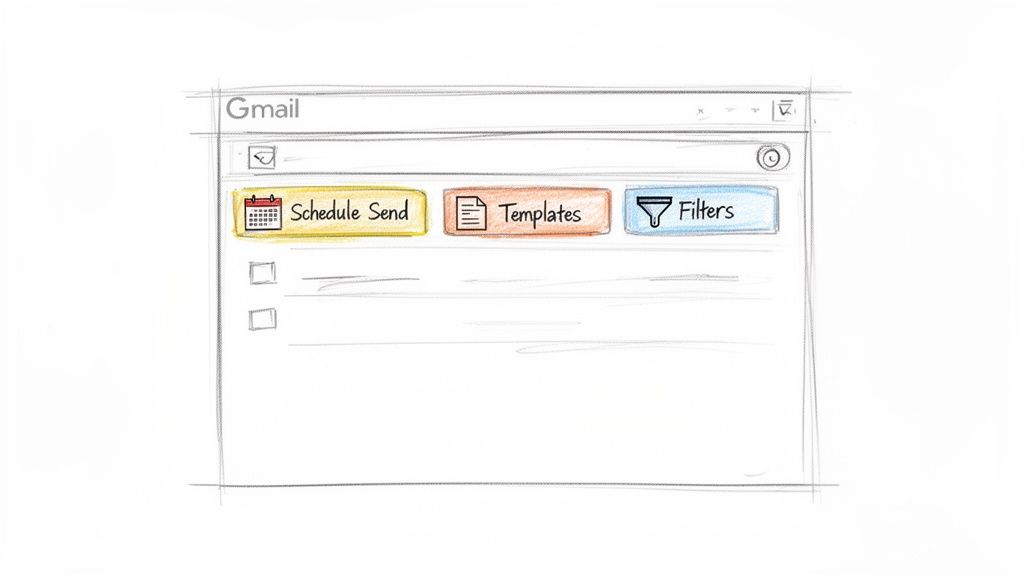 The simplest starting point for email automation is Gmail’s built-in Schedule Send. It’s a beautifully simple concept: instead of firing off an email the second you finish writing it, you get to pick the exact date and time it leaves your outbox.
This is an absolute game-changer if you work with people across different time zones or just want to make sure your message hits their inbox at the perfect moment—like 9 AM on a Monday morning instead of late on a Sunday night.
Time is Everything with Schedule Send
Picture this: it's Friday at 10 PM and you've just put the finishing touches on a big project proposal. If you send it now, it's almost guaranteed to get lost in the weekend email shuffle.
Instead, you can write the email, click the little arrow next to the "Send" button, and schedule it to arrive at 9:00 AM Monday. Your client gets it at the start of their week, and you actually get to switch off and enjoy your weekend. It's a small change with a huge impact on work-life balance. We've got a full guide on how to send scheduled emails in Gmail if you want a closer look.
Save Time with Templates and Filters
For the emails you find yourself typing out over and over again, Templates are a lifesaver. This feature (which used to be called Canned Responses) lets you save entire emails—formatting, links, and all—so you can drop them into a new message with just a couple of clicks.
Just think about all the repetitive messages you send:
- Responding to a new lead who filled out your contact form.
- Sending a welcome packet to a new hire.
- Answering the same frequently asked questions day after day.
Creating a template for each of these not only saves a ton of time but also keeps your messaging consistent and cuts down on typos. To turn it on, just head to Settings > See all settings > Advanced > Templates > Enable.
But the real magic happens when you pair Templates with Filters. This combo creates a surprisingly powerful auto-responder. A project manager, for example, could set up a filter that automatically spots emails with "New Task Request" in the subject line. The filter can then apply a label and instantly send a template that says, "Thanks for the request! We've got it and will review it within one business day."
This simple setup transforms your inbox from a passive receptacle into an active assistant. It acknowledges messages on your behalf, sets expectations, and gives people peace of mind that their email didn't just vanish into the ether—all without you lifting a finger.
When to Use Gmail’s Vacation Responder
And for those times you're completely unplugged, there's the classic Vacation Responder. This is your out-of-office workhorse. You set a start and end date, write a quick message, and Gmail will automatically reply to anyone who emails you, letting them know you're away and when you’ll be back. Simple, effective, and essential for a real vacation.
Gmail's Native Automation Tools at a Glance
With a few distinct tools built right into Gmail, it can be tricky to know which one to reach for. This quick table breaks down what each feature does best.
FeatureBest ForComplexityExample Use CaseSchedule SendSending a single email at a specific future date and time.LowWriting a project update on Friday night and scheduling it to send at 9 AM on Monday.TemplatesReusing the same email content over and over for different recipients.LowCreating a standard reply for frequently asked questions to send manually.Filters + TemplatesAutomatically sending a predefined email when a specific type of message arrives.MediumSetting up an auto-reply that confirms receipt of emails with "Support Ticket" in the subject.Vacation ResponderSending an automatic out-of-office reply to all incoming emails for a set period.LowLetting everyone know you're on vacation for a week and won't be checking email until you return.As you can see, each tool has its sweet spot. Choosing the right one is all about matching the feature to the specific task you're trying to automate.
These built-in features are a fantastic starting point. Beyond just sending, you can even extend Gmail's power by automating email scanning to sort and categorize your inbox more efficiently. Together, Schedule Send, Templates, Filters, and the Vacation Responder give you a solid foundation for email automation without ever leaving your Gmail account.
Unlock Recurring Emails with Google Apps Script
When you've pushed Gmail's built-in tools to their limits and still need more, it's time to pop the hood and look at what's running underneath. Google Apps Script is Google's own powerful, native solution that lets you build custom automations right inside your Google account.
Think of it as the next level up. It’s for anyone who needs to send truly recurring automated emails in Gmail and isn't afraid to dip their toes into a little bit of code.
This method gives you incredible control over your automations. You can set up emails to fire off daily, weekly, or on pretty much any custom schedule you can dream up. The real power move? You can even pull data directly from a Google Sheet to personalize your messages automatically.
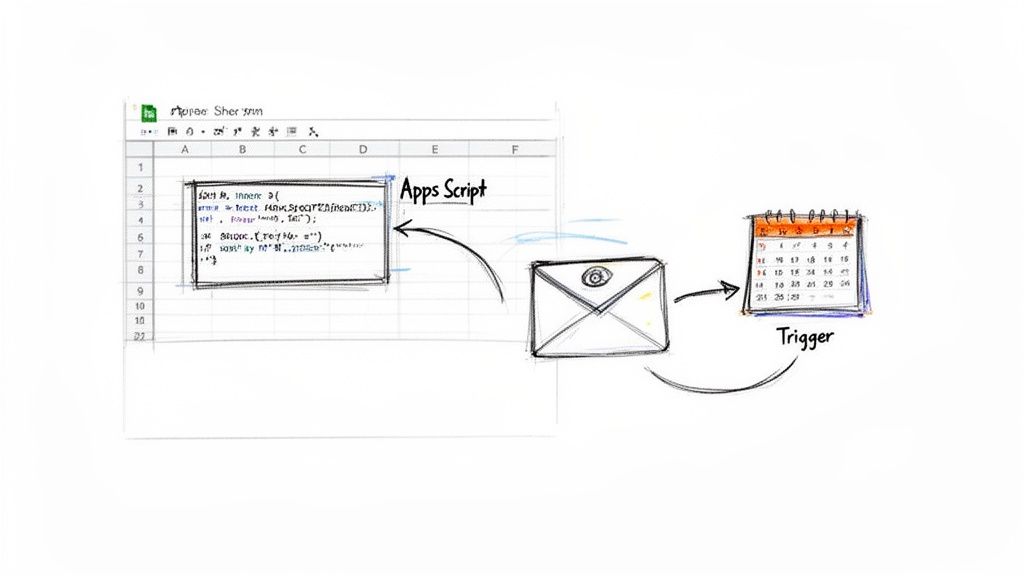 The Apps Script interface is where you'll write and manage your custom functions. It’s a powerful environment that connects directly to all your Google Workspace apps, letting them talk to each other.
Setting Up Your First Script
Don't let the word "script" intimidate you. The process is more straightforward than it sounds, and for a simple recurring email, you can just use a pre-written template.
Here’s how to get started:
- First, open Google Sheets and create a new, blank sheet.
- Next, head to Extensions > Apps Script. This will open the script editor in a new browser tab.
- Delete any placeholder code you see in the editor and then paste in the script below.
This copy-and-paste script is all you need to get started.
function sendRecurringEmail() {
  var recipient = "client@example.com";
  var subject = "Your Weekly Project Update";
  var body = "Hi team,nnHere is the project status report for this week.nnBest,nYour Name";

  GmailApp.sendEmail(recipient, subject, body);
}
This small block of code is all it takes to define an automated email. The
GmailApp.sendEmailcommand is the core function that does all the heavy lifting for you.
You'll just need to customize the three variables at the top: recipient, subject, and body. Just swap out the placeholder text with your own information and click the floppy disk icon to save your project.
Gmail's entire ecosystem is built for massive scale, supporting over 1.8 billion users and handling billions of emails daily. This robust infrastructure is what allows tools like Apps Script to run so reliably. You can learn more about Gmail's impressive scale and see why it's such a solid platform for automation.
Automating the Send with a Trigger
The final piece of the puzzle is telling your script when to run. In Apps Script, this is done with a "trigger."
- In the script editor, find the Triggers icon on the left sidebar (it looks like a little alarm clock) and click it.
- Click the Add Trigger button, which you'll find in the bottom-right corner.
- Set it up to run your
sendRecurringEmailfunction. - Choose Time-driven for the event source.
- Now, configure your schedule. For example, you could select a Week timer that runs every Monday.
Save your new trigger, and you’re all set. Your script will now automatically send that email every Monday morning without you having to think about it again.
While there's a slight learning curve, the flexibility you gain is well worth the effort for those complex scheduling needs that other tools just can't handle.
The Simple No-Code Solution for Recurring Emails
While Google Apps Script is incredibly powerful, let's be honest—most of us don't want to become part-time developers just to send an email on repeat. What if you need the reliability of a recurring schedule without ever touching a single line of code?
This is where simple, dedicated tools come in. They are the hidden gems of productivity.
Think of a tool like Recurrr as an invisible assistant that slots right into your workflow. Its entire purpose is to do one thing and do it exceptionally well: send your emails on a reliable, repeating schedule, no questions asked.
This approach is perfect for busy people who just want things to work. It completely skips the learning curve of scripts and the manual babysitting of other methods, giving you a straight shot to automation.
Effortless Setup for True Automation
Getting started with a no-code tool is refreshingly simple. The whole process is designed to take minutes, not hours.
You’re really just doing three things:
- Connect Your Gmail Account: Securely link your account in a few clicks. This gives the tool permission to send emails on your behalf without it ever seeing your password.
- Compose Your Message: Write your email directly inside the tool, just like you would in Gmail—subject, body, and all.
- Choose a Flexible Schedule: This is where the magic happens. You can set up just about any schedule you can think of, whether it's "every Monday at 9 AM," "the 1st of every month," or "every two weeks on a Thursday."
Once you hit "save," the tool takes over completely. Your automated emails in Gmail will be sent from your own account, looking exactly like you sent them yourself.
The real value here is the "fire and forget" nature of it all. You invest a few minutes up front, and in return, you get back hours of your time and mental energy every single month. It's a tiny hack with a huge impact.
Practical Scenarios for No-Code Automation
The uses for this kind of simple, recurring email are endless. It's the perfect fit for any message that needs to be consistent and hands-off. For a deeper dive, check out our guide on how to automate sending emails for more ideas.
Here are a few real-world examples I see all the time:
- Accountants and Invoicing: An accountant can schedule automated reminders to go out to clients five days before their invoices are due each month. This simple step dramatically improves cash flow and saves them from the awkwardness of chasing down payments.
- Managers and Team Updates: A team lead schedules a "Friday Wins" email to go out every Friday afternoon, prompting the team to share their accomplishments. This builds a positive culture and keeps everyone in the loop without adding another recurring task to the manager's plate.
- Freelancers and Client Check-ins: A freelance designer sends a bi-weekly check-in to active clients to make sure projects stay on track. The email is always on time, which reinforces their professionalism and keeps communication flowing.
These tools often have practical features built-in, like the ability to pause schedules without deleting them—perfect for when a client is on vacation. Some even offer basic tracking to see if your emails have been opened. You get just enough oversight without getting bogged down in complex analytics.
For anyone who prioritizes simplicity and reliability, a dedicated no-code solution is easily the most direct path to mastering recurring email automation.
Choosing the Right Gmail Automation Method for You
With a few powerful options on the table, finding the perfect fit really comes down to what you're trying to accomplish. The best choice between Gmail's built-in tools, a bit of code, or a dedicated app depends on your comfort with tech and how often your emails need to go out.
For a simple, one-off task, you can't beat Gmail’s native Schedule Send. Need to make sure a report lands on your boss's desk at 8 AM next Tuesday? Schedule it and forget it. It’s perfect for timing a single email just right, no fuss involved.
But when you need true recurring automation—like sending a project update every single Friday without fail—you'll have to look past Gmail's basic features. This is where the path splits into two very different approaches, and it all hinges on your technical confidence.
Deciding Between Code and No-Code
This simple decision tree can help you visualize the choice between a technical and a non-technical path for sending automated emails that repeat.
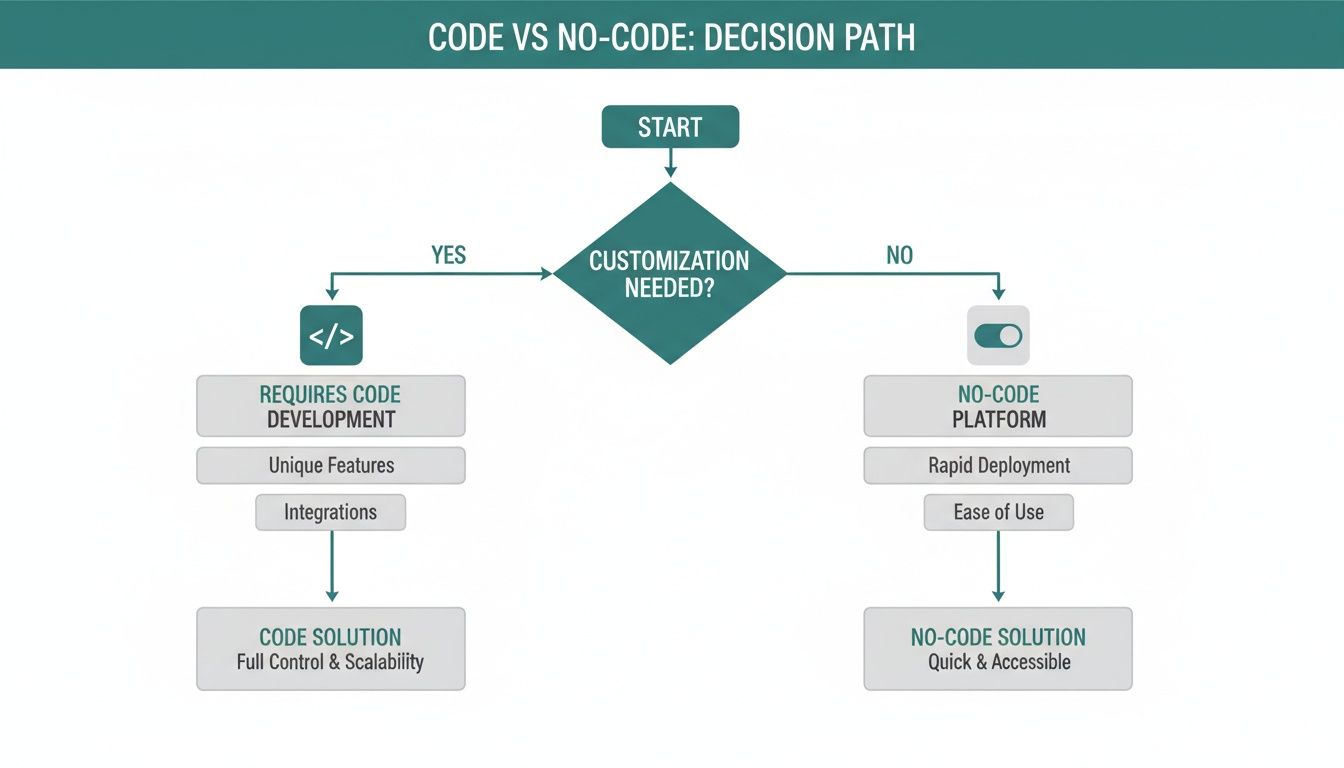 The key takeaway here is that for consistent, repeating sends, your best options are either a script you manage yourself or a dedicated tool that handles everything for you.
If you’re comfortable with code and need deep customization, Google Apps Script offers almost limitless flexibility. You can create complex schedules and even pull data directly from a Google Sheet into your email. It's an incredibly powerful method, but it comes with the responsibility of maintaining and troubleshooting the script yourself. It's the best route for developers or tech-savvy users with very specific automation needs.
On the other hand, if your main goal is simplicity and reliability without touching a single line of code, a dedicated no-code tool is the most direct path.
A simple no-code solution is like a small productivity hack—an invisible tool that complements your existing workflow. It’s not meant to be a complex project management app; its sole job is to send your recurring emails on time, every time.
These tools are built for that "set-it-and-forget-it" peace of mind. For a comprehensive look at the different options out there, you might find our guide on the top tools to send recurring emails in 2024 helpful. They're perfect for business owners, managers, and freelancers who value efficiency and just want a dependable system that works.
Which Gmail Automation Method Is Right for You?
Still weighing your options? This table breaks down the key methods we've covered to help you find the perfect fit for your technical comfort level and automation goals.
MethodEase of UseBest for Recurring Emails?Required SkillSchedule SendVery EasyNo, one-time sends onlyNoneTemplates + FiltersMediumYes, but very limitedBasic GmailVacation ResponderEasyNo, for instant repliesNoneGoogle Apps ScriptHardYes, highly customizableCoding (JavaScript)**Recurrr (No-Code Tool)**Very EasyYes, simple & powerfulNoneUltimately, the best tool is the one that solves your problem with the least amount of friction. For simple, fire-and-forget scheduling, stick with Gmail’s features. For anything that needs to happen on a regular basis, a dedicated tool or a custom script will be your best bet.
Got Questions About Automating Gmail?
Jumping into email automation for the first time usually brings up a few questions. That's totally normal. Let's clear up some of the common things people wonder about so you can get started with confidence.
Can People Tell My Emails Are Automated?
Honestly, probably not. When you use a built-in Gmail feature like Schedule Send or a simple tool like Recurrr, the email is sent straight from your actual Gmail account. It looks exactly the same as an email you just typed and hit "Send" on.
The content, your signature, your sender info—it's all identical because it is authentic. The only tiny clue might be the timing. An email that lands at precisely 9:00 AM every single Monday could raise an eyebrow, but let's be real, most people barely notice that stuff.
What Are the Sending Limits for Automated Emails?
Gmail has daily sending limits, and they apply to everything you send, whether it's manual or automated. They’re mainly in place to stop spammers, and for most people, they’re pretty generous.
- Standard Gmail Account (@gmail.com): You can send up to 500 emails in a 24-hour window.
- Google Workspace Account (your own domain): This bumps you up to 2,000 emails per 24 hours.
If you're just automating team check-ins, client reminders, or monthly reports, you're not going to get anywhere near these caps. It’s more than enough for typical recurring tasks.
Is It Safe to Connect a Third-Party Tool?
Yes, as long as you're smart about it. Stick to reputable tools that use Google's official, secure login method, known as OAuth 2.0. It's the gold standard for connecting apps safely.
When you link a service like Recurrr to your Gmail, you are not handing over your password. Instead, you’re giving the app specific permissions to do certain things for you, like sending an email. Think of it like giving a valet a key that only starts the car, not one that opens the glove box or trunk.
You're always in the driver's seat. You can pop into your Google Account's security settings anytime, see exactly which apps have access to what, and kick them out with a single click. It's a system designed to give you the benefits of handy tools without compromising your security.
Ready to stop typing the same emails over and over? Recurrr is the simple, set-it-and-forget-it way to send recurring emails right from your Gmail account, no code or complicated setup needed. You can be automating in minutes and get back to more important work. Try Recurrr for free.