

Picture this: you get back hours every single week, no longer stuck sending the same emails over and over. That’s not a fantasy. Setting up automated emails in Gmail is one of the biggest productivity wins you can get. It’s way more than a technical tweak; it’s how you get routine communication off your plate so you can focus on the work that actually moves the needle.
Why Automating Gmail Is Your Next Productivity Win
If you’ve ever found yourself sending the same team update every Monday morning, or chasing down client payments with identical reminders each month, you're a prime candidate for automation. Doing that work by hand is more than just tedious—it’s a massive drain on your time and mental energy. Every minute spent on copy-paste-send is a minute you could have spent on strategy, building relationships, or just doing deep, focused work.
 This is exactly where automating your Gmail comes in. It’s a super practical solution for busy professionals, freelancers, and small teams who want to put their recurring messages on autopilot. This guide will walk you through the different ways to get it done, from Gmail’s simple built-in features to more powerful, advanced workflows.
The Power of Automated Communication
Automating Gmail isn't about turning into a robot. It's actually about being more human where it really counts. When the routine stuff is handled for you, you save your brainpower for the conversations that matter.
Just think about these common scenarios where automation is a total game-changer:
- Weekly Team Updates: A project manager schedules an email to go out at 9 AM every Monday with a link to that week's task board. No more forgetting.
- Monthly Invoices: A freelancer sets up automated invoices to be sent on the first of every month, ensuring timely payments without any manual nagging.
- Client Onboarding: A consultant creates a sequence of welcome emails that automatically guide new clients through the first few steps of a project.
Automating your inbox is less about complicated coding and more about building simple, reliable systems. You’re just delegating the boring tasks to technology so you can stay focused on creative and strategic work.
Gmail as an Automation Hub
Gmail has come a long way from its origins as a simple email service. It started as a 1 GB "experiment" back in 2004 and has since become the backbone of communication for millions. By 2025–2026, Gmail is expected to handle something like 121–131 billion emails every single day. That means nearly 1 in 3 emails sent on the entire planet will pass through its servers.
This massive scale makes it the perfect place for scheduled and recurring messages, which is exactly what tools like Recurrr are built to leverage. If you want to dive deeper, you can explore more about these trends and the future of email traffic to see just how important this is becoming.
Using Gmail's Native Schedule Send Feature
Let's start with the simplest tool in the box: Gmail's own Schedule Send feature. It's already built right into your inbox, no plugins or extra setup needed. This makes it the perfect place to begin if you're looking to get a handle on your email timing.
It’s a simple but powerful idea. You get to separate the time you write an email from the time you actually send it.
This is more than just a neat trick for delaying a message. It's a strategic move for managing your communications and, frankly, your sanity. Think about it. You can clear your inbox by drafting replies over the weekend, but schedule them all to land at 8:30 AM on Monday morning. It’s a small action that protects your personal time while making sure your email is at the top of their inbox when the work week kicks off.
How to Schedule an Email in Gmail
The process is dead simple, whether you're on your computer or your phone. Once you've written your email, don't just hit the big blue "Send" button. Instead, look for the little dropdown arrow right next to it. Click that, and you'll see the "Schedule send" option.
Here’s what you’ll see on a desktop. Gmail gives you a few handy presets or lets you choose your own time.
As you can see, the smart suggestions like "Tomorrow morning" are often exactly what you need. But for those times you need to be more precise, "Pick date & time" gives you total control.
This feature is a lifesaver when you're working with people across different time zones. Instead of sending a message that pings their phone at 3 AM, you can schedule it to arrive at the start of their business day. It’s a small, thoughtful touch that shows you respect their time. And let's be honest, an email that arrives at a reasonable hour is far more likely to get the attention it deserves.
Key Takeaway: Gmail's Schedule Send isn't really about complex automation. It's about timing optimization. It helps you work when you want, while your messages arrive when your recipients are ready for them.
Strategic Scenarios for Schedule Send
Once you start using it, you'll find all sorts of clever ways to put this feature to work. It’s a tiny productivity hack with a surprisingly big impact.
Here are a few real-world examples:
- Event Reminders: Got a big meeting or webinar coming up? Write the reminder email days in advance and schedule it to go out an hour before the event. Set it and forget it.
- Project Deadlines: Send a gentle nudge to a colleague about a deadline, but schedule it to arrive 24 hours before it's due. This helps avoid that last-minute scramble.
- Sales Follow-Ups: Right after a call, you can write the perfect follow-up email and schedule it for the next morning. This makes sure you never drop the ball on a critical step.
The Big Limitation You Cannot Ignore
For all its simplicity and convenience, Gmail's native tool has one massive drawback: it only works for one-time sends.
You absolutely cannot set up an email to send on a recurring basis. If you need to send a weekly team update or a monthly client invoice, you’re stuck scheduling each one manually. Every. Single. Time. Want to learn more about the basic feature? Check out our other guide on how to send scheduled emails in Gmail.
This one limitation is exactly why people start searching for better solutions. While Schedule Send is fantastic for one-off tasks, it doesn't solve the real challenge of repetitive communication. For that, we need to look at more powerful methods.
When Gmail’s built-in "Schedule Send" just doesn't cut it, you'll find yourself needing a way to send emails that truly recur. For anyone who doesn't mind rolling up their sleeves for a bit of a technical setup, Google Apps Script is an incredibly powerful—and completely free—solution that lives right inside your Google account.
Think of it as the next level up. Instead of manually telling an email to go out next Monday, you can write a tiny bit of code that tells Google to send that same email every Monday at 9 AM, forever. It's a game-changer for things like weekly project status reports, monthly rent reminders, or bi-weekly check-ins with your team.
The basic flow for any scheduled message is pretty simple, and it's the foundation of what our script will automate.
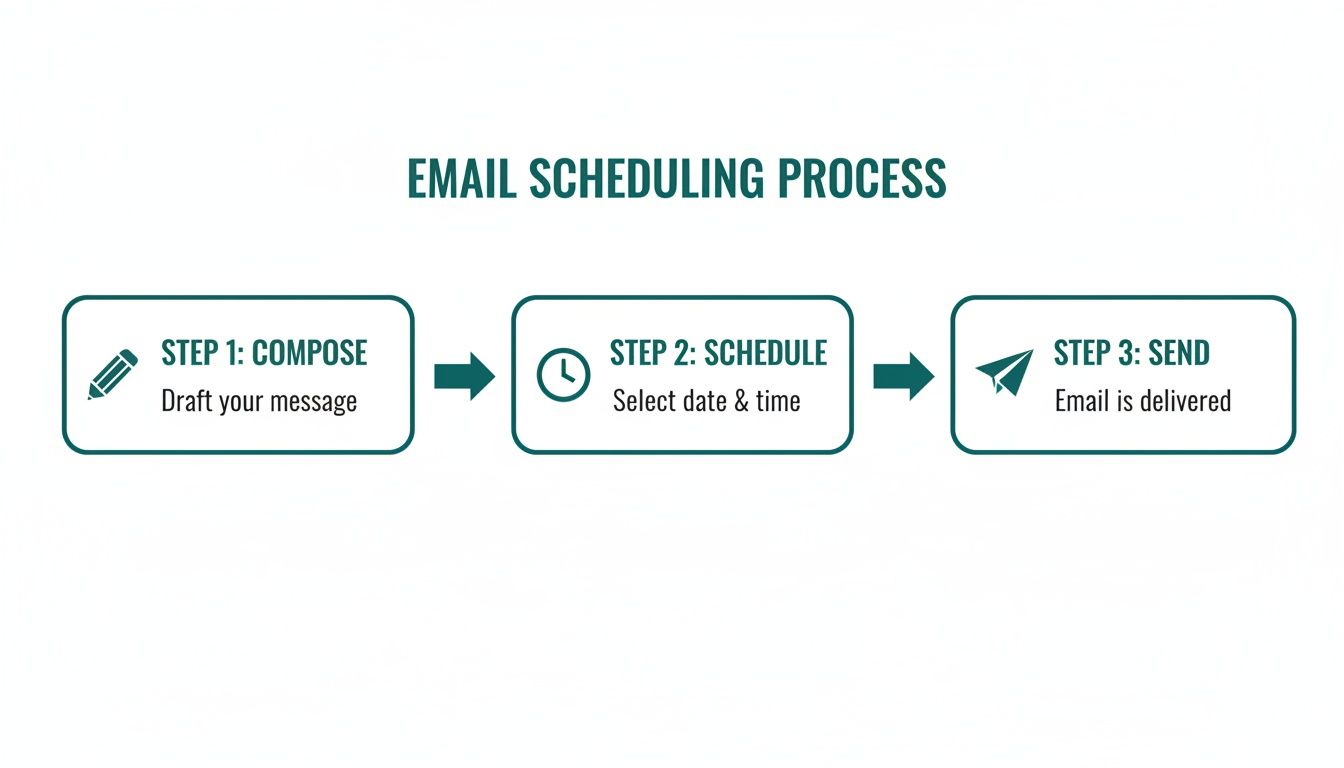 The key difference here is that while the process looks linear—compose, schedule, send—our script will put the last two steps on a repeating loop for you.
Your First Automated Email Script
Getting started might sound intimidating, but it's a lot simpler than you think. You definitely don't need to be a professional developer. We'll be using a straightforward script that you can just copy, paste, and tweak for your own needs.
First, you need to open the script editor. The easiest way is to just go to script.google.com. Or, you can open any Google Sheet and navigate to Extensions > Apps Script.
Once you have a new project open, you'll see a blank code file. This is where the magic happens. Paste this basic script in to get started:
function sendRecurringEmail() {
var recipient = "team@example.com";
var subject = "Weekly Project Update";
var body = "Hi Team,nnPlease remember to submit your weekly updates by EOD. Here is the link to the progress doc: [link]nnThanks!";
MailApp.sendEmail(recipient, subject, body);
}
This little script does one thing and does it well: it defines a function called sendRecurringEmail that sends a message with a specific recipient, subject line, and body content. Now, let's make it yours.
Customizing the Script and Setting a Trigger
The real power of Apps Script comes from making it your own. All you have to do is change the text inside the quotation marks to fit whatever you need to send.
recipient: Change"team@example.com"to the email address you're sending to. If you have multiple, just separate them with commas inside the quotes.subject: Swap out"Weekly Project Update"for your actual subject line.body: Modify the text to create your message. A little tip: thencreates a new line, which helps with formatting.
After you've customized the script, save your project. The final piece of the puzzle is telling Google when to run it. We do this with something called a "trigger." In the Apps Script editor, look for the clock icon on the left sidebar—that's the Triggers page. Click "Add Trigger" and set it up.
- Choose which function to run: Make sure
sendRecurringEmailis selected. - Select event source: Choose "Time-driven."
- Select type of time-based trigger: You can pick a "Week timer" (like, every Monday) or a "Month timer" (say, on the 1st of every month).
- Select time of day: Pick the time you want the email to fly.
Save the trigger, and you're all set. Google will now automatically run your script and send your email on the exact schedule you defined.
Weighing the Pros and Cons
Using Google Apps Script for automated emails in Gmail is a fantastic option, but it’s not for everyone. It's smart to know the trade-offs before you dive in.
The Good Stuff (Pros):
- It's Completely Free: No subscriptions, no hidden costs. It's already part of your Google account.
- Highly Customizable: You can get fancy and add logic to your script, like pulling data from a Google Sheet to personalize emails.
- Deeply Integrated: It’s a native Google product, so it works flawlessly within your account.
But, of course, there are a few downsides to think about.
The biggest hurdle with Apps Script is the initial setup and ongoing maintenance. If something breaks or you need to make a quick change, you have to dig back into the code. That can be a dealbreaker for non-technical users.
The Not-So-Good Stuff (Cons):
- There's a Learning Curve: Our example is simple, but anything more complex requires at least some basic coding knowledge.
- No Friendly User Interface: Managing your recurring emails means editing code and triggers, not clicking buttons in a nice, clean dashboard.
- Errors Can Be Cryptic: A small typo in the code or a change on Google's end can cause the script to fail, and you won't always get a clear error message telling you why.
For a deeper dive into other options, you can learn more about how to send recurring emails using Gmail and see which method fits your comfort level. Ultimately, Apps Script is a powerful DIY tool for anyone who values total control and doesn't mind a more hands-on approach.
Finding the Right Third-Party Automation Tool
Let's be honest. While Gmail's native options are handy, they often feel like two extremes. The "Schedule Send" feature is too simple for real automation, and diving into Google Apps Script can feel like learning a new language just to send a weekly report.
This is exactly where dedicated third-party tools shine. They offer that perfect middle ground: all the power you need, packaged in a way that anyone can use. Think of them as the ideal solution for setting up truly automated emails in Gmail.
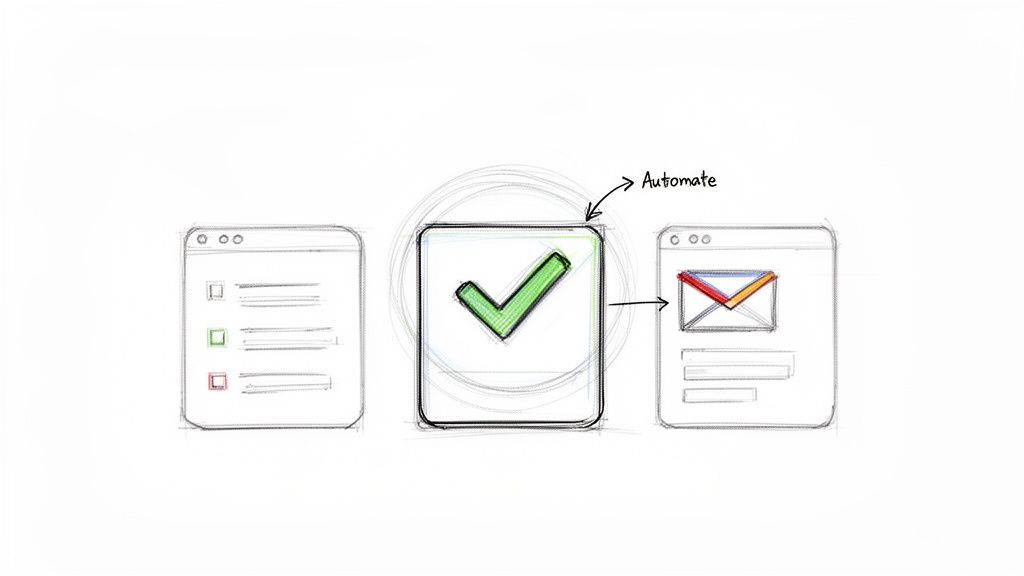 These apps are built to solve one problem and solve it exceptionally well: sending recurring emails without the fuss. No coding, no complicated setups. Just a clean dashboard where you can manage everything in a few clicks.
The Power of Small, Focused Tools
Not every automation tool needs to be a massive, all-in-one platform that tries to run your entire life. In fact, some of the best tools are the small, almost invisible ones that do one specific job perfectly and get out of your way.
Recurrr is a great example of this philosophy. It's a hidden gem designed to automate simple, repeating emails. There are no bloated features or confusing menus to navigate. You just connect your Gmail account, write your message, set a schedule, and let it do its thing. It's the perfect fix for sending monthly rent reminders, weekly team check-ins, or regular client follow-ups.
The real beauty of a tool like Recurrr is its focus. It’s not trying to be your all-in-one productivity suite. It’s an invisible tool—a small productivity hack that you can use in addition to your other apps to take one repetitive task off your plate.
When you're searching for the right tool, it can be helpful to see how different platforms stack up. Looking at comparisons like these Gorgias alternatives can give you a better feel for the market, even if they're geared more toward customer service automation.
Gmail Automation Methods Compared
With a few different paths to take, picking the right one really boils down to your technical comfort level and what you're trying to accomplish. To make it easier, I've put together a quick comparison of the three main approaches.
This table breaks down the key differences to help you see which method is the best fit for you.
FeatureGmail Schedule SendGoogle Apps ScriptThird-Party Tools (e.g., Recurrr)Recurring EmailsNoYesYesEase of UseVery EasyDifficultVery EasySetup TimeNoneModerate to HighLowCostFreeFreeSubscription-basedManagementSimple (in "Scheduled" folder)Complex (in script editor)Easy (on a dashboard)Best ForOne-off timed emailsTech-savvy users with custom needsEffortless, reliable recurring sendsAs you can see, while each option has its place, third-party tools offer the most balanced and user-friendly solution for recurring emails. They completely remove the technical headache of scripting while giving you the power that Gmail's built-in scheduler lacks.
It's also worth remembering the ecosystem you're working in. Google's anti-abuse systems are incredibly powerful, blocking more than 10 million malicious emails every single minute. When you send automated emails through a trusted service connected to Gmail, you're tapping into a platform where people are already used to machine-scheduled content, which helps explain why nearly 1 in 5 relevant messages get opened.
Why a Dedicated Tool Is Often the Best Choice
Choosing a dedicated app like Recurrr isn't just about convenience—it's about reliability and peace of mind. These tools are built and maintained by teams who are completely focused on making sure your automated emails go out on time, every single time.
Here are the biggest advantages:
- No Technical Headaches: You never have to look at a line of code or worry about a script breaking after an update.
- Simple Management: A central dashboard lets you see, pause, or tweak all your recurring emails in one spot.
- Advanced Scheduling: You get far more control, like sending an email on the "last Friday of the month" or "every two weeks on Tuesday."
- Dedicated Support: If something does go wrong, there's an actual support team ready to help you out.
For most busy professionals, freelancers, and small teams, the small monthly cost is an easy trade-off for the hours it saves and the problems it prevents. This approach lets you automate the task, not the relationship, ensuring your communication is always consistent and professional.
Best Practices for Effective Automated Emails
Great automation should feel helpful, not robotic. The whole point is to build a system that saves you time while still delivering clear, professional, and welcome communication. This means you have to think beyond just setting a schedule and consider the actual human on the other end.
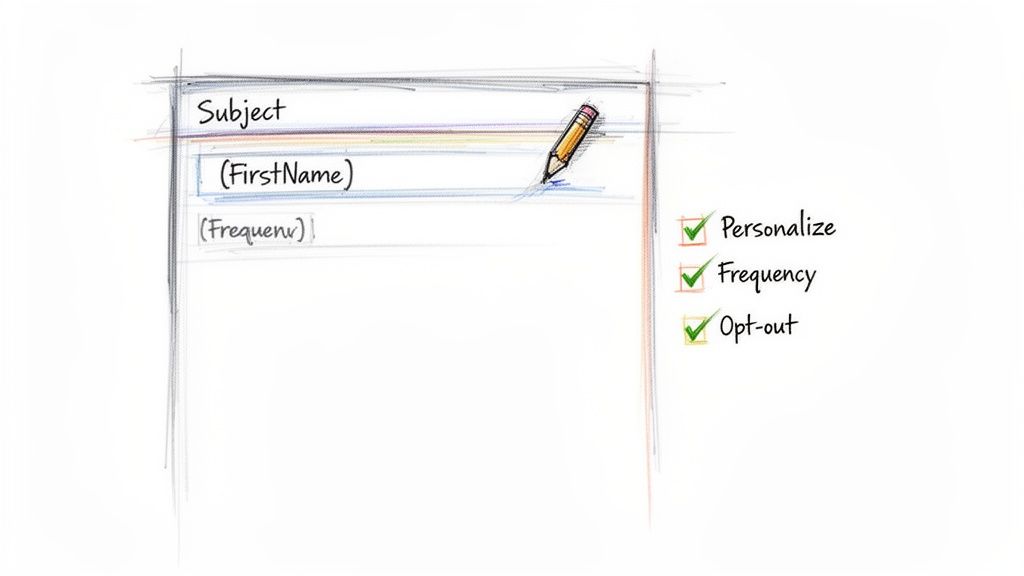 I've always found that the best approach is to automate the task, not the relationship. Your recurring emails should be just as thoughtful as the ones you type out by hand. Let's dig into what that actually looks like.
Personalize Where It Counts
Even a tiny bit of personalization can stop an automated email from feeling so generic. If your tool can handle it, using a dynamic field like {{first_name}} to greet the recipient is a small detail with a big impact.
But real personalization goes deeper than just a name—it's about context. Your message needs to be directly relevant to why they're getting it in the first place. A vague, one-size-fits-all email is a fast pass to the spam folder.
Nail the Subject Line and Preview Text
Honestly, your subject line is the most critical part of your email. It has one job: get the person to open it. When it comes to automated messages, clarity and predictability are your best friends.
Think about a weekly report email:
- Weak: "Update"
- Strong: "Project Phoenix Weekly Update for [Date]"
The second one instantly tells the recipient what's inside and why it matters to them. Never, ever underestimate the power of a clear, descriptive subject line.
The core principle is simple: Automate the task, not the relationship. Your automated messages should be consistent and reliable, but they should never feel like they were written by a machine for a machine. Every detail matters.
Find the Right Sending Frequency
One of the biggest mistakes I see with email automation is absolutely overwhelming people's inboxes. Just because you can send an email every single day doesn't mean you should. The right rhythm depends entirely on the context and what your audience expects.
- For Team Updates: Weekly is usually the sweet spot.
- For Client Invoices: Monthly is the standard.
- For Nurture Sequences: Every few days might work at the start, but you'll want to taper off.
A lot of well-run automated campaigns follow established sales cadence best practices to find a rhythm that feels genuinely helpful, not harassing.
Always Provide a Clear Opt-Out
This one is non-negotiable. Every automated email that isn't a direct, transactional message (like an invoice) must include an easy-to-find way for the recipient to unsubscribe. This isn't just good manners; it's a legal requirement under laws like CAN-SPAM and GDPR.
Hiding the unsubscribe link is a surefire way to get your emails marked as spam. That tanks your sender reputation and hurts the deliverability of all your messages, not just the automated ones.
Review and Refine Your Automations
Finally, your automated emails aren't something you can just "set and forget." You need to circle back and review them periodically to make sure they're still accurate, relevant, and doing their job. Check for outdated links, update project names, or tweak the timing based on feedback.
The email world is also changing fast. Gmail is being redesigned around AI, with Google rolling out a Gemini-powered "AI Inbox" to its 3 billion users. As the volume of email is expected to top 400 billion messages a day by 2027, the expectation for smart, context-aware communication will only get higher. Your automated messages need to be sharp to cut through that noise.
For more hands-on advice, check out our guide on how to send better emails that people actually want to open and read.
Your Top Questions About Gmail Automation
Once you start automating emails in Gmail, you'll naturally have a few questions. It's smart to get these sorted out before you dive in. Let's tackle some of the most common things people ask about security, deliverability, and pulling the plug on your automations.
Is It Safe to Give Third-Party Apps Access to My Gmail Account?
Yes, but you have to be smart about it. Stick with reputable, well-known tools.
The good ones connect to your account using Google's official API. This is a secure handshake where you grant them specific permissions—like "send email on your behalf"—without ever sharing your actual password. They never see it, and they don't store it.
You can always check and revoke these permissions anytime you want from your Google Account security page. Before you connect any new app, do a quick sanity check: look at their privacy policy and see what other users are saying in reviews.
Can My Automated Emails Get Marked as Spam?
Honestly, any email can land in spam, whether you sent it yourself or a tool did. The trick is to follow good email etiquette, which is just common sense, really.
- Don't send junk: Make sure your emails are actually useful to the person receiving them.
- Don't be annoying: Sending too many emails is the fastest way to get ignored or marked as spam.
- Have a clear subject: Weird, clickbaity subject lines are a huge red flag for spam filters.
- Watch your language: Avoid words that sound overly pushy or like a classic get-rich-quick scheme.
The good news is that using your own Gmail account with a trusted tool actually helps your emails land in the inbox. They’re coming from a source—your account—that already has a good reputation.
How Do I Stop an Automated Email Sequence?
This completely depends on the tool you used to set it up. Each method has its own "off" switch.
The real decider when choosing a tool is how easy it is to manage your automations later. A simple dashboard beats digging through code or folders every single time.
If you used Gmail's built-in "Schedule Send", you just go to your "Scheduled" folder and cancel it. Easy.
For a Google Apps Script, it's more technical. You have to open the script editor, find the "Triggers" page, and delete the specific trigger running the automation. It’s doable, but not exactly intuitive.
With a tool like Recurrr, you just log into your dashboard and pause or delete the schedule with a click. It’s by far the most straightforward way to stay in control.
Tired of sending the same messages over and over? Recurrr is the simple, powerful productivity hack that puts your routine emails on autopilot. Start automating your Gmail in minutes.