

That "queued" status sitting in your Gmail outbox can be maddening, but it's rarely a sign of a major problem. Most of the time, it's just a simple hiccup.
Think of it as Gmail's temporary holding area. It’s a digital waiting room for emails that can't be sent out immediately for one reason or another.
What Email Queued in Gmail Actually Means
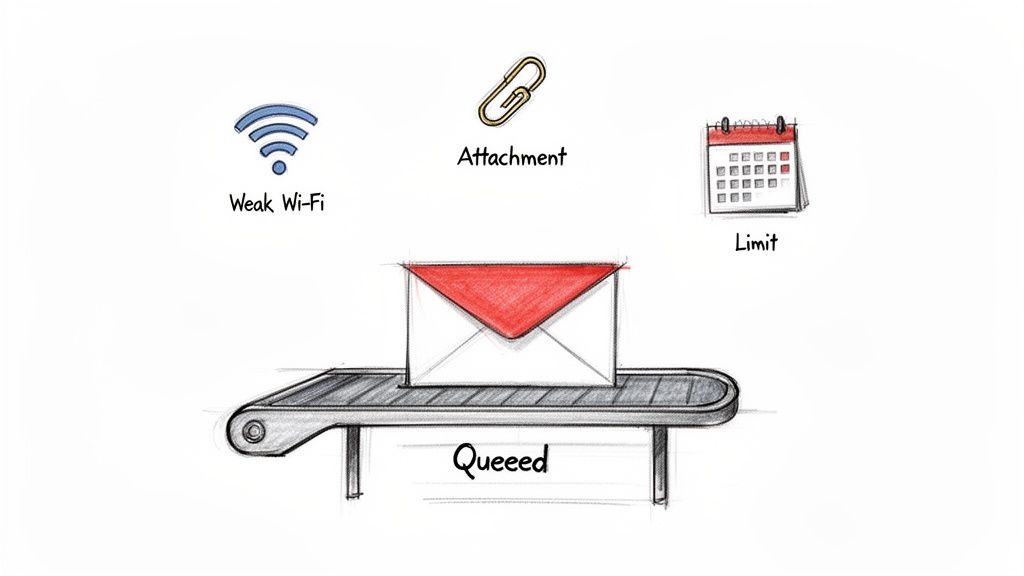 When an email is "queued," it's stuck in your Outbox, waiting for the green light to head to its destination. It hasn't failed, and it's not lost—it's just paused.
Imagine you’re a freelancer rushing to send a time-sensitive proposal to a new client. You hit "Send" and move on, only to check your phone hours later and see that dreaded "Queued" label. We've all been there. Understanding what's causing the delay is the first step to getting your message moving.
Common Causes Behind a Queued Email
The reasons your email is stuck in line can range from a spotty Wi-Fi connection to account-level restrictions. Thankfully, the fix is usually something you can do in a few seconds.
Here are the usual suspects:
- Connectivity Issues: Your phone or computer has a weak or non-existent internet connection, so Gmail can't talk to its servers.
- Oversized Attachments: You've tried to attach a file larger than Gmail's 25MB limit, and the email is stuck trying to process it.
- Sending Limits Exceeded: You've sent a lot of emails in a short time, and Gmail's anti-spam measures have put a temporary hold on your account.
- App Sync Errors: The Gmail app on your mobile device has lost its connection to Google's servers and needs a nudge to sync back up.
Gmail is an absolute workhorse, processing a mind-boggling 121 billion emails every single day for its 1.8 billion users. To manage that scale, they have strict daily sending limits—500 emails for free accounts and up to 2,000 for some Workspace plans.
If you hit that ceiling, your messages get queued. This isn't a small glitch; if you’re automating rent reminders or scheduling invoices, getting queued can mean delayed payments and annoyed clients, especially when over 20% of emails are opened within the first hour.
When Queuing Is Intentional
Interestingly, not all queuing is bad. Sometimes, you might do it on purpose.
Gmail's "Schedule Send" feature is a powerful tool that intentionally places your email in a queue. It lets you write a message now and have it delivered at the perfect time later. For a deep dive, check out our guide on how to send an email at a specific time in Gmail.
To help you get your email moving again, I've put together a quick cheat sheet. It covers the most common reasons for a queued email and the fastest way to fix each one.
Quick Fixes for Common Gmail Queued Email Causes
CauseQuickest SolutionWhy It WorksWeak Wi-Fi or Mobile DataToggle Airplane Mode on and off, or switch from Wi-Fi to mobile data (and back).This forces your device to establish a fresh, stable connection to the network.**Oversized Attachment (>25MB)**Remove the file and upload it to Google Drive, then share the link instead.Sending a link makes the email lightweight and bypasses Gmail's strict attachment limit.Daily Sending Limit ReachedWait 24 hours for the limit to reset before trying to send the email again.Gmail's limits are on a rolling 24-hour clock to prevent spam, so patience is key.App Sync Is DisabledGo to your phone's settings, find your Google account, and manually enable sync.This forces the Gmail app to communicate with the server and process the waiting Outbox.More often than not, one of these simple actions will solve the problem and get your email where it needs to go.
Your Action Plan for Fixing a Stuck Email
When a crucial email is stuck sitting in your outbox, it's incredibly frustrating. You need a straightforward, hands-on way to figure out what's wrong and get things moving again. Let's walk through the common culprits and fixes, starting with the simplest checks before digging into the more obscure ones.
 ### First Things First: Check Your Internet Connection
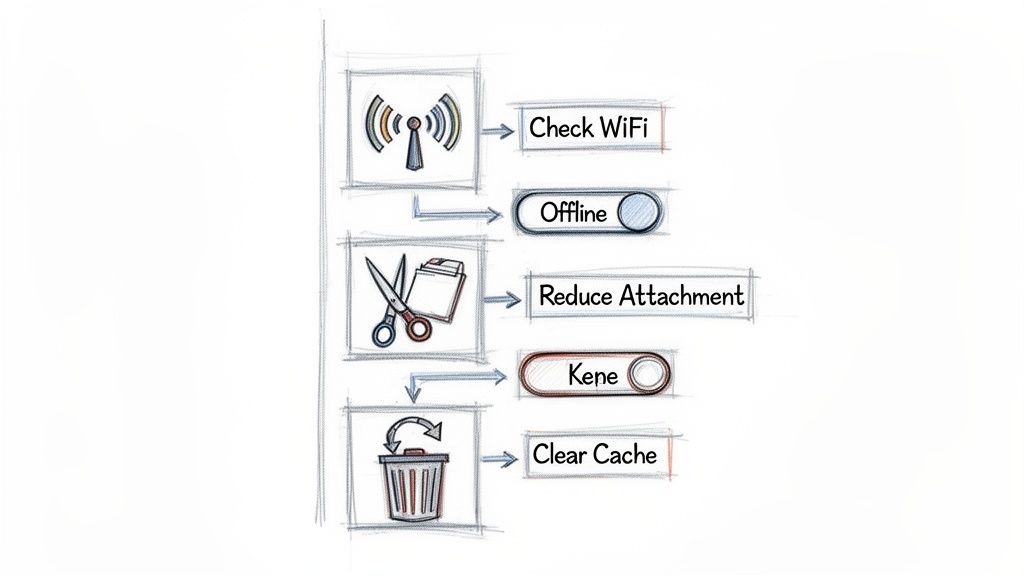
Nine times out of ten, a queued email is simply a victim of a spotty internet connection. Before you start poking around in Gmail's settings, this is your first and most important stop.
If you’re on your phone, the quickest fix is to toggle Airplane Mode on for about ten seconds, then switch it back off. This simple trick forces your phone to establish a fresh connection to your Wi-Fi or cellular network and often gives that stuck email the push it needs.
Is Gmail's Offline Mode Secretly Enabled?
Here’s one that catches a lot of people by surprise. Gmail has a handy offline mode that lets you read and reply to messages without an internet connection. But if it's accidentally turned on, your outgoing messages will just pile up in the outbox until you're back "online."
To check this on your computer:
- Click the gear icon in Gmail to open your settings.
- Select "See all settings."
- Head over to the "Offline" tab.
- Make sure the "Enable offline mail" box is unchecked.
If it was on, just disabling it and hitting refresh should be enough to send your email on its way. It's a less obvious setting, but it's a known cause of a stubborn queue.
Tackle Attachment and Storage Problems
If your connection is rock solid, the next place to look is the email itself. Specifically, you need to check its size and your account's storage. Gmail has a hard limit of 25MB for attachments. Try to send anything bigger, and that email is going to get stuck for good.
The best workaround here is to upload the hefty file to Google Drive or Dropbox. Instead of attaching the file, just paste the shareable link into your email. The email itself becomes tiny and will send in a flash.
The other roadblock is a full account. Gmail's free accounts come with 15GB of storage, which is shared across Mail, Drive, and Photos. Once you hit that ceiling, you can't send new emails—they just get queued. It's surprisingly easy to fill up, especially when you consider that 40% of consumers have at least 50 unread emails clogging up their space. With 1.8 billion users on the platform, that's a lot of potential storage jams.
Pro Tip: Need to clear out space fast? Pop
has:attachment larger:10Minto the Gmail search bar. This will instantly show you all emails with attachments over 10MB, letting you delete old, space-hogging messages.
For more insights into email delivery issues, check out this guide on understanding and fixing 'cleaned' email lists in Mailchimp. While it's a different platform, the core principles of troubleshooting delivery blocks are quite similar.
Last Resort: Clear the App Cache
Still stuck? If you're using the Gmail mobile app, a corrupted cache can sometimes mess with its ability to sync and send messages properly. Think of clearing the cache as a gentle reset for the app—it won't delete any of your emails or data.
On an Android device, you can usually do this by navigating to Settings > Apps > Gmail > Storage > Clear Cache. For iPhone users, the easiest method is to simply uninstall and reinstall the Gmail app. It might sound a bit drastic, but it's a quick and surprisingly effective fix for those persistent syncing problems that cause emails to get queued.
How to Proactively Avoid Future Email Queues
Fixing a stuck email is one thing, but making sure it never happens again is the real win. By building a few good habits into your daily routine, you can keep your Gmail running smoothly and your messages sending on time. It’s all about playing the long game to keep your workflow from hitting a snag.
Think of it like regular car maintenance—a little proactive care now prevents a major breakdown later. The same idea applies to your email. Keeping a close watch on a few key areas will save you the headache of ever seeing that "email queued" notification again.
Master Your Sending Habits
More often than not, a queued email is the result of bumping up against Gmail's sending limits. A free account lets you send up to 500 emails in a 24-hour period, but it's not just about the total number. Firing off a ton of messages in a short burst can trip spam filters and land your emails in a temporary holding pattern.
Here are a couple of simple adjustments to stay in the clear:
- Space Out Your Sends: If you're emailing a big list, don't blast everyone at once. Break your list into smaller batches and spread the sends out over a few hours.
- Embrace Scheduling: For anything that isn't time-sensitive, use Gmail's native "Schedule Send" feature. This is a great way to manage your sending volume and make sure your email lands in their inbox at just the right moment.
Want to get the most out of this feature? Check out our deep dive into the time-saving hacks of scheduling emails in Gmail. It’s a small tweak that can have a massive impact on your deliverability.
Keep an Eye on Storage and Attachments
Another silent killer of email sends is a full inbox. That free 15GB of Google storage is shared across Gmail, Drive, and Photos, so it can fill up a lot quicker than you realize. Once you hit that limit, Gmail will pump the brakes on sending any new mail until you clear some space.
Make it a habit to do a quick storage audit each month. It's easy. Just run a search in Gmail for has:attachment larger:10M to find the biggest files hogging your space. You'd be surprised how much room you can free up just by deleting old emails with massive attachments.
Key Takeaway: Treat your Google storage like a closet. If you don't clean it out every once in a while, you'll eventually run out of space. A quick monthly cleanup is all it takes to keep things moving.
And while you're at it, get smart about attachments. Instead of attaching files over 15-20MB directly, just upload them to Google Drive and pop the share link into your email. This keeps your message light and ensures it won't get stuck while Gmail struggles to process a huge file.
Practice Good Email Hygiene
Finally, a little bit of basic maintenance goes a long way. Make it a point to regularly clear your Outbox of any unsent messages. This prevents a logjam that can gum up the works for future emails.
On your phone, clearing the Gmail app cache every few months can also work wonders, ensuring the app runs smoothly and syncs properly.
And here's a pro tip: well-written emails are far less likely to get flagged by spam filters. Integrating a few professional email writing tips into your process can improve deliverability and reduce the chances of your messages getting stuck in the first place. By making these strategies a part of your routine, you can say goodbye to queued emails for good.
Using Gmail's Schedule Send Feature Intentionally
 So far, we've been treating a "queued" email like a problem that needs fixing. But what if you could flip that idea on its head and use the same principle to your advantage?
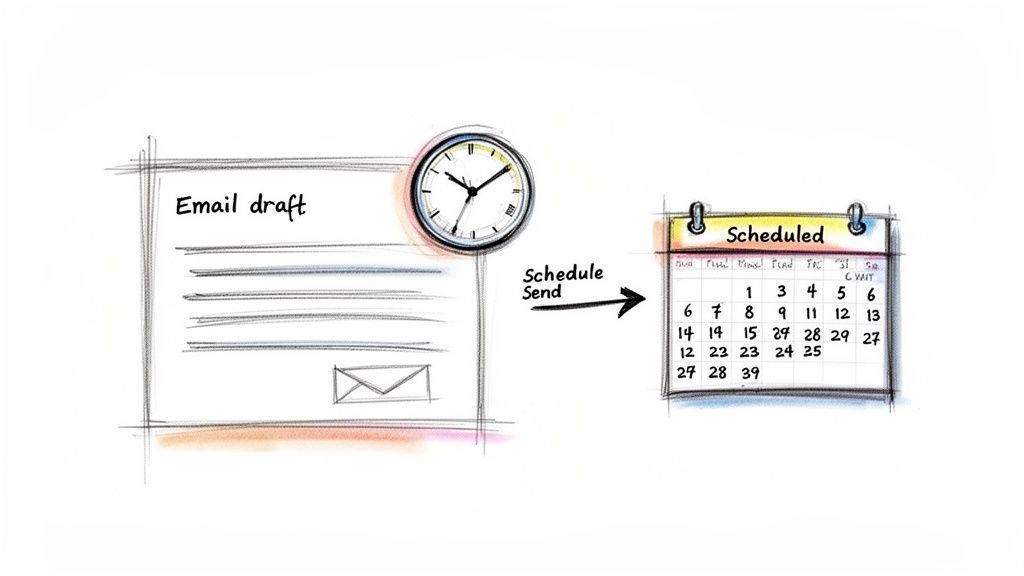
That’s exactly what Gmail’s "Schedule Send" feature lets you do. It intentionally places your emails in a queue, but this time, you're the one telling them when to leave. Instead of a frustrating accident, you're in complete control.
This reframes the whole "email queued in Gmail" issue from a bug into a seriously powerful productivity tool. You get to write emails whenever inspiration strikes and have them land in someone’s inbox at the perfect moment for maximum impact.
This little trick can be a game-changer. Imagine drafting a reply on a Sunday night but scheduling it to arrive at 9:00 AM Monday morning. You set a productive tone for the week without making it look like you're working on your day off.
Turning Queuing into a Strategic Tool
Using Schedule Send is refreshingly simple, and it works pretty much the same way whether you're on your laptop or your phone. After you’ve written your email, you just need to look for the little scheduling option right next to the big blue "Send" button.
On Your Desktop:
- Instead of clicking "Send," click the tiny down arrow right next to it.
- Choose "Schedule send" from the menu.
- Gmail will suggest a few times, or you can pick your own custom date and time.
On Your Phone (iOS or Android):
- Tap the three vertical dots in the top-right corner of the compose screen.
- Select "Schedule send" from the pop-up menu.
- Pick your desired delivery time.
Once you’ve scheduled it, your email doesn't just vanish. It moves into a special "Scheduled" folder. Think of it as your personal, managed queue. You can pop in there anytime before it's sent to change the time, edit the message, or just delete it altogether.
Real-World Scenarios for Scheduled Emails
The uses for intentionally queuing emails are practically endless. It’s perfect for respecting time zones, managing professional impressions, and even automating some of your routine communications.
Let's say you're a freelancer working with a client halfway across the world. By scheduling your invoice to land in their inbox first thing on their Monday morning, you not only look more professional but also boost the chances of getting paid promptly.
A manager could schedule a weekly team update to go out every Monday at 8:30 AM sharp. This guarantees everyone starts the week on the same page, and the manager doesn't have to scramble to remember it during their busiest morning.
This is more than just convenience; it's about smart communication. An email arriving at 3 AM gets buried. An email that pops up at the top of an inbox at 9 AM gets attention.
If you want to become a pro at timing your messages, you can learn more about how to send scheduled emails in Gmail and really master the feature. By taking control of the queue, you make it work for you.
A Smart Hack for Handling Recurring Emails
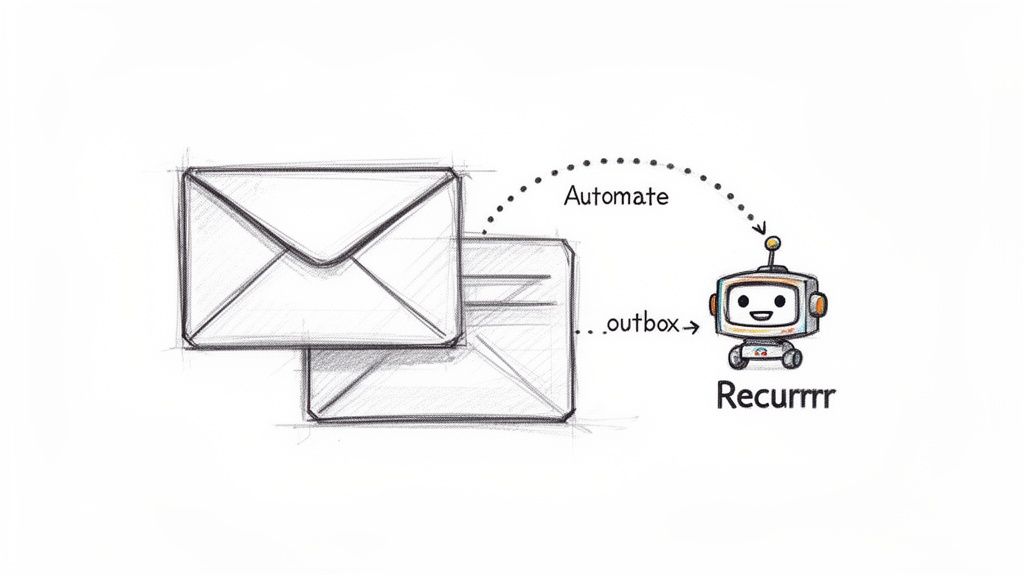 Gmail's "Schedule Send" feature is a lifesaver for one-off messages. But if you’re sending the same email over and over again, it just doesn't cut it. Think about all those recurring tasks: weekly project updates, monthly client invoices, or daily check-in reminders. Manually scheduling each one is not just a drag; it’s a recipe for mistakes.
This is where a simple productivity hack can completely change your workflow. Instead of getting stuck in a cycle of manual scheduling, you can use a dedicated tool to automate the whole process. The best part? It also helps you sidestep the common reasons your emails get stuck in a queue.
Introducing an Invisible Automation Tool
This is exactly why a tool like Recurrr exists. It’s not another bulky project management app you have to learn; think of it as a hidden gem or an invisible tool that works quietly in the background. It's a small productivity hack built for one single purpose: automating your recurring emails in addition to your other tools.
It sends these repetitive emails on your behalf without ever touching your personal Gmail outbox. This approach is a huge advantage. Because the emails are sent from a separate, reliable system, they aren't affected by local issues—like a spotty Wi-Fi connection or app sync errors—that cause your personal messages to get stuck.
Setting up a recurring email takes just a few clicks.
The interface is intentionally simple. You just define the recipient, subject, body, and the exact schedule—daily, weekly, monthly, you name it. It's a true "set it and forget it" model that puts your routine communications on autopilot, freeing you from a tedious, soul-crushing task.
Why This Sidesteps the Gmail Queue
When you use a separate service for these automated sends, you decouple them from the chaos of your personal Gmail account. This builds a much more reliable system for your most important communications.
Here’s exactly how it helps you avoid the dreaded "email queued" problem:
- Bypasses Local Connectivity: The emails are sent from a server, not your phone or laptop. A weak Wi-Fi signal at the coffee shop won't stop your invoices from going out.
- Avoids Outbox Jams: Since the messages never enter your personal outbox, they can't get stuck behind that massive file you're trying to send to a colleague.
- Manages Sending Volume: The service handles all the scheduling and sending, which helps you stay well under Gmail's daily sending limits for your manual emails.
By offloading your repetitive sends to an automated system, you not only save a ton of time but also build a more resilient communication workflow. It ensures your most consistent messages—like invoices and reports—are delivered on time, every time, without a hitch.
This small hack is all about working smarter, not harder. You can check out our full guide on how to send recurring emails to see how to apply this to your own routine. By automating these tasks, you can finally get back to focusing on the work that actually needs your brainpower.
Got More Questions About Queued Emails?
Even after you've tried the usual fixes, some specific questions about that pesky "email queued" message tend to linger. Let's tackle those head-on so you can get back to sending emails without a hitch.
Why Is My Email Queued if My Internet Is Fine?
It's a classic head-scratcher. You've got full bars, but your email is going nowhere. When your Wi-Fi isn't the problem, the issue is almost always something to do with the email itself or your Google account's status.
Take a look at these common culprits:
- A massive attachment: Gmail draws a hard line at 25MB. If your file is even a hair over, that email is staying put.
- Your Google storage is full: Remember, that free 15GB of space is shared across Gmail, Drive, and Photos. If it's maxed out, you can't send anything new until you make some room.
- You've hit the daily send limit: Blasting out more than 500 emails in 24 hours from a free account? Gmail will put a temporary hold on your sending privileges.
My advice? Check the attachment size first, then your overall Google storage. If both look good, a quick clear of your app's cache or a simple restart usually sorts things out.
How Long Will an Email Stay Queued?
This one really depends on why it's stuck. It could be a few seconds, a couple of hours, or in some rare cases, up to 48 hours.
If it's a simple connection drop, the email will whoosh out the second you're back online. If it's a temporary hiccup on Gmail's end (it happens!), things usually clear up within an hour or two.
But, if you've hit your daily sending limit, that email is camping out in your outbox until the 24-hour rolling period is over. No way around that one.
Here's the bottom line: A queued email is just waiting for the right condition to be met. Fix the root cause—bad connection, giant file, sending limit—and it'll almost always send immediately.
Can I Stop a Queued Email?
Absolutely. This is one of the small silver linings of the queued message. Since the email hasn't actually been delivered, it's still completely under your control, sitting patiently in your "Outbox" folder.
To cancel it, just find your Outbox (it's usually in the main menu of the Gmail mobile app). From there, you can open the message and either delete it or make changes—like yanking that oversized attachment—before trying to send it again. It’s a handy little window to catch a mistake before it lands in someone's inbox.
For those recurring emails you send—like weekly reports or monthly invoices—there's a better way to avoid the outbox trap altogether. Instead of relying on manual scheduling, let Recurrr take care of it. It’s built to automate your routine sends reliably, so you can truly set it and forget it. Check out a smarter way to handle your repeating messages at https://recurrr.com.