

Of course. You can absolutely set up a Gmail automated email using native features like Templates and Filters. For more complex recurring workflows, you can also pull in third-party tools. This is perfect for handling those repetitive tasks—like sending monthly invoices or weekly reminders—without lifting a finger.
Why Automating Gmail Is Your Secret Productivity Weapon
 Let's be real: your inbox is a major source of mental clutter. Manually sending the same client follow-ups, project check-ins, or monthly invoices is a massive drain on your focus and time. Setting up a Gmail automated email system is so much more than a simple time-saver; it’s a productivity powerhouse humming along silently in the background.
And this isn't some complex technical hurdle reserved for developers. It's a surprisingly accessible way for freelancers, small teams, and busy professionals to take back control. When you automate routine communication, you get rid of that nagging fear of missing an important deadline or forgetting a critical follow-up. Your inbox goes from a source of stress to a streamlined, reliable machine.
The True Impact of Email Automation
The perks of automation go way beyond just clearing your to-do list. You're creating a system that keeps your communication flawless and consistent, whether you're sending a daily report or a monthly rent reminder. This whole approach frees up precious mental energy for the work that actually matters—the creative, strategic stuff that drives your success.
The numbers don't lie. Automated emails sent through Gmail don't just work; they perform incredibly well. Routine messages see open rates hitting 19.2%, and they often drive 320% higher revenue compared to their non-automated counterparts. Since its launch back in 2004, Gmail's own features have helped people slash their daily email management time—a huge win when you consider the average professional gets over 120 emails a day.
Moving Beyond Simple Reminders
At the end of the day, automating repetitive tasks is all about building a more resilient workflow. Just think about the everyday scenarios where this could be a game-changer:
- Freelancers: Sending automatic invoice reminders to make sure you get paid on time.
- Project Managers: Firing off weekly status update requests to the team like clockwork.
- Property Managers: Sending out monthly rent collection notices without fail.
- Community Organizers: Announcing recurring meetings or events automatically.
By setting up these simple systems, you're not just sending emails. You're building a reliable operational backbone for your work—one that runs perfectly even on your most chaotic days. For a deeper dive into the core concepts, check out this comprehensive guide to automated email success.
Using Gmail’s Native Tools for Simple Automation
Before you start looking at third-party apps, it's worth getting the hang of the powerful tools already baked right into your Gmail account. You can actually build a surprisingly effective Gmail automated email system using just a few native features. The best part? It won't cost you a dime or require a complicated setup.
These built-in tools are perfect for handling simple, one-off automations and those repetitive messages that eat up your day.
 ### Mastering Schedule Send
The most basic of these is Schedule Send. Think of this feature as your personal timing assistant. Instead of blasting out an email at midnight when inspiration strikes, you can write it, schedule it, and have it land in their inbox right during business hours. This little trick massively increases the odds of your email getting noticed and acted upon.
It's a small productivity hack with a big impact. A project manager, for instance, can draft a Monday morning kick-off email on a Friday afternoon. This ensures the team gets the update first thing when they start their week, while the manager gets to unplug and enjoy their weekend.
Using it couldn't be easier:
- Compose your email like you normally would.
- Instead of hitting the big blue "Send" button, click the little arrow right next to it.
- Choose "Schedule send" and either pick one of Google's suggestions or set your own custom date and time.
This feature is a fantastic first step into the world of email automation. If you want to dig deeper into the strategy behind timing your messages, you can learn more about how to send a scheduled email in Gmail.
Combining Templates and Filters for True Automation
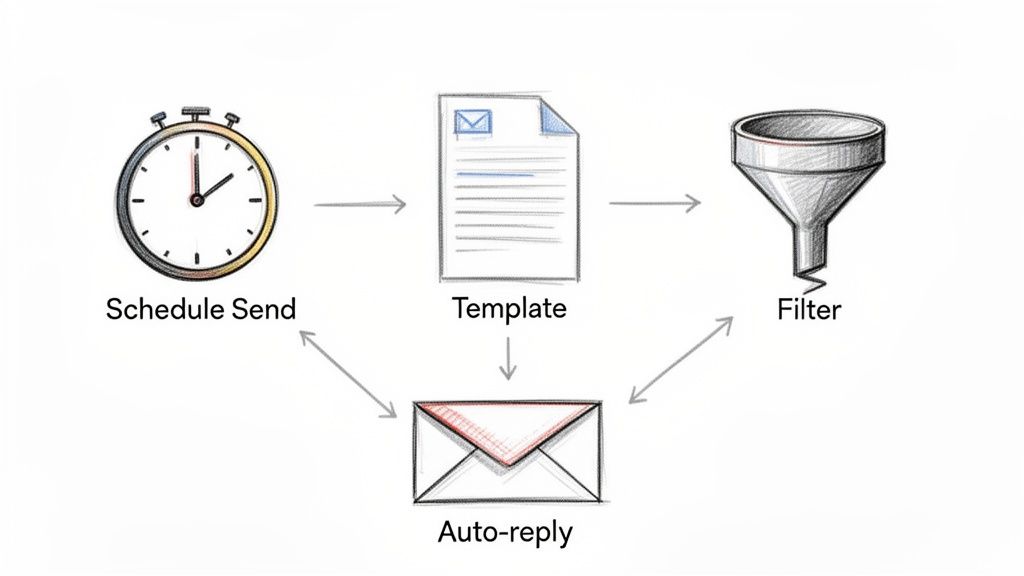
Now, this is where the real magic happens. By combining two other native features—Templates and Filters—you can move beyond simple scheduling and into true automation.
Templates, which you might remember as "Canned Responses," let you save pre-written emails. This is an absolute game-changer for anyone who finds themselves typing out the same replies over and over again.
First, you'll need to flip a switch to turn them on. Head to Settings > See all settings > Advanced, find "Templates," and click Enable. Once that's done, you can create and insert your saved messages right from the compose window. It's perfect for things like answering FAQs, sending welcome notes, or firing off standard project quotes.
The next step is to connect your templates to Filters. Filters are rules that scan your incoming emails for specific criteria—like who sent it, what's in the subject line, or certain keywords—and then automatically perform an action.
By linking a filter to a template, you can set up a system that automatically sends a specific reply when a certain type of email arrives. This is the core of native Gmail automation.
Let's say you're a freelance designer. You could create a filter that watches for any incoming email with the subject line "Service Inquiry." You then tell that filter to automatically reply using a template you've already written—one that includes your service brochure and a link to your booking calendar.
Here's how that simple workflow plays out:
- Trigger: An email lands in your inbox with the subject "Service Inquiry."
- Action: Your filter instantly spots it.
- Response: Gmail automatically sends your "Welcome & Brochure" template on your behalf.
With this setup, every new lead gets an immediate, professional response, even if you’re away from your computer. It’s a simple but incredibly powerful way to build your first Gmail automated email workflow.
Choosing Your Go-To Tool for Advanced Email Automation
At some point, the built-in features in Gmail just won't cut it. When your automation needs get more complex than a simple scheduled send or a basic template, it’s time to bring in the specialists. This is where you can build a truly hands-off Gmail automated email system that handles the heavy lifting without you having to think about it.
The good news is you don’t need some massive, complicated platform to make it happen. Often, the best tools are the ones built to do one thing exceptionally well. The right choice really boils down to what you’re trying to accomplish, how comfortable you are with a bit of tech, and how intricate your workflow needs to be.
For Complex Workflows Across Multiple Apps: Zapier
When you need to get your apps talking to each other, Zapier is the first name that comes to mind for a reason. Think of it as the universal translator for the internet, connecting thousands of different services. With Zapier, an action in one app (the "trigger") can kick off a reaction in another (the "action").
This is an absolute game-changer for workflows that rely on information from other places. Imagine you have a Google Sheet where you track new clients. You could build a "Zap" that watches for a new row to be added. The moment it appears, Zapier grabs the client’s info and fires off a personalized welcome email from your Gmail account.
That level of connectivity is incredibly powerful. Of course, it can be overkill if you just want to send a simple repeating email. For a deeper dive into connecting all the parts of your business, you can check out some of the best workflow automation tools available and see how they stack up.
For Simple, Reliable Recurring Emails: Recurrr
But what if you don't need all that complexity? What if your one and only goal is to send the exact same email on a rock-solid, repeating schedule? This is where a focused tool like Recurrr really shines.
Recurrr is one of those hidden gems that just works. It isn't trying to be an all-in-one project manager or a habit tracker. It’s a simple, invisible tool designed to do one job flawlessly: send recurring emails from your Gmail account. Its biggest advantage is its simplicity. You can set up a weekly team update, a monthly rent reminder, or a daily check-in email in just a couple of minutes, and it will run on autopilot forever.
Think of Recurrr as a small productivity hack you use alongside your other tools. It completely removes the mental load of remembering to send those critical, repeating messages, making sure they go out on time, every single time.
This makes it perfect for professionals who crave reliability without the headache. If you're a property manager, a freelancer chasing invoices, or a project manager sending status update requests, it’s a true set-it-and-forget-it solution.
For Total Customization (If You Can Code): Google Apps Script
For the tech-savvy folks who want ultimate control and aren't afraid to get their hands dirty with code, Google Apps Script is the final frontier. This is a JavaScript-based platform that lets you build completely custom solutions that tie directly into Google Workspace apps, including Gmail.
With Apps Script, the possibilities are practically endless. You could write a script that scans your inbox for specific attachments, pulls out the data, and automatically drops it into a Google Sheet. Or you could create a sophisticated follow-up sequence that adapts based on whether or not someone has replied. It's a path that offers limitless power, but it comes with a steep learning curve.
It's pretty amazing that this level of automation is even possible, and it’s a testament to the powerful infrastructure behind Gmail. For example, Gmail's AI blocks more than 10 million malicious emails every minute. That's a staggering 14.4 billion threats neutralized daily, ensuring your important automated messages have the best possible chance of landing in the inbox. You can find more cool facts about Gmail's security and usage on Email Analytics.
Choosing Your Gmail Automation Method
Deciding which tool to use can be tricky. Each one has its own strengths and is built for a different kind of user and a different kind of job. The table below breaks it down to help you find the perfect fit for your specific needs.
MethodBest ForEase of UseFlexibilityGmail Native ToolsSimple, one-off tasks like scheduling a single email or using a basic template.Very EasyLowZapierConnecting Gmail to other apps and creating complex, trigger-based workflows.ModerateVery HighRecurrrSending the same email on a repeating schedule (daily, weekly, monthly, etc.).Very EasyModerateGoogle Apps ScriptBuilding completely custom, code-based solutions with limitless possibilities.DifficultUnlimitedUltimately, the "best" tool is the one that solves your problem with the least amount of friction. If you just need to send a monthly report, a specialized tool like Recurrr is your fastest path. If you need to trigger emails from your CRM, Zapier is the answer. And if you're building a custom internal tool, Google Apps Script is your playground.
Real-World Automation Workflows You Can Build Today
Theory is great, but seeing a Gmail automated email workflow in action is what really makes it all click. Let's get our hands dirty and build a few tangible automation scenarios you can put to work right away. These aren't just abstract ideas; they're proven workflows I've seen people use to solve real problems and get their time back.
The secret to good automation is starting with a real pain point. Are you sick of chasing down late payments? Do you keep forgetting to send out that weekly project update? The first step is always to pinpoint the exact, repetitive task you want to get off your plate. Once you know the problem, you can pick the right tool for the job.
This diagram gives you a bird's-eye view of how different tools can fit into your process, whether you're sending a simple one-off email or setting up a more complex, recurring automation.
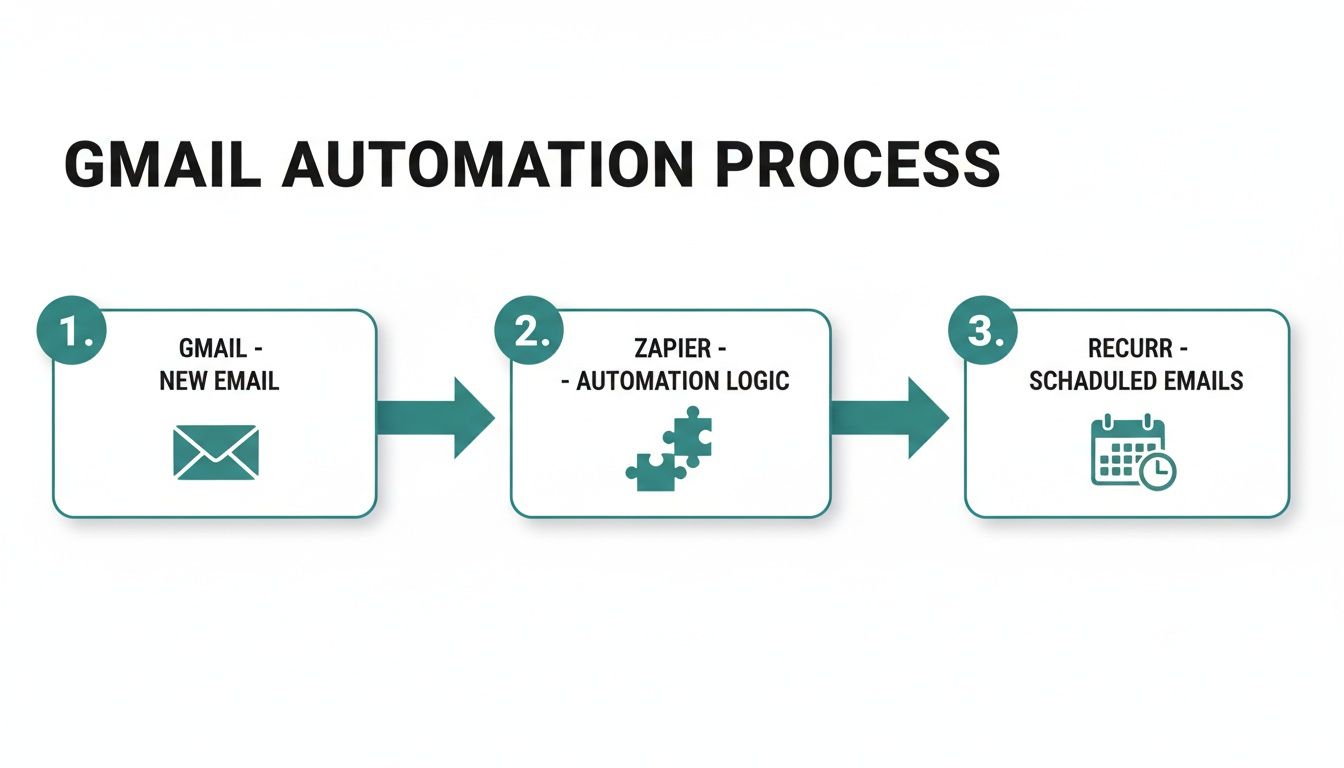 As you can see, each tool has its own specialty, whether it's connecting a bunch of different apps or just putting a simple recurring message on autopilot.
For Freelancers Chasing Invoices
If you're a freelancer, you know the drill. Sending invoice reminders is awkward, tedious, and something that's way too easy to let slip. This is a perfect job for a simple, focused automation tool.
- The Problem: Manually sending follow-up emails for unpaid invoices every single month is a chore. It’s a real drag and can even feel a bit awkward with clients.
- The Workflow: A freelancer can set up a recurring email using a tool like Recurrr to go out on the 28th of each month. The email is polite but firm, includes a direct link to the payment portal, and is sent only to clients with outstanding invoices.
- The Result: The freelancer gets paid faster without the uncomfortable back-and-forth. The system just works, running silently in the background and keeping cash flow steady without any manual intervention.
This set-it-and-forget-it approach turns one of the most dreaded admin tasks into a complete non-issue. It's a small change that saves a huge amount of time and mental energy.
For Project Managers Needing Status Updates
Project managers live and die by timely information. But nobody enjoys constantly prodding team members for their weekly updates—it can feel like micromanaging and just adds more noise to everyone's inbox. An automated prompt is a much more elegant solution.
- The Problem: The PM needs a consistent way to get weekly updates from the team without having to send manual reminders every single Friday.
- The Workflow: Using a tool like Zapier, the PM creates a "Zap" that runs on a schedule. Every Friday at 2 PM, Zapier automatically sends a personalized email from the PM's Gmail account to each team member. The email asks them to fill out a Google Form with their updates for the week.
- The Result: The team gets a predictable, friendly reminder, and the PM gets all the status updates in a clean, structured format. Communication is standardized, and the whole process becomes effortless.
Of course, if your needs are simpler and you don't need to connect multiple apps, you might want to look into a simpler alternative to Zapier for recurring emails that just focuses on the scheduled sending part.
For Property Managers Collecting Rent
For anyone managing properties, getting rent on time is non-negotiable. Automating rent reminders is a game-changer because it removes the risk of human error and makes sure every tenant gets a professional notice.
- The Problem: Manually tracking and sending rent reminders to dozens (or hundreds) of tenants is wildly inefficient and a recipe for mistakes.
- The Workflow: The manager uses a tool like Recurrr to schedule a rent reminder email for all tenants. The email is set to go out five days before the first of the month, clearly stating the due date and outlining the different payment options.
- The Result: Tenants get a consistent, professional reminder, which dramatically cuts down on late payments. The property manager saves hours of admin work every month and has a clear, documented communication trail for every tenant.
How to Keep Your Automated Emails Human
Getting a Gmail automated email system up and running is a massive productivity win. But there’s a catch: nobody likes talking to a robot. Automation should free up your time, not suck the personality out of your communication. The best systems feel genuinely helpful, not cold and distant.
The secret is to dial in on the small details that make a huge difference. These are the little human-centric touches that separate amateur automation from truly professional communication.
Simple Personalization Goes a Long Way
The absolute easiest way to make an automated email feel less robotic is to just use the recipient's name. It’s a tiny detail, but it instantly makes the message feel more personal and less like a generic blast.
Most of the more advanced tools—and even some of the simpler ones—let you use merge tags or variables (like {{first_name}}). These pull the recipient's name right into the subject line or the body of the email. It's a game-changer.
- Instead of: "Your Weekly Update"
- Try: "Hey Sarah, Your Weekly Update Is Here"
That simple switch can totally change how your message lands. And if you're using AI to help draft your messages, a critical step is bypassing AI detection and humanizing your content to make sure your tone feels completely authentic.
Always Test Your Workflows
This is my number one, non-negotiable rule: always test every single automated workflow before it goes live. A tiny mistake, like a broken merge tag, can fire off an embarrassing and unprofessional email like, "Hello {{first_name}}, your invoice is ready." Yikes.
My process is simple but it works every time. I just set up the automation to send a test email to myself or a colleague first. This lets me double-check everything:
- Formatting errors
- Broken links
- Incorrect personalization tags
- Awkward phrasing
Catching these little mistakes in a test run saves you from making a bad first impression on a client or confusing a team member. It's a five-minute check that protects your professionalism.
Review and Refine Regularly
Your automations aren't set-it-and-forget-it forever. It’s a smart move to review them periodically—maybe once a quarter—to make sure they still make sense and are doing their job. A message that was perfect six months ago might be totally outdated today.
Finally, don't ever forget about deliverability. Your brilliant, human-centric email is completely useless if it lands in the spam folder. Focus on writing clear, helpful subject lines and providing real value in the content. This is how you ensure your Gmail automated email consistently hits the primary inbox where it belongs.
Got Questions About Gmail Automation?
Once you start dipping your toes into the world of Gmail automated email workflows, a few questions always seem to pop up. It's totally normal. Think of this as your quick-reference guide for those little "wait, how do I…" moments that can trip you up.
I get these questions all the time, so let's tackle them head-on. Getting clear on this stuff from the start saves you a ton of headaches down the road.
Can I Automate Emails with Attachments?
Yep, you absolutely can. The "how" just depends on the tool you're using.
Gmail's own Template feature is a bit quirky here—it won't let you save an attachment directly. The classic workaround is to just link to your file in Google Drive. Upload the document, tweak the sharing permissions so your recipient can view it, and then pop that link into your template. Easy.
For a more seamless approach, you'll want to look at third-party tools. They're built for this stuff.
- Zapier: Lets you build workflows that automatically grab a file from a service like Dropbox or Google Drive and attach it to your outgoing email.
- Recurrr: When you set up a recurring email, you can upload files right from your computer. Recurrr will then include those attachments every single time the email goes out.
This is a game-changer for sending out things like monthly reports, weekly timesheets, or those standard onboarding documents you're tired of attaching manually.
Are Third-Party Automation Tools Secure?
That's a great question, and one you should always ask. The short answer is yes, as long as you stick with reputable tools.
Legit services use Google's official API for authentication, which is a fancy way of saying they use a secure process called OAuth. You're not actually giving them your password. Instead, you're granting them specific, limited permissions—like "send emails"—through a secure Google sign-in window.
Always, always review the permissions an app asks for before you click "Allow." A tool that just sends emails on your behalf has no business needing access to your contacts or calendar. Stick with well-known providers that are transparent about their security.
What If I Need to Pause a Recurring Email?
Life happens. Projects get delayed, people go on vacation, and sometimes you just need to hit the pause button on an automation.
Most dedicated recurring email tools get this and make it super simple. In a platform like Recurrr, for instance, you can pause any active schedule with a single click. When you're ready to start it up again, you just click to resume—no need to rebuild anything.
If you're using a more complex system like Zapier, you can just toggle the "Zap" off. For the native Gmail filter method, you'd have to go find the specific filter and delete it, which is a bit more of a hassle. Having that flexibility to pause and resume is key for managing your automations over the long haul.
Ready to stop sending the same messages over and over? With Recurrr, you can get your first automated email running in minutes and finally put those repetitive tasks on autopilot. Start automating your Gmail emails with Recurrr today.