

Ever wondered how to queue up an email in Gmail to send later? It's surprisingly simple. You just compose your message like usual, but instead of hitting "Send," you click the little arrow next to it and pick "Schedule send." From there, you can choose exactly when you want it to land in their inbox.
No special software, no complicated plugins. It's a native feature built right into Gmail.
Why Scheduling Emails in Gmail Is a Game-Changer
Before we get into the step-by-step, let's talk about why this is more than just a neat little trick. Mastering email scheduling fundamentally changes your communication from reactive to proactive. You’re no longer a slave to your inbox; you’re in control of the timeline.
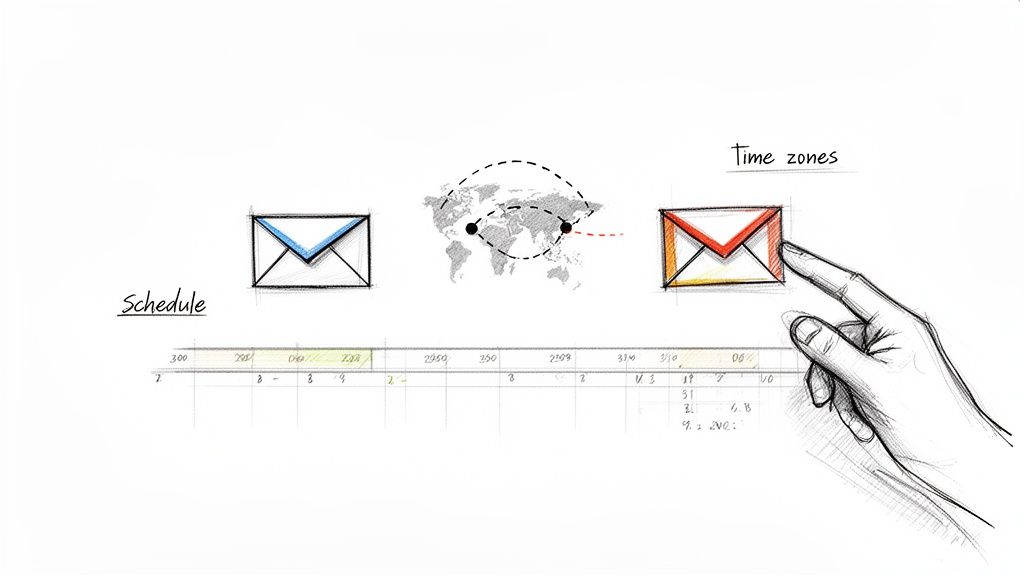 This is all about taking command of your workflow to get better response rates and maintain a professional rhythm, regardless of when you actually sit down to write.
For example, you can clear out your inbox on a Sunday evening, but schedule the replies to go out at 8:30 AM on Monday. You get a head start on your week without making it look like you work all weekend.
Real-World Scenarios Where This Shines
Imagine you're working with a client in a completely different time zone. Instead of firing off an email that buzzes their phone at 2 AM, you can schedule it to arrive right at the start of their business day. It’s a small touch, but it shows you respect their time and guarantees your message is at the top of their unread list.
Or think about sending an important proposal. By scheduling it to land on a Tuesday morning—often a peak productivity time for many—you boost the odds of it getting immediate attention instead of being lost in the Monday morning email avalanche. These are the kinds of tactical moves that separate amateurs from pros.
Scheduling isn't just about convenience; it's about strategic timing. A well-timed email can be the difference between getting a quick response and getting lost in the noise.
The Power of Batching and Timing Your Work
One of the biggest wins here is the ability to "batch" your email tasks. You can carve out a single block of time, knock out all your emails for the day or even the week, schedule them, and then get back to deep work without constant interruptions. It’s a great way to reclaim your focus.
The table below breaks down the immediate benefits you'll see once you start scheduling your Gmail messages.
Key Benefits of Scheduling Emails
BenefitImpact on Your WorkflowRespect Time ZonesCommunicate with global teams and clients without disrupting their off-hours.Boost Response RatesLand your message in their inbox when they are most active and likely to reply.Improve Work-Life BalanceWork when it suits you (like late at night) without creating an expectation of 24/7 availability.Batch Your TasksDedicate focused time to email and then move on, reducing context switching and distractions.Look More ProfessionalSend timely follow-ups and reminders automatically, appearing organized and on top of things.These small adjustments add up, making your communication far more intentional and effective.
Gmail officially added this feature back in April 2019, and it was a massive update. With studies showing that 55–85% of emails are opened on mobile devices, having this capability baked into the Gmail app was a huge win for anyone working on the go.
Ultimately, combining your knowledge of the best time to send an email to get a response with Gmail's scheduling tool is a one-two punch for better communication.
Scheduling Your First Gmail Message on Desktop
Ready to take control of your outbox? Let's walk through exactly how to schedule an email right from your desktop in Gmail. It's a surprisingly straightforward feature, but once you start using it, it quickly becomes a must-have in your daily workflow.
First thing's first: compose your email just like you always do. Pop in the recipient's address, craft a subject line, and write your message. But when you're done, don't hit that big blue "Send" button just yet.
Instead, look for the little down-arrow right next to it. That's where the magic happens.
Giving that arrow a click pops open a new menu with the "Schedule send" option. This simple move unlocks a whole new level of control.
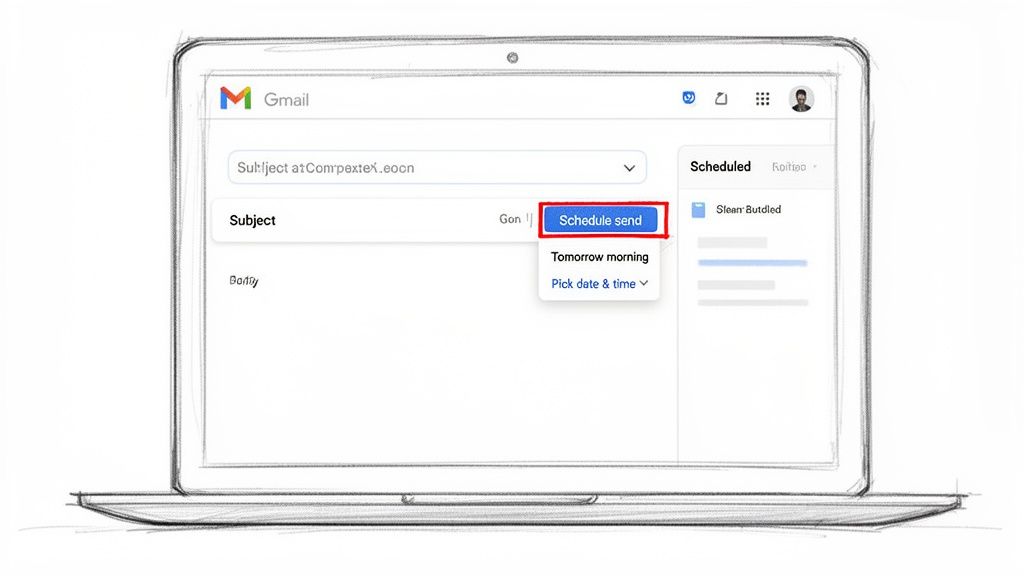 As you can see, Gmail tries to be smart about it, offering up common-sense suggestions like "Tomorrow morning" or "Monday morning." For a lot of quick tasks, these presets are perfect and save you a few clicks.
Choosing Your Perfect Send Time
Gmail's presets are great for common scenarios, but let's be real—most of the time, you need to be more specific. That’s where the “Pick date & time” option comes in.
Selecting this opens up a calendar and time-picker, giving you complete command over your send time. You can schedule a message to land in someone's inbox months from now, right down to the minute. Need a project update to hit your manager's inbox at exactly 9:05 AM next Tuesday? This is how you do it.
Once you've scheduled an email, the instruction is sent straight to Google's servers. That means your message will go out at the specified time whether your computer is on, off, or totally unplugged from the internet. You can set it and truly forget it.
This kind of precision is a game-changer. When you master how to send an email at a certain time in Gmail or Outlook, you can perfectly sync your communications with project deadlines, event announcements, or even personal things like birthday wishes.
Managing Your Scheduled Emails
What if you schedule an email and then realize you made a typo or need to change the time? No sweat. Gmail has you covered with a dedicated folder for all your outgoing, time-delayed messages.
Look over to the left-hand navigation panel and you'll spot a folder labeled "Scheduled."
Think of this folder as your mission control for pending emails. Inside, you’ll find a list of every message that's queued up and waiting to be sent. From here, you can:
- Review the content to double-check for any last-minute errors.
- Change the send time if plans shift.
- Delete the message completely if it's no longer relevant.
To make a change, just click on the email you want to adjust. In the top-right corner, you'll see a “Cancel send” button. Clicking this instantly turns the email back into a regular draft. From there, you can edit it, pick a new send time, or just delete it. It’s a handy safety net that ensures you’re always in control.
How to Schedule Emails on the Gmail Mobile App
Your work doesn't chain you to a desk, and neither should your email. Luckily, scheduling emails in Gmail is just as straightforward on your phone, whether you're team iPhone or Android. The steps are pretty much the same on both.
Fire up the Gmail app and compose your email like you always do—recipient, subject, body text, the whole nine yards. But before you reflexively tap that paper airplane icon to send it into the ether, pause. Look for the three vertical dots in the top-right corner of your screen. That's where the magic happens.
Tapping those dots pulls up a small menu. You'll see an option for “Schedule send.” This is exactly what you're looking for to time your mobile messages perfectly.
Navigating the Mobile Scheduling Interface
Once you tap "Schedule send," Gmail tries to make your life easier by offering a few presets, like "Tomorrow morning." These are surprisingly handy. Picture this: you're clearing out your inbox late on a Sunday night. A quick tap on "Tomorrow morning" makes sure your boss gets that update at a respectable 8 AM, not midnight.
Need more control? Just choose "Pick date & time." This brings up a familiar calendar and clock, letting you pinpoint the exact minute you want your email to land. It’s perfect for things like:
- Sending birthday wishes so they arrive first thing in the morning.
- Following up on a proposal at a pre-arranged time while you’re on the train.
- Firing off a team reminder exactly 15 minutes before the weekly sync starts.
The mobile interface is clean and built for speed. A few taps and you're done, letting you get back to your day in seconds.
Finding and Managing Mobile Scheduled Emails
Okay, so you’ve scheduled an email from your phone and now you have second thoughts. Maybe you spotted a typo right after you hit schedule. Don't sweat it. Finding and changing your scheduled emails is simple.
Just tap the three horizontal lines (the classic "hamburger" menu) in the top-left corner of the app. This slides out your main navigation panel. Scroll down a bit, and you’ll find the "Scheduled" folder, tucked in with your Inbox, Sent, and Drafts.
A lot of people wonder if their phone needs to be on for a scheduled email to actually send. The answer is no. Once you schedule it, Google's servers take over. Your email will go out at the designated time even if your phone is off, in airplane mode, or at the bottom of a lake.
Inside that "Scheduled" folder, you'll see a list of everything waiting to be sent. Tapping on any of them gives you a big, can't-miss option to "Cancel send." Hitting that instantly stops the send and moves the email back to your Drafts folder. From there, you can edit it, pick a new time, or just delete it. It’s total control, right from your pocket.
The Gmail Challenge with Recurring Emails
Gmail’s "Schedule send" is a fantastic little feature for one-off messages, but it has one massive blind spot: it completely drops the ball when it comes to repeating emails. You can schedule a single email with pinpoint precision, but if you want to send that same email again next week? You’re out of luck.
This is a huge frustration for anyone who needs to send the same thing on a regular basis. Think about it: a weekly performance report to your team every Friday at 4 PM. A monthly invoice reminder to a client on the 1st. With Gmail alone, these jobs stay stubbornly manual. You’re stuck having to remember, copy, paste, and reschedule the same message over and over again.
This flow is simple for a one-time send, but it's a dead end for anything that needs to repeat.
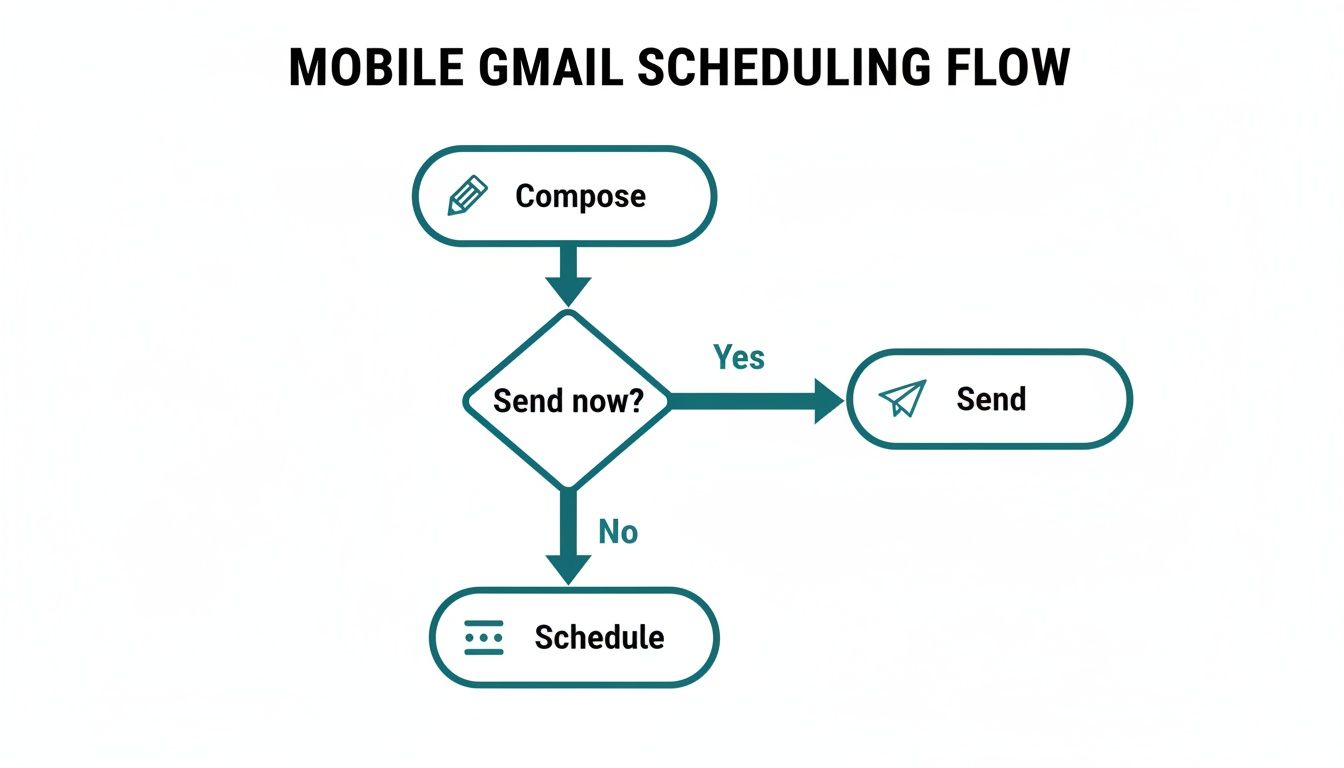 As the chart shows, your only options are "send now" or "schedule once." There’s no third door for setting up a repeating schedule.
Common Workarounds for a Native Limitation
Of course, resourceful people have cooked up a few ways to get around this. The problem is, they usually trade convenience for a lot more work or technical headaches.
Popular but Manual Methods:
- The Template and Remind Trick: This is the most common approach. You save your email as a template, then set a recurring reminder in your calendar. When the alarm goes off, you have to stop what you're doing, open the template, paste it into a new email, and schedule it. It works, sure, but it completely defeats the purpose of automation.
- Google Apps Script: If you're comfortable with a bit of code, you can write a script to send emails for you. This is a genuinely powerful solution, but it’s not for everyone. It requires technical know-how and you have to maintain the script yourself if anything breaks.
These clunky methods just scream for a simpler way. For anyone looking for the best way to send recurring email in Gmail without the manual grind or coding, a more direct solution is the answer.
Introducing a Smarter, Simpler Solution
This is where a small productivity hack can make a world of difference. Instead of trying to force Gmail to do something it was never designed for, you can use a simple, invisible tool that works right alongside it.
Recurrr is a hidden gem built to solve one very specific problem: automating recurring emails in Gmail. It’s not a giant project management suite or a habit tracker; it’s a focused tool that perfectly fills the gap Gmail left open.
You set up your recurring messages just once—daily, weekly, monthly, whatever you need—and let it run on autopilot.
While other comprehensive tools like Mailbutler, an ultimate email productivity tool, offer advanced features, they can be overkill for this one specific task. For pure, no-fuss recurring email automation, a dedicated tool is almost always the most efficient path. It’s all about finding the right tool for the job so you can get back to your real work.
Strategic Scheduling: The Art and Science of Timing
Knowing how to schedule an email in Gmail is one thing. Knowing when and why to do it is what separates the pros from the amateurs. A well-timed message can be the difference between getting an immediate reply and getting lost in the digital abyss of a crowded inbox.
Think of it this way: sending an email is a lot like starting a conversation. You wouldn't show up at someone's house at 3 AM to ask an important question, right? So why would you let your email land at that time? Scheduling lets you respect your recipient's work-life balance, even if you're burning the midnight oil.
A message that arrives at 9:15 AM on a Tuesday feels professional and intentional. That exact same message landing at 2:37 AM on a Sunday morning? It can come off as disorganized, or worse, demanding.
Nail Your Timing for Maximum Impact
When your message arrives has a massive influence on whether it gets read. You have to think about the daily rhythm of the person on the other end. Monday mornings are often a frantic game of catch-up, and by Friday afternoon, focus is already drifting toward the weekend.
The sweet spot is usually mid-week.
- Tuesdays, Wednesdays, and Thursdays: These are consistently the best days to send anything important. People have settled into their work week but aren't quite checked out yet.
- Mid-Morning (9 AM – 11 AM): This window is peak productivity for most. Your email shows up after they’ve had their coffee and cleared out the urgent stuff, making them more likely to actually read and respond to it.
- Early Afternoon (1 PM – 3 PM): This can also work well, catching people as they settle back in after lunch. Just try to avoid sending messages right at noon when a lot of people are on a break.
The data backs this up. With global email traffic expected to hit a staggering 376 billion emails per day by 2025, you have to be strategic. Scheduling your messages to land in those peak engagement windows—like mid-week mornings—is a proven way to get ahead of the noise.
Strategic Scheduling Is More Than Just Open Rates
Beyond just chasing higher open rates, you can use scheduling to manage your own workflow and come across as more organized and reliable. It’s a simple tool for staying on top of your game.
For instance, if you have a project update due by the end of the day, schedule it to send an hour before the deadline. It shows you finished the work with time to spare, not at the last possible second.
Pro Tip: Make it a habit to check your "Scheduled" folder first thing in the morning. This five-second check can help you catch an email that's no longer relevant or needs a quick edit before it goes out. It's a simple trick that has saved me from some potentially awkward situations.
Of course, timing is only part of the puzzle. Nailing the content of your message is just as important. For a deeper look into that, check out these tips for boosting email open rates by writing better subject lines and copy.
By being more deliberate about when your emails arrive, you won’t just get more replies—you’ll build a reputation as a thoughtful and professional communicator. For more advice on crafting messages that get noticed, see our guide on how to send better emails.
Troubleshooting Common Gmail Scheduling Issues
Even the best tools hit a snag every now and then. While Gmail's scheduling feature is usually rock-solid, you might occasionally run into a few quirks. Knowing what they are and how to fix them is the key to making sure your carefully timed messages always go out without a hitch.
One of the first questions people ask is, "What happens if my computer is off when the email is supposed to send?"
Good news: once you hit schedule, the command is sent directly to Google's servers. This means your email will be delivered right on time, regardless of your device's status. It doesn't matter if your laptop is on, off, or totally disconnected from the internet.
Another common sticking point is trying to edit an email that's already waiting in your 'Scheduled' folder. If you try to jump in and edit it directly, you’ll probably just get an error message. The right way to do it is to open the email and click “Cancel send.” This immediately turns it back into a regular draft, where you can make your changes and then schedule it all over again.
Handling Failed Sends and Deliverability
What if a scheduled email fails to send? It’s rare, but it can happen. This is usually due to a temporary server issue on Google's end or if the recipient's email address goes bad before the send time.
If a scheduled message fails, Gmail will almost always move it back into your Drafts folder and pop up an error notification. This gives you a clear signal to go in, fix the problem, and resend it.
For anyone sending a larger volume of emails, deliverability is a whole other ball game. Blasting out hundreds of messages at the exact same time can sometimes trip spam filters or run you up against Gmail's daily sending limits (which is around 500 for a standard account).
A smart way to avoid this is to stagger your scheduled sends. Instead of dropping 100 emails right at 9:00 AM, schedule them in smaller batches every 15-30 minutes. This looks a lot more like natural human behavior to email providers and helps protect your sender reputation.
This isn't just a "nice-to-have" practice anymore; it’s becoming essential. Scheduled sending is now a core part of staying compliant and ensuring good deliverability. As major providers like Google tighten their rules—for instance, automatically classifying anyone sending 5,000 or more messages in a day as a bulk sender—staggering your sends has become standard procedure.
This simple technique helps you stay within technical limits and, just as importantly, meet the expectations of modern inboxes. You can get more of the nitty-gritty details on these updated policies by exploring the new guidelines for Gmail senders.
Got Questions About Scheduling Emails in Gmail?
Even with a step-by-step guide, a few questions always pop up when you're getting the hang of a new feature. Let's tackle some of the most common ones I hear, so you can start scheduling messages like a pro.
Can I Edit an Email After I’ve Scheduled It?
Yes, you absolutely can! We all have that moment of panic right after hitting schedule, realizing we forgot an attachment or made a typo. Don't worry, Gmail makes this easy to fix.
Just head over to the "Scheduled" folder in the left-hand menu of your Gmail account. Find the email you want to tweak, click on it, and you'll see a "Cancel send" button at the top. Clicking that pulls the email right out of the queue and turns it back into a simple draft. From there, you can edit away and reschedule it for the right time.
What Happens if My Computer Is Off or I Lose Internet?
This is one of the best things about Gmail's scheduling feature—it's completely cloud-based. Once you schedule an email, the command is sent directly to Google's servers. They handle the rest.
Your email will go out at the exact time you picked, whether your computer is on, off, or halfway across the world. You can literally schedule a week's worth of emails, shut your laptop, and go on vacation without a second thought.
Your scheduled emails live on Google's servers, not on your local device. This is what makes it a true set-it-and-forget-it system. You never have to worry about your own connection or computer status getting in the way.
Is There a Limit to How Many Emails I Can Schedule?
There is, but it's pretty generous. Gmail lets you have up to 100 scheduled emails queued up at any one time.
For most of us, that's more than enough breathing room for planning out communications. If you're a power user and somehow hit that limit, you'll just need to wait for a few of the earlier messages to be sent before you can add more to the queue. It's a simple cap and totally separate from Gmail's daily sending limits.
While Gmail's tool is fantastic for one-off scheduled sends, you'll notice it can't handle recurring emails—like those weekly reports or monthly client check-ins. For that kind of true, hands-off automation, a dedicated tool like Recurrr is the hidden gem you need. It's a simple but powerful hack that fills this gap perfectly, letting you put your repeating emails on complete autopilot in just a few seconds. See how it works at https://recurrr.com.