

We've all been there. You see the same email pop up in your iCloud inbox again... and again. It’s not just a small glitch; it's a genuine productivity killer. The heart of the iCloud repeat email problem usually comes down to sync errors between your Apple devices, turning what should be a seamless experience into a source of digital clutter and frustration.
Why iCloud Repeat Emails Are More Than Just an Annoyance
An occasional duplicate message is one thing, but it's a whole different story when your iPhone, Mac, and iPad all start echoing the same email. This isn't just about a messy inbox. For many of us, it shakes our confidence in a system we rely on for everything, making us second-guess if our messages are even being sent and received properly.
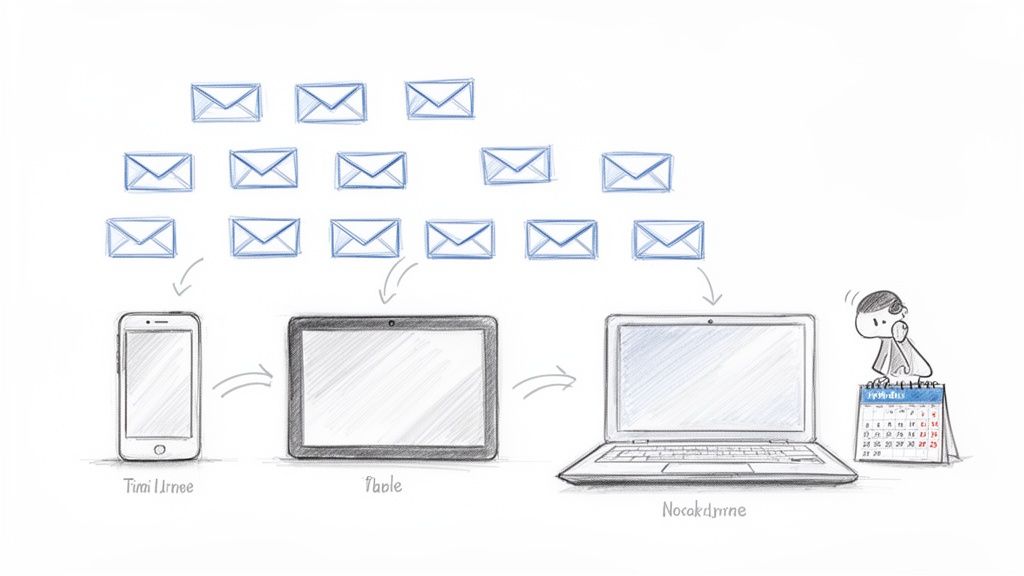
This kind of thing impacts everyone, from freelancers who need crystal-clear client communication to parents just trying to coordinate family schedules. The constant pings and the manual chore of deleting the same email three times over drain your time and mental energy.
The Daily Grind of Digital Déjà Vu
The issue is far more widespread than you might think. Believe it or not, some studies show that 68% of Mac users in professional roles deal with repeat email notifications at least once a week. These problems are often pinned on sync failures when you're pulling multiple accounts into Apple Mail's "All Inboxes" view. If you're curious, you can find more insights about the common pitfalls of iCloud Mail for Mac users and see just how common these sync headaches are.
This constant digital echo creates very specific, and very real, problems for people.
This table breaks down how the duplicate email problem creates specific challenges for different types of users in their day-to-day routines.
Real-World Impact of iCloud Repeat Emails
| User Profile | Primary Challenge | Productivity Impact |
|---|---|---|
| Freelance Designer | Missing critical client feedback among duplicates. | Wasted time sorting through redundant emails instead of focusing on creative work. Can lead to missed deadlines. |
| Project Manager | Confusion over whether a team update was sent multiple times or is just a sync error. | Leads to unnecessary follow-ups and erodes clear communication within the team. |
| Busy Parent | Important school notifications get buried in a flood of identical alerts. | Increased mental load and the risk of missing key information about appointments or events. |
At the end of the day, these seemingly minor glitches add up to significant wasted time and energy.
This digital déjà vu creates a few key headaches:
- Lost Focus: Every duplicate email is another distraction that pulls you away from what you're actually trying to accomplish. That time spent playing "spot the original" really adds up.
- Communication Chaos: For teams and families, it sparks confusion. Did my colleague really send that reminder twice, or is my inbox just acting up? That little seed of doubt slows everything down.
- Digital Fatigue: A phone that won't stop buzzing with the same notification is a recipe for burnout. An inbox that feels out of control is just plain stressful.
The real problem with repeat emails is the breakdown of reliability. When you can't trust your inbox to just work, you end up spending more time managing your tools than doing your actual work.
The good news is that the "iCloud repeat email" problem is fixable. Once you understand the root causes—which are almost always sync conflicts between devices—you can start putting practical solutions in place. This guide will walk you through the exact steps to get your inbox back under control and set up reliable, automated messages across your Apple ecosystem.
You don't actually need a fancy third-party app to set up recurring emails with iCloud. Your Apple devices come with a powerhouse tool that’s perfect for the job: the Shortcuts app. It’s built right into iOS and macOS, and with a little setup, you can create your own automated email system.
The whole thing works in two parts. First, you build a "shortcut" that basically tells your device what the email should say and who it goes to. Then, you create an "automation" to tell that shortcut when to run. Think of it as writing the email once, then setting a recurring alarm to send it for you.
Crafting the Email Shortcut
Let's start by building the email template itself. This is the reusable part of your setup.
- First, open up the Shortcuts app on your iPhone, iPad, or Mac.
- Tap the
+icon to create a brand new shortcut. - In the search bar, look for the "Send Email" action and add it to your workflow.
- Now, fill in the details—the To, Subject, and Body fields. This is where you write the actual email. For example, if you send a weekly status report to a client, you'd put their address in "To" and type out the template in the body.
- Tap the little "Show More" arrow. This is important. You can set the "From" address to make sure it’s coming from your iCloud account.
- Here’s the key for true automation: find the "Show Compose Sheet" toggle and turn it off. If you leave this on, your device will pop up a confirmation window every single time, which defeats the purpose of a hands-off system.
- Finally, give your shortcut a clear name, like "Weekly Client Update," and hit save.
You’ve just created a one-tap action to send a pre-written email. Now, let’s put it on a schedule.
Putting Your Shortcut on a Recurring Schedule
This is where the real magic happens. We’ll use the "Automation" feature in Shortcuts to trigger your email on a specific day and time.
Head over to the Automation tab within the Shortcuts app and tap to create a New Automation (sometimes called Personal Automation).
You'll be asked to choose a trigger. Pick "Time of Day" or "Day of Week" for this. You can then set the exact schedule you need—say, every Friday at 4:00 PM.
Next, you’ll add an action. Search for "Run Shortcut" and select the email shortcut you just made.
Before you finish, there's one last crucial step: make sure the toggle for "Ask Before Running" is switched off. This is what makes the automation truly automatic, so you don't have to approve it every single time it runs.
A quick heads-up: This method has one major limitation. It's completely dependent on your device. Your iPhone or Mac has to be on and connected to the internet for the automation to fire. If your device is turned off or in Airplane Mode, the email simply won't send.
This device-dependency is something to keep in mind, especially with how quickly the email world is changing. For instance, there's already buzz about how iOS 26's AI-powered inbox might handle things. It’s expected to launch in late 2026 and will likely categorize emails more aggressively, especially duplicates. This could potentially increase bounce rates by up to 37% for things like repeated promotional emails.
If you’re curious about what’s coming, you can read more about how Apple's iOS 26 will shape email marketing. It highlights why having a reliable sending method is becoming more critical than ever.
For the Mac Power User: Building a Custom Email Automation Engine
If you're someone who likes to get under the hood and build a more robust, custom solution, you can create a surprisingly powerful system right on your Mac. This method is for the true power user. We're going to link three native macOS apps—Mail, Calendar, and either Automator or AppleScript—to build a reliable, background automation.
It's definitely a more technical setup than using Shortcuts, but the payoff is a much higher degree of control over your recurring messages.
The concept is pretty slick. You create a recurring event in Calendar, and that event triggers a script or workflow you’ve built. This workflow then tells the Mail app to send a pre-written email. In essence, Calendar becomes your scheduler, and Automator or AppleScript becomes the engine doing the actual work.
Here’s a simple visual of how these pieces fit together to create the automation.
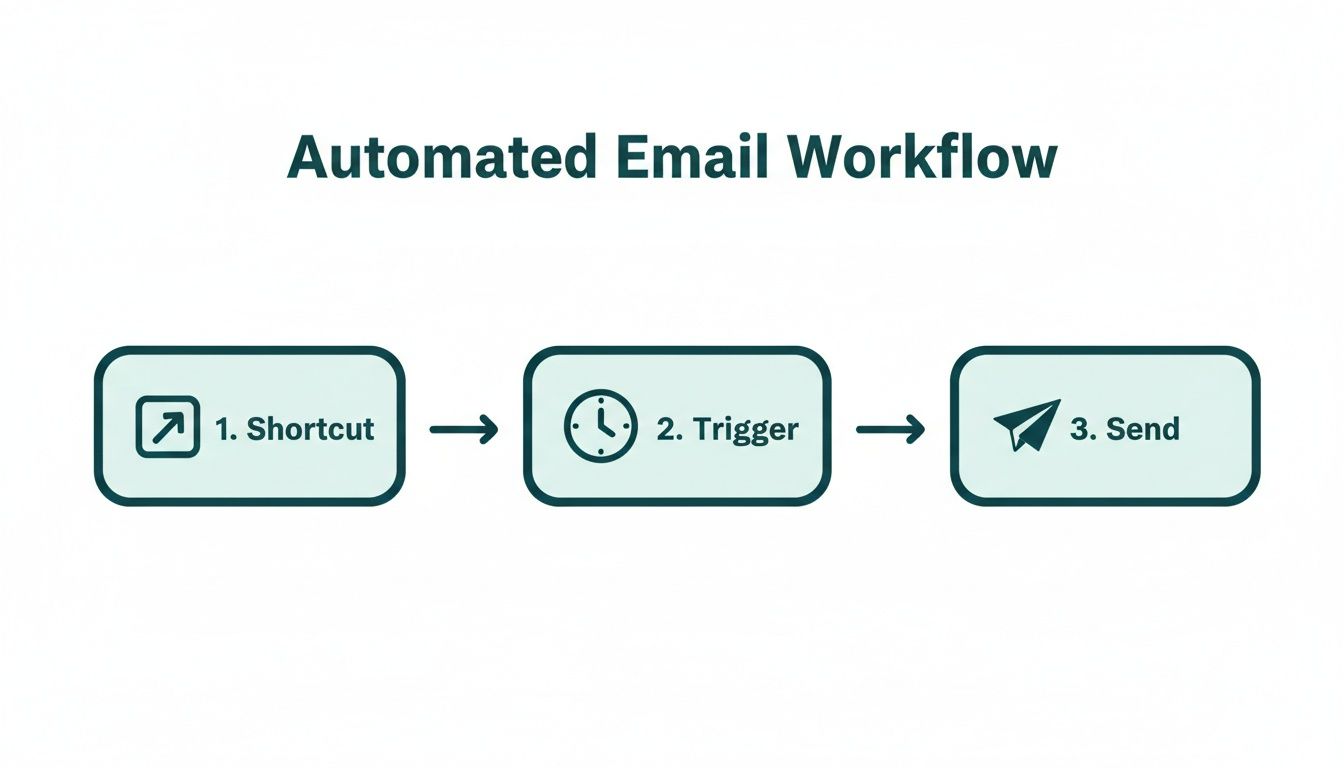
What you’re really doing is creating a chain reaction. One app hands off the task to the next, turning separate tools into one unified automation system.
The Tools for the Job
Before we jump into the how-to, let's get familiar with the components. This isn't just about setting an iCloud repeat email; it's about building a predictable, scheduled communication system from the ground up using tools you already have.
- Apple Mail: This is your sending vehicle. Your script will tell Mail exactly what to compose and who to send it to using your iCloud account.
- Calendar: This is your trigger. By setting up a recurring event—say, "the first Monday of every month"—you dictate the exact schedule your automation will follow.
- Automator or AppleScript: This is the brain of the operation. Automator offers a visual, drag-and-drop way to build workflows, while AppleScript is a full-fledged scripting language for those who want granular control and are comfortable with a bit of code.
For most people diving into this, Automator is the friendlier starting point. You can piece together actions like "New Mail Message" and "Send Outgoing Messages" without writing a single line of code.
A Practical Example: Sending Rent Reminders
Let’s say you manage a property and need to send a rent reminder on the 25th of every month. Doing this by hand is not only a chore but also easy to forget. This is the perfect job for an automated workflow.
You'd start by opening Automator and creating a new Calendar Alarm workflow. Inside, you'd drag in actions to define the email's recipient, the subject line ("Friendly Rent Reminder for Next Month"), and the body text. Once you save it, Automator automatically pops a new event into your Calendar app.
Next, you just hop over to Calendar, find that new event, and edit its settings. Set it to repeat monthly on the 25th day, and you're done. Now, as long as your Mac is on and awake, the Calendar alarm will trigger the workflow on that day each month, and Apple Mail will send the reminder for you. No intervention needed.
This approach effectively turns your Mac into a personal automation server. It's a fantastic example of how the deep integration within Apple's ecosystem lets you build powerful custom solutions that go far beyond what any single app can do on its own.
What to Keep in Mind
As powerful as this setup is, it does have a few quirks. The biggest one is that your Mac must be awake and connected to the internet for the automation to fire. If your computer is asleep, offline, or turned off when the Calendar event triggers, the email simply won't send. This makes it less than ideal for time-critical messages that absolutely must go out at a specific moment.
This method also requires a little bit of ongoing care. If you update macOS or change your iCloud password, you might need to pop back into your workflow or script to make sure everything is still working correctly. It’s a set-it-and-forget-it solution, but only after you’ve tested it and watched it run successfully for a few cycles.
For anyone who enjoys tinkering and building their own solutions, this is an incredibly rewarding way to manage recurring communications.
Troubleshooting Your iCloud Email Automations
Even the most carefully planned automation can hit a bump in the road. It's frustrating when your clever workaround for an iCloud repeat email doesn't fire, but don't worry—the fix is usually pretty simple. We'll walk through the common reasons why your automations might fail, from scheduled sends that never happen to emails getting stuck in limbo.
Most of the time, the problem isn't with your logic but with a simple setting, a sync conflict, or a misunderstanding of how these native tools work. A quick, systematic check will usually get your messages flowing again.
Why Your Automation Did Not Run
The most common complaint I hear is about a Shortcut that just... doesn't run. You set it up, the schedule looks right, but when the time comes, nothing happens. Before you tear it all down and start over, let's look at the usual suspects.
- "Ask Before Running" is Still On: This one gets people all the time. Dive back into your automation's settings in the Shortcuts app. If that "Ask Before Running" toggle is enabled, your automation is patiently waiting for you to tap a notification. For a truly hands-off system, you absolutely must turn this off.
- Notifications are Blocked: Your device relies on notifications to trigger background automations. If you have a Focus mode running that silences alerts from the Shortcuts app, it can prevent the trigger from ever firing.
- Your Device was Off or Offline: This is the big one. Whether you're using Shortcuts on your iPhone or the Mail/Calendar method on your Mac, the automation runs on that device. If your Mac was asleep or your iPhone was in Airplane Mode at the scheduled time, the email won't send. It's as simple as that.
A common misconception is that these iCloud automations are server-based. They aren't. The "cloud" is your email account, but the automation itself is tied to a physical device that needs to be awake and online to do its job.
Dealing with Sync Errors and Duplicates
Ah, sync issues. They're the bane of anyone living in a multi-device world. For families and professionals managing schedules across an iPhone, iPad, and Mac, duplicate notifications can become a real nuisance. Upcoming 2026 statistics actually suggest that 71% of Apple ecosystem users who rely on iCloud Mail for organization see duplicate alerts every week. This is often because cross-device syncing fails an estimated 22% of the time during busy periods. You can read more about these iCloud Mail account management and syncing challenges.
The best way to fight this is to simplify.
Pick one device to be the "master sender" for your automations—usually a Mac that's on most of the day is the best bet. Then, make sure you disable the exact same automation on your other devices. This simple change prevents your iPhone and Mac from trying to send the same email when a sync delay causes them both to fire at once.
A Simpler Way to Handle Recurring Emails
Let’s be honest, after diving into Shortcuts and AppleScript, you can see that setting up a recurring email with Apple’s own tools is possible, but it’s a real project. It requires some technical comfort and a willingness to tinker when things go wrong. If that doesn't sound like your cup of tea, there’s a much more straightforward way.
Sometimes, the best solution is an invisible tool that does one specific job perfectly. You don't always need a massive, all-in-one suite when a small productivity hack will solve the problem more efficiently. This is especially true for email automation, where a focused tool can be a game-changer for your workflow.
Introducing a Dedicated Alternative
This is where a service like Recurrr comes in. It’s a hidden gem built for one single purpose: sending recurring emails. It’s not trying to be your calendar, your to-do list, or your team collaboration hub. It’s a small productivity hack you can use in addition to your other tools. Think of it as a set-it-and-forget-it utility.
The real beauty is in its simplicity. You're not building multi-step automations or debugging a script. You won’t have to worry if your Mac is on and awake for an email to send. The whole setup process is incredibly quick.
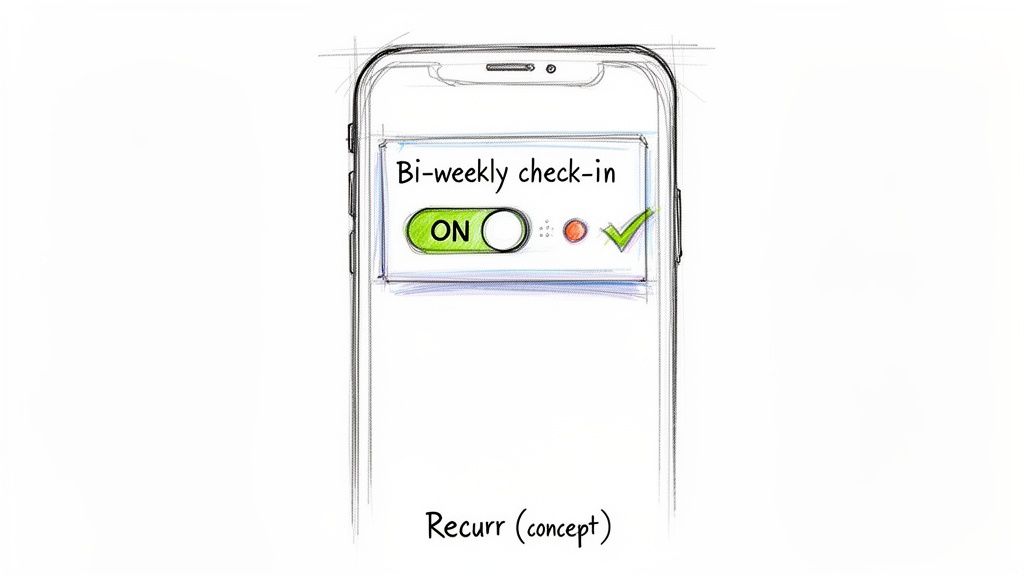
For that bi-weekly client check-in email we talked about, the process looks like this:
- Write the email once right in the app.
- Choose a schedule, like "every other Tuesday at 10 AM."
- Flip the switch to 'on', and that's it. The system takes over from there.
It's a world away from the manual setup and potential troubleshooting that comes with the native Apple workarounds.
The point of good automation is to free up your brainpower, not create another technical chore. A dedicated tool handles the building, testing, and maintenance for you, so you can actually trust that your messages will send on time, every time.
Get Your Time Back and Lower Your Stress
When you hand off a specific task like this, you remove a fragile link in your productivity chain. There’s no risk of a sync glitch between your iPhone and Mac causing an accidental iCloud repeat email, because the automation isn't even running on your devices. It’s a small shift that delivers a huge amount of peace of mind.
Ultimately, choosing a specialized tool is about reclaiming your time and mental energy. Instead of spending an hour wrestling with a complex setup, you can get the exact same result in just a few minutes. Then you can move on to the work that actually matters, knowing your recurring communications are completely handled.
Common Questions About iCloud Email Automation
Once you start digging into iCloud email automation, a few common questions always seem to pop up. You’ve seen the different ways to tackle it—from clever workarounds on your Mac to dedicated tools—but you might still have some lingering uncertainties. Let's clear those up with some straightforward answers.
Can I Set Up Recurring iCloud Emails Without Third-Party Apps?
Yes, you definitely can, but be prepared to roll up your sleeves. It's a more technical, hands-on process. If you're on a Mac, your best bet is to string together Calendar, Mail, and Automator (or AppleScript) to build a custom workflow. For both iOS and macOS, the Shortcuts app gives you a slightly more user-friendly path to creating a personal automation.
The big catch with both of these native methods is that they depend entirely on your device being on, awake, and connected to the internet when the email is supposed to send. This makes them a bit shaky for anything mission-critical and better suited for folks who just enjoy tinkering with their system.
What Causes My Automated iCloud Emails to Send Duplicates?
Nine times out of ten, duplicate emails are the result of an iCloud sync hiccup. It’s a classic timing issue. A momentary glitch can cause the automation trigger—like a scheduled Shortcut—to fire on your iPhone, Mac, and iPad all at once. The result? Three copies of the same email land in your recipient's inbox.
I see this happen most often when devices reconnect to Wi-Fi after being offline for a bit. It also seems more common if you use Apple Mail’s "All Inboxes" view, which is constantly pulling data from multiple sources and can create little timing conflicts.
What Is the Most Reliable Method for Important Recurring Emails?
When you’re talking about truly important messages—like monthly invoices to clients, weekly project reports, or critical reminders—you really can't afford to rely on a device-dependent automation. A dedicated third-party service is, without a doubt, the most dependable way to go.
These tools run on their own servers, completely separate from your personal devices. That means your emails go out right on schedule, whether your Mac is asleep or your iPhone is in Airplane Mode. It completely sidesteps the risk of sync errors and other device-related failures.
Will My Mac Automation Run if the Computer Is Asleep?
For the most part, no. An automation you build yourself with Mail, Calendar, and Automator needs your Mac to be fully awake and online to run the script. While newer macOS features like Power Nap can sometimes handle light background tasks while sleeping, they aren't consistent enough to be trusted with a complex workflow.
This is a huge limitation and one of the biggest differences between a DIY setup and a server-based solution that just works 24/7 without you having to think about it.
If you're looking for a simple, reliable way to automate your recurring emails without the technical headaches, Recurrr is the hidden gem you need. It’s a small productivity hack designed to do one thing perfectly, ensuring your messages are sent on time, every time. Learn more and reclaim your time at https://recurrr.com.