

When you smash that 'send' button but your message just sits there, stuck in your outbox, you've encountered the infamous mail queued in Gmail status. Don't panic. It just means your email is waiting in line to be sent out.
Most of the time, this is a temporary hold-up caused by simple things like a shaky internet connection, a massive file attachment, or you’ve just sent a few too many emails for the day. It’s usually a small hiccup that fixes itself once the coast is clear.
So, Why Is Your Mail Really Queued in Gmail?
Seeing "Queued" can be a real nail-biter, especially when you're up against a deadline. Think of Gmail's system as a massive, high-tech post office. It handles billions of emails, and yours is just one package zipping through the sorting facility.
Normally, the process is instant. But if there’s a problem—like a bad connection (a missing stamp), an attachment that's too big (an oversized box), or you've hit your daily sending limit (the mail truck is full)—your package gets set aside. It's put in a queue, ready to go as soon as the issue is resolved.
This whole process is designed to keep the system from breaking and to make sure emails actually get delivered. For anyone who relies on automation to send recurring emails—like a property manager using a small productivity hack like Recurrr for monthly rent reminders—understanding what triggers a queue is key. A delayed email can throw a whole automated workflow off schedule.
The Usual Suspects Behind a Queued Email
We'll dive deeper into each of these later, but a few common culprits are responsible for most queued emails. These can trip up anyone, from a casual user sending a few emails a day to a full-blown Google Workspace admin.
- Bad Connection: Your phone or computer has an unstable or nonexistent internet connection.
- Chunky Attachments: Your email and its files are bigger than Gmail's 25 MB limit.
- Sending Too Much: You've hit your daily email sending limit.
- Offline Mode is On: Gmail is set to hold onto emails and send them later.
It's easy to think a queued email is lost in the digital ether, but it's not. It's just paused. Gmail will automatically keep trying to send it for you once the roadblock is gone, whether that means you've reconnected to Wi-Fi or your daily sending limit has reset.
To put things in perspective, Gmail processes a mind-boggling 121 billion emails every single day for its 1.8 billion users. Those sending limits are a crucial line of defense against spam. A standard free Gmail account can send up to 500 emails per day, while Google Workspace users get a much higher cap of 2,000. Bumping up against this ceiling is one of the top reasons your outbound mail gets stuck in line.
And if you're holding messages back on purpose, you might find our guide on how to send scheduled emails in Gmail interesting, as it uses a very similar queuing system to work its magic.
To help you figure out what's going on at a glance, we've put together a quick diagnostic chart. This breaks down the most common reasons your email might be queued and who is most likely affected.
Quick Diagnostic Chart for Queued Gmail Messages
CausePrimary SymptomCommonly AffectsConnectivity Issues"Queued" status appears on mobile, resolves on Wi-FiAll users, especially on mobile devicesLarge AttachmentsEmail with files over 25 MB won't sendAll usersSending LimitsAll outbound mail is queued after sending many emailsUsers sending mass emails, marketing campaignsGmail Offline ModeEmails are held in the Outbox until you reconnectUsers who enabled this feature intentionallyScheduled SendEmail sits in the "Scheduled" folder with a future send timeUsers scheduling emails for later deliverySMTP/App IssuesEmails sent from third-party apps (like Recurrr) are queuedUsers and admins of automated systemsSpam/Security FlagsEmails with suspicious links or content are held for reviewAll users, especially those with new accountsThis table should give you a solid starting point. If your issue seems to be one of these common causes, you're already halfway to a solution.
Diagnosing the Common Culprits Behind Queued Emails
When your important message gets stuck, that "mail queued in Gmail" notification can be maddening. The good news? The cause is usually something simple. Think of it like a delivery truck hitting a temporary roadblock; once the path is clear, your email will be on its way. The first step is always to figure out what that roadblock is.
This quick decision tree can help you visualize the first things to check.
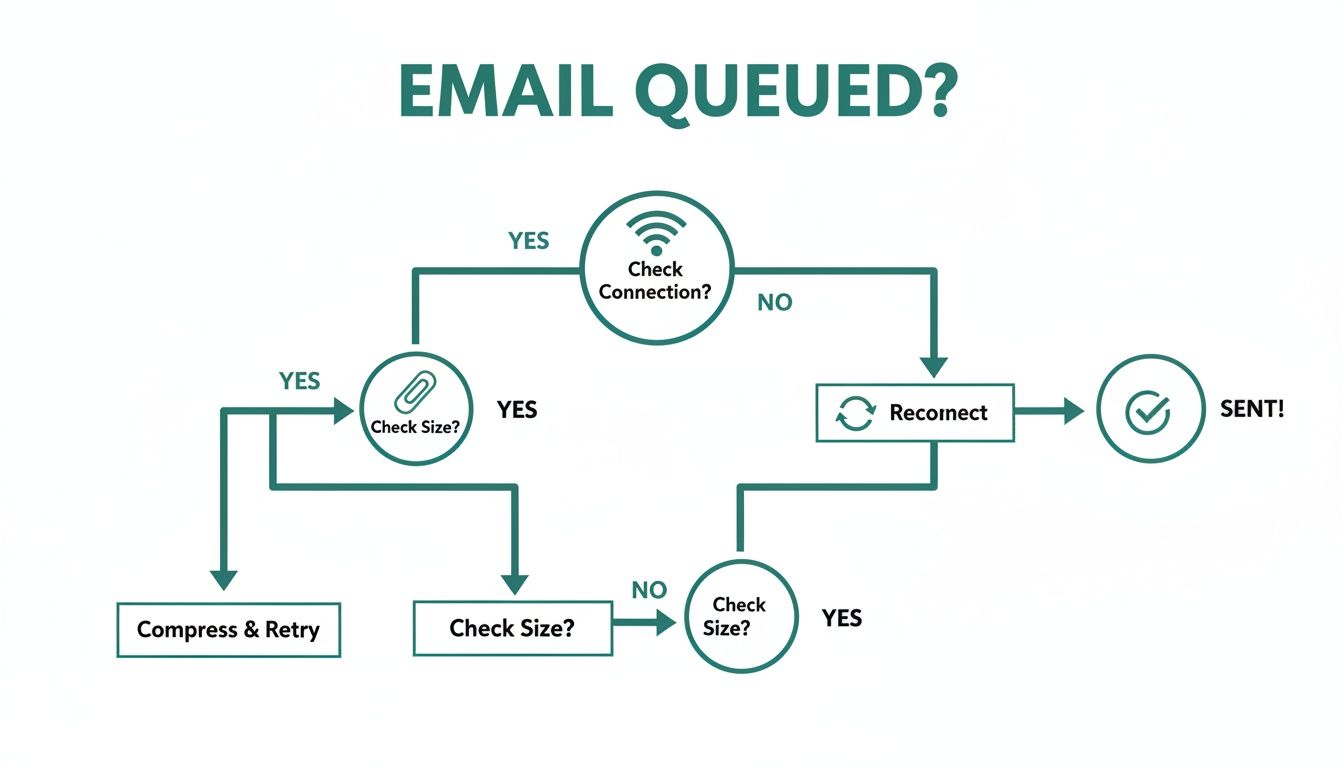 As the flowchart shows, most queuing issues start with either a poor internet connection or an oversized file. Luckily, these are the easiest problems to check and fix.
Connectivity and Attachment Size
Far and away the most common culprit is a shoddy internet connection. If your Wi-Fi is spotty or your cellular data is weak, the Gmail app simply can't talk to Google's servers to send the message. It patiently holds the email in a queue, ready to fire it off the moment a stable connection returns.
Another frequent offender is an attachment that blows past Gmail's 25 MB limit. If you're trying to email a hefty presentation or a folder of high-resolution photos, Gmail will stop that email in its tracks. Instead of attaching the file directly, it's always better to upload it to Google Drive and just share the link.
Intentional Queues From Gmail Features
Sometimes, an email is queued because you actually told it to be. It's easy to forget, but two built-in Gmail features are designed to put emails in a holding pattern:
- Schedule Send: If you've scheduled an email for a later time, it will sit quietly in your "Scheduled" folder. This isn't an error; it's Gmail doing exactly what you asked.
- Offline Mode: When you have Offline Mode enabled, you can write messages without any internet. Gmail stores these in your Outbox and sends them as a batch the next time you're online.
A quick check of your "Scheduled" folder and your Offline Mode settings can often solve the mystery in seconds.
Sending Limits and Authentication Issues
For professionals and small businesses, running into sending limits is a major cause of queued mail. While the average Gmail user spends about 28 minutes a day in their inbox, that time is wasted if messages aren't getting delivered. To fight spam, Google will queue or block emails if it sees rapid sending that breaks the 500-email daily limit for free accounts.
Key Takeaway: Hitting your daily sending limit is a hard stop. Gmail will queue all subsequent emails for up to 24 hours until your limit resets. This is especially relevant for users of automation tools who might send many reminders at once.
For Google Workspace admins, the problem can get more technical. If your email authentication protocols like SPF (Sender Policy Framework) or DKIM (DomainKeys Identified Mail) are misconfigured, other servers might distrust your emails, causing them to get stuck in the queue.
A crucial diagnostic step here is to verify your domain's DNS records, as a simple mistake can be the root cause. You can learn more about understanding DNS propagation and records. These records are essential for proving your emails are legitimate and not from a spoofer.
Practical Fixes for Individual Gmail Users
Okay, so you've got an email stuck in the queue. Don't panic. More often than not, getting it moving again is surprisingly simple. For most of us using a personal Gmail account, the fix for that mail queued in Gmail notification is usually just a few clicks away.
Let's walk through it, starting with the easiest and most common solutions first.
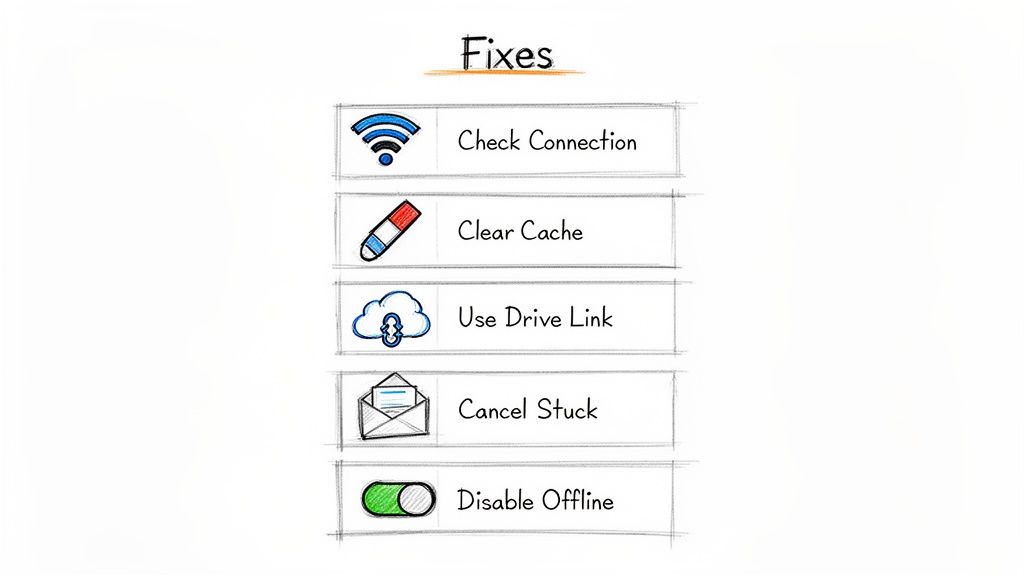 This little sketch covers the essentials. Before you start digging around in complex settings, always run through these basic checks. You'd be amazed how often a dodgy connection or a clogged cache is the real culprit.
Start with the Basics
Your first move should always be to check the most obvious things. Do you have a solid Wi-Fi or cellular data connection? The quickest way to find out is to just open a web browser and try to load a new page. If nothing happens, you've found your problem.
Next up, give your Gmail app a quick refresh by clearing its cache. Over time, all the temporary files it stores can get a bit scrambled and start interfering with basic functions, like sending mail.
Tapping "Clear cache" just gets rid of that temporary junk without touching your emails or account settings. It forces the app to reconnect and re-sync with Google's servers, which is often enough to kick any stuck emails out of the queue.
Managing Intentional Queues
Sometimes, an email is in a queue because you put it there. It happens!
If you're a fan of Gmail's "Schedule Send" feature, your message will patiently wait in the "Scheduled" folder until it's time to go. It's incredibly easy to schedule something and then completely forget you did. A quick peek in that folder will tell you if your email is just waiting its turn. We've got a whole guide on time-saving hacks for scheduling emails in Gmail if you want to learn more.
Gmail's Offline Mode is another feature designed to queue messages on purpose. If you have it turned on, Gmail holds onto all your outgoing mail until you're connected again. To check this setting:
- Go to Settings > See all settings.
- Click on the Offline tab.
- Make sure "Enable offline mail" is unchecked.
Disabling it will trigger Gmail to sync up and send anything that's been waiting in the outbox.
For anyone automating things like household chore reminders with an invisible tool like Recurrr, hitting sending limits can be a real headache. Free Gmail accounts top out at 500 emails a day, while Workspace users get 2,000. Once you hit those limits, Google intentionally queues your mail for up to 24 hours. It's a spam-prevention measure they've had in place for years.
Sometimes, the problem isn't your account or settings at all—it's the network you're on. If you're traveling or in a place with heavy internet restrictions, you might find you can't connect to Google's servers at all. This guide on how to access Gmail in heavily restricted regions offers some specific strategies for those situations. By tackling these simple steps first, you can solve most queued email problems without needing to call in an IT expert.
Advanced Solutions for Google Workspace Admins
When an end-user's email gets stuck, it's usually something simple. But when an entire team's emails are stuck in a queue, that's a different beast altogether. For Google Workspace administrators, a widespread mail queued in Gmail problem is a clear signal to look deeper at the underlying infrastructure.
These situations call for a systematic approach, and your first stop should always be the Admin console. It's easy to jump to conclusions, but start by investigating sending patterns and limits. An individual user hitting their personal 2,000-email daily cap is one thing. But if a third-party app or a wonky script is blasting out emails on behalf of many users, you could be triggering domain-level throttling. I've seen this happen countless times with automated systems for notifications or marketing gone wild.
Inspecting Your Domain's Email Health
Think of your domain's health like a credit score for email. If receiving servers don't trust your domain, they'll delay or flat-out reject your emails, causing them to pile up in a queue. This is where your email authentication protocols become non-negotiable.
You have to make sure your domain's authentication records—SPF, DKIM, and DMARC—are set up perfectly.
- SPF (Sender Policy Framework) is your guest list. It tells the world which servers are officially allowed to send email for your domain.
- DKIM (DomainKeys Identified Mail) acts like a digital wax seal on your emails, proving they haven't been messed with in transit.
- DMARC (Domain-based Message Authentication, Reporting & Conformance) is the bouncer. It tells other servers what to do with emails that fail the SPF or DKIM check.
Incorrect or missing records are a massive red flag for spam filters and one of the top reasons I see for organization-wide email queuing.
Using the Email Log Search Tool
Your most powerful weapon here is the Email Log Search tool inside the Google Workspace Admin console. Seriously, this thing is a lifesaver. It’s like a flight tracker for every single email sent or received by your domain.
Just pop in a message ID, sender, or recipient, and you can follow the email's exact journey. The logs will tell you if the message was handed off successfully to the next server or if it was delayed—and, crucially, why. You're looking for patterns here. Are you seeing high bounce rates from a specific mailing list? Or maybe repeated deferrals from a major email provider like Outlook or Yahoo?
For example, if you see a bunch of messages to a single domain getting deferred, it could mean your domain's IP has been temporarily blacklisted by that provider because of a sudden spike in volume. That's a critical insight you’ll never get just by looking at a user's outbox.
When setting up automated email systems, it's absolutely crucial to use services built to play by these rules. To get a better handle on this, check out our guide on the top tools to send recurring emails that know how to work within platform limits. Taking a proactive approach like this can prevent the kind of systemic headaches that land your entire team's mail in a queue. A little bit of regular monitoring in your email logs and a solid authentication setup will keep your organization's communication flowing smoothly.
How to Prevent Emails from Getting Queued
Fixing a problem is one thing, but avoiding it in the first place is the real win. A few proactive habits can almost completely wipe out that frustrating "mail queued in Gmail" notification. If you're mindful of a couple of key practices, you can make sure your important messages always sail smoothly out of your outbox.
The two biggest culprits are almost always attachment size and sending volume. Instead of dragging huge files into an email, get into the habit of uploading them to a cloud service like Google Drive and just sharing the link. This keeps your email nice and light, completely bypassing Gmail’s 25 MB attachment limit—a very common reason messages get stuck.
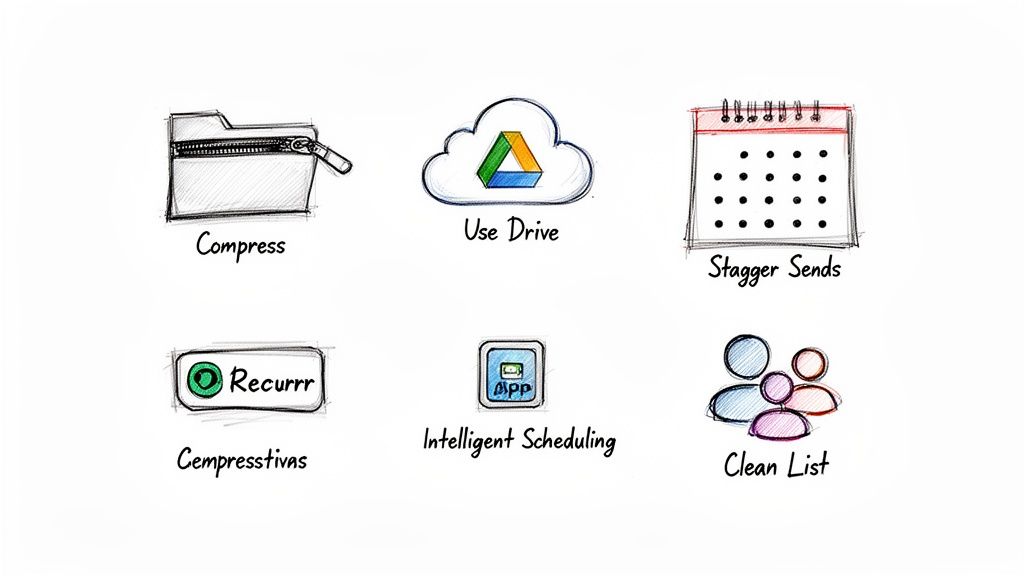 As you can see, a combination of smart file handling and intelligent sending schedules is your best defense against a clogged outbox.
Manage Your Sending Volume Intelligently
Trying to send a big batch of emails all at once is one of the fastest ways to get your messages flagged and queued by Google's anti-spam systems. This is a common trap for professionals sending out recurring communications like monthly invoices, weekly team updates, or rent reminders. Firing them all off manually in one go can easily trip the sending limits.
This is where a simple productivity hack can make a world of difference. An invisible tool like Recurrr works quietly in the background to automate these repetitive sends for you. Instead of you blasting out dozens of reminders at once, Recurrr intelligently schedules and sends them on your behalf, spacing them out naturally over time. This approach keeps you well within Gmail's limits and helps maintain a healthy sender reputation, so your automated routines just work without hitting any roadblocks.
If you want to see how this works in practice, you can learn more about setting up automated emails in Gmail that sidestep all the common pitfalls.
Adopt Good Email Hygiene Practices
Beyond file sizes and sending volume, a few simple maintenance habits can keep your account in good standing and prevent future headaches.
- Clean Your Mailing Lists: Every so often, go through your contact lists and remove bounced or invalid email addresses. A high bounce rate is a huge red flag for spam filters and can cause even your legitimate emails to get stuck in the queue.
- Review Scheduled Sends: Take a peek inside your "Scheduled" folder from time to time. It's surprisingly easy to schedule an email for the future and then completely forget about it. A quick review makes sure you don’t have outdated messages just sitting there waiting to cause confusion.
- Be Mindful of Content: Try to avoid using spammy language, stuffing your email with too many links, or writing misleading subject lines. Google’s algorithms are always on the lookout for content that looks like phishing or spam, and they won't hesitate to queue suspicious messages for a closer look.
When you start treating your email sending habits like any other part of your workflow—with a bit of planning and the right tools—you can turn queuing from a frequent frustration into a rare exception. It’s all about working smarter, not just sending harder.
Got Questions About Queued Emails?
Even after you've got a handle on the common causes and fixes, some situations can still leave you scratching your head. Let's tackle some of the most frequent questions people have when they see that dreaded "Queued" status in Gmail.
Why Are My Emails Only Queued on My Phone?
This one's super common and almost always points to an issue with your phone itself, not your actual Gmail account. It's a classic device-specific problem.
More often than not, it’s because the Gmail app's background data is being choked off. This happens a lot if you've enabled a 'Data Saver' or 'Battery Saver' mode on your phone. These settings are great for saving power, but they can stop apps like Gmail from syncing in the background.
Another usual suspect is a full app cache. Dive into your phone's settings, find the Gmail app, and clear its cache. A quick restart of the app after that often does the trick. And, of course, make sure your app is up to date—bugs in older versions can definitely cause weird syncing issues.
How Long Will an Email Sit in the Queue?
This really depends on why it's stuck there. If it's just a spotty Wi-Fi connection, your email will zip off the second your signal comes back. If you’ve bumped up against your daily sending limit (that's 500 emails for a free account), it'll stay queued for up to 24 hours until the limit resets.
Scheduled emails will, of course, wait patiently until their designated time. For those rare times when Google's servers are having a slow day, the delay is usually just a few minutes, maybe a couple of hours at most.
Key Takeaway: If an email is still queued after 24 hours, it's time to play detective. That's a strong signal it's not a simple connection glitch. You're likely looking at a sending limit or a more complex account issue that needs a closer look.
Do Third-Party Tools Make Queuing More Likely?
Not if you’re using a good one that plays by Gmail's rules. Any app you connect to your account is still subject to the exact same sending limits. In fact, a smart tool can actually help you avoid getting your emails stuck.
Take Recurrr, for instance. This hidden gem helps manage your recurring emails. Instead of you manually blasting out a dozen invoices or team reminders at once—which can look suspicious and get you flagged—Recurrr automates them on a natural schedule. By spacing out your sends, it helps keep your sender reputation clean and ensures your important, automated messages are delivered reliably, not left sitting in a queue.
Stop worrying about sending limits and let Recurrr handle your recurring emails. Automate your routines, from rent reminders to team check-ins, and ensure your messages always get delivered on time. Start for free and take back your time at https://recurrr.com.