

You’ve hit 'Send' on an important email, but instead of seeing it whisked away, you get a small, frustrating notification: Queued. What does that even mean?
Essentially, your email is stuck in a digital traffic jam. It's sitting in your outbox, ready to go, but something is holding it back. Most of the time, this is a temporary hiccup caused by a poor connection or an issue with the email itself, like a massive attachment.
What a Queued Email in Gmail Really Means
A queued email is one that Gmail has accepted from you but hasn't sent out to the recipient's server yet. Think of it like dropping a letter in a mailbox—it's in the system, but it hasn't started its journey.
The good news is that Gmail will automatically keep trying to send it. But if you’re on a deadline, waiting around isn’t an option. Understanding why it’s happening is the first step to forcing it through.
Common Reasons Your Gmail Email Is Queued
Most of the time, a queued email is your device's fault, not Google's. It's usually something simple you can fix in a minute or two once you know where to look.
To speed up your troubleshooting, here’s a quick rundown of the usual suspects. This table should help you pinpoint the problem in seconds.
CauseCommon ScenarioQuick CheckWeak ConnectionYou're on shaky Wi-Fi or have poor cell service. The email can't reach Google's servers.Try loading a new website. If it's slow or fails, that's your problem.Oversized AttachmentYour email includes a file larger than 25MB.Check the attachment size. Anything over 25MB will get stuck.Offline ModeGmail is intentionally holding emails to send later when you're back online.Look for an "Offline" icon or message at the top of your Gmail app.Gmail Server IssuesIt's rare, but sometimes the problem is on Google's end.Check the official Google Workspace Status Dashboard.Once you've identified the likely culprit from the table, you'll know exactly what to fix.
A queued email isn't a lost email—it's just a delayed one. The key is to quickly diagnose the roadblock so you can clear the path for your message.
Sending Limits and Server Volume
There's another, less common reason your email might be queued: you’ve hit your sending limit. To fight spam, Google puts a cap on how many emails you can send.
For a standard, free Gmail account, that limit is 500 recipients per day. If you’re a Google Workspace user, you get a much higher cap of 2,000. If you send a message that pushes you over that limit, Gmail will queue it until your 24-hour window resets.
Given that Gmail handles an astonishing 30% of global email traffic, these limits are what keep the whole system from grinding to a halt. You can learn more about the staggering scale of Gmail's daily operations and why these protections are in place.
Practical Fixes for When Your Email Gets Stuck on a Computer
It’s a uniquely frustrating feeling: you hit "send" on an important email, but it just sits there, stuck in digital limbo. When this happens on your computer, the good news is that the fix is usually pretty simple. More often than not, it's a hiccup with your internet connection, a browser glitch, or something funky with the email itself.
Let's walk through the most common culprits, starting with the easiest ones to check off the list.
Before you start digging into browser settings, let’s rule out the two most obvious suspects. First, just give your internet connection a quick sanity check. Are other websites loading sluggishly or not at all? If so, your spotty connection is almost certainly the reason Gmail can't push the message through.
Second, it's worth seeing if the problem is on Google's end. This is rare, but it does happen. The official Google Workspace Status Dashboard gives you a real-time look at all their services. If Gmail has a green checkmark, you know the issue is on your side.
This quick flowchart gives you a visual path for your first couple of troubleshooting steps.
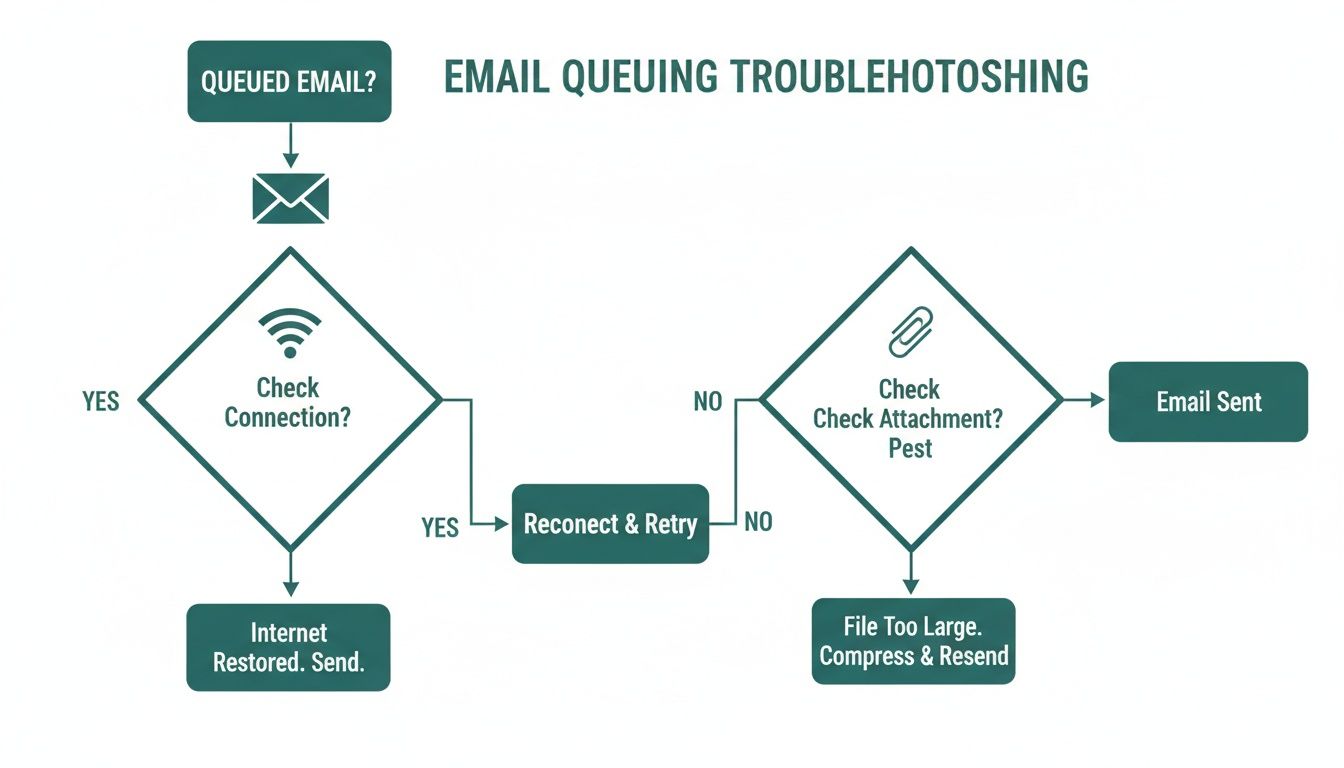 As you can see, double-checking your connection and taking a peek at your attachments are the most critical first moves.
Inspect Your Outbox and Attachments
If your internet is humming along and Google’s servers are all green, the next stop is your Gmail Outbox. The email itself is often the problem—specifically, a massive attachment. Gmail draws a hard line at 25MB for attachments.
Anything bigger, and that email is going to get stuck in the queue forever. If you find a message with a file that’s over the limit, you’ll have to deal with it. For larger files, especially videos, your best bet is to use a cloud service like Google Drive or look into compressing video for Gmail before you attach it.
- Finding your Outbox: Look for the "Outbox" label on the left-hand side of Gmail. If you don't see it, that's a good sign—it means you don't have any emails stuck waiting to be sent.
- Editing the stuck email: Just open the queued message, remove the oversized file, and try sending it again.
The Outbox is just a temporary holding pen. As soon as an email sends successfully, it moves over to your "Sent" folder, and that Outbox label vanishes.
Clear Your Browser's Cache and Cookies
Still stuck? A cluttered browser cache might be the culprit. Your browser saves bits of data (the cache and cookies) to make websites load faster on return visits. But over time, this data can get corrupted and start interfering with web apps like Gmail.
Clearing your cache is a surprisingly powerful fix for all sorts of weird browser behavior, including a stubborn queued email. It’s like giving your browser a fresh start without wiping your saved passwords or bookmarks.
The process is pretty straightforward:
- Head to Browser Settings: Jump into your browser's settings menu. You can usually find it under the three-dot icon in the top-right corner.
- Look for Privacy/Security: Find the section labeled "Privacy and security."
- Clear Browsing Data: Choose the "Clear browsing data" option. Be selective here—you only need to check the boxes for "Cached images and files" and "Cookies and other site data."
- Restart and Retry: Close your browser completely, then reopen it. Log back into Gmail and see if your email has finally flown the coop.
These steps solve the vast majority of queued email headaches on a computer. Of course, if you're trying to intentionally delay an email instead of having it get stuck by accident, our guide on sending scheduled emails in Gmail shows you how to use Gmail's scheduling feature like a pro.
Solving Queued Email Issues on Android and iOS
When an email gets stuck in the queue on your phone, the frustration just hits different. Unlike a desktop, your phone is constantly juggling Wi-Fi and cellular data, which creates all sorts of unique opportunities for a queued email in Gmail to ruin your day.
Most of the time, the culprit is a simple connection hiccup. But sometimes, mobile app glitches are to blame.
The good news is that fixing a queued email on your Android or iOS device usually just takes a few quick checks and taps. We’ll walk through the most common fixes, starting with the absolute basics and moving up to the app-level tricks that force your messages to get moving again.
Check Your Connection and Background Data
Before you start digging into app settings, let's rule out the number one cause of a queued email: a weak signal. If you're on a shaky Wi-Fi network or have spotty cellular service, Gmail will patiently hold your email until it finds a solid connection.
A quick toggle of Airplane Mode on and then off can often force your phone to re-establish a much stronger link to the network. It's a classic for a reason.
Another sneaky problem, especially on Android, is background data restrictions. To save battery life and mobile data, you might have accidentally told Gmail not to sync when you’re not actively using it. This is a guaranteed way to keep your outbox full.
- On Android: Head over to Settings > Apps > Gmail > Mobile data & Wi-Fi. Just make sure the toggle for Background data is switched on. This gives Gmail permission to send emails even when the app is just running in the background.
- On iOS: Pop into Settings > General > Background App Refresh. Find Gmail in the list and check that its toggle is enabled.
These simple adjustments make sure your phone's own power-saving measures aren't holding your emails hostage.
Toggling Airplane Mode is the oldest trick in the mobile troubleshooting book for a reason—it works. This simple action forces a complete reset of all your device's wireless radios, often resolving minor connectivity glitches that cause queued emails.
Clear the Gmail App Cache
Okay, so your connection is solid and background data is good to go. The problem might be lurking inside the Gmail app itself. Over time, apps build up a collection of temporary data, known as a cache, to help them load faster. But this cache can get corrupted, leading to all kinds of weird behavior—like emails getting stuck.
Clearing the cache is a completely safe and surprisingly effective fix. It won't delete any of your emails, contacts, or important settings. It just wipes away the digital cobwebs that could be causing the jam.
For Android Users:
These steps are super straightforward and can solve a stubborn queued email in Gmail in less than a minute.
- Open your phone’s Settings app.
- Tap on Apps (sometimes it’s called "Apps & notifications").
- Scroll to find and select Gmail.
- Tap on Storage & cache.
- Now, just tap the Clear cache button. Whatever you do, don't tap "Clear storage" or "Clear data," as that will log you out and reset everything.
For iOS Users:
Apple doesn't give you a simple "Clear cache" button for most apps. The best equivalent is to offload and reinstall the app, which sounds more dramatic than it is.
- Go to Settings > General > iPhone Storage.
- Scroll down and tap on Gmail.
- Tap Offload App. This deletes the app but keeps all your data safe.
- Once it's gone, the button will change to Reinstall App. Tap it.
Keep Your Gmail App Updated
Finally, never underestimate the power of an update. An outdated app can be the source of countless bugs and performance issues. Google is constantly pushing out updates for the Gmail app that patch known problems, including the very syncing errors that lead to queued emails.
Just pop over to the Google Play Store (on Android) or the App Store (on iOS), search for Gmail, and see if there’s an "Update" button waiting for you. Running the latest version is one of the easiest ways to prevent problems before they start.
Using Gmail's Queue Feature to Your Advantage
So, we've talked about the headache of an email getting stuck in the queue by accident. Now, let's flip the script. What if you could make that same queue work for you? Deliberately queuing—or scheduling—your emails is a seriously underrated productivity move that turns a technical glitch into a strategic tool.
Instead of a spotty connection deciding when your messages go out, you're back in the driver's seat. It's all about managing your time and communication with intention, making sure your emails land exactly when they'll have the most impact.
 ### The Power of Scheduled Sending
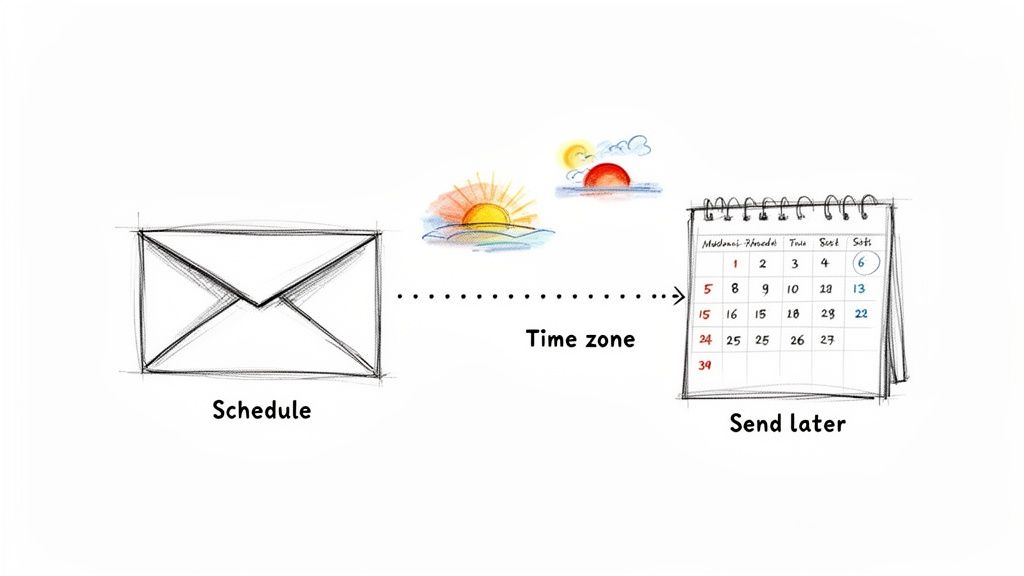
Gmail's built-in "Schedule send" feature is one of those simple tools that can completely change how you work. It’s the perfect fix for respecting a colleague's off-hours, making sure your proposal is the first thing a client sees in the morning, or just clearing your to-do list late at night without pinging anyone.
This isn't some complex project management system. It's a small, invisible hack that makes your communication feel more thoughtful and professional. Imagine you wrap up a project update at 10 PM. Instead of hitting send and signaling that you're working late, you can queue it up to arrive at a crisp 8:30 AM.
By scheduling emails, you shift from reacting to your inbox to proactively managing your communication. You respect people's time zones and give your message the best possible chance of getting the attention it deserves.
How to Schedule an Email in Gmail
The best part? It's incredibly easy to do on both desktop and mobile. After you've written your email, just pause before you hit that big blue "Send" button.
- On Desktop: Look for the small dropdown arrow right next to "Send" and click "Schedule send."
- On Mobile: Tap the three vertical dots in the top-right corner of the compose window and pick "Schedule send."
Gmail will offer a few common times, like "Tomorrow morning," or you can choose any date and time you want. Your email will then hang out in a "Scheduled" folder until it's time to go. For a deeper dive, you can learn more about how to master sending scheduled emails in Gmail and make it a regular part of your workflow.
Real-World Scenarios for Queuing Emails
Once you start using it, you'll find endless ways to apply this. It's a small habit that can make a surprisingly big difference in your professional life.
Think about these situations:
- Time Zone Coordination: Need to follow up with a client in London? Queue the email so it arrives at the start of their day, not in the middle of their night.
- Morning Priority: Write your team's daily briefing the evening before and schedule it for 8:00 AM. It guarantees your message is at the top of their inbox when they log on.
- Perfectly Timed Reminders: Got a deadline coming up? Schedule a reminder to land exactly 24 hours before it's due for maximum effect.
By intentionally using Gmail's queue, you take back control. Every email you send becomes more purposeful and, ultimately, more effective.
Automating Recurring Emails Beyond a Single Schedule
Gmail’s "Schedule send" is a fantastic little feature for one-off messages. Need a report to land in your boss's inbox at 9 AM tomorrow? Perfect. Sending a birthday wish to a colleague in another time zone? It's got you covered.
But what about the emails you send over and over again? This is where Gmail's native tool hits a wall.
Think of all the repetitive stuff: weekly team updates, monthly client invoices, or even a daily reminder to yourself. Manually scheduling these every single time is not just tedious; it's a recipe for forgetting. For these kinds of tasks, you need a different game plan.
 ### Introducing "Invisible Tools" for Automation
This is where a small productivity hack can change everything. Instead of clogging your calendar with reminders or relying on sticky notes, you can use an "invisible tool" that bolts right into your Gmail workflow to handle these simple, repeating routines.
One of the best I've found is Recurrr. It’s not some bloated project management app or another complex habit tracker. It's a hidden gem designed to do one thing exceptionally well: put your recurring emails on autopilot. It handles the boring, repetitive tasks so you can free up brain space for work that actually matters.
If you want to dive deeper into the nuts and bolts, this guide on how to send recurring emails is a great resource.
Think of it as a quiet assistant humming away in the background, making sure you never drop the ball on those crucial recurring messages again. It complements your other tools without ever getting in the way.
Gmail's Schedule Send vs Recurrr for Automation
Knowing when to use Gmail's built-in feature versus a specialized tool is the key to a smoother workflow. Each has its place, and picking the right one comes down to the job at hand. This quick comparison should make the choice crystal clear.
FeatureGmail 'Schedule Send'RecurrrBest ForOne-time sends and single future eventsRepetitive, ongoing emails (daily, weekly, monthly)FrequencyManual scheduling for each individual email"Set it and forget it" for recurring schedulesUse Case ExampleSending a proposal to land at 8 AM tomorrowSending a rent reminder on the 1st of every monthWorkflowIntegrated directly into the 'Send' buttonWorks alongside Gmail to manage repeating tasksAs you can see, if you just need to delay a single message, Gmail’s scheduler is perfect. But for any email that needs to go out on a regular cycle, a dedicated tool like Recurrr is infinitely more efficient. It saves you the headache of remembering to do it yourself every single time.
Real-World Automation Scenarios
The real power of this approach clicks when you see it in action. You're not just queuing an email once; you're building a tiny, automated system that runs itself.
Here are a few ways people are using this:
- Freelancers: Automatically send client invoices on the last Friday of every month. No more chasing payments or forgetting to bill.
- Project Managers: A weekly reminder goes out every Monday morning for team members to submit their status updates.
- Property Managers: Ensure rent reminders are sent to all tenants three days before the due date, every single month, without fail.
- Personal Productivity: Email yourself a daily reminder at 7 AM with your top three priorities for the day.
By adopting a tool built for recurrence, you completely eliminate a whole category of manual admin work. This means fewer forgotten tasks and more consistent communication, all without the daily grind.
Frequently Asked Questions About Queued Gmail Emails
After you’ve wrestled an email out of the queue and finally sent it on its way, a few questions usually pop up. It’s one thing to fix the immediate problem, but another to really get what happened and how to stop it from happening again.
Think of this section as your quick-reference guide. We'll cover the most common questions people have after dealing with a queued email in Gmail, so you can get back to your inbox with confidence.
How Long Can an Email Stay Queued in Gmail?
There's no single, official answer from Google on this, but from experience, Gmail will keep trying to send a queued email for up to 24-48 hours. What really matters, though, is why it's queued in the first place.
- Temporary Hiccups: If it's just a momentary loss of internet connection or a brief server issue on Google's end, your email will probably send within seconds or minutes of the problem being resolved.
- Bigger Problems: For more stubborn issues—like a massive attachment or the wrong server settings in your email client—the email will just sit there indefinitely. It'll stay queued until you step in and fix the root cause.
The bottom line is that Gmail is persistent. It won’t just give up on your email, but it also can't fix fundamental problems for you. You have to take action.
Does the Recipient Know Their Email Was Delayed?
Nope. The recipient has absolutely no idea your email was ever stuck. Once it finally lands in their inbox, it will show the timestamp of when it was successfully delivered, not when you first hit "send."
There are no warning labels or notifications on their end to indicate a delay. The whole queuing fiasco is completely invisible to them, which is a nice little save for your professional image when tech gremlins strike.
Can I Prevent Emails From Being Queued?
While you can't dodge every single glitch the internet throws at you, you can definitely make queued emails a rare sight. A little bit of digital housekeeping and some smart sending habits go a long way.
This means simple stuff like keeping your Gmail app updated, double-checking your internet connection before sending something critical, and keeping an eye on those attachment sizes.
For anyone who relies on sending messages at just the right time, getting comfortable with automation is a game-changer. You can learn how to automate sending emails to create workflows that are far more reliable than hitting "send" manually. If you want to dive even deeper, check out this definitive guide to automated emails from Gmail for more advanced strategies.
If you find yourself manually scheduling the same messages over and over, Recurrr is the hidden gem your workflow needs. It's an invisible tool that automates your recurring emails, freeing you from tedious, repetitive tasks so you can focus on what's important. Get started with Recurrr today!