


Yes, you can get read receipts in Gmail, but there’s a big catch. This feature is built-in only for paid Google Workspace accounts, not for the billions of us using a personal @gmail.com address.
So, for most people, the answer is effectively no—at least, not without a third-party tool.
The Reality of Gmail Read Receipts
Ever sent a critical email and then spent the rest of the day wondering if it was even opened? That job application, that client proposal, that urgent update—the silence can be maddening. This is why so many people hunt for a way to get read receipts in Gmail. But the truth is, it's not a simple on/off switch.
The biggest hurdle, even for those with a paid account, is recipient consent. When you request a read receipt, the person on the other end gets a pop-up asking for permission to send it back. They can just click "Not now" or ignore it completely, leaving you right back where you started: wondering.
The Great Divide: Free vs. Paid
For the vast majority of Gmail's user base, the native read receipt feature simply doesn't exist. This is the first and most important distinction. If you're using a free @gmail.com account, Google reserves this functionality for its business and education customers, so you'll have to look at other options.
This decision path really simplifies the access question.
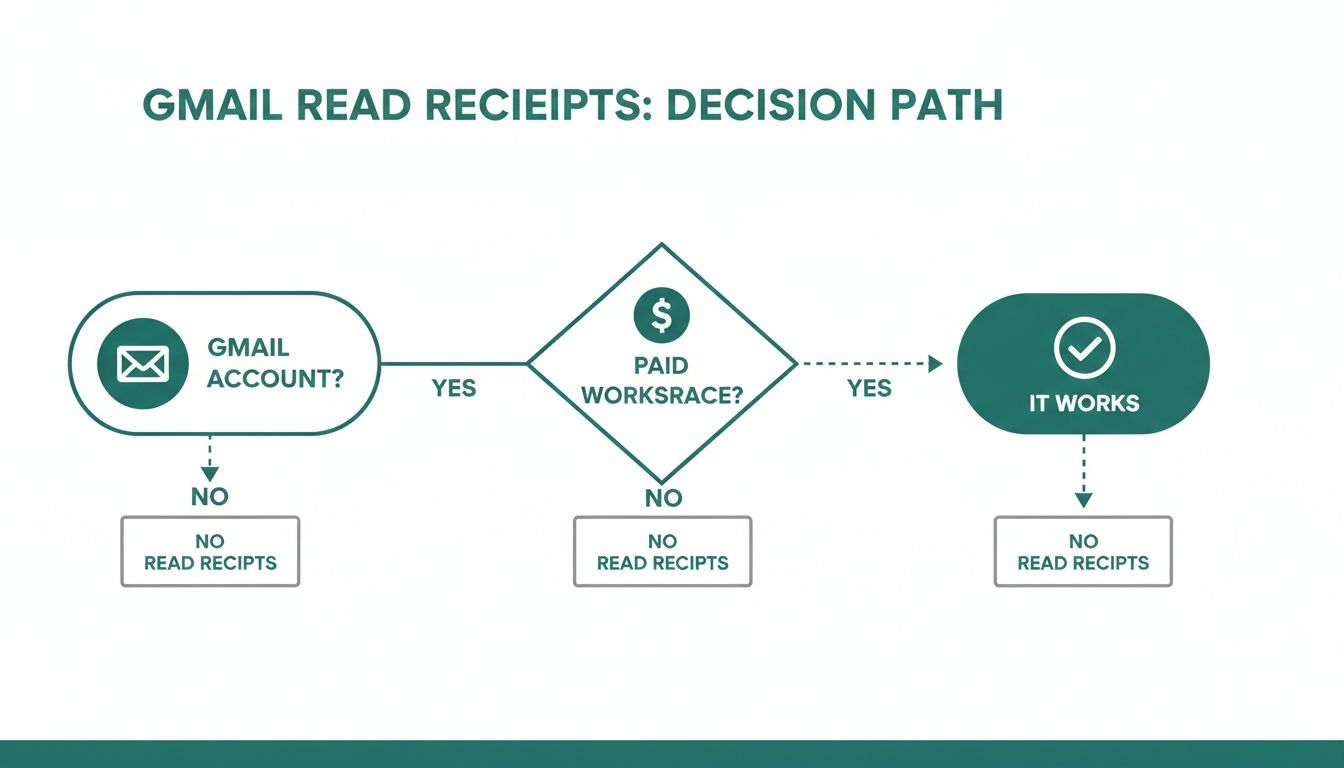 As you can see, having a paid Google Workspace account is the non-negotiable first step. If you don't have one, the native feature is off the table.
To make it even clearer, here's a quick breakdown of who gets what.
Gmail Read Receipts Availability At a Glance
Gmail Account TypeNative Read Receipt FeatureKey LimitationPersonal @gmail.com****NoFeature is not available.Google Workspace****Yes (if enabled by admin)Relies entirely on recipient consent.School/Educational****Yes (if enabled by admin)Relies entirely on recipient consent.Ultimately, whether you're a free or paid user, the core problem of consent remains the biggest roadblock to getting reliable open confirmations.
Why Consent Matters Most
Even if you have a compatible Workspace account, the feature's real-world effectiveness is surprisingly low. From what we've seen, recipient consent rates often hover between a mere 20-40%. This makes native receipts a shaky foundation for any important communication.
When an email goes unanswered, you're left guessing: Did they decline the receipt, or did they never even see the email? That ambiguity often defeats the whole purpose of tracking. For more on this, check out our guide on how soon you should re-send emails to non-openers.
The truth is, you can't force a read receipt. The recipient always holds the power to decline, making privacy the default and turning your confirmation request into a polite, but often unanswered, question.
This fundamental limitation is why so many professionals, even those on paid Workspace plans, end up looking for more dependable solutions to make sure their messages don't disappear into a black hole.
How to Get Read Receipts in Google Workspace
For those using Google Workspace, getting the native read receipts in Gmail feature up and running is a two-part dance. It all starts with the administrator—they hold the keys to switch this functionality on for the whole organization. Once they've done their part, it's up to individual users to request a receipt on specific emails.
If the admin doesn't flip that initial switch, the option simply won't exist for anyone.
This layered control is intentional. It allows companies to keep a tight rein on communication policies, preventing misuse and making sure the feature aligns with internal rules on privacy and tracking. Once it's on, though, the power shifts to you, the user, to decide when a read receipt is actually worth using.
For the Google Workspace Administrator
If you're the admin, your journey begins in the Google Workspace Admin Console. This is your command center for defining exactly how read receipts will work for your team. You get granular control over who can send them and who they can be sent to.
You can, for instance, decide to only allow receipts for emails sent within your company's domain. That's a pretty common choice for keeping track of important internal comms. Or, you can open it up to allow receipts for any external email address.
To get this set up, you'll need to navigate to Apps > Google Workspace > Gmail > User Settings. This is where you'll find the toggles for all the key permissions. You can allow receipts for any email address or even prompt users before a receipt is sent back. As highlighted by email tool provider GMass, getting this step right is what makes the "Request read receipt" option magically appear in the compose window for all your users.
For the Google Workspace User
Okay, so your admin has given you the green light. Now what? Requesting a read receipt is refreshingly simple. The option is tucked away neatly in the compose window, so it doesn't clutter up your screen but is right there when you need it for an important message, like a project handoff or a client invoice.
Here’s a look at the kind of settings an admin sees, which really highlights the difference between the paid Workspace plans and the free consumer version of Gmail.
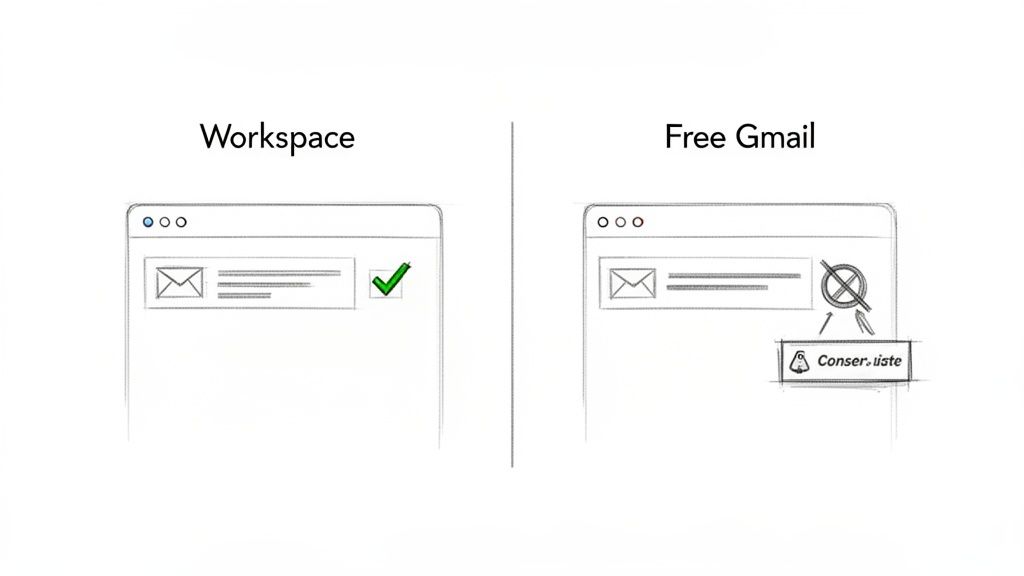 When you're about to send that crucial email and want to know for sure it’s been opened, just follow these quick steps:
- Start a new email. Hit the Compose button in Gmail just like you always do.
- Find the extra options. In the bottom-right corner of your new email draft, click the three-dot icon for More options.
- Request the receipt. A menu will pop up. Just click on Request read receipt.
A little checkmark will appear next to the option, confirming your request is active for this one email. And that's a key point—you have to do this every time you want to track an email. It’s not a "set it and forget it" default for all your outgoing messages.
This manual, per-email approach is by design. It nudges you to be selective, saving read receipts for messages where that confirmation actually matters, rather than turning every single conversation into a tracked event.
Why Native Read Receipts Are So Unreliable
Even if you have a paid Google Workspace account with read receipts turned on, leaning on them for anything important is a huge gamble. The hard truth is that Gmail's native feature is fundamentally broken by one simple, unavoidable fact: recipient consent.
The person on the other end always has the final say. They can kill your request with a single click, leaving you completely in the dark.
This isn't some bug; it's a privacy feature. When your recipient opens the email, they get a pop-up asking if they want to send a confirmation back. They can easily hit "Not now," and you'll never know. From your end, it’s impossible to tell if they declined the request or just haven’t seen your email yet.
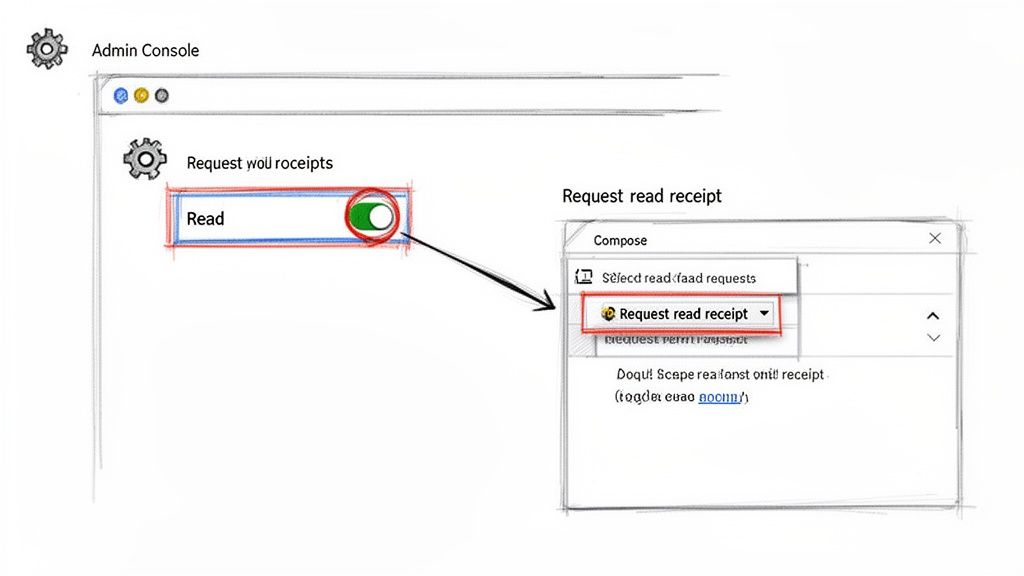 ### The Consent Conundrum
This whole consent-based model makes the feature incredibly unreliable. Gmail launched way back in 2004 and has since exploded to 1.8 billion active users as of 2024, yet read receipts remain a niche tool locked behind the Google Workspace paywall.
And even though Workspace itself serves a massive 3 billion monthly users (as of 2023), my own real-world tests show a recipient consent rate of just 20-40%. You can dig into more of these Gmail usage statistics if you're curious.
This dismal success rate means for every ten critical emails you send, you're likely flying blind on six to eight of them. It completely defeats the purpose.
Technical Hurdles and Glitches
Beyond just getting someone to say "yes," a bunch of technical roadblocks can stop a read receipt from ever getting back to you. Not all email clients play nicely with each other, and some just don't support the mechanism Gmail uses to send these confirmations.
Here are a few common ways native read receipts just… fail:
- Incompatible Email Clients: If your recipient opens your email on a platform that doesn’t recognize Google’s receipt protocol, the request is simply ignored. Poof.
- Plain Text Mode: Some folks view emails in plain text for security or simplicity. That mode disables the very code needed for receipts to work.
- Privacy Settings: Many email systems and security-conscious users have settings that automatically block these kinds of tracking requests by default.
Bottom line: Gmail's native read receipt is more like a polite suggestion than a reliable tracking tool. It needs a perfect storm of the right tech, the right user settings, and—most importantly—the recipient's willingness to play along.
This mix of human choice and technical glitches makes it a terrible solution for anyone who needs to know for sure that their message has been seen. For most of us, the ambiguity it creates is more frustrating than helpful, which is why so many people look for better alternatives to track important emails.
Smarter Email Tracking When You’re Using a Free Gmail Account
For the billions of us with a free @gmail.com address, the built-in read receipt feature is a no-go. It’s completely off-limits. Thankfully, a whole ecosystem of third-party tools has popped up to fill this void, bringing sophisticated email tracking to everyone from freelancers to small business owners.
The clever part? These tools are often more reliable than Gmail's native option because they sidestep the whole consent issue.
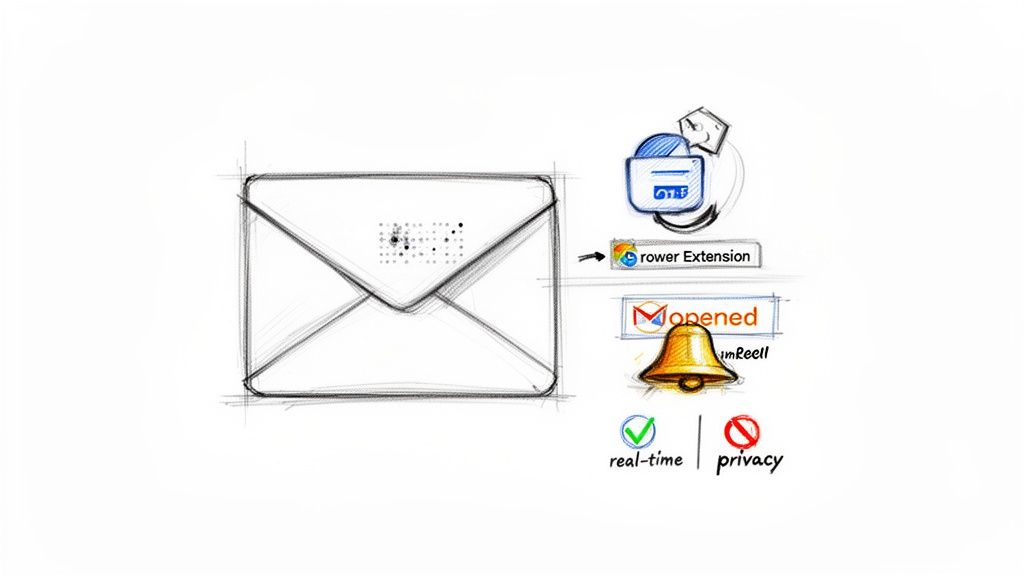
Instead of asking the recipient for permission, these extensions usually rely on a tiny, invisible image called a tracking pixel. This 1×1 pixel gets embedded in your email. When your recipient opens the message, their email client loads that invisible image. That simple action pings the tracker's server, confirming the email was opened—all without your contact ever seeing a pop-up.
The Power of Third-Party Tools
This pixel-based method gives you a level of insight that native read receipts in Gmail just can't compete with. You can get real-time notifications the moment an email is opened, often with extra details like how many times it was viewed and even the general location or device used.
Many of these tools also bundle in other advanced features that are incredibly useful for anyone doing business over email:
- Link Tracking: Want to know if a potential client actually clicked the link to your portfolio? This feature tells you exactly when they do, which is perfect for timing your follow-up.
- Real-Time Notifications: Get an instant desktop or mobile alert when someone's engaging with your email. This lets you reach out at the exact moment you’re top-of-mind.
- Detailed Analytics: See a full history of opens and clicks for every message, helping you spot engagement patterns. This data becomes even more powerful when you know the best time to send an email in the first place.
These features turn your sent folder from a simple archive into a dashboard of powerful engagement metrics.
Choosing a Reputable Tracking Tool
While the benefits are obvious, you have to be careful about which tracking extension you install. You're granting it access to your email data, after all. Always stick with reputable developers that have clear privacy policies and tons of positive user reviews. Well-known options like Mailtrack and Boomerang have built solid reputations over many years.
When you're picking a tool, think about the trade-off between features and privacy. A good extension will be upfront about the data it collects and give you settings to control tracking on a per-email basis. You should always be in full command of your communications.
At the end of the day, for free Gmail users, these extensions aren't just an alternative; they're a huge upgrade. They deliver the kind of reliable, actionable insights that the native feature promises but often fails to provide, making them an essential part of the toolkit for anyone who needs to know their important messages are not just sent, but actually seen.
Moving Beyond Tracking to Smart Automation
Let’s be honest. Obsessing over email opens usually points to a bigger problem: you need to be certain that important, recurring messages are actually getting sent and acknowledged. But instead of reactively chasing every "open," what if you could proactively guarantee the follow-up happens without a second thought? This is where a simple shift in thinking can make a huge difference.
The need to constantly check if an invoice was seen or if a weekly report was received creates a ton of mental clutter. The real goal isn't just to get read receipts in Gmail; it's to make sure a process is completed without you having to manually poke and prod it along every single time.
 This jump from manual tracking to smart automation is where you find real productivity wins. It's about building simple systems that handle your repetitive communication for you, freeing you up for work that actually matters.
The Problem with Manual Follow-Ups
The main reason we chase read receipts for recurring tasks is because we don't trust our own manual systems. You send an invoice and make a mental note to follow up in a week if you don’t hear back. But then life gets busy, and that mental note vanishes into thin air.
Suddenly, you're weeks behind on a payment, all because that first step—confirming the email was seen and acted upon—was shaky. The manual process is just full of holes, from your recipient not taking action to you simply forgetting.
This is exactly the cycle that automation tools are designed to break. By scheduling recurring emails, you kill the "Did they see it?" anxiety and replace it with the confidence of knowing "The next step is already handled."
Introducing a Smarter Workflow
Instead of another tracking tool, consider a small productivity hack like Recurrr. It’s an "invisible tool" that solves the underlying problem of forgotten follow-ups without trying to be an all-in-one project manager. It's built for one thing: making sure your recurring emails go out on autopilot.
Here's a practical example. Rather than manually sending a client their monthly invoice and anxiously tracking it, you set it up once in Recurrr. The invoice will be sent automatically on the first of every month, and you can even schedule automated reminders to go out a week later.
The goal changes from "I need to know if they opened my email" to "I have a system that ensures this task is never forgotten." This proactive approach eliminates the stress and uncertainty inherent in manual tracking.
This move from chasing opens to building dependable systems is a core concept in modern productivity. If you want to dive deeper, our guide on what workflow automation truly means offers some great insights.
And this method isn't just for invoicing. It’s perfect for:
- Sending weekly project status reports to stakeholders.
- Distributing monthly newsletters to a small community.
- Sending recurring rent reminders to tenants.
Manual Tracking vs. Smart Automation
Putting the two approaches side-by-side really makes the benefits of automation pop.
ChallengeManual Tracking (Read Receipts)Smart Automation (Recurrr)ReliabilityDepends on recipient consent and compatible email clients. Highly unreliable.Set-it-and-forget-it. The action is guaranteed to happen on schedule.Mental LoadHigh. Requires constant checking, remembering to follow up, and managing anxiety.Low. Frees up mental energy by outsourcing the task to a trusted system.EfficiencyInefficient. Involves manual steps for every single email and follow-up.Highly efficient. Automates the entire recurring communication sequence.ScalabilityPoor. Becomes unmanageable as the number of recurring tasks grows.Excellent. Handles an increasing number of automated routines with ease.Ultimately, while tracking tools have their place, automation gets to the root cause of our communication anxiety. For businesses looking to go even further, exploring advanced CRM AI platforms can provide powerful tools for automating client communication at a much larger scale. The key is to pick the right tool for the job.
Common Questions About Gmail Read Receipts
Even with a step-by-step guide, there are always a few lingering questions about how read receipts in Gmail actually behave in the wild. I get it. Let’s clear up some of the most common ones so you know exactly what to expect.
We’ll dig into how this all works on your phone, what happens when you say "no," and how to block tracking requests you don't want.
Can I Get Read Receipts on the Gmail Mobile App?
Yes, but there's a huge catch: this feature is only available for Google Workspace users, and only if their administrator has specifically enabled it for the whole organization. If you're one of the lucky ones, you can request a receipt right from the compose screen on your phone by tapping the three-dot menu, just like you would on your computer.
For the vast majority of us using a free, personal Gmail account, the answer is a firm no. The native read receipt option simply doesn't exist on mobile or desktop. Your best bet is to look into third-party email tracking extensions, as some of them do offer mobile support as a workaround.
Does the Sender Know If I Decline a Read Receipt?
Nope. When you see that pop-up asking for a receipt and you click "Not now," the sender gets absolutely no notification. From their end, it looks exactly the same as if you never opened the email at all. The status will just remain unconfirmed.
This is a core privacy feature of Gmail's native system. The power is always in the recipient's hands to decide whether to send back a confirmation. It’s also the main reason why relying on these receipts is so hit-or-miss for senders.
Are Third-Party Email Tracking Extensions Safe?
The big, reputable names in the email tracking space are generally safe to use, but you have to remember what you’re doing: you're giving an application access to your email data. It's a trade-off.
Before you install any browser extension or add-on, do your homework. Take a few minutes to read through its privacy policy and check the user reviews. Always stick with tools from well-known developers who are upfront about how they handle your data. It's the best way to keep potential privacy risks to a minimum.
How Can I Block Read Receipt Requests?
You’ve got a couple of solid options for blocking different kinds of read receipt requests. For a more proactive approach, our guide on how to automate sending emails might be a better strategy than chasing opens in the first place.
But if you want to block trackers, here's how:
- For Native Workspace Receipts: This one is easy. When the pop-up appears asking for a receipt, just click "Not now." That's it. You've declined the request without the sender knowing.
- For Third-Party Tracking Pixels: The secret here is that most of these tools rely on a tiny, invisible image (a tracking pixel) loading in your email. You can shut this down completely by changing one setting in Gmail: tell it not to display images automatically. This single move breaks the most common tracking mechanism used by third-party apps.