

Of course you can schedule an email in Gmail to send later. It’s pretty straightforward: you write your message like you normally would, but instead of hitting "Send" right away, you use the "Schedule send" option next to it to pick the exact date and time you want it to go out. Simple as that.
Why Scheduling Emails in Gmail Is a Productivity Game Changer
Let's be real, the modern inbox is a chaotic mess. It's a constant stream of demands pulling your focus in a hundred different directions. Learning how to schedule an email in Gmail isn't just some nifty little trick; it's a fundamental shift in how you work. You move from being reactive to proactive, and that's how you start to reclaim control over your communication and, more importantly, your time.
This one feature can completely change your relationship with your inbox. Instead of being a slave to every notification, you become the one calling the shots.
Think about these real-world situations:
- Working with teams across the globe? You can write up a message for a colleague in another time zone late at night your time, but have it land in their inbox right as their workday starts. This gets their eyes on it first thing.
- Trying to respect work-life boundaries? It lets you clear your to-do list in the evening without blowing up your team's phones with notifications at unprofessional hours. You get your work done, and they get their downtime.
- Need to send timely reminders? You can set up project check-in emails or payment reminders weeks in advance. They'll go out on the exact day you need them to, without you having to remember a thing.
Reclaiming Your Most Valuable Asset
The amount of email we deal with is just staggering. By 2025, Gmail is expected to handle a mind-boggling 121 billion emails every single day—that’s about 30% of the entire world's email traffic. The average person spends nearly half an hour a day just wading through their inbox. That time adds up.
When Gmail rolled out its "Schedule Send" feature in 2019, it was a quiet revolution. Studies and user reports suggest it can boost productivity by a solid 20-30%. That’s a massive gain from such a simple tool. You can dig into more numbers in this report on Gmail usage statistics.
By scheduling emails, you're doing more than just delaying a message. You're strategically placing your communication for maximum impact while causing minimal disruption to your own workflow.
This is just one of many time-saving hacks for scheduling emails in Gmail for maximum efficiency that can genuinely make a difference. And once you get the hang of it, you can explore even more powerful productivity hacks for work to optimize your entire day. The goal is to build a system where your tools work for you, not the other way around.
How to Schedule an Email on Any Device
Ready to finally get a handle on your inbox? Using Gmail's "Schedule Send" feature is surprisingly simple, whether you're at your desk or tapping away on your phone. The core idea is the same across the board: write it now, send it when it makes the most sense.
This isn't just a gimmick; it's a powerful shift from being reactive to proactive with your communication. You get to manage your time on your terms while also respecting the schedules of the people you're emailing.
Think of it as moving from email chaos to controlled, intentional communication. Scheduling is the bridge that gets you there.
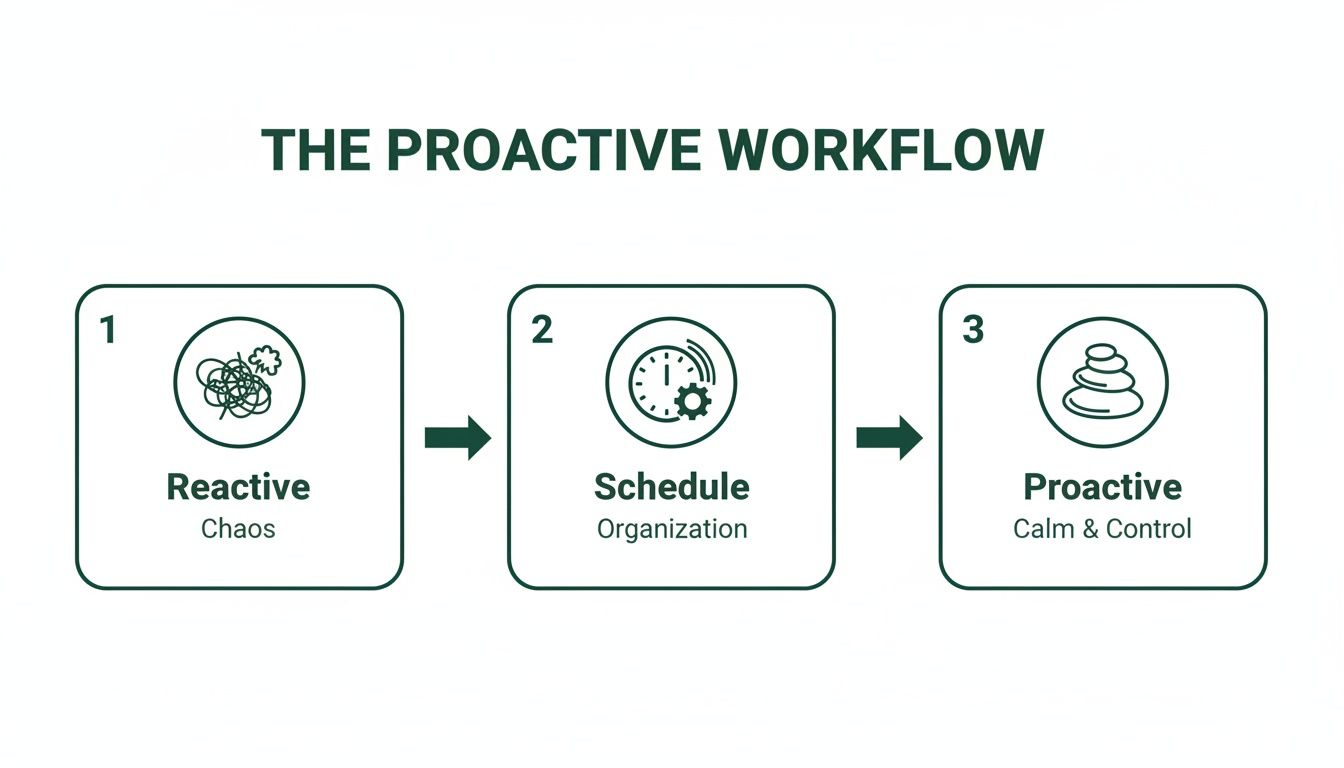 As you can see, scheduling moves you from a state of constant interruption to one of calm, deliberate action.
Using Schedule Send on a Desktop Computer
When you're working from a laptop or desktop, scheduling an email is just a couple of clicks away. Once you've composed your message, find that familiar blue Send button.
But don't click it just yet. Instead, click the small dropdown arrow right next to it. A menu will pop up with a Schedule send option. Gmail even offers a few smart presets like "Tomorrow morning" or "Monday morning," which are often exactly what you need.
If those presets don't work for you, just select "Pick date & time." This opens a calendar where you can pinpoint the exact moment your email should land in their inbox.
Scheduling an Email from the Gmail Mobile App
The process is just as smooth when you're on the go, whether you're on an iPhone or an Android. After you've drafted your email in the Gmail app, tap the three vertical dots (the "More" menu) in the top-right corner of the screen.
From the menu that appears, tap Schedule send. You'll see the same handy options as on the desktop: a few smart suggestions or the ability to pick a custom date and time. It’s perfect for queuing up a project update during your commute so it arrives right when your team gets online.
Scheduling Emails on Desktop vs Mobile
While the core functionality is the same, there are subtle differences in the workflow depending on your device. Here's a quick side-by-side look.
FeatureGmail on Desktop (Web)Gmail on Mobile (App)Accessing Schedule SendClick the dropdown arrow next to the Send buttonTap the three-dot "More" menu in the top-right cornerPreset TimesYes, suggestions like "Tomorrow morning" are availableYes, the same smart suggestions are offeredCustom Time SelectionFull calendar and clock interfaceFull calendar and clock interfaceEditing/CancelingView, edit, or cancel from the "Scheduled" folder in the left sidebarView, edit, or cancel from the "Scheduled" folder in the main menuUltimately, both experiences are designed to be fast and intuitive, letting you schedule emails from wherever you happen to be working.
The real power of this feature is that it integrates seamlessly into your workflow, no matter where you are. You can draft an email on your laptop and schedule it, then later edit the send time from your phone.
When Google officially rolled this out in 2019, it was a game-changer for its 1.8 billion users. Small teams and accountants, in particular, loved it for timing things like monthly invoice reminders and project check-ins without having to set a dozen calendar alerts. It's a simple feature with a real impact, helping boost Gmail's already strong average open rate of 19.2% by making sure messages arrive at just the right moment.
Mastering this feature is a great first step. You can dig even deeper into how to send an email at a certain time across Gmail and other platforms to fully level up your communication game.
How to View, Edit, and Cancel Your Scheduled Emails
So you've scheduled your first email. Great! But what happens when things change? Maybe a meeting gets rescheduled, you realize you forgot to attach that one crucial file, or you just want to rephrase a sentence.
Don't worry. Managing your scheduled emails in Gmail is just as easy as setting them up. It gives you a safety net, so you can schedule with confidence knowing nothing is final until it's sent.
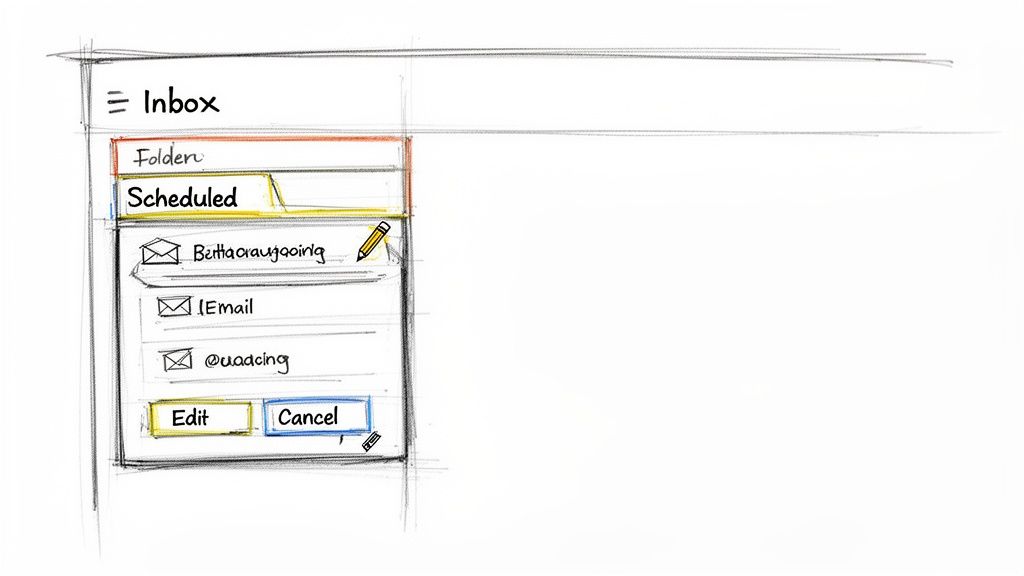 Knowing how to tweak things on the fly removes any "send anxiety." Let's walk through how to find and adjust those outgoing messages.
Finding and Changing Your Scheduled Messages
Gmail keeps all of your pending emails neatly tucked away in the "Scheduled" folder. You'll find it in the left-hand menu of your Gmail screen, usually right under "Sent" and "Drafts." If you're on your phone, just tap the main menu icon (the three horizontal lines) to see it.
This folder is your command center. Once you click on it, you'll see a list of everything that's waiting to be sent.
Click on any email in that list, and you'll have a few options:
- Cancel send: This is the most common action you'll take. If you need to edit the email, change the recipients, add an attachment, or pick a new send time, you have to cancel it first. Clicking "Cancel send" instantly turns the message back into a regular draft. From there, you can make your changes and reschedule it.
- Delete it for good: If you clicked "Cancel send" and have decided you don't need the email at all, you can simply delete the draft it created.
- Review the details: You can always click on a scheduled email just to double-check its content and confirm when it's set to go out.
Mastering your email queue is a fundamental skill. If you're interested in digging deeper, our guide on a queued email in Gmail has even more tips.
Think of the "Scheduled" folder as your personal email holding pen. Nothing is set in stone until the clock strikes go-time. This gives you a priceless window to catch mistakes and make sure every message is perfect.
This kind of control is vital for professional communication and is a cornerstone of good enterprise email management best practices. When you get comfortable with both scheduling and managing your outgoing mail, you transform Gmail from a simple inbox into a much more strategic tool for your work.
Pro Tips to Avoid Common Scheduling Mistakes
Knowing how to use the schedule send feature is one thing. Knowing how to use it strategically is what separates the pros from the rookies. I’ve seen it happen time and again—a few small missteps can lead to awkward timing, broken links, or messages that completely miss their mark.
Let's move past the basics and dig into the common pitfalls that can trip you up when you schedule an email in Gmail. Mastering these finer points will turn a simple convenience into a seriously powerful communication tool.
Getting these details right ensures your carefully timed messages land exactly when and how you intended, every single time.
Mastering Time Zones
One of the biggest points of confusion I see is how Gmail handles time zones. The good news? Gmail is pretty smart about it, but you have to understand its logic.
When you schedule an email, it's locked into your current time zone at that exact moment. For example, if you schedule an email for 9 AM while you're in New York (EST), it fires off when the clock strikes 9 AM EST. It doesn't matter if your recipient is in London or Tokyo. This is a critical detail to remember when you're coordinating with people across the country or around the globe.
Here's a real-world example:
- Scenario: You're working from Los Angeles (PST) and need an email to hit a colleague's inbox in London right at the start of their day, say 9 AM GMT.
- Action: You've got to do the math. 9 AM GMT is 1 AM PST. So, you'd schedule that email for 1 AM your time to make sure it arrives right when they're grabbing their morning coffee.
Bottom line: Always, always double-check your recipient's local time and schedule your email based on that calculation.
Handling Google Drive Attachments
Linking to Google Drive files is second nature for most of us, but it can create a nasty snag with scheduled emails if you aren't paying attention. The permissions for a linked file are only checked when the email is actually sent, not when you schedule it.
This means if you schedule an email with a link to a private Google Doc and then change the sharing settings after scheduling but before it sends, the recipient will get the updated permissions. The real risk, though, is forgetting to grant access in the first place. There's nothing worse than getting a "request for access" notification for an email you thought was handled hours ago.
Pro Tip: Before you schedule any email with a Google Drive link, do this simple test. Open an incognito browser window and paste the link. If you can't access it, neither can your recipient. Go fix the permissions before you hit "Schedule send."
The Power of Batching Your Work
Scheduling isn't just a tool for timing your sends; it's a powerful technique for managing your own focus. Instead of writing and sending emails reactively as they pop into your head, try dedicating specific blocks of time to "batch" all your email tasks at once.
For instance, you could spend 30 minutes at the end of your day writing all of tomorrow morning's follow-ups, project updates, and check-in messages. Then, just schedule them to go out at optimal times, like 8:30 AM the next day. This simple workflow has two huge benefits:
- It kills context switching: You stay deep in one task (emailing) instead of constantly derailing your other work.
- It protects your work-life balance: You can clear your to-do list in the evening without pinging colleagues at unprofessional hours, respecting their personal time as well as your own.
By keeping these tips in mind, you can dodge the common errors and really start using the scheduled email Gmail feature to communicate more effectively and, just as importantly, reclaim your focus.
The Recurring Email Challenge in Gmail
Gmail's "Schedule Send" is a fantastic feature for one-off messages. It's perfect for timing your communication, whether you're trying to respect different time zones or just want to maintain a healthy work-life balance.
But the moment you need to send something more than once, you hit a brick wall. This is the feature's biggest blind spot: Gmail offers no native way to schedule a recurring email.
This isn't just a small missing feature; it's a huge gap for anyone trying to put their routine communication on autopilot. Every time you need to send that weekly reminder or monthly invoice, you're right back at square one—manually finding the old email, duplicating it, and rescheduling. It's tedious, easy to forget, and completely defeats the purpose of automation.
Where Manual Rescheduling Falls Apart
Think about all the real-world situations where this becomes a genuine headache. These aren't obscure edge cases; they're common, everyday tasks that eat up your time and mental energy week after week.
- Project Managers: Sending that "Project Status Update" reminder to the team every single Monday morning.
- Accountants: Dispatching monthly invoice reminders to a long list of clients on the first of the month.
- Team Leads: Nudging everyone to "Submit Your Timesheets" every other Friday.
- Property Managers: Reminding dozens of tenants that rent is due in five days, a task repeated across multiple units each month.
In every one of these scenarios, the email is almost identical. But without a recurring send option, you’re stuck in a loop of manual busywork. You have to remember to do it, find the last email you sent, copy the content, paste it into a new message, and schedule it all over again.
This limitation means you're not just managing your emails; you're babysitting a repetitive process that a simple automation tool could handle in its sleep. All that time spent manually rescheduling messages adds up, undermining the very productivity that scheduling promises in the first place.
The Need for True Automation
This isn't to knock Gmail's existing feature, which works perfectly for what it was designed to do. Instead, it highlights an opportunity to add another layer of efficiency to your workflow. The real goal of scheduling isn't just to delay a single email; it's to free up your attention so you can focus on more important work.
When you have to manually recreate reminders, you're still dedicating brainpower to the task. This is where specialized tools come into play. For anyone looking to automate these repeating sends, it’s worth understanding the best way to send a recurring email in Gmail using solutions built specifically for this job.
Think of these tools as a small but powerful productivity hack—an invisible assistant that works alongside your existing setup. They aren’t meant to replace your project management apps or habit trackers. Their one and only job is to handle the simple, repetitive email tasks that Gmail's scheduler can't, finally putting those routine messages on true autopilot.
Automating Repeating Tasks with Recurrr
Gmail’s scheduling feature is fantastic for those one-and-done emails, but what about the messages you need to send over and over? This is where it falls short. If you've ever found yourself manually rescheduling the same email every week or month, you know how tedious it can be.
This is exactly the gap a tool like Recurrr was built to fill. It's a small productivity hack, an invisible tool you can use in addition to your other apps. It’s a beautifully simple solution that does one thing exceptionally well: it puts your routine, recurring emails on complete autopilot.
Its strength is its simplicity. It’s the perfect fix for all those small but essential messages you're tired of sending manually.
How Recurrr Solves the Repetitive Send Problem
Think of Recurrr as the "set it and forget it" button for your routine communication. The entire experience is designed to be frictionless, saving you the mental energy you’d normally waste remembering to send those repeating messages.
It’s perfect for tasks like:
- Personal Wellness: Sending yourself a reminder every Sunday night to plan your workouts for the week.
- Household Chores: Emailing your family the weekly chore list every Saturday morning like clockwork.
- Team Operations: Nudging your team every other Friday to submit their timesheets.
- Freelance Admin: Automatically sending monthly invoicing reminders to clients on the 1st of the month.
By taking these small but consistent tasks off your plate, Recurrr guarantees they get done without you ever having to think about them again. It’s the perfect companion to Gmail's native scheduling, handling the one thing Google overlooked.
The goal isn’t to add another complicated tool to your workflow. It’s about using a simple, focused app to automate the background noise so you can concentrate on what actually matters.
Ultimately, Recurrr helps you build reliable systems for your routine communication. It finally delivers on the promise of true automation, ensuring your follow-ups and reminders go out consistently, freeing up your time and focus for more important work. This one small tweak can make a huge difference in your day-to-day productivity.
Got Questions? We've Got Answers
You've got the basics down, but a few questions might still be bubbling up. Let's tackle some of the most common things people wonder about when scheduling emails in Gmail.
Does My Computer Need to Be On for the Email to Send?
Nope, not at all. Once you hit that "Schedule send" button, you're handing the job over to Google's servers.
Think of it this way: you've given Google its instructions, and it'll take it from there. Your email will go out at the exact time you picked, whether your computer is on, off, or halfway across the world.
Is There a Limit on How Many Emails I Can Schedule?
Yes, there is a ceiling, but it's a pretty high one. Gmail lets you have up to 100 scheduled emails queued up at any given time.
For most of us, that's more than enough breathing room. But if you're a power user—maybe you're lining up a big outreach campaign or managing multiple projects—it's a good number to keep in the back of your mind.
The key takeaway here is simple: scheduling an email makes it independent of your device. It’s a rock-solid feature for planning your communications without being chained to your desk at a specific time.
Can I Schedule an Email to a Group or Mailing List?
You bet. The process is identical to sending an email to a single person.
Just pop the group contact or the full mailing list address into the "To" field, write your message, and schedule it like you normally would. It’s a fantastic way to coordinate with your team or get announcements out the door right on schedule.
Tired of manually rescheduling those same weekly reports or monthly reminders? Recurrr is the "set it and forget it" solution you've been looking for. It puts your repeating emails on true autopilot so you can focus on more important things. Start automating today at https://recurrr.com.