


Sending a recurring email in Outlook should be simple, but it's not. There's no "send recurring" button hiding in the menus. The surprising answer is that Outlook has no built-in feature for this. This forces you to get a little creative with workarounds. This guide will walk you through the most effective methods, from slightly technical flows to dead-simple calendar tricks.
Why Can't I Just Set a Recurring Email in Outlook?
If you've ever hunted for a way to send repeating emails in Outlook, you probably came up empty-handed. This isn't an oversight by Microsoft; it's a reflection of Outlook's core design. At its heart, Outlook is an enterprise communication tool built for direct, person-to-person interaction—not marketing automation or repetitive task management.
Still, the absence of this feature is frustrating. Outlook commands a solid 7.06% market share among email clients, yet it forces users to find manual solutions for what feels like a basic need. Considering employees already spend about five hours a week just managing their inbox, the lack of automation for routine messages just adds to the pile. You can dive deeper into email management challenges and find more insights at Cerkl.com.
This leaves you with a fundamental choice. You can either embrace a more technical solution within the Microsoft ecosystem or use a clever, non-automated reminder system that's just as reliable.
Choosing Your Automation Path
To pick the right method, you first need to think about your comfort level with technical tools and how complex your needs are. This decision tree breaks down the two main paths you can take.
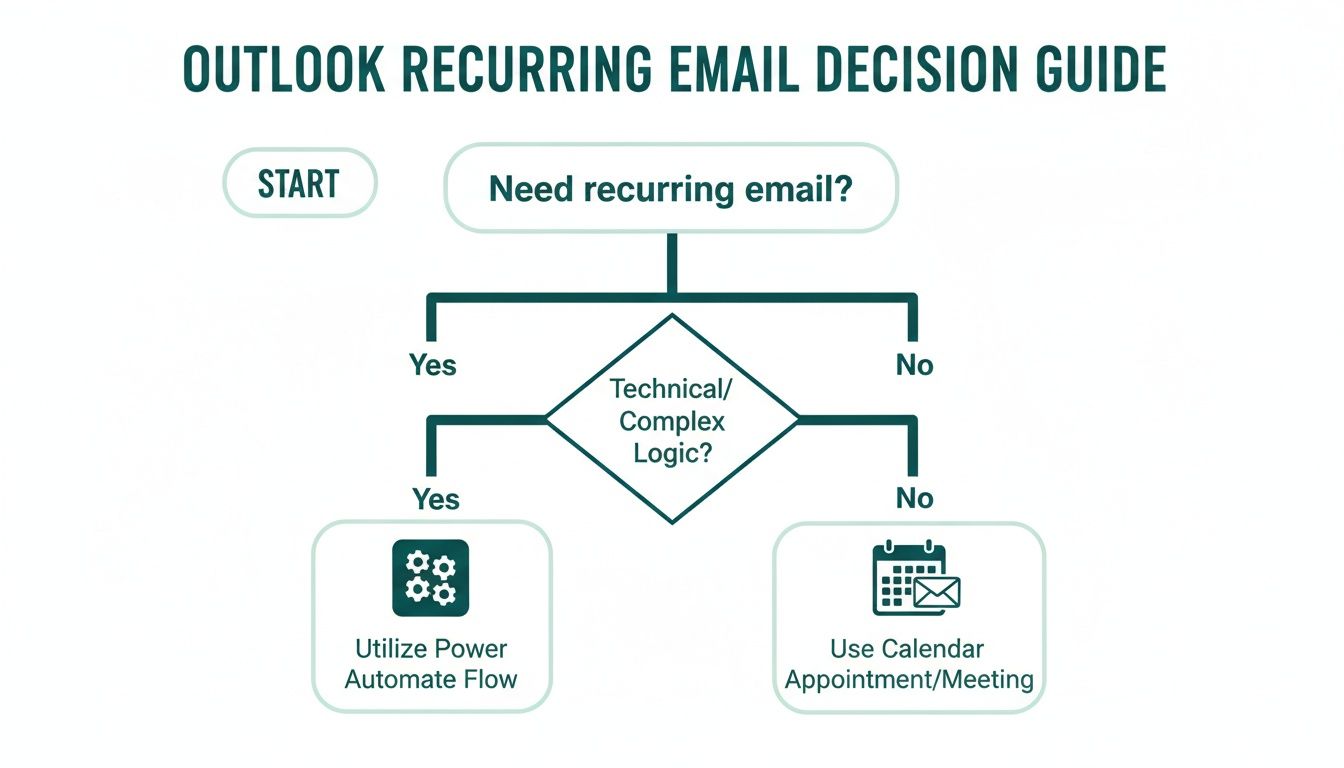
As the flowchart shows, if you need true, hands-off automation with custom rules (like "send every third Tuesday"), Power Automate is Microsoft's intended solution. For simpler, periodic reminders, the calendar workaround is perfect.
Essentially, your options boil down to a few key strategies, each with its own pros and cons. To help you decide quickly, here’s a quick breakdown of the main methods we'll cover.
Outlook Recurring Email Methods At a Glance
| Method | Platform | Complexity | Best For |
|---|---|---|---|
| Power Automate Flow | Web (Microsoft 365) | Medium-High | True "set it and forget it" automation for complex schedules. |
| Calendar Appointment | Desktop, Web, Mobile | Low | Simple reminders to send pre-written emails manually. |
| VBA Script | Desktop (Windows) | High | Powerful, custom automation for tech-savvy users. |
| Third-Party Add-in | Varies | Low | Easy-to-use solutions that fill the feature gap for a fee. |
Each of these approaches solves the problem in a different way. Your choice depends entirely on whether you value convenience, cost, or complete control.
Throughout this guide, we'll dive deep into each one, giving you the exact steps to finally master sending recurring emails in Outlook, once and for all.
Taking Things Up a Notch with Power Automate
If you're after Microsoft's official, truly "set it and forget it" method for sending recurring emails in Outlook, Power Automate is your answer. This is a proper automation tool, built to connect different apps in the Microsoft 365 vs Google Workspace ecosystem and run tasks on a schedule without you lifting a finger.
I'll be honest, it's not as simple as clicking a button. Power Automate has a bit of a learning curve. Think of it less like a feature and more like a small engine you build yourself. But once you get the hang of the basic pieces, you can create some seriously robust and reliable recurring emails for just about any situation you can dream up.
Building Your First "Flow"
The magic behind Power Automate is the "flow," which is just a sequence of actions kicked off by a trigger. For what we need, the trigger is a schedule. So, you’ll be creating a Scheduled cloud flow. This type of flow runs entirely on its own based on the frequency you set—daily, weekly, monthly, or something completely custom.
Let's walk through a real-world example. Say you're an accountant who needs to chase a client for an invoice on the last Friday of every single month.
- Kick off a New Flow: Head into Power Automate, hit "Create," and pick "Scheduled cloud flow."
- Set the Schedule: Give your flow a descriptive name, like "Monthly Invoice Reminder - Client X." Set your start date, then tell it how often to run. In our case, you'd set it to repeat every 1 month. The real power is in the advanced options, where you can specify the last Friday.
- Build the Email Action: Now, you add your first action. Search for the "Send an email (V2)" action from the Outlook 365 connector. This gives you a familiar-looking email compose window. You'll pop in the recipient's address, the subject line, and the body of the email. You can even use rich text and drop your signature in manually.
- Save and Go: Once you save it, the flow is live. Power Automate will now handle the rest, sending that email on schedule whether your computer is on, off, or halfway across the world.
This method offers a level of precision that other workarounds can't match. You have granular control over the timing, and because it runs in the cloud, it's completely independent of your local Outlook application.
The Good, the Bad, and the Automated
While Power Automate is the most powerful native solution, it's worth weighing the pros and cons. It's a bit strange that for a tool as professional as Outlook, 100% of native recurring sends require jumping through hoops with an add-on like Power Automate. This tool has been part of the Microsoft 365 suite since 2016 when it was called "Flow," yet it still feels like a workaround.
Setting up a basic scheduled flow is pretty straightforward, especially if you follow a guide like this helpful video walk-through. The hidden cost, though, can be in the maintenance. If something breaks or needs tweaking, you have to dive back into the flow builder.
To get a better sense of why tools like this exist, it helps to understand the bigger picture of office productivity suites and the principles behind them. You can learn more about this in our article on what is workflow automation.
The Classic Calendar and Template Workaround
Before slick automation tools were a thing, clever Outlook users came up with a simple, brute-force workaround that still works beautifully today. It's a low-tech method that cleverly combines two features you already use: email templates and calendar appointments.
No, it doesn't actually hit "send" for you. But it tackles the most mind-numbing part of the job—typing out the same message again and again.
The idea is simple. You write the email once, save it as a template, and then set up a recurring calendar reminder that tells you when to open that template and send it off. It’s a perfect system for a project manager who needs to send out bi-weekly status update requests or a freelancer who sends the same check-in email to a client each month. Best of all, it's completely free and requires zero technical wizardry.
Creating and Using an Outlook Template
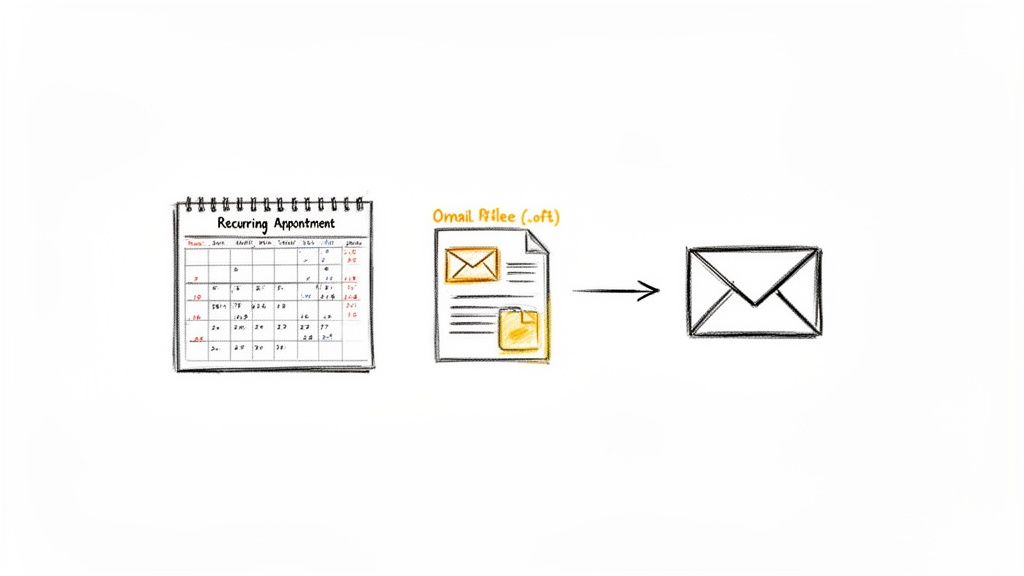
The magic behind this method is the Outlook Template file, or .oft file. This isn't just a saved draft; think of it as a master copy of your email, complete with recipients, the subject line, body text, and even attachments all locked in and ready to go.
Here’s how to get one set up:
- Draft Your Master Email: Open a new email and compose it exactly how you want it to look every time it's sent. Go ahead and fill out the "To," "Cc," and "Subject" fields.
- Save It as a Template: Now, instead of sending it, navigate to File > Save As. In the "Save as type" dropdown menu, find and select Outlook Template (*.oft).
- Give It a Clear Name: Call it something memorable, like "Weekly Team Report Request," and click save. Outlook automatically squirrels it away in the default templates folder.
With the template saved, you're halfway there. Whenever it’s time to send your message, you just open the template, and a brand-new copy of the email pops up, ready for you to send. For more ideas on what to put in your templates, check out our guide on writing great meeting reminder email samples.
This manual workaround is a clever hack, but it also shines a light on one of Outlook's biggest missing features. With a 7.06% client share, Outlook is an enterprise powerhouse, yet it forces users into these kinds of multi-step processes for a simple recurring task. Considering 58% of users check their email first thing in the morning, a single missed calendar alert could mean a critical message never gets sent, highlighting a real need for better native automation.
Setting Up the Recurring Calendar Reminder
Now for the final piece: the recurring prompt in your calendar. This is what makes the system reliable and ensures you never forget to send your templated email.
Just hop over to your Outlook Calendar and create a new appointment. Name it something obvious, like "SEND - Monthly Invoice to Client ABC." Set the first date you need to send it, then hit the "Recurrence" button to set the schedule. You could set it to repeat on the first business day of every month, for example.
The trick is to set a reminder for about 15 minutes before you need to act. You can even drop a link to the saved .oft file right into the appointment body for lightning-fast access.
For anyone who relies heavily on a calendar-based system, knowing how to sync Outlook Calendar with Google Calendar can be a game-changer. It’s a fantastic little productivity hack that uses the tools you already have to build a system you can count on.
The Downsides of Using Outlook's Built-In Workarounds
While the native tricks for sending recurring emails in Outlook can work, they often feel like patching a hole in a boat with duct tape. Sure, you've solved the immediate problem, but you’ve also introduced a whole new set of potential leaks and frustrations.
These methods are brittle. They work perfectly right up until the moment they don't, and the consequences can range from minor annoyances to major communication breakdowns. If you're relying on these systems for critical tasks—like sending monthly invoices or weekly project updates—these small headaches can quickly snowball into significant problems.
You're Flying Blind on Analytics
One of the biggest limitations is the complete lack of feedback. After you set up your Power Automate flow or trigger your templated email, it vanishes into the ether. You have absolutely no way of knowing what happened next.
Was the email opened? Did your recipient click the link? Was it even delivered successfully, or did it land in their spam folder? Native Outlook methods offer zero visibility into these crucial metrics. You're left guessing whether your communication was effective or even seen at all, which is a massive drawback for any process where engagement actually matters.
The Constant Risk of Human Error
Let's be honest, any system that relies on manual steps is a ticking time bomb for simple human error. The calendar-and-template method, for example, is entirely dependent on you seeing and acting on a pop-up notification.
What happens if you're in a meeting when the reminder appears and you dismiss it, planning to get to it later? What if your computer is just off that day? A single missed alert means a critical communication is never sent, breaking the entire chain. In the same way, an accidentally paused Power Automate flow can silently halt your whole automation schedule without any warning.
The core issue with these workarounds is their fragility. They create a "set it and hope you don't forget it" system, where a single oversight can derail a process you thought was automated.
Inflexible and a Pain to Manage
Life and business are rarely static, but these recurring email setups are frustratingly rigid. Imagine you need to update the content of your monthly report reminder.
With Power Automate, you have to navigate back to the flow editor and carefully edit the email body. For the template method, you have to hunt down the original .oft file, make your changes, and then re-save it.
What if you need to pause the sequence for a month while a client is on vacation? Or skip just one email without breaking the entire recurrence pattern? These simple adjustments become surprisingly complicated, forcing you to either delete and rebuild the whole schedule or risk sending outdated information. For a deeper dive into these kinds of challenges, you might be interested in our article on the concept of an endless email loop.
After wrestling with Outlook’s often clunky and complicated methods, you start to realize something: they weren't actually built for sending simple recurring emails. They’re workarounds, not real solutions. This is where a dedicated tool—a small productivity hack—can completely change the game.
Instead of some heavy, all-in-one platform, think of this as an invisible tool that you can use in addition to your other tools. It’s designed to do just one thing exceptionally well: send your repeating communications on time, every time, without any fuss. That's the whole idea behind a tool like Recurrr. It’s not trying to replace your project manager or your to-do list; it’s a focused utility that just slots into the way you already work.
Overcoming Outlook’s Limitations with Simplicity
A dedicated tool cuts right through all the limitations we've talked about. You don’t have to build complex automation flows or set manual calendar reminders you might accidentally ignore. Everything is handled from one simple, clean dashboard.
Take a property manager who sends out monthly rent reminders. Using one of Outlook's built-in methods is a gamble—one missed email could mean a late payment. With a tool designed specifically for this, they set up the email once, and it runs on true autopilot.
What if a rental unit is vacant for a few months? Instead of deleting and then rebuilding a complicated schedule, they can just pause the email series for that specific person. When a new tenant moves in, they can resume it with a click. That kind of flexibility is just not on the table with Outlook's native options.
A Gentle Nudge, Not Another System to Manage
The real beauty of a tool like this is how light it feels. It’s a hidden gem that doesn’t demand your constant attention. For small teams, freelancers, and solopreneurs, those little administrative tasks like sending weekly check-ins or monthly follow-ups really start to add up, becoming a real drag on productivity.
A purpose-built tool removes the mental overhead. You stop asking yourself, "Did I remember to send that invoice reminder?" The system just handles it, giving you quiet confirmation that the job is done. Your focus is freed up for work that actually matters.
This approach gives you a few key advantages:
- True "Set It and Forget It" Power: Create the schedule once, and it runs like clockwork in the background, whether your computer is on or off.
- Effortless Management: Pausing, editing, or stopping a recurring email for one person or everyone takes just a couple of clicks. No complex rules to untangle.
- Clear Visibility: You get a simple dashboard showing all your active recurring emails in one place. It gives you a perfect overview of your automated communications.
- Personalization That Scales: Every message still looks like it was sent directly from you, keeping that personal touch that often gets lost with bigger, more complex automation systems.
By using a small, specialized tool, you're not adding another beast of a system to your plate. You're adopting a simple, elegant solution for a very specific—and very common—problem. If you're curious how this approach stacks up against more technical platforms, check out this piece on a simpler alternative to Zapier for recurring emails.
Frequently Asked Questions
As you start digging into how to send a recurring email in Outlook, a few common questions always seem to pop up. Let's tackle the most frequent sticking points head-on so you can get your automations running without a hitch.
Can I Send Recurring Emails From the Outlook Mobile App?
In a word: no. The Outlook mobile app for both iOS and Android doesn't have a built-in feature for this. It's one of those things you'd expect to be there, but it just isn't.
The only way around this is to set up a workaround like Power Automate on your desktop or through the web version of Outlook first. But here's the good news: once a Power Automate flow is live, it runs entirely in the cloud. That means it'll fire off your emails on schedule, no matter if your phone is on, off, or at the bottom of a lake.
Will My Recurring Email Include My Outlook Signature?
This is a classic "gotcha" that catches a lot of people. The answer completely depends on which method you're using, and it’s a small detail that can make your automated messages look either professional or unfinished.
- Using Power Automate: You have to manually add your signature. Power Automate won't automatically pull it from your Outlook settings, so you need to copy and paste it directly into the email body inside the flow editor.
- Using the Calendar/Template Method: Yes, it will. Your signature gets saved as part of the Outlook Template (.oft file) you create. When you open that template to send your email, the signature will be right there waiting for you.
Key Takeaway: Forgetting to add your signature in a Power Automate flow is an incredibly common mistake. Always double-check the "Send an email (V2)" action to make sure your branding and contact info are included.
How Do I Edit a Scheduled Recurring Email?
Editing a recurring email series is another spot where the process is totally different depending on your setup.
If you used Power Automate, you'll need to log into the Power Automate website, find the specific flow you created, and then edit the details inside the "Send an email (V2)" action.
For the calendar and template method, it's a bit more hands-on. You have to find the original .oft template file on your computer, open it, make your changes, and then save it again, overwriting the old version.
What Happens If My Computer Is Off?
This is probably the most critical difference between the methods.
If you’re using Power Automate, your email will always send on time. The automation runs in the Microsoft cloud, not on your local machine, so it doesn't care if your computer is on, off, or asleep.
But, if you're relying on the calendar reminder method, Outlook must be running on your computer for the alert to pop up. If your PC is off or Outlook is closed, you'll miss the prompt completely, and the email will never get sent. This makes it a much less reliable option for anything important.
If you're finding these Outlook workarounds clunky and unreliable, it might be time for a tool built for the job. Recurrr is a simple productivity hack designed to put your recurring emails on true autopilot, saving you a ton of time and stress. You can get started for free at Recurrr.com.