

Let's get straight to the point: iCloud Mail has no built-in feature to send a recurring email automatically. It's a common and frankly, pretty frustrating, limitation for anyone living in the Apple ecosystem. If you need to send out monthly invoices, weekly team updates, or even just a simple birthday greeting every year, you've probably hit this wall. The function you expect to find just isn't there.
The Missing Automation in iCloud Mail
While iCloud is fantastic for syncing your calendars, contacts, and files across every device you own, it drops the ball on email automation. This gap feels odd, especially when scheduling and automation are core to how we work today.
This guide is here to tackle that limitation head-on. We're not just going to tell you it's impossible; we'll show you the clever workarounds you can piece together and the practical solutions that actually work. You don't have to ditch your iCloud account to make this happen.
So, Why is This Feature Missing?
Apple's design philosophy has always leaned heavily on simplicity and security. It's likely that a native recurring email feature introduces complexities they'd rather avoid. Imagine unattended emails firing off from your account—if not managed perfectly, it could be a potential security or spam risk. Because of this, Apple has focused on tools that need you to initiate the action, like a Reminder or a Calendar alert, rather than something that runs completely on its own.
Even as iCloud Mail evolves, native send-later scheduling remains out of reach. It's a bit of a paradox; by 2026, iCloud Mail is projected to be a powerhouse for professionals, yet it still struggles with basic automation that affects millions of its users.
Finding a Workable Solution
Instead of a simple "send recurring" button, the fix involves creatively combining Apple's existing tools or using a small, specialized app built for this exact problem. We'll walk you through the options, from simple reminder-based hacks to more robust scripting. The goal is to give you a reliable system that fits your needs without making your life more complicated.
If you want to get a broader look at the fundamentals, we cover the essentials in our detailed article on how to send recurring emails.
Before we jump into the step-by-step instructions, the table below gives you a quick snapshot of the two main paths you can take. Use it to compare the effort, reliability, and flexibility of each method.
iCloud Recurring Email Methods at a Glance
This table breaks down what you can expect when comparing a DIY iCloud workaround with a tool specifically designed for the job.
| Feature | Native macOS Workarounds | Dedicated Automation Tool |
|---|---|---|
| Setup Effort | Moderate to high; requires manual configuration and some tech comfort. | Low; designed for a simple, straightforward setup. |
| Reliability | Depends on your Mac being on, awake, and online. If it's asleep, so is your email. | High; cloud-based, so it sends automatically whether your device is on or off. |
| Flexibility | Limited; editing or pausing a schedule is clunky and often requires redoing the setup. | High; you can easily pause, edit, and manage all your scheduled emails from one place. |
| Platform | macOS only for any real automation. Not possible on iPhone or iPad. | Works from any device with a web browser. |
As you can see, while the macOS workarounds are clever, they come with some significant strings attached. A dedicated tool offers a much more "set it and forget it" experience, which is usually what you're looking for with automation. Now, let's get into how to make each of these methods work.
When you need a simple, no-fuss way to remember to send a recurring email, your best bet is often an app you already use every day: iCloud Calendar.
Let's be clear: this method won't actually send the email for you. But it's a fantastic semi-automated prompter that makes sure you never forget to send an important message. Think of it as a reliable personal assistant tapping you on the shoulder right when you need it.
This little workaround is perfect for any task that still needs a final human touch. Maybe you're a freelancer who needs to send a weekly progress report, or you manage a household and have to email utility companies every month. It’s a small productivity hack that uses the tools already synced across your iPhone, iPad, and Mac.
The idea is simple. You create a repeating event, customize its alert so you can't miss it, and drop your email template right into the event's notes. When the notification pops up, everything you need is ready to copy, paste, and send.
Setting Up Your Calendar Reminder
First things first, open the Calendar app on any of your Apple devices. The beauty of iCloud is that an event created on your Mac instantly appears on your iPhone and Apple Watch, giving you multiple chances to catch the alert.
Create a new event and give it a crystal-clear, action-oriented title. Something like "Send Weekly Client Update" or "Email Monthly Rent Reminder" works great. A vague title like "Email" is just too easy to ignore when you're in the middle of a busy day.
Next, set the date and time for when you want to send the email. The real magic here is the Repeat function. You can set the event to happen daily, weekly, bi-weekly, monthly, or even on a custom schedule like "the last Friday of every month." This flexibility is what makes it a solid icloud recurring email reminder system.
Pro Tip: I like to schedule the event about 15 minutes before I actually need to send the email. This buffer gives me time to review the message, pop in any last-minute details, and send it off without feeling rushed.
Once the timing is locked in, you need to make that alert work for you. Don't just settle for the default notification you can swipe away without a second thought.
- Customize the Alert: Instead of one alert, set up two. I schedule one for the time of the event and another one 30 minutes beforehand. This double-notification trick seriously cuts down the chances you'll forget.
- Use a Distinct Sound: If your device lets you, assign a unique and loud alert tone to these calendar events. You want it to stand out from your typical meeting reminders.
With this setup, you've just turned a basic calendar entry into a dedicated reminder system for your recurring emails.
Preparing Your Email Template
The final piece of this puzzle is getting the email content ready to go. Typing out the same message every week or month is a drag and a perfect recipe for typos and mistakes.
Inside that calendar event you just created, you'll find a Notes section. This is the perfect spot to stash your pre-written email template. Just paste the entire body of the email right into the notes. I even include the subject line to make it a true copy-and-paste job.
For example, a project manager's template might look something like this:
Subject: Weekly Project Status Update: [Project Name]
Body: Hi Team,
Here is the progress report for the week ending [Date].
- Completed Tasks: [List tasks here]
- Upcoming Priorities: [List priorities here]
- Blockers: [Note any issues]
Best, [Your Name]
When the calendar alert finally goes off, all you have to do is open the event, copy the subject and body from the notes, and paste them into a new message in your iCloud Mail app. Fill in the bracketed details, and hit send.
Sure, it still takes a manual step, but this method completely removes the mental load of remembering the task and composing the message from scratch. It’s a seriously practical and reliable way to manage your icloud recurring email tasks without needing any complicated tools.
Build a True Automation with macOS Automator
If the iCloud Calendar trick feels more like a helpful nudge, then think of macOS Automator as the engine for a true "set it and forget it" machine. For Mac users who aren't afraid to peek under the hood a bit, Automator is an incredibly potent native tool that lets you build your own custom workflows. We're moving beyond simple reminders here and into genuine, unattended automation for your iCloud recurring email needs.
This approach is perfect for tasks that are absolutely identical every single time. Picture an accountant who needs to send the exact same payment reminder to a specific client on the 15th of every month. With Automator, you can build a tiny, dedicated app that does this for you without any manual intervention.
Crafting Your First Email Workflow
The whole process boils down to creating a special type of application—a "Calendar Alarm"—and then telling your Calendar app when to run it. It might sound a little technical, but it’s really just like snapping a few digital Lego bricks together.
First things first, open the Automator app on your Mac. You'll be asked to choose a type for your new document. Go ahead and select Calendar Alarm and click "Choose." This tells your Mac that you're building a workflow that a calendar event can trigger.
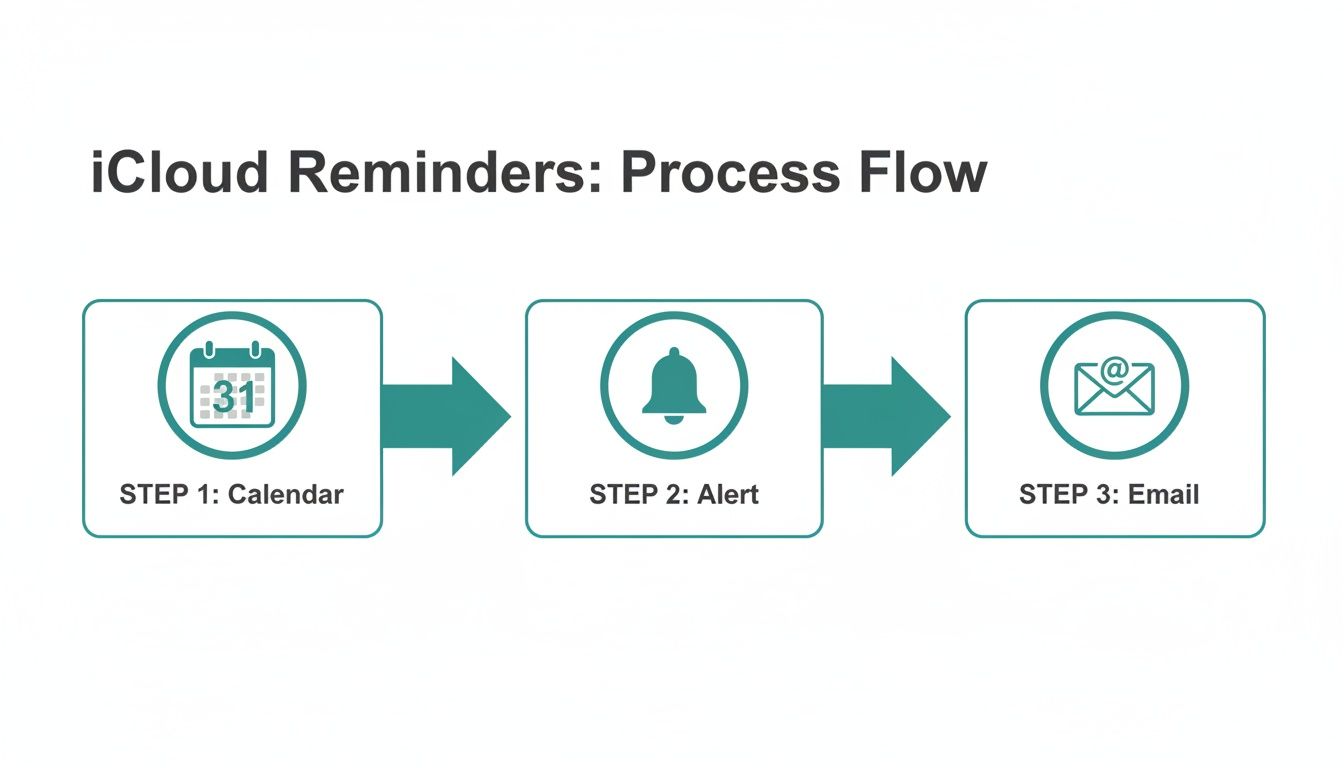
Once you're inside the workflow editor, you'll see a library of actions on the left. Find the New Mail Message action (it's tucked away in the Mail category) and drag it into the main workflow area on the right. This is the heart of your automation.
Now, you just need to fill in the details of the email you want to send on repeat:
- To: Pop in the recipient's email address.
- Subject: Write the subject line.
- Message: Type or paste the body of your email.
Once that's filled out, save the workflow. Give it a memorable name like "Monthly Invoice Reminder." Automator is smart—it will automatically save it and then pop open your Calendar app, creating a new event with your brand-new workflow already attached as an alert.
Scheduling Your Automation in Calendar
You've built your mini-app; now you just need to tell the Calendar when to run it.
That new event Automator created is your scheduler. Treat it like any other calendar entry. Set the date and time for when you want the first email to go out. The most important part is the Repeat option—this is where you'll set the schedule to weekly, monthly, or whatever custom interval you need. The event's alert will be set to "Open file" and will point directly to your Automator workflow.
The key takeaway here is that the Calendar app is just the trigger. It's the scheduler, but your custom Automator script does all the heavy lifting of actually sending the email.
Now, at the scheduled time, your Mac will automatically run the workflow, compose the email in your Mail app, and send it through your iCloud account. You've just created a completely hands-free system for your iCloud recurring email. If you're curious about how these automated steps fit into the bigger picture, it's worth reading up on what workflow automation is and its broader uses.
Common Pitfalls and How to Avoid Them
As powerful as this method is, it has one major Achilles' heel: your Mac must be awake and connected to the internet for the automation to work. If your computer is asleep, shut down, or offline when the calendar event triggers, that email simply isn't going to send.
This is the single biggest point of failure for native macOS automations. A scheduled task is only as reliable as the machine it's running on.
You can try to work around this by fiddling with your Mac’s energy settings. Head to System Settings > Energy Saver and either prevent your Mac from sleeping automatically or schedule it to wake up just before the email is due. Frankly, this isn't always practical, especially if you're on a laptop trying to save battery or traveling.
Another frustratingly common issue is the workflow hanging because the Mail app isn't running. A simple fix I always recommend is adding a "Launch Application" action (and selecting Mail) at the very beginning of your Automator workflow. This makes sure Mail is open and ready to go before the script tries to create and send your message. It's a small tweak that can save you a lot of headaches.
Modern Automation Using Apple Shortcuts on macOS
While Automator is a solid tool for Mac tinkerers, let's be honest—its interface can feel a bit dated. For a more modern and intuitive experience, Apple Shortcuts is the way to go. Think of it as Automator's spiritual successor, offering a cleaner, block-based approach to building powerful automations for your iCloud recurring email needs.
If you’ve ever played around with Shortcuts on an iPhone or iPad, the macOS version will feel instantly familiar. It’s built to be more approachable and integrates seamlessly across the entire Apple ecosystem. This makes it a fantastic choice if you want robust automation without a steep learning curve. The goal is the same: build a workflow that drafts and sends an email, then set it to run on a schedule.
Building Your Automated Email Shortcut
Creating an automation in Shortcuts is refreshingly straightforward. The app logically separates the trigger (the "when") from the actions (the "what"), which makes the whole process easy to follow, even if you're new to this.
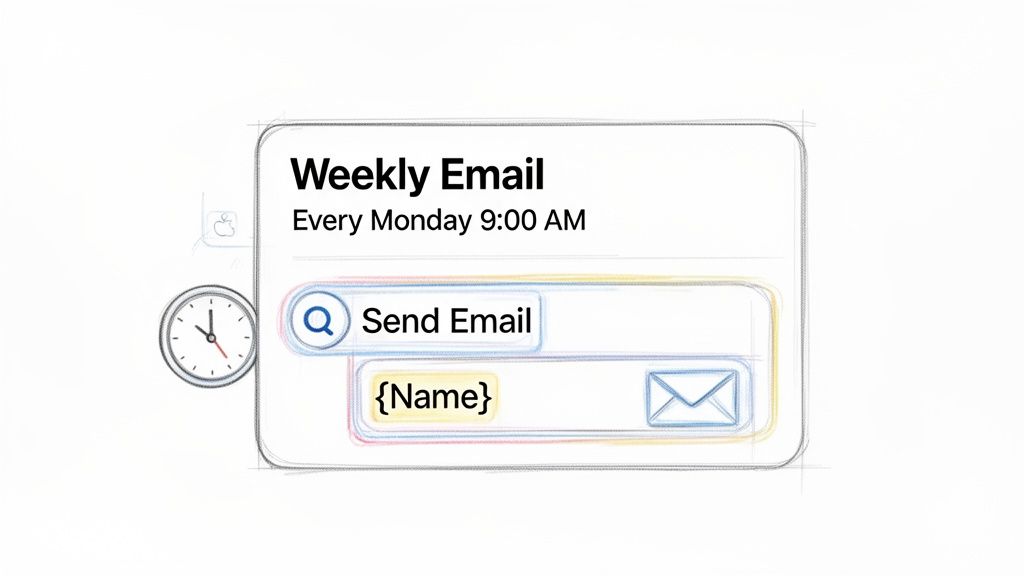
First, fire up the Shortcuts app on your Mac. Head over to the "All Shortcuts" section and click the little plus (+) icon to start fresh. The first thing you'll want to do is add your main action. Search for "Send Email" in the action library on the right and just drag it into your workflow.
This one block is where you'll set up the entire message. You can fill in the "To" field, craft your subject line, and write the body of the email. Shortcuts even supports rich text, so feel free to add bolding, italics, or lists to make your message pop.
A real power-up in Shortcuts is its support for variables. You can pull in dynamic info, like the current date, right into your email. For instance, a weekly report could automatically have a subject like "Report for the week of [Current Date]," saving you a manual update every single time.
Once the email looks good, give your shortcut a memorable name like "Friday Team Wins Email" or "Monthly Rent Reminder." Trust me, you'll thank yourself later when you can actually find it.
Setting Up a Time-Based Trigger
Okay, you've built the "what." Now it's time to set up the "when" and turn this into a true, hands-off automation. You’ll do this by creating what's called a Personal Automation.
In the Shortcuts app, click on the "Automations" tab in the sidebar and create a new one. It will immediately ask you to pick a trigger. For a scheduled send, you'll want to select "Time of Day."
This is where you dial in your schedule. You can set a specific time and then choose how often it runs:
- Daily: Perfect for that morning check-in email.
- Weekly: Lets you pick specific days, like every Monday and Wednesday.
- Monthly: You can choose a specific date, like the 1st or the 15th of the month.
After you've locked in the schedule—say, every Friday at 4:00 PM—you need to tell the automation what to do. Select the "Run Shortcut" action and then choose the email shortcut you just created. One final tip: uncheck the "Notify When Run" option if you want it to happen silently in the background. And that's it! Your Mac will now send that email automatically on the schedule you set.
Shortcuts vs Automator A Quick Comparison
While both tools get you to a similar destination, they take different roads. Knowing the key differences can help you pick the right one for what you're trying to do.
| Feature | Apple Shortcuts | macOS Automator |
|---|---|---|
| Interface | Modern, clean, and block-based. | Older, more traditional workflow interface. |
| Ease of Use | Very user-friendly, great for beginners. | Steeper learning curve, better for tinkerers. |
| Integration | Deeply integrated with macOS and iOS. | Primarily macOS-focused, less cross-device sync. |
| Flexibility | Excellent for multi-step, app-integrated tasks. | Powerful for file system and script-based actions. |
For most people just trying to schedule a recurring iCloud email, Shortcuts is the superior choice. Its clean design and logical flow make it much less intimidating than Automator. For those who find even this process a bit much and are exploring simpler platforms, it can be helpful to review articles that explain simpler alternatives to Zapier for recurring emails to see what else is available.
But here’s the catch. Just like Automator, Shortcuts has a big Achilles' heel: your Mac has to be awake and connected to the internet for it to run. If your computer is asleep or turned off when the trigger time hits, that email isn't going out. This one dependency is the main reason many people eventually look for cloud-based tools for any recurring messages they can't afford to miss.
The Smarter Alternative: A Dedicated Automation Tool
Let's be honest, the native workarounds using Automator and Shortcuts are clever, but they come with a huge catch: they're incredibly fragile. These DIY setups depend entirely on a specific Mac being awake, online, and running perfectly at the exact moment an email needs to go out. This is where a dedicated, specialized tool becomes an absolute game-changer for your workflow.
Instead of wrestling with a brittle, device-dependent system, you can use a tool designed to solve this one problem perfectly. This is the whole idea behind Recurrr—a simple but powerful solution that delivers reliable, cloud-based automation for your recurring emails. It’s an invisible tool, a small productivity hack you use alongside your main apps to send emails on autopilot.
Why Cloud-Based Automation Wins
The single biggest advantage of a dedicated tool is reliability. Because it operates from the cloud, it isn't chained to any single device. Your Mac can be asleep, your iPhone can be off—it just doesn't matter. The email will still send on time, every single time.
This completely removes the main point of failure that plagues the native macOS solutions. It offers true "set it and forget it" peace of mind, which is non-negotiable for critical communications like invoices, client reports, or team check-ins.
Simple Setup for Complex Schedules
A dedicated tool also smooths out the setup and management process. Instead of patching together scripts or complex workflows, you get a clean, straightforward interface for creating your schedules. You can easily define recurring patterns that are a nightmare to create in Shortcuts, like "every third Thursday" or "on the last business day of the month."
Think about a property manager who sends rent reminders on the 28th of every month. With a tool built for this, they can:
- Set the schedule once: Create a monthly email to go out on a specific day.
- Craft a template: Write the reminder, using dynamic fields for the tenant's name or a link to the payment portal.
- Let it run: The system handles everything else, sending personalized reminders automatically.
Pausing or tweaking these routines is just as simple, usually only taking a click or two. This kind of flexibility is crucial for managing multiple recurring tasks without getting bogged down in the technical weeds. You can see more about how Recurrr offers simple, powerful automation on its site.
The Importance of Reliable Delivery
Just sending an email isn't enough; you have to make sure it actually lands in the primary inbox. This has gotten trickier lately. With stricter provider guidelines and AI-driven categorization in platforms like iCloud Mail, it's harder for routine messages to get seen. Poorly configured automated emails can see their visibility drop by up to 40%, getting buried in spam or promotional folders.
A dedicated automation tool helps improve deliverability by sending emails through properly authenticated servers, reducing the risk of being flagged as spam. This is a subtle but critical benefit over scripts run from a personal device.
While macOS offers some handy built-in tools, they often fall short for truly reliable automation. To get a better handle on the concepts, it’s helpful to start by understanding what sales automation is and how it works, since it often involves sophisticated email sequences. Ultimately, using a specialized tool removes the stress of dealing with fragile setups and deliverability headaches.
Why Email Deliverability Matters for Automation
Setting up a recurring email is only half the battle. The real trick is making sure it actually lands in your recipient's inbox, every single time. This is called email deliverability, and it's the difference between a message sent and a message received.
Simply firing off an automated email doesn't guarantee it will dodge the spam folder. Email providers like iCloud are getting smarter by the day, using complex filters to flag messages that look robotic or impersonal. This is especially true for emails that don't have a human touch.
The Challenge of Modern Inboxes
The Apple ecosystem, in particular, throws a few curveballs. Back in 2021, Apple rolled out Mail Privacy Protection (MPP), a feature that completely changed the game. It preloads images for Apple Mail users, which caused open rates to artificially jump by 30-50% almost overnight for many of us.
What does that mean for you? Well, that "open rate" metric is pretty much useless now for knowing if someone actually read your recurring email. You can get more of the technical details on how iOS changes impact email deliverability.
This forces us to focus on what really matters: clicks and, even better, replies. Your reputation as a sender is now built on real interaction, not bogus open counts.
Successful automation isn’t just about sending—it’s about connecting. Your goal should be to create recurring messages that feel personal enough to encourage a response, signaling to email providers that your messages are valuable.
To boost your chances, even small personalizations go a long way. Using the recipient's name or referencing a specific project makes your automated email feel less like it came from a machine and more like it came from you.
Try to encourage a quick reply, even if it's just a simple "got it." That little bit of engagement can significantly improve your sender reputation over time, making sure your important messages keep showing up where they belong.
Your Recurring iCloud Email Questions Answered
When you start digging into these iCloud workarounds, a few common questions always pop up. Let's tackle them head-on so you know exactly what you're getting into and what the real limitations are.
Can I Automate Emails Directly From My iPhone?
The short answer is a hard no—at least not in the "set it and forget it" way you're probably hoping for.
While the iCloud Calendar trick works just fine on an iPhone or iPad to prompt you to send the email, true hands-off automation with Shortcuts or Automator has to run on a Mac. iOS and iPadOS just aren't built to run these kinds of background scripts unattended for security and battery reasons.
If you need your recurring emails to send no matter which device you're using (or if all your devices are off), a cloud-based service is really the only way to go.
What Happens If My Mac Is Asleep?
This is the Achilles' heel of the macOS methods. If your Mac is asleep, shut down, or offline when your Shortcut or Automator task is scheduled to fire, that email is not getting sent. Period. The trigger is missed, and the system won't try to send it again when the computer wakes up.
Sure, you could tweak your Mac's Energy Saver settings to keep it from ever sleeping, but let's be honest, that’s not a practical fix for most people. This single dependency is the biggest reason users end up looking for a more robust tool built for this specific job.
On a related note, as you manage your Apple devices, you might eventually upgrade or sell an old one. It's crucial for your privacy to know how to properly remove iCloud from your iPhone before handing it over.
Can I Include Attachments in Recurring Emails?
You can, but how you do it depends entirely on the method you're using. It can get a little clunky.
- iCloud Calendar: You can't attach a file directly. The best you can do is drop a link to a file stored in iCloud Drive into the event's notes section.
- Automator & Shortcuts: This is much more capable. Both workflows let you add a step to "Get Specified Finder Items," which grabs a local file and attaches it to the email you're sending.
- Dedicated Tools: Services like Recurrr make this a breeze. You'll usually find a simple "attach file" button right in the email editor, just like you're used to.
Stop wrestling with fragile workarounds. For truly reliable, set-it-and-forget-it recurring emails, try Recurrr. It's the simple, cloud-based solution that ensures your messages send on time, every time, no matter what your devices are doing. Get started with Recurrr today.