

Sending the same email over and over feels like you're stuck in a productivity trap. But you don't have to be. You can set up a Microsoft 365 repeat email using the tools you already have.
The methods range from simple, built-in scheduling in Outlook to seriously powerful, automated flows using Power Automate. The right choice really just depends on how much control and flexibility you need for your recurring messages.
Why Automating Repetitive Emails Is a Game Changer
If you feel like a broken record sending the same weekly updates, client check-ins, or monthly reminders, you're not alone. The endless cycle of finding, copying, pasting, and sending these messages is a huge time-sink that pulls you away from work that actually matters. It's not just a feeling; it's a well-documented problem in the modern workplace.
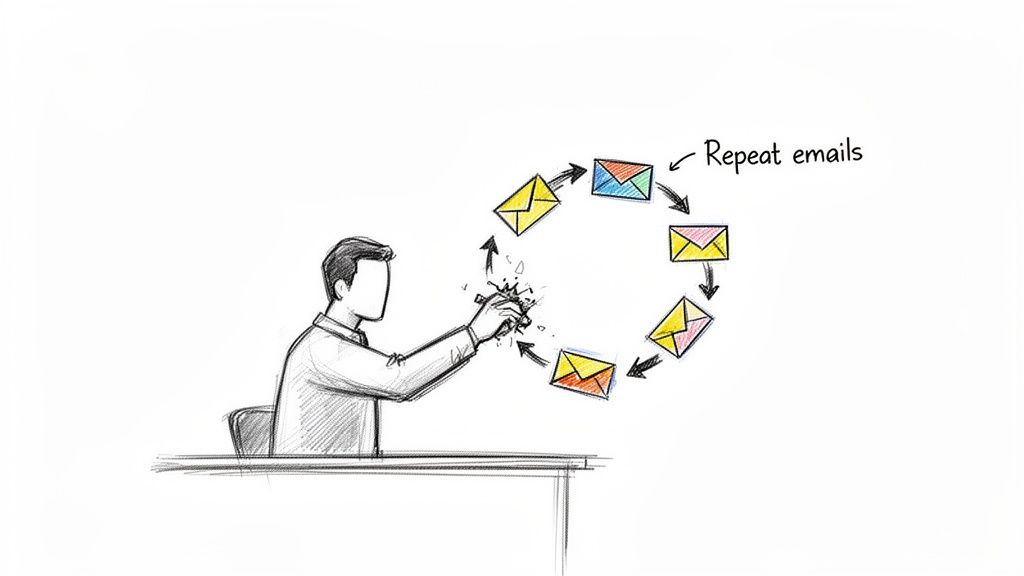
The average employee now gets a mind-boggling 117 emails per day. This contributes to what Microsoft's own research calls the 'infinite workday,' where constant pings interrupt us every couple of minutes, blurring the lines between work and personal time. It’s a digital drain on our focus.
Reclaiming Your Focus and Time
Automating a Microsoft 365 repeat email isn't just a nice-to-have convenience—it's a critical strategy for taking back your schedule. Just think about these common scenarios where a little automation makes a massive difference:
- Project Managers: No more manually sending "don't forget your status report" emails every Friday morning.
- Accountants: Monthly invoice reminders go out to every client on the 1st of the month, like clockwork.
- Solopreneurs: That bi-weekly newsletter to subscribers? It just sends itself.
- Team Leads: The agenda for the recurring Monday morning meeting lands in everyone's inbox before they even log on.
By putting these communications on autopilot, you eliminate the mental load of remembering to send them. This frees you up to concentrate on bigger, strategic tasks instead of getting stuck in the weeds of your inbox. Breaking free from this cycle is a big topic, and we dive deeper into it in our guide on escaping the endless https://recurrr.com/articles/email-loop.
Using pre-designed templates, like these referral email templates, is another great way to cut down on repetitive work and streamline your outreach.
This guide will show you the practical, hands-on methods within the Microsoft ecosystem, from quick tricks in Outlook to more robust workflows in Power Automate. Once you understand the different tools at your disposal, you can pick the right approach for your needs.
Recurring Email Methods in Microsoft 365 at a Glance
Navigating the options in Microsoft 365 can be a bit confusing at first. Some methods are quick and easy, while others offer deep customization but require more setup. This table breaks down the main approaches to give you a quick idea of what might work best for you.
| Method | Best For | Complexity | Flexibility |
|---|---|---|---|
| Outlook Delay Delivery | One-off scheduling for a single future email. | Low | Very Low |
| Outlook Templates | Reusing standard email content without a schedule. | Low | Low |
| Power Automate Flow | Complex, multi-step recurring email sequences. | High | Very High |
| Dedicated Tool (like Recurrr) | Simple, reliable recurring emails with advanced scheduling. | Medium | High |
Each of these has its place. A simple delay delivery might be all you need for one email, but for a true "set it and forget it" weekly report reminder, you'll want to look at something more powerful like Power Automate or a specialized tool. Let's dig into how each one works.
Building Advanced Recurring Emails with Power Automate
When Outlook's built-in options just don't cut it, it's time to bring in the heavy hitter: Microsoft Power Automate. This is the powerhouse tool lurking within your Microsoft 365 subscription, and it's the definitive way to build a truly automated microsoft 365 repeat email system.
Don't let the name intimidate you. While it's capable of incredibly complex workflows, setting up a simple recurring email is surprisingly straightforward. Think of it as creating a digital recipe that runs on its own. You tell it what to send, who to send it to, and how often to do it. After that, it just works in the background. This is the "set it and forget it" solution you need for critical communications that have to go out on time, every single time.
Starting Your First Scheduled Cloud Flow
The magic behind any recurring email in Power Automate is a Scheduled cloud flow. It all starts with a trigger you define—maybe it's every morning, once a week on a specific day, or the first Friday of every month. This trigger is the starting pistol that kicks off your automation.
Let's walk through a real-world example: sending out a weekly project update. The mission is to automatically email the project team a link to a new report every Monday morning at 9:00 AM, sharp.
First, you'll head over to Power Automate. From there, you'll create a new flow from scratch and pick the "Scheduled cloud flow" option.
- Name Your Flow: Give it a clear, descriptive name. Something like "Weekly Project Report Email" works perfectly.
- Set the Schedule: This is where you define the timing. For our scenario, you'd set it to repeat every 1 week on Monday at a specific time.
Once the schedule is locked in, you'll add the action step that actually sends the email. This is where you connect Power Automate to your Outlook 365 account.
Crafting the Perfect Automated Email
With your trigger in place, it's time to build the email itself. Power Automate gives you granular control over every part of the message, from the recipient list to the body content. This is where you can go way beyond static text and create something truly dynamic.
For our weekly report example, you'd configure the "Send an email (V2)" action like this:
- To: You can type in individual email addresses, but you can also use a Microsoft 365 group or even send it from a shared mailbox like
projects@yourcompany.com. - Subject: Write a clear subject line. Better yet, use dynamic content to pull in the current date, making it "Project Alpha Report for [Current Date]".
- Body: This is where you write the email. You can use formatted text, add links, and pull in other dynamic info. You could even have the flow automatically find the report link from a specific SharePoint library so you never have to update it manually.
- Importance: Tag the email's importance as Normal, High, or Low to help your team prioritize.
This is what really separates Power Automate from simpler tools. You aren't just delaying an email; you're building a small, intelligent process. You could, for instance, create a flow that sends monthly invoice reminders by pulling client names and due dates directly from a SharePoint list, ensuring every email is accurate without you lifting a finger.
If you're looking to dive deeper into this, our guide on setting up a recurring email in Outlook offers some great background info and tips that pair nicely with what Power Automate can do. Combining these approaches will have you handling just about any automated email task you can think of.
Quick Wins with Outlook Desktop and Web
Sometimes, the simplest fix is the one hiding right under your nose. Before you start building complex automation flows, it’s worth checking out the tools already built into Outlook for scheduling and repeating emails. They aren't full-blown recurring email systems, but for quick, one-off tasks, they're fantastic.
If you’re just trying to solve a one-off scheduling problem without leaving your inbox, it's worth taking a moment to master Outlook scheduling emails. These native features are often the fastest path to getting it done.
Using Delay Delivery in Outlook Desktop
The classic 'Delay Delivery' feature in the desktop version of Outlook is an absolute lifesaver. You know the scenario: you've just finished a big report late at night, but you want it to land in your manager's inbox first thing in the morning. Instead of setting a reminder for yourself, you can schedule it to go out automatically.
Once you've written your email, just head over to the Options tab and click Delay Delivery. A little dialog box will pop up, letting you set the exact date and time you want the email to send.
Just remember the one big catch: for the email to actually send, your Outlook desktop app has to be open and running at the scheduled time. If your computer is asleep or Outlook is closed, the email will just sit in your outbox until the next time you launch the program.
A Smart Workaround with Recurring Tasks
For a simple, repeating reminder, you can get creative with recurring Outlook Tasks or Appointments. This little hack works wonders for personal reminders or low-stakes team nudges, like a weekly email telling everyone to submit their timesheets. You just create a recurring appointment, and in the reminder settings, tell it to "send an email."
This kind of process—setting a trigger, defining the content, and letting it run—is the core idea behind any recurring email automation.
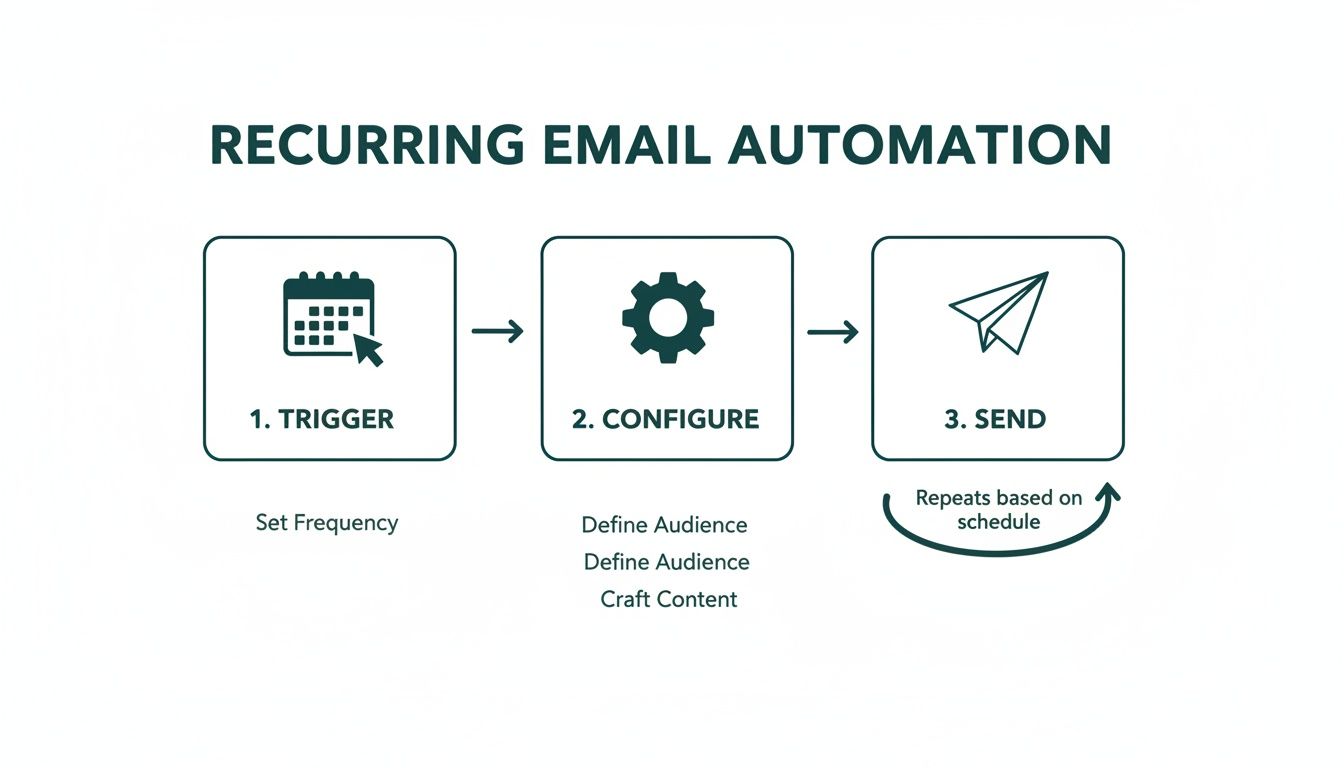
It’s all about finding a trigger, like a calendar event, that can kick off a communication so you don't have to think about it every single time.
Send Later in Outlook on the Web
If you live in your browser and use Outlook on the Web, you've got the 'Send later' feature. It's pretty much the web-based cousin of Delay Delivery, letting you schedule a single email for a future time. After you write your message, just click the little dropdown arrow next to the "Send" button and pick "Send later."
It's perfect for managing time zones or just making sure your message lands in someone's inbox at the best possible moment. But—and this is a big but—it can't create a true Microsoft 365 repeat email all by itself. For a full breakdown on that, you can check out our guide on creating a recurring https://recurrr.com/articles/outlook-recurring-email.
When a Dedicated Tool Is the Smarter Choice
Look, Microsoft’s built-in tools are powerful, no doubt about it. Power Automate is a beast for creating complex, multi-step workflows across different apps. But when all you want to do is send a simple Microsoft 365 repeat email, using it feels like bringing a sledgehammer to crack a nut.
Let's be honest, the setup can be a headache for anyone who doesn't live and breathe this stuff. Managing your recurring emails means diving back into the flow builder every time you need to make a change.
This creates unnecessary friction. What if you need to quickly pause your reminders for a week while you're on vacation? In Power Automate, you're back to editing the flow. With a tool built for the job, it’s usually just a single click.
Sometimes, what you really need is a "small productivity hack"—an invisible tool that just works in the background without adding more clutter to your day. This is exactly where focused apps shine.
The Value of Simplicity and Reliability
A specialized tool for recurring emails is designed to do one thing and do it exceptionally well. It strips away all the confusing extras, giving you a clean, simple interface focused purely on scheduling and managing your automated messages.
This simplicity is its greatest strength.
Think of a freelancer who sends a "friendly reminder" email to clients three days before an invoice is due. Or a team lead who sends out a quick "what are your top 3 priorities?" email every Monday morning. They don’t need conditional logic or APIs; they need a reliable system that’s dead simple to set up, easy to check, and even easier to change.
This is the whole idea behind Recurrr. It’s not trying to be a project management suite or a habit tracker. It’s just a simple, reliable way to send recurring emails without the technical overhead. If you're looking for an alternative to other complex systems, you might find our take on a simpler alternative to Zapier for recurring emails interesting.
Cutting Through the Noise with Automation
The real need for this kind of simple, reliable automation becomes clear when you look at how we actually use our inboxes. It’s a wild fact, but for many Microsoft 365 users, the number of times they read emails can actually be higher than the number they receive.
In some cases, over 50% of users show more reads than received messages, because every email gets reread multiple times for follow-ups and reminders. You can dig into these email usage insights from Microsoft's community forums yourself. For freelancers and small teams, this constant rereading is a huge red flag that your automation is either broken or just not there.
A dedicated tool solves this by firing off the message reliably, every single time. It reduces your mental load because you don't have to keep double-checking if that reminder went out. You just set the schedule and trust that it's handled.
At the end of the day, the best tool is the one you'll actually use consistently. If the complexity of Power Automate is holding you back, then a more focused solution isn't just an alternative—it's the smarter, more practical choice for your recurring email needs.
Practical Tips and Common Mistakes to Avoid
Automating a microsoft 365 repeat email is one thing. Building a system that actually works for you without causing more headaches? That's the real goal. You need to think beyond just the initial setup and focus on what it takes to manage these automations long-term.
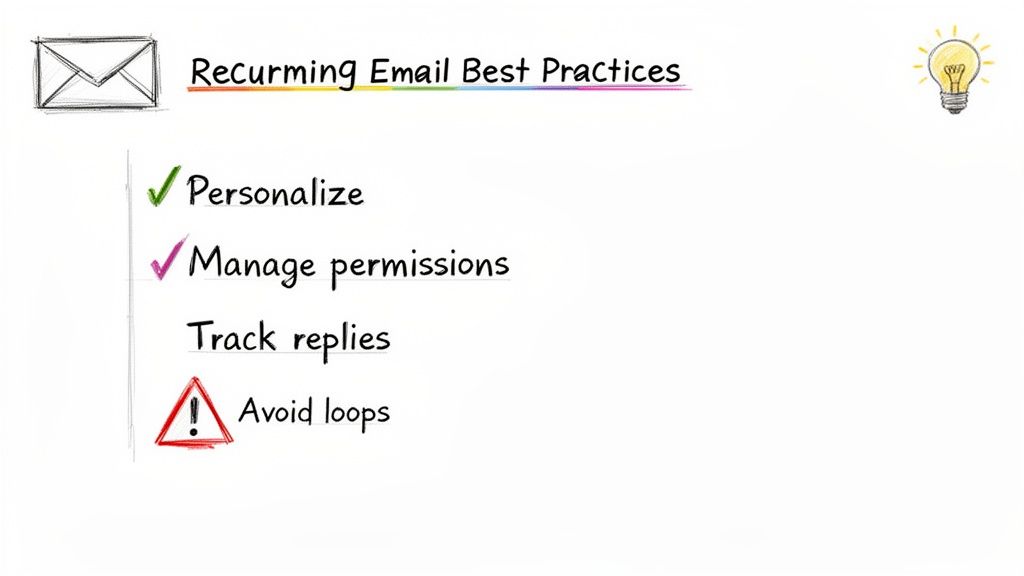
It really comes down to a few key practices that separate a genuinely helpful automated nudge from an annoying, spammy bot. This is all about keeping your messages feeling human, making sure they hit the right inbox, and knowing what to do when things inevitably go sideways.
Best Practices for Effective Automation
First off, write your recurring emails like a person. Just because a machine is sending it doesn't mean it has to sound like one.
- Use Personalization Tokens: If you're building a flow in Power Automate, use the dynamic content feature to pop in the recipient's name. A simple "Hi [First Name]" makes a world of difference.
- Vary Your Content: Don't let your message get stale. Every so often, tweak the subject line or the email body. An email that looks identical every single time will eventually just become background noise.
- Set Clear Expectations: In the first few emails of a new series, it's a good idea to mention it's an automated reminder. This helps manage expectations and keeps people from getting confused.
Next, you have to nail the permissions, especially if you're sending from a shared or team mailbox. Double-check that the account you use to create the Power Automate flow has the correct "Send As" or "Send on Behalf" permissions for that mailbox. I've seen countless flows fail simply because of misconfigured permissions.
Here's a critical tip that's easy to forget: regularly audit your automated emails. At least once a quarter, take a look at your active flows. Are they still needed? Is the recipient list still correct? A quick five-minute check-in can prevent you from sending outdated info or bugging people who left the project months ago.
Critical Mistakes You Must Avoid
On the flip side, a few rookie mistakes can turn your helpful automation into a full-blown crisis. One of the scariest is accidentally creating an infinite loop in Power Automate.
This usually happens when your flow's trigger is "When a new email arrives" in a mailbox that the flow also sends an email to. It's a recipe for disaster. The flow triggers, sends an email, which then triggers the flow again, and again... spiraling out of control, flooding inboxes, and potentially getting your account flagged. Always use specific conditions—like a unique subject line or sender address—to stop your flow from triggering itself.
Another classic error is forgetting to maintain your recipient lists. If your flow is pulling email addresses from a SharePoint list or an Excel file, that data source needs to be kept spotless. An employee who leaves the company shouldn't keep getting internal project updates for the next six months.
Finally, don't let replies fall into a black hole. By default, any reply to your automated email will land in the sender's inbox (or the shared mailbox). Make sure someone is actually monitoring that inbox. If you ignore legitimate questions or feedback, you're undermining the very communication you were trying to improve.
Your Recurring Email Questions Answered
When you start digging into sending a Microsoft 365 repeat email, a few practical questions always pop up. It’s one thing to know the tools are there, but another to get how the little details work. Let’s clear up the common ones.
Can I Send Recurring Emails with Attachments?
This is a big one, and a frequent stumbling block. If you’re trying a simple Outlook workaround like the recurring task method, the answer is a frustrating "no." It just wasn't built to handle attachments in the automated reminder.
This is where Power Automate really shines, though. You can easily build a flow that not only sends the email on schedule but also tacks on a specific file. Even better, you can tell it to grab a file from a specific folder in OneDrive or SharePoint. That way, your team always gets the most up-to-date version of that weekly report without you lifting a finger.
What Happens if My Computer Is Off?
The answer to this question really depends on where the automation is running—on your machine or in the cloud.
-
Outlook Desktop (Delay Delivery): If you're using the old-school 'Delay Delivery' feature, your Outlook app must be running when the email is supposed to go out. If your computer is off, asleep, or you've closed Outlook, that email is just going to sit in your Outbox until you open the application again. Not very reliable.
-
Cloud-Based Solutions: This is the way to go for dependability. With tools like Power Automate or a dedicated service like Recurrr, it doesn’t matter what your computer is doing. The automation runs on a server in the cloud, so your emails go out on schedule, every single time.
Moving your automation to the cloud is how you achieve true "set it and forget it" status. It gets rid of that single point of failure—your local machine—and lets your recurring emails run smoothly in the background, whether you're at your desk or on vacation.
How Can I Track My Sent Recurring Emails?
Keeping a clean record of what went out and when is non-negotiable. While you can always dig through your 'Sent Items' folder in Outlook, it's a mess. Trying to pick out the automated messages from the hundreds you sent manually is a recipe for a headache.
Power Automate gives you a much clearer picture with its detailed run history. For every flow, you get a log showing when it ran, if it worked, and you can even peek at the data from each step. This is a lifesaver for troubleshooting.
For the cleanest possible view, a purpose-built tool like Recurrr often provides a simple dashboard. You can see the entire history of a specific recurring email series at a glance—every send, skip, and edit is right there.
Is It Secure to Use Power Automate for Sensitive Data?
Security is everything, and thankfully, Power Automate is built right into the Microsoft 365 ecosystem. That means it benefits from the same tough security and compliance standards that protect all your other company data.
Your flows are authenticated with your own account, making it a secure way to automate emails. Just be smart about it—follow best practices like not hard-coding passwords directly into the flow. Instead, have it pull information from secure spots like a SharePoint list.
If wrestling with Power Automate feels like bringing a bazooka to a knife fight, Recurrr is the simple, focused alternative. It’s a small productivity hack that sends your recurring emails without the heavy technical lift. See how it works at https://recurrr.com.