

Sending the same email over and over feels like a tiny task, but it's a massive productivity killer. That weekly team update or the monthly invoice follow-up might only take a few minutes each time. But add them all up, and you're left with a constant drain on your focus and a ton of unnecessary mental clutter.
This is exactly why setting up an Outlook recurring email isn't just a nice-to-have feature; it's a strategic move to get your valuable time back.
Why Manually Sending Emails Is Costing You
The real problem with repetitive emails isn't the five minutes you spend typing. It’s all the hidden costs that come with it.
Every single time you have to stop what you're doing to send a reminder, you're breaking your concentration. This context switching makes it incredibly hard to get back into the groove on more complex work, causing a serious hit to your overall productivity.
Then there's the mental energy you waste just remembering to send these things. It's another task cluttering up your to-do list, another little source of anxiety. What happens if you forget that crucial monthly report reminder or a project check-in? It can easily lead to delays and miscommunication, creating much bigger problems that take way more time to fix than the original email ever would have.
The Real-World Impact of Repetitive Tasks
This isn't just a minor annoyance; it's a pattern that holds you back from doing the high-impact work that really matters. Just think about these common scenarios where manual emails become a hidden productivity drain:
- Project Managers: Chasing down team members for daily or weekly status updates.
- Accountants: Sending out invoice reminders or chasing clients for monthly financial documents.
- Property Managers: Reminding tenants about rent payments or upcoming maintenance.
- Team Leads: Distributing the agenda for the same weekly meeting every single Monday morning.
In every case, the task is simple but absolutely essential. Automating it doesn't just guarantee consistency; it frees you up to tackle the more strategic parts of your job.
The whole idea behind recurring emails is to embrace automation so you can work smarter, not harder. It’s about building simple systems that handle the boring stuff, letting you focus on what's actually meaningful.
This approach is really just one piece of a much larger strategy. If you're curious about how this fits into the bigger picture of efficiency, it’s worth learning more about what is workflow automation and how it can completely redefine your daily routines.
By offloading these predictable emails, you ensure they go out on time, every time, without you having to lift a finger. It's a simple shift, but it moves you from being a doer of tasks to a builder of systems—a far more effective way to manage your work.
Setting Up Recurring Emails on Outlook Desktop
If you live in the Outlook desktop app on your Windows or Mac machine, you've probably noticed there's no simple "repeat this email" button. It's a surprising omission, but there are a few clever workarounds you can use to automate your messages right from the app. These methods are powerful once they're set up, but they usually involve a bit of scripting to tell Outlook what to do and when.
The biggest catch with any desktop-based solution is this: your Outlook application has to be open and running for the email to actually send. If your computer is asleep, shut down, or Outlook is closed, the automation just won't happen. That's the main trade-off compared to a cloud-based tool that runs 24/7.
A Look at the Hidden Costs
Every time you stop what you're doing to manually send a routine email, you're losing more than just a few minutes. You're chipping away at your focus and momentum. This cycle of stopping, drafting a familiar message, and hitting send is a sneaky productivity drain.
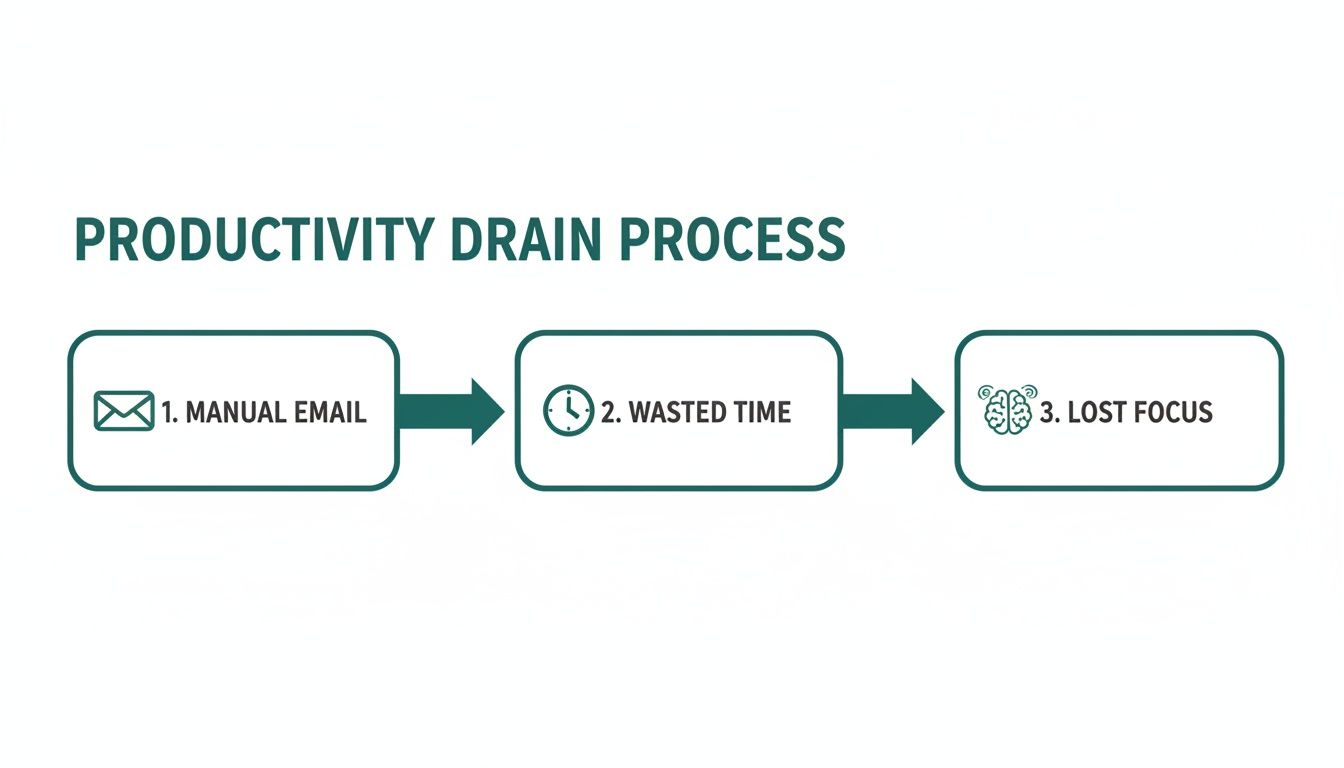
As you can see, it's not just about the time spent typing. It's about breaking your concentration and the mental effort it takes to get back into the zone. Automating even one of these emails can help you reclaim that lost focus.
Automating on Windows with VBA Macros
For those on Windows, the go-to method is using Visual Basic for Applications (VBA), the scripting language baked right into Microsoft Office. It sounds intimidating, but the process lets you create a custom macro that you can trigger with a recurring Outlook Task. It's a classic "set it and forget it" solution.
Here’s what you'll be putting together:
- The VBA Macro: This is just a small snippet of code you'll paste into a special editor within Outlook. It spells out the email's destination, subject, and body. No coding experience needed—you can usually find a template online and just swap in your own details.
- A Recurring Task: Once the code is in place, you create a task in Outlook and set it to repeat on your schedule—say, every Friday at 4 PM.
- The Trigger: This is the magic step. You set the recurring task to pop up a reminder. When that reminder fires, instead of just nagging you, it will automatically run your VBA macro and send the email.
This method is a clever hack. It essentially hijacks Outlook's reminder system and turns it into a lightweight automation engine for your emails.
Handling Automation on a Mac with Scripts
Mac users can pull off the same trick, but you'll be using a different set of tools. Instead of VBA, the macOS world runs on AppleScript, which you can use with the Calendar app or Automator to schedule your sends.
The idea is exactly the same, just with different names:
- Write an AppleScript: You'll create a simple script that tells your Mail or Outlook app to compose and fire off an email with a pre-written recipient, subject, and message.
- Schedule the Script: The easiest way to do this is to create a recurring event in the macOS Calendar app. Instead of a normal notification, you'll set the "alert" to run your saved AppleScript at the scheduled time.
It's easy to see why automations like this are so valuable when you look at the sheer volume of email flying around. The global email network supports 4.59 billion active users who send a mind-boggling 376.4 billion messages every single day. With the average person juggling multiple accounts, clawing back any amount of time from that constant outflow is a huge win. You can dive deeper into these stats in this detailed email industry report.
Using Power Automate for Smarter Web-Based Automation
If you're using Outlook on the web or as part of a Microsoft 356 subscription, forget about desktop scripts. They’re not just clunky—they’re completely unnecessary. There's a much smarter, more reliable way to handle this built right into the ecosystem: Power Automate.
This cloud-based tool is a total game-changer for setting up a truly automated outlook recurring email.
The big difference here is that Power Automate runs on Microsoft's servers, not your personal computer. This means your automations—or "flows," as they're called—work 24/7, whether your Outlook app is open or your laptop is shut. It turns a simple repeating message into a dependable business process you can actually set and forget.
Building Your First Automated Flow
Let's walk through a classic example: sending a weekly timesheet reminder to your team every Friday afternoon. This is the perfect kind of task to hand off to an automated system.
First, head over to the Power Automate website and sign in with your Microsoft 365 account. Once you're in, you'll create a new "Scheduled cloud flow." This just tells Power Automate you want something to happen on a specific, repeating schedule.
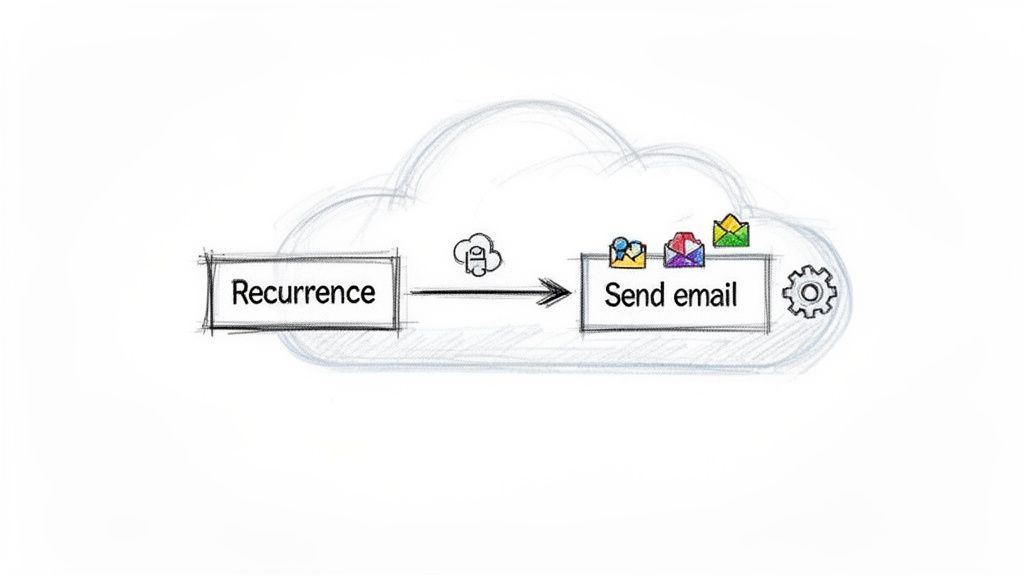
The whole process boils down to two main parts: the trigger and the action.
-
The Trigger (The "When"): This is where you set the schedule. For our timesheet reminder, you'd set the recurrence to repeat every one week and pick Friday. You can even dial in the exact time, like 4:00 PM, to catch everyone before they log off for the weekend.
-
The Action (The "What"): This is what actually happens when the trigger fires. You’ll add a new step and search for the "Send an email (V2)" action for Outlook. This brings up a straightforward interface where you can build your email, just like you normally would.
Think of Power Automate as a series of "if this, then that" commands that live in the cloud. You define the condition (the schedule) and the outcome (sending the email), and Microsoft's servers take care of the rest without fail.
Configuring Your Recurring Email Details
With the email action added, you just fill in the blanks. You'll specify the recipients in the "To" field, write a clear subject line like "Weekly Timesheet Reminder for Week Ending," and compose the body of the message. You can even flag the importance level as high to make sure it gets seen.
Once you save the flow, it's live. From that moment on, every Friday at 4:00 PM, Power Automate will send that email for you. You don't have to lift a finger.
While Power Automate is incredibly powerful, it can sometimes feel like using a sledgehammer to crack a nut, especially if all you need are a few simple reminders. If you find yourself wanting something more focused without the learning curve of a full automation platform, you might want to check out a simpler alternative to Zapier for recurring emails that gets the job done with less fuss.
Still, this hands-on approach shows just how effective a modern, web-based tool can be. It elevates the task of sending an outlook recurring email from a clunky desktop workaround to a seamless, professional automation that just works.
When to Look Beyond Outlook's Built-In Tools
While Outlook’s built-in methods get the job done, they aren't always the most practical solution. Let's be honest—diving into VBA scripts requires a certain level of technical confidence. On the other hand, setting up a flow in Power Automate can feel like using a complex industrial machine for a simple household task.
They both work, but they often come with a learning curve that feels completely out of proportion to the goal: sending a simple reminder email.
This is the point where looking for a dedicated tool makes a lot of sense. These alternatives aren't meant to replace your entire project management suite. Instead, think of them as a "small productivity hack" designed to do one specific job exceptionally well: sending a recurring email.
The Case for Purpose-Built Simplicity
Sometimes, you don't need a powerful, all-encompassing platform. You just need a button that says, "send this email every Monday at 9 AM." The friction involved in the native Outlook methods is often enough to stop people from automating tasks that could save them hours in the long run.
A specialized tool strips away all that complexity. Apps like Recurrr are designed from the ground up to handle one function with zero friction. The entire experience is focused on making the setup of an Outlook recurring email as intuitive as possible.
You get a clean interface where you can:
- Write your email just once.
- Pick a schedule from a simple calendar.
- Click "save" and trust that it will run without a hitch.
This direct approach removes the technical barriers, making automation accessible to anyone, not just those comfortable with scripts or complex flowcharts.
Comparing Outlook Recurring Email Methods
So, which path should you take? The best tool is always the one you'll actually use consistently. To help you decide, let's break down how the native options stack up against a dedicated tool.
| Feature | Outlook Desktop (VBA/Script) | Power Automate | Recurrr |
|---|---|---|---|
| Setup Complexity | High | Medium | Very Low |
| Reliability | Depends on your PC being on | High (Cloud-based) | High (Cloud-based) |
| Flexibility | High (if you can code it) | Very High (integrates widely) | Focused on email scheduling |
| Best For | Tech-savvy users with specific needs | Complex, multi-step business workflows | Simple, reliable email reminders |
As the comparison shows, if you need to integrate your email with a dozen other services and create a complex workflow, Power Automate is a fantastic choice. But if your goal is simply to send a rent reminder or a weekly report prompt, a dedicated tool is faster and far more straightforward.
The core benefit of a focused app is its "invisible" nature. It works silently in the background, reliably handling your repetitive communications without requiring ongoing maintenance or technical oversight. It’s a small productivity hack that delivers significant returns in saved time and mental energy.
Ultimately, the goal is to find the path of least resistance. To explore this streamlined approach further, our guide on how to send recurring emails offers a closer look at these user-friendly alternatives.
When Outlook's native tools feel like a chore, a purpose-built app might be the perfect, simple solution you've been looking for.
Best Practices for Managing Your Automated Emails
Flipping the switch on an automated email is a great start, but the real skill lies in managing them over time. It's a fine line. An unmanaged automation can quickly go from a helpful nudge to an annoying piece of spam. Sticking to a few best practices will keep your recurring emails professional, relevant, and genuinely useful.
The number one goal is clarity. Your recipients should know exactly what the email is about and why it landed in their inbox. Anything vague or generic gets ignored or deleted, which completely defeats the purpose of setting it up.
Establish Clear and Consistent Communication
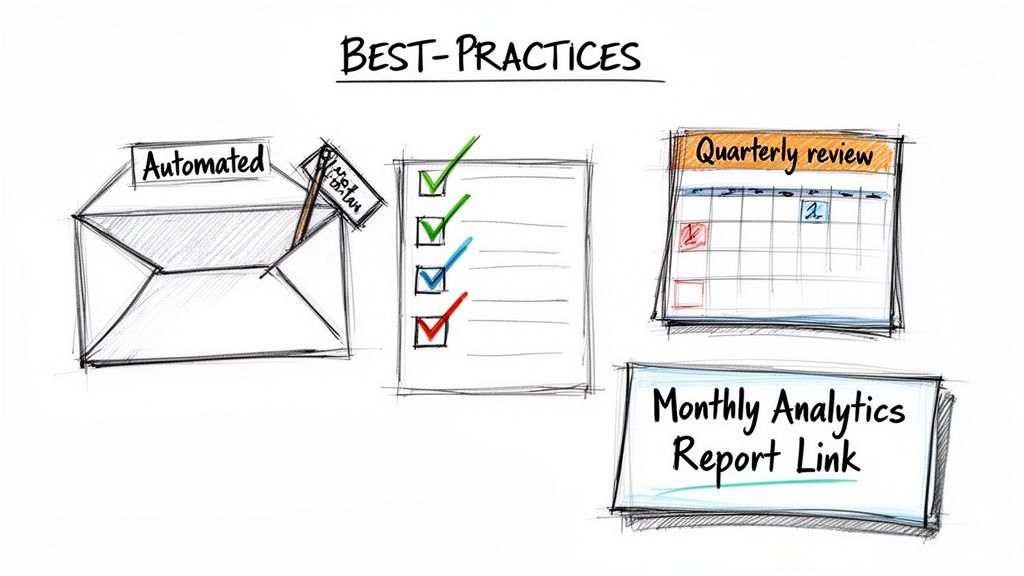
Always, always use a descriptive subject line. Don't just write "Update." Instead, try something like, "Monthly Analytics Report for June." That tiny change immediately sets expectations and helps people prioritize what to open.
It’s also a good idea to create a distinct signature just for your automated messages. A simple line at the bottom, like, "This is an automated weekly reminder," manages expectations and lets people know it came from a system. That bit of transparency goes a long way in preventing confusion.
The best automations feel helpful, not robotic. When you provide clear context, you keep a human touch even when a machine sends the message. This ensures it actually helps people instead of frustrating them.
Regularly Review and Maintain Your Automations
Your work isn't static, so your automations shouldn't be either. They need to evolve right along with your projects and your team. I recommend setting a calendar reminder for a quarterly review of all your active recurring emails. This is your chance to do some housekeeping.
During your review, ask yourself these key questions:
- Is this still necessary? If a project wrapped up, kill the related reminders.
- Is the recipient list correct? Take people off who have left the team and add new folks.
- Does the message need an update? Refresh any links, dates, or instructions to keep them current.
This simple audit stops "automation rot"—that slow decay where outdated emails keep firing off, creating nothing but noise. Proactive management is also a cornerstone of effective recurring task management, making sure your systems are working for you.
Given how effective email is, this diligence pays off. The global email marketing market is projected to hit $17.9 billion by 2027, proving its power as a communication tool. For anyone managing recurring communications, keeping those automations sharp ensures every message is purposeful and professional. You can discover more stats about email's powerful ROI to see why it's worth the effort.
Questions People Always Ask About Outlook Recurring Emails
When you start digging into how to set up an Outlook recurring email, the same handful of questions always come up. Honestly, getting clear answers can save you a ton of frustration and point you toward the right method for your needs, whether you're a tech pro or just want something that works.
Let's cut through the noise. Here are some quick, straight-up answers to the most common things people ask.
Can I Send a Recurring Email with Attachments in Outlook?
Yes, but how you do it is completely tied to the method you choose.
If you're using a cloud-based service like Power Automate, attaching files from online storage like OneDrive or SharePoint is a breeze. This is perfect for sending out reports or documents that get updated regularly.
For those going the old-school route with a desktop-based VBA script, you can definitely code it to grab a specific local file from your computer. The big catch here? If that file's name or location ever changes, your script will break. Lighter, more focused tools are often built for simple text-based reminders and might not even support attachments just to keep things dead simple.
Does Outlook Have to Be Open for the Email to Send?
This is a huge one, and the answer is critical.
If your automation is built on a VBA macro (for Windows) or an Automator script (for Mac), then yes, your Outlook desktop app must be running on your computer at the scheduled time. If the application is closed or your machine is asleep, that email is not going out. Period.
On the other hand, if you use a cloud-based solution like Microsoft Power Automate, the email sends right on schedule, no matter what your computer is doing. That's because the automation lives on Microsoft's servers, making it a much more reliable option for anything important.
How Can I Pause My Recurring Emails for a Vacation?
You absolutely need a way to pause these things. In Power Automate, it's pretty simple—just head to your dashboard and flip the toggle for that flow to "off." For desktop scripts, it’s a lot more manual. You'd have to track down and disable the scheduled task or calendar event that kicks it off.
This is one spot where dedicated third-party tools really shine. They're built for convenience and almost always have a big, obvious "pause" button for each recurring email. You can turn them on and off with a single click.
Are VBA Scripts a Safe Way to Send Automated Emails?
Generally, if you're grabbing scripts from reputable tutorials, you're probably fine. But you should always be cautious. A VBA macro has the potential to be a security risk if it’s from an unknown or shady source. My rule of thumb is simple: never run code you don't understand.
If you have any security worries at all, it's much safer to stick with cloud-based options. Services like Power Automate or a vetted, purpose-built application are managed in secure environments, taking the risk of running local scripts completely off your plate.
Tired of jumping through hoops and wrestling with scripts? If you just want a simple, reliable way to send recurring emails, Recurrr was made for you. It's the small productivity hack that saves you time without the technical headaches. Get started with Recurrr and put your reminders on autopilot today.