

Ever tried to set up a recurring email in Outlook and hit a wall? You’re not just imagining things. It’s genuinely surprising, but there’s no simple "send recurring" button baked into the software. Instead, getting this done means relying on some clever workarounds, dipping your toes into Microsoft's automation platform, or using a simple tool designed to fill this exact gap.
So, Why Can't I Just Schedule a Recurring Email in Outlook?
If you've spent any time digging through Outlook's settings looking for this feature, you're in good company. It feels like a massive oversight, especially for a tool that over 400 million active users depend on for their daily work. The missing button is a constant headache for anyone who needs to send the same message over and over.
Think about the project manager who has to manually fire off the same status report request every single Monday morning. Or the small business owner who needs to remember to send out monthly invoices. These aren't huge tasks on their own, but they add up, chipping away at your time and mental energy.
The Real Price of Hitting 'Send' Again and Again
Having to manually copy, paste, and send these messages isn't just annoying; it opens the door to simple mistakes. It's so easy to forget one week, send it to the wrong person, or attach last month's file by accident. This goes beyond a minor inconvenience—it's a real drain on productivity.
This gap forces millions of people to waste time every week on tasks that should be on autopilot. For a deeper dive into these challenges and how to get around them, check out our complete guide on sending recurring emails in Outlook.
Your Options for Putting Emails on Repeat
The good news? You're not stuck. The trick is to know what your options are and pick the one that fits what you're trying to do. They generally fall into three camps:
- The Official Route: Microsoft’s intended path is through Power Automate. It's incredibly powerful but can feel like using a sledgehammer to crack a nut if you just want to send a simple weekly reminder.
- DIY Outlook Hacks: You can get creative right inside Outlook using a combination of its calendar and email templates. These are more like manual reminders to yourself than true automation, but they can work in a pinch.
- Specialized Tools: The third option is to use a "small productivity hack"—an invisible tool like Recurrr that’s built specifically for this one job. These tools give you simple, reliable email scheduling without the technical baggage of bigger platforms.
Once you get the hang of these methods, you can put your repetitive email tasks on autopilot for good. This guide will walk you through each solution, step-by-step, so you can get that time back and focus on work that actually matters.
Comparing Methods for Recurring Emails in Outlook
Feeling a bit overwhelmed by the options? It helps to see them side-by-side. Each approach has its own strengths and is suited for different kinds of tasks.
| Method | Best For | Setup Complexity | Flexibility |
|---|---|---|---|
| Power Automate | Complex, multi-step workflows & enterprise use. | High | Very High |
| Outlook Templates + Rules | Simple, infrequent reminders you send yourself. | Medium | Low |
| Calendar Meeting Workaround | Visual reminders for messages you must send manually. | Low | Very Low |
| Dedicated Tools (like Recurrr) | Sending simple, reliable recurring emails to others. | Low | High |
Ultimately, there's no single "best" way—it all comes down to what you need. If you're managing complex business processes, Power Automate is your friend. But if you just want to send a monthly report to your team without thinking about it, a dedicated tool is probably the easiest and most reliable path.
Automating Emails with Microsoft Power Automate
So, you've realized Outlook doesn't have a simple "send recurring" button. It's a frustrating oversight, but Microsoft's official solution is actually hiding in plain sight, and it's called Power Automate.
Think of it as the engine under the hood of your Microsoft 365 account. It’s a web-based tool that lets you build automated workflows. Unlike the manual workarounds that just remind you to do something, Power Automate does the actual work for you—it creates, addresses, and sends your email on a schedule you define. It’s the difference between an alarm clock that just beeps and one that gets up and makes the coffee for you.
Finding Your Starting Point in Power Automate
First things first, you need to get to the Power Automate website. You can just search for it or find it in the app launcher (that's the waffle icon) in your online Microsoft 365 account. Once you're in, you're looking to create a "Scheduled cloud flow."
Don't let the name throw you off. A "flow" is just Microsoft's term for a set of instructions. You’re simply telling the system, "Hey, at this specific time, on these days, I want you to do this thing for me."
This whole process is about moving from that manual, repetitive frustration to a set-it-and-forget-it solution.
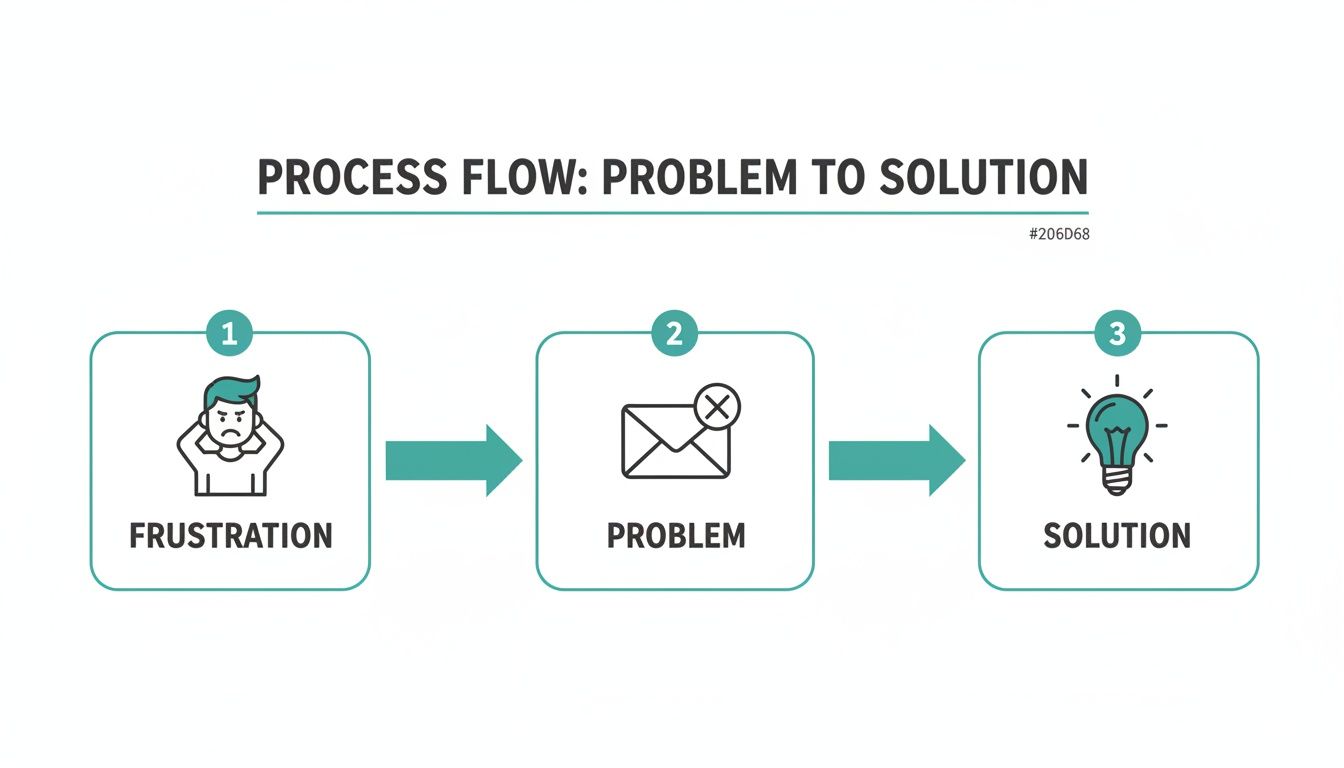
It really is that simple: identify the tedious task, build a quick flow, and let automation take over.
Building Your First Scheduled Email Flow
When you start your "Scheduled cloud flow," you'll first give it a name. Make it something you'll recognize later, like "Weekly Project Update Email." Then comes the most important part: the schedule, or what Power Automate calls the "trigger." This is where you'll set:
- Start Date and Time: The very first time the email should go out.
- Frequency: How often it repeats (say, every 1 week or every 1 month).
- On These Days: For weekly emails, you can pick specific days, like every Monday.
Once your schedule is locked in, you need to tell it what to do. You'll add a new step and search for the "Send an email (V2)" action, which hooks into your Office 365 Outlook account. This brings up what looks like a simple email composer right there in the workflow.
Key Insight: The real magic here is the precision. You can schedule an email to land in your team's inbox at 8:59 AM every other Friday, making sure it’s top-of-list without you ever lifting a finger.
From there, you just fill in the blanks: To, CC, BCC, the subject line, and the body. The editor is pretty good and supports formatting like bold text and links. You can even set the importance level. If you want to dive deeper into the nuts and bolts, our guide on how to repeat emails in Outlook covers more advanced setups.
Adding Attachments and Finalizing Your Flow
What if your weekly email needs to include a report or a timesheet? Power Automate can handle that, too. The "Send an email (V2)" action has an "Attachments" section where you can link directly to a file sitting in your OneDrive or SharePoint.
Just remember, it will always send the exact same file from that location. If you need to send a report that changes every week, the flow gets a bit more complex, as you'd need to add more steps to find and attach the correct, updated version.
Testing and Monitoring Your Automated Email
Before you walk away, always test your flow. Power Automate has a built-in "Test" button that runs the workflow immediately. This sends the email right away so you can pop over to the recipient's inbox and make sure everything looks perfect—no weird formatting, right people in the 'To' field, attachment included.
Once you’re happy with it, just save the flow. It's now live and will run on the schedule you set. You can always check on it in the "My flows" section, which keeps a full run history. If an email fails to send for some reason, this log is the first place you'll look to figure out what went wrong.
Mastering a tool like Power Automate is a great skill to have. It goes beyond just solving the recurring email problem; the same principles of triggers and actions apply to so many other parts of your work. Understanding the basics of automating repetitive tasks can free up a surprising amount of time and mental energy across your entire organization.
Creative Manual Workarounds Inside Outlook
Long before dedicated tools came along, resourceful Outlook users figured out some clever tricks to send recurring messages. These aren't true "set it and forget it" automations, but they act as fantastic, reliable prompts to get the job done.
Think of it like setting a recurring alarm on your phone that also has your coffee mug attached to it. You still have to pour the coffee and press send, but all the tedious prep work is done for you. It’s a simple, low-tech approach that’s surprisingly effective for messages that need to be remembered, but don't need to go out at an exact time.
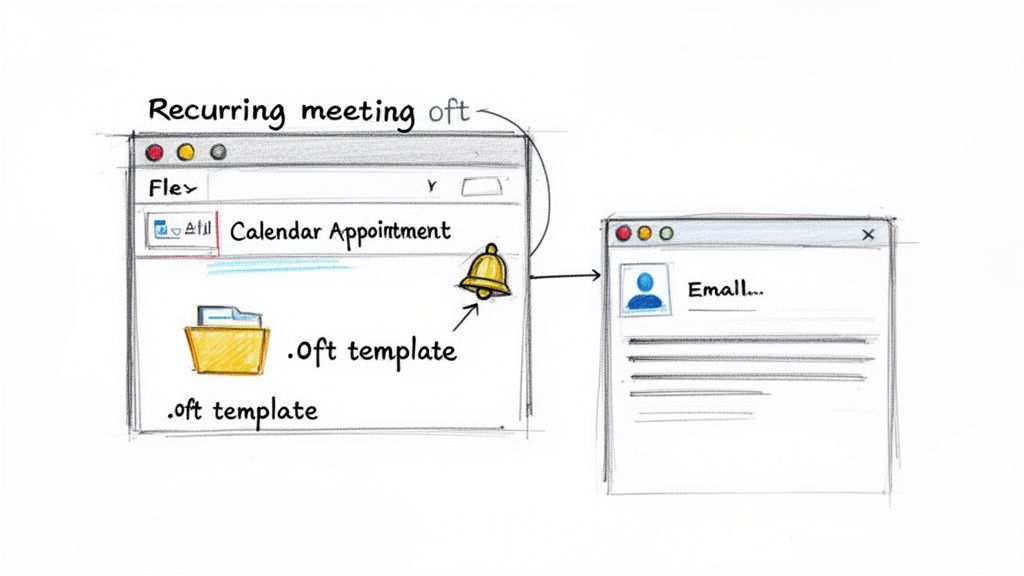
This kind of process is perfect when consistency matters more than minute-by-minute precision.
The Calendar Meeting and Template Technique
This is the classic, old-school workaround for a recurring email in Outlook. It brilliantly combines two built-in features: email templates and recurring calendar appointments. The basic idea is to create a pre-written email, save it, and then attach it to a calendar event that pops up exactly when you need to send it.
Here’s how you pull it off:
-
Craft Your Email Template: First, pop open a new email in the Outlook desktop app. Fill in your recipients, subject line, and the body of the message. Instead of hitting send, navigate to File > Save As. From the dropdown menu, choose Outlook Template (*.oft) and save it somewhere you'll easily find it.
-
Create the Recurring Appointment: Now, flip over to your Outlook Calendar and create a new appointment. This is where you set your schedule—say, every first Monday of the month or every other Friday.
-
Attach the Template: In the appointment window, find the Insert tab and click Attach File. Browse to the
.ofttemplate you just saved and attach it.
That's it. When the calendar reminder for this appointment pops up, you just double-click the attached template. Your pre-filled email opens instantly, ready to go. A quick review, maybe a minor tweak, and then you hit "Send."
Real-World Scenario: A department head needs to send a quarterly reminder to their team about completing compliance training. They can create an
.ofttemplate with all the instructions and links, then attach it to a recurring calendar appointment. When the notification pops up, they open the template, make any minor date adjustments, and send it off in seconds. It’s a lifesaver.
The Quick Steps and Delayed Delivery Trick
Here's another method that uses Outlook's Quick Steps feature combined with Delayed Delivery. This one is less for truly recurring messages and more for one-off emails you need to schedule for later. It's a fantastic productivity hack for when you're clearing your inbox late at night but want an email to arrive first thing in the morning.
Quick Steps lets you bundle several actions into a single click. In this case, you can create a Quick Step that opens a new message with the "Delay Delivery" option already pre-configured.
To get this going:
- On the Home tab, look for the Quick Steps gallery and select Create New.
- Give your new step a memorable name, like "Schedule Send."
- Under "Actions," choose New Message.
- Click Show Options and check the box for Delay delivery. You can then set your preferred delay rules, like delivering in 1 day.
Now, whenever you click this Quick Step, a new email window opens with the delay rule active. Write your message as you normally would, and when you hit send, it will just sit patiently in your outbox until the scheduled time.
Pros and Cons of Manual Workarounds
While these tricks are clever, they definitely come with trade-offs. It's important to know when they're a good fit and when you really need something more powerful.
Advantages:
- No New Tools: You're doing everything inside the familiar Outlook interface. No need to learn a new app.
- Full Manual Control: You always get a final chance to review and edit the email before it goes out.
- Simple Setup: Creating a template or a Quick Step is pretty straightforward for most Outlook users.
Disadvantages:
- Not True Automation: The email won't send if you miss the calendar reminder or just aren't at your computer.
- Prone to Human Error: It's easy to forget to hit send or accidentally dismiss the reminder.
- Desktop-Dependent: These methods almost always rely on the Outlook desktop client being open and running.
These workarounds are the hidden gems of Outlook—small but mighty productivity hacks for those who prefer to stick with what they know. They’re perfect for low-stakes reminders, yearly birthday greetings, or semi-regular check-ins where a little manual intervention is no big deal.
Troubleshooting Common Automation Issues
So you’ve built your Power Automate flow and you're feeling pretty good about it. But then... it doesn't run. What gives? Automation is a fantastic tool, but it definitely has its quirks. A failed run is frustrating, but it's rarely the end of the line.
Most of the time, the problem is something small and easy to fix once you know where to look. Getting comfortable with diagnosing these little hiccups is how you build a truly reliable recurring email in Outlook—one you can set and genuinely forget.
Where to Look When a Flow Fails
When an automation doesn't fire as expected, your first port of call should always be the flow's 28-day run history. Think of this as your mission control log. It shows you every single time your flow tried to run and tells you if it "Succeeded" or "Failed."
If you see a failure, click on it. Power Automate will show you the exact step where things went sideways, usually marked with a red exclamation point. Clicking that step reveals an error message—something like "Invalid connection" or "Could not find file." This message is your roadmap to the solution.
Common Hiccups and Quick Fixes
Even those of us who live in Power Automate run into the same few problems over and over. Here are the usual suspects and how to sort them out fast.
-
HTML Code Messes Up Your Email: This is a classic. You copy and paste text from a webpage or a Word doc, and the final email is a jumble of ugly HTML tags. The fix? In your "Send an email (V2)" action, just click the Code View button (
</>). You can either clean up the messy tags there or, better yet, switch to code view before you paste anything to keep the text clean from the start. -
Emails Sent at the Wrong Time: Your report goes out at 3 AM instead of 9 AM. This is almost always a time zone issue. Power Automate loves to default to UTC, which might not be your local time. Double-check the time zone settings in your flow's trigger and in your main Power Automate environment settings. Make sure they all match up.
-
Attachments Won't Send: You get a dreaded "attachment not found" error. This usually means one of two things: the file path is wrong, or the flow doesn't have the right permissions. Check that the file is exactly where it should be in OneDrive or SharePoint, and make sure your account connection is properly authenticated.
Automation isn't just a convenience; it's a response to a real productivity crunch. A 2024 Reclaim.ai analysis of Microsoft data found that workers only get 54% of the focused time they truly need. Repetitive emails alone chew up as much as 20% of their attention. You can find more insights on these workplace productivity trends on YouTube.
Sorting out these small issues is what keeps you from getting stuck in an endless email loop of manual follow-ups. A few minutes spent diagnosing the problem now will save you a ton of time down the road and keep your automated messages looking professional and punctual.
When to Use a Dedicated Email Scheduling Tool
Let's be honest, while the built-in workarounds for sending a recurring email in Outlook are powerful, they aren't always the right tool for the job. Power Automate, for example, is a beast of an enterprise tool. But using it for a simple weekly reminder can feel like using a sledgehammer to crack a nut.
Sometimes, what you really need is less raw power and more focused simplicity.
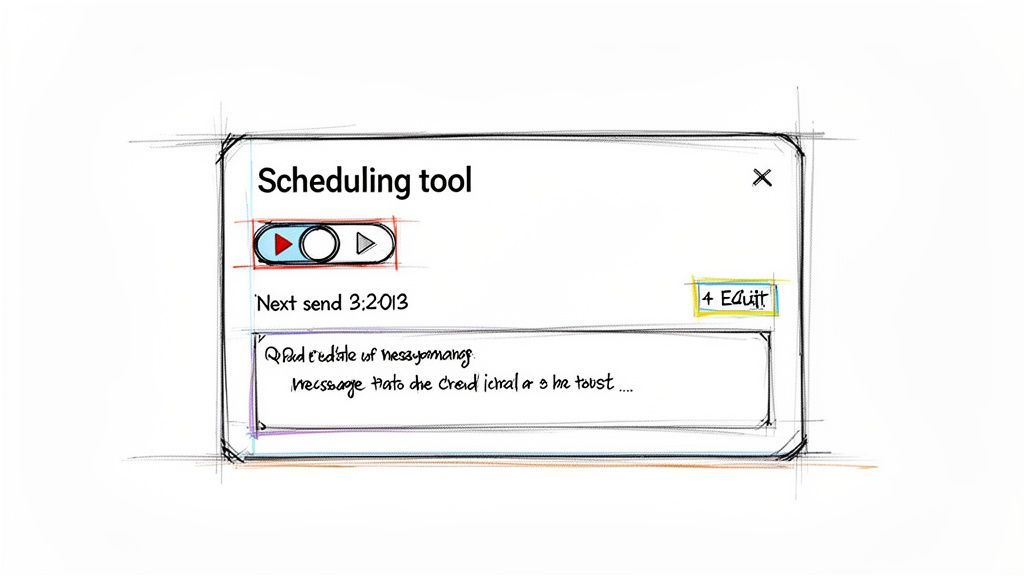
This is exactly where a dedicated scheduling tool comes in. Think of it less as a replacement for your other productivity apps and more like a small, invisible assistant that does one thing perfectly. It's a hidden gem you can use in addition to your main tools, designed to take the friction out of routine communication.
When Simplicity Beats Complexity
The biggest win for a dedicated tool is its design. It’s built for one purpose, and that focus creates an incredibly clean and intuitive experience. You're not wading through complex menus or trying to understand a new system of "flows" and "triggers."
A specialized tool is probably the better fit if you find yourself in these situations:
- You need it done fast. The whole process, from signing up to scheduling your first email, should take less than five minutes.
- You're not a technical wizard. You just want a clear, simple interface without the steep learning curve of a platform like Power Automate.
- You need flexible controls. Being able to easily pause, edit, or just skip one occurrence of a recurring email is a must-have.
A dedicated tool is for anyone who has looked at a multi-step automation workflow and thought, "There has to be an easier way." For simple, repetitive sends, there absolutely is.
Take a property manager sending monthly rent reminders. With a dedicated tool, they can set up a personalized recurring email for each tenant in a few minutes. If one tenant pays early, the manager can just skip that month's reminder for that specific person with a single click—without messing up the schedule for everyone else. Building that kind of granular, on-the-fly control into a Power Automate flow would be a serious project.
Real-World Cases for a Dedicated Scheduler
The real value of a focused tool shines when you look at everyday tasks. It’s not about automating massive, company-wide processes; it’s about using a small productivity hack to get the repetitive tasks off your plate so you can focus on work that matters. It's also worth understanding how to schedule emails securely and privately, as different tools handle this in different ways.
Here are a few scenarios where a tool like Recurrr just makes more sense:
-
Team and Client Check-ins: A freelance consultant needs to send a "Here's what I'll be working on this week" email to five different clients every Monday morning. A dedicated tool lets them set up five separate, personalized schedules that just run on autopilot.
-
Accounting and Invoicing: An accountant reminds a list of small business clients to submit their monthly expense reports on the 25th. They can set up one recurring message, attach the necessary forms, and trust that it goes out on time, every single month.
-
Personal Reminders: Someone wants to send a weekly "share your wins" email to their accountability partner. A specialized tool is perfect for these simple, consistent nudges that keep you on track without adding another complex system to manage.
In all these cases, the user needs reliability and ease of use more than anything else. They want to set it once and have total confidence that it will just work, humming along invisibly in the background. If that sounds like you, exploring a simpler alternative for recurring emails is probably your most efficient path forward.
Your Recurring Email Questions, Answered
Alright, even after walking through the different ways to set up a recurring email in Outlook, you probably still have a few questions buzzing around. That's totally normal. Automation can feel a little tricky at first, and you want to get it right before you set it and forget it.
Let's tackle some of the most common questions we hear. My goal is to clear up any confusion so you can automate with confidence, whether you're wrangling a Power Automate flow or using a simpler workaround.
Can I Set Up Recurring Emails Directly from the Outlook Desktop App?
This is the big one, and I get why it’s so confusing. The short, direct answer is no, you can't set up a true, hands-off, automated recurring email right from the Outlook program on your computer.
The real "send" magic for automation happens in the cloud, not on your local machine.
The main Microsoft-endorsed method, Power Automate, is a web service. It hooks into your online Outlook 365 account to fire off emails based on your schedule. You can absolutely write the email in your desktop app, but the actual scheduling and sending are handled by Microsoft's servers. Honestly, that's a good thing—it means your emails go out even if your computer is off or you're on vacation.
The other workarounds we talked about, like using calendar reminders with .oft templates, do start on your desktop. But they aren't real automation. Think of them as fancy reminders that still need you to physically click "Send" every single time.
How Do I Edit or Stop a Recurring Email?
Once you have an automation running, you absolutely need to know where the "off" switch is. Whether you need to tweak the schedule, update the content, or just stop it cold, the process depends entirely on how you built it.
If you're using Power Automate:
- Head over to the Power Automate website and log in.
- Look for My flows in the left-hand menu. This is your command center for all your automations.
- Find the flow you want to change. (This is exactly why giving your flows a clear, descriptive name is a lifesaver!)
From there, it's pretty straightforward:
- To edit: Just click the flow's name. This opens the editor where you can change the schedule, recipients, subject, body—anything. Don't forget to hit save.
- To pause it: In the "My flows" list, there's a simple toggle switch next to your flow's name. Flip it off. The automation is paused without being deleted, and you can flip it back on whenever you're ready.
- To delete it for good: Click the three dots (...) next to the flow and choose "Delete." Be careful, though—this is permanent and can't be undone.
If you find yourself constantly digging through flows just to make a simple change, it might be a sign that the tool is overkill for the task. A simpler, dedicated tool often works better for straightforward productivity hacks.
Can My Recurring Email Include a Different Attachment Each Time?
Now we're getting into the advanced stuff. This is a super practical question—maybe you need to send a weekly report where the filename changes, like Status-Report-2024-10-28.pdf.
A basic Power Automate flow, like the one we outlined, is built to send the exact same attachment over and over. It's locked onto one specific file.
But sending a dynamic attachment is definitely possible with a more sophisticated Power Automate flow. It just requires adding a few more logical steps to the process. You'd need to build a flow that can:
- Look inside a cloud folder: Your files need to be in a predictable spot in OneDrive or SharePoint.
- Figure out the filename: You'll use special expressions or variables to build the right filename for that specific day. This usually involves grabbing the current date and sticking it into a template like
Report-[current_date].pdf. - Grab the file and attach it: The flow then uses that dynamically created name to find the correct file and attach it before sending.
Pulling this off takes a bit more technical comfort with Power Automate's functions. It's a leap from a simple "set and forget" task into more serious workflow design, but it’s 100% doable if you're up for the challenge.
For those everyday tasks where you just want to send the same message on a reliable schedule without the fuss, a tool built for that one job can be a lifesaver. If you're ready to put your routine emails on autopilot in just a few clicks, check out Recurrr.
Discover how Recurrr can simplify your recurring emails today!