


Believe it or not, you can send recurring emails in Outlook. But there isn't some magic, one-click "send recurring" button hiding in the toolbar.
Instead, you have to get a little creative. For the desktop app, you can build workarounds using a combination of Tasks and Rules. If you're on the web version, your best bet is Power Automate. Both paths let you schedule things like weekly reports or monthly reminders, but fair warning—each one has its own quirks and limitations.
Why Is Sending Recurring Emails in Outlook So Complicated?
It feels like it should be simple, right? All you want to do is send the same email on a regular schedule. A weekly timesheet reminder, a monthly invoice, a daily check-in with the team. Simple stuff.
Yet, anyone who has tried to figure this out knows the frustration. It's surprisingly difficult, and you're definitely not alone. It’s one of the biggest headaches for professionals who live and breathe Outlook.
The root of the issue is that Outlook was built as an email client for person-to-person conversations, not as a slick automation tool. Its core design just doesn't include a "set it and forget it" scheduler for outgoing mail.
The Real Cost of Manual Follow-Ups
This missing feature has a real impact on productivity. Every minute you spend manually copy-pasting and sending the same email is a minute you could've spent on something that actually moves the needle. It's the kind of repetitive, low-value task that creates mental clutter and opens the door for human error.
Just think about these common scenarios:
- Project Managers having to remember to send a "Project Status Update Due!" email every single Friday morning.
- Accountants chasing down late invoices on the 15th of every month.
- Team Leaders sending a "What are your top 3 priorities today?" message at the start of each day.
When these are manual tasks, they are incredibly easy to forget, especially during a hectic week. And a forgotten reminder can cause a nasty ripple effect—delayed reports, late payments, and choppy team communication.
The problem isn't just the time you lose; it's the mental energy you waste remembering to do something a machine should be handling. Real productivity is about automating the predictable so you can focus on the exceptional.
Why Workarounds Are Worth Learning
Since there's no official feature, clever users have developed workarounds using other parts of the Outlook ecosystem—like Tasks, Rules, and even programming scripts. These methods essentially trick Outlook into sending an email on a schedule.
While they take a bit of effort to set up, mastering one of these techniques is a solid investment.
Automating these sends frees you from the mental burden of remembering and ensures your critical communications go out on time, every time. It’s a small productivity hack that pays off big time. If you want to dive deeper into the general concept, you can learn more about what is workflow automation in our detailed guide.
Now, let's walk through the practical, step-by-step instructions for each of these powerful methods.
Using Tasks and Rules for Recurring Emails in Outlook for Windows
If you're a power user of the classic Outlook desktop app on Windows, there's a clever, old-school workaround to get recurring emails sent automatically. It’s definitely not a one-click solution, but by daisy-chaining three of Outlook's own features—Templates, Tasks, and Rules—you can build a surprisingly solid automation system right inside the app.
Think of it as setting up a series of dominoes. First, you'll create the email and save it as a template. Next, you'll set up a recurring task that acts as a silent alarm. Finally, you'll create a rule that tells Outlook, "Hey, when that specific alarm goes off, grab that email template and send it out."
Let's walk through it with a common scenario: a project manager who needs to send out a timesheet reminder every single Friday at 3:00 PM.
Part One: Crafting Your Email Template
The heart of this entire setup is an Outlook Template file (an .oft file, to be exact). This little file is a snapshot of your email—recipients, subject, body, everything—so the automation has the exact message to grab every time.
First, pop open a new email. Fill out the To, Cc, Subject, and Body just like you would if you were sending it manually. For our example, the subject might be something direct like "Weekly Timesheet Reminder - Due by EOD."
Instead of hitting "Send," head over to File > Save As. In the "Save as type" dropdown menu, you'll want to select Outlook Template (*.oft).
Give it a memorable name, like FridayTimesheetReminder, and save it somewhere you can find it. The default folder is fine, but sticking it on your desktop for a moment can make it easier to find in the next steps.
Part Two: Setting Up the Recurring Task Trigger
With the email content ready, you need a trigger. This is where a recurring task comes into play. You won't actually be doing this task; its only job is to pop up a reminder on your schedule, which is what will kick off the email-sending rule.
Switch over to the Tasks section in Outlook (it’s usually in the bottom-left navigation pane with Mail, Calendar, etc.).
- Create a New Task: Just click "New Task" to get started.
- Set the Recurrence: In the new task window, look for the Recurrence button. This is where you'll define the schedule. For our PM, that's Weekly, recurring every 1 week on Friday.
- Define the Time: This is the most critical part. You need to set a Reminder time. This is the exact moment the automation will fire. Set it for 3:00 PM.
- Name Your Task: Give the task a clear subject, something like "Trigger for Friday Timesheet Email," so you know exactly what it's for. Then just Save & Close.
Now you've got a task that will faithfully pop up a reminder every Friday afternoon. The final piece of the puzzle is connecting that reminder to the email template you saved earlier. If you're looking to get more out of scheduled activities, you might also want to check out our guide on effective recurring task management.
Part Three: Building the Automation Rule
This last step is where the magic happens. You're going to create an Outlook Rule that ties the task reminder to your email template, telling Outlook what to do when that trigger fires.
Head to File > Manage Rules & Alerts. This is your command center for email automation.
This whole process can feel a bit tangled, which is why manual repetition is such a headache for so many professionals.
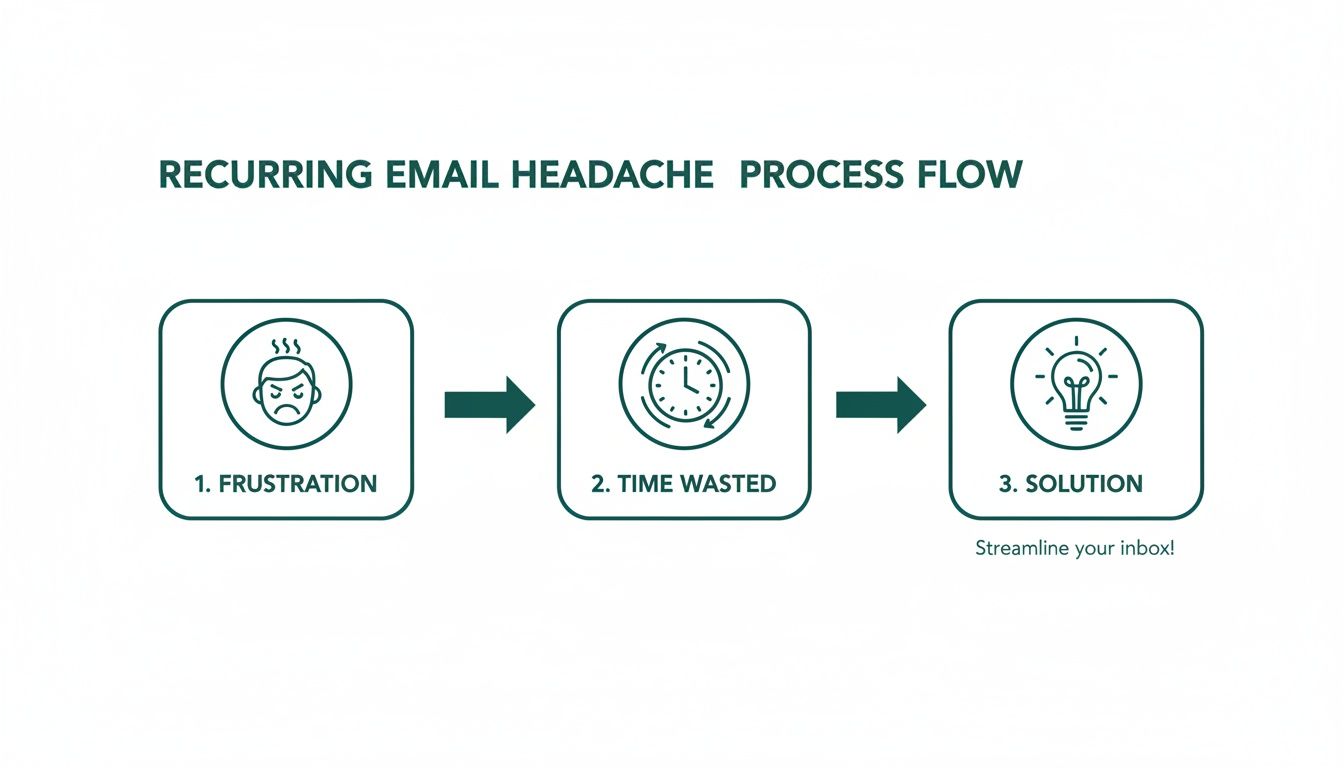
Breaking down where time is wasted is the first step toward finding a much smarter way to automate these kinds of tasks.
- Start a New Rule: Click "New Rule" and choose Apply rule on messages I receive. It sounds a little backward, I know, but trust the process. Click Next.
- Choose a Condition: On the next screen, don't select any conditions at all. Just click Next again. Outlook will pop up a warning asking if you want to apply this rule to every single message you get. Click Yes.
- Define the Action: Now for the important part. In the big list of actions, scroll down and check the box for reply using a specific template.
- Link Your Template: In the box at the bottom of the window, you'll see the phrase "a specific template" is underlined. Click it. A new window will open. In the "Look In" dropdown at the top, change it to User Templates in File System. Now, navigate to wherever you saved your
.oftfile (FridayTimesheetReminder.oft), select it, and click Open.
Your rule is almost done. You just need to tweak it so it only runs when your specific task reminder appears, not on every email that hits your inbox.
Crucial Limitation: This entire workaround hinges on one big thing: your Outlook desktop app must be open and running on your Windows computer at the scheduled time. If Outlook is closed, or your PC is asleep, the rule won't fire and the email won't send. It's a deal-breaker for some.
Automating Emails with Power Automate for Outlook on the Web
If the desktop-bound method of tasks and rules feels a bit fragile, you'll be happy to know there's a much more powerful and reliable solution in Power Automate. For anyone using Outlook on the web or within a Microsoft 365 environment, this is the definitive way to set up recurring emails.
Unlike the desktop workaround, Power Automate is cloud-based. This is a huge deal. It means your automations run on Microsoft's servers, completely independent of your computer. You can shut your PC down, go on vacation, and your scheduled emails will still go out like clockwork.
I'll be honest, this method does have a bit of a learning curve—the interface can feel a little intimidating at first—but its reliability is unmatched for a built-in Microsoft tool. Let's walk through creating a "flow" for a common scenario: a "Weekly Wins" email that needs to hit the team's inbox every Friday at 4 PM.
So, How Does Power Automate Work?
Power Automate operates by creating automated workflows, or "flows," that connect different apps and services you use. For our purposes, we'll build what's called a Scheduled cloud flow. This is just a fancy term for a flow that kicks off based on a time and frequency you define—like "every Friday at 4 PM."
Once the schedule triggers the flow, we just need to add an "action." In this case, we'll use the Send an email (V2) action for Outlook. This is where you'll define the recipient(s), subject line, and the body of your recurring email.
This is the kind of system that keeps modern businesses running. Power Automate is a powerful example of how businesses can use dedicated IT process automation software to get repetitive tasks, like sending emails, off their plate for good.
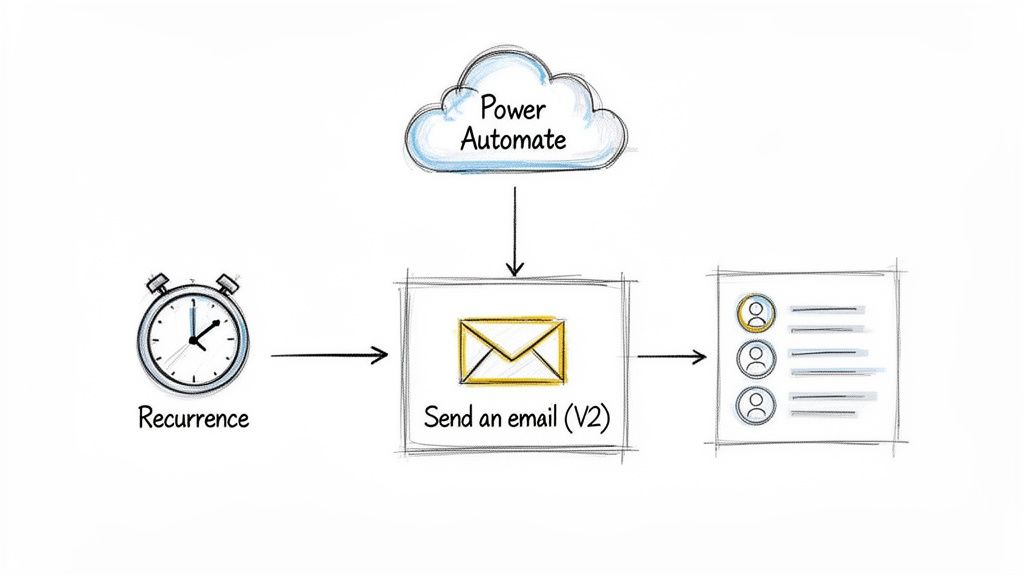
The Power Automate dashboard gives you a bird's-eye view of all your automations, making it the central hub for managing your workflows.
Building Your First Scheduled Cloud Flow
Ready to build your first automated email? Log in to your Microsoft 365 account and find Power Automate in the app launcher (it's the nine-dot grid). Once you're in, the process is pretty straightforward.
- From the Power Automate home screen, click Create from the menu on the left.
- Next, select Scheduled cloud flow from the options that appear.
- A new window will pop up. Give your flow a descriptive name, like "Weekly Wins Team Email."
- Set your start date and time, and then define how often it should run. For our example, you'd set it to repeat every 1 Week and simply check the box for Friday.
- Click Create.
That's it for the trigger. You've just told Power Automate when to run. Now you have to tell it what to do.
Power Automate is your key to "set it and forget it" email automation within the Microsoft ecosystem. Because it’s a cloud service, it doesn't matter if your Outlook app is open or if your computer is even on. The email will send reliably every single time.
Configuring the Email Action
After you create the trigger, you'll land in the flow editor. You should see your "Recurrence" trigger right at the top. Click the + New step button directly below it.
A search box will appear. Just type "Send an email" and select the Send an email (V2) action, which is part of the Office 365 Outlook connector. This brings up an action card with a few fields you need to fill out:
- To: Enter the email addresses of your recipients. You can pop in multiple addresses separated by semicolons.
- Subject: Write your subject line. Something like "Team Wins for the Week!" works great.
- Body: Now, compose your message. You can even use the rich text editor to add bolding, links, and bullet points to make it look nice.
Once you’ve filled everything out, hit Save in the top-right corner. And you're done. Your automated, recurring email is now live and will run on the schedule you defined.
While the initial setup involves a few more clicks than a simple button, it’s a rock-solid solution for a task that bogs down countless professionals. You can find more ways to get work off your plate in our guide on how to automate tasks.
Creating Custom Recurring Emails with VBA Scripts
If Power Automate is the robust cloud solution, then a Visual Basic for Applications (VBA) script is the ultimate power move for desktop users. This method is definitely for those who aren't afraid to peek under the hood of Outlook and crave complete, granular control.
Think of it as the high-flexibility, high-complexity option. It's perfect for unique, quirky situations where the out-of-the-box methods just don't cut it. You're essentially writing a tiny program that lives inside Outlook, programmed to send an email based on whatever logic you can dream up.
Finding the VBA Editor in Outlook
Before you can start scripting, you need to find where the code actually lives. The VBA editor is a hidden corner of Outlook that most people never see. The good news is, getting there is simple, you just need to enable the Developer tab first.
- Go to File > Options > Customize Ribbon.
- Look at the right-hand column under "Main Tabs" and check the box next to Developer.
- Click OK.
You’ll now see a brand new "Developer" tab in your Outlook ribbon. Click on it, and then hit the Visual Basic button on the far left. Welcome to your new command center for scripting.
A quick word of caution: enabling macros and running scripts can create security holes if you're not careful. Only use code that you've written yourself or that comes from a highly trusted, reputable source. Never run scripts from random websites.
Placing and Customizing the Script
Once you're in the VBA editor, you'll see a project pane on the left, usually called "Project1." Find and double-click on ThisOutlookSession. This is a special module where you place code that needs to interact directly with the Outlook application itself, like checking when it starts up.
This is where you'll paste your script. The basic idea is to tell Outlook to run a check every single time it opens. If it’s a new day, the script will then see if it's the right day and time to send your scheduled email. It's a clever little workaround to build a scheduler where one doesn't natively exist.
Here’s a basic script you can adapt. It's designed to send a specific email on the first day of every month.
Private Sub Application_Startup()
    ' Runs when Outlook starts
    Call SendMonthlyEmail
End Sub

Private Sub SendMonthlyEmail()
    ' Check if today is the first day of the month
    If Day(Date) = 1 Then

        ' Check if the email has already been sent today
        If HasEmailBeenSentToday("Monthly Report Reminder") = False Then

            Dim objMail As Outlook.MailItem
            Set objMail = Application.CreateItem(olMailItem)

            With objMail
                .To = "team@example.com"
                .Subject = "Monthly Report Reminder"
                .Body = "Hello Team," & vbCrLf & vbCrLf & "This is your reminder to submit the monthly report by EOD."
                .Send
            End With

            ' Mark email as sent to prevent duplicates
            MarkEmailAsSent ("Monthly Report Reminder")

        End If
    End If
End Sub
In this script, you would simply customize the .To, .Subject, and .Body fields to fit your specific needs. The real power is in the logic. The line If Day(Date) = 1 Then can be changed to almost any condition imaginable, giving you incredible control over your schedule.
The Simple Alternative: A Dedicated Recurring Email Tool
Let's be honest. After jumping through all those hoops inside Outlook, it’s pretty clear that sending a simple recurring email isn't… well, simple. The native methods, like Power Automate or writing VBA scripts, are powerful, sure. But for most everyday tasks, it feels like using a sledgehammer to crack a nut.
What if there was a tool designed to do just one thing and do it perfectly?
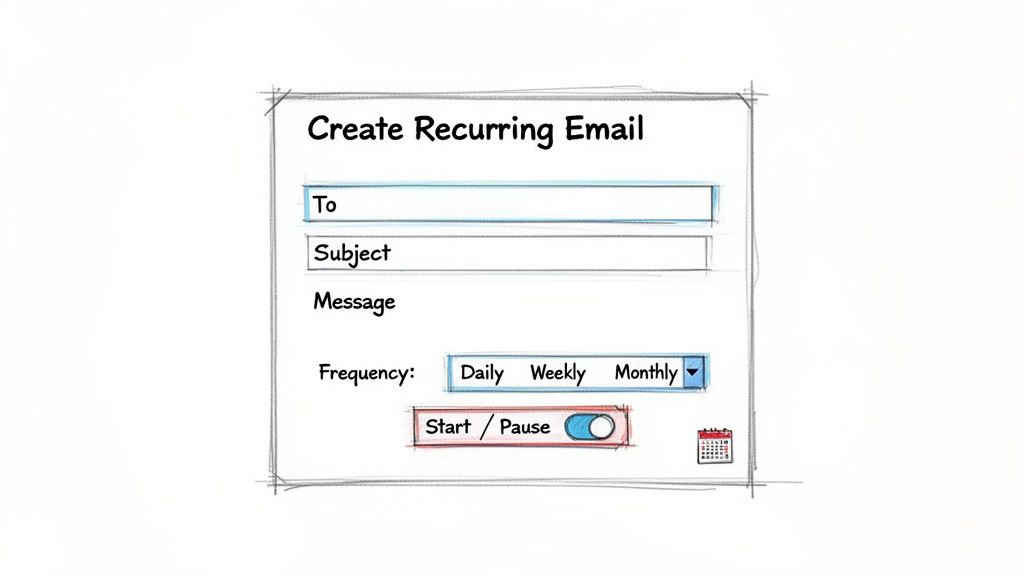
This is where a dedicated recurring email tool slides in. Think of it not as a replacement for Outlook, but as a small, focused productivity hack—a hidden gem that fills a frustrating gap in its features. Instead of tinkering with rules, coding scripts, or building complex flows, you get a clean, straightforward interface built for one purpose: scheduling your emails to send again and again.
What Makes a Dedicated Tool Different
The biggest difference is simplicity. With a tool like Recurrr, you aren't wrestling with a massive system built for enterprise-level automation. You’re using an invisible helper that works alongside your normal email workflow, letting you define the what, how often, and who in just a few clicks.
This approach is perfect for those real-world scenarios where reliability and ease of use are everything.
- Property Managers: Send out monthly rent reminders to tenants without fail.
- Accountants: Chase down outstanding invoices every two weeks without lifting a finger.
- Team Leaders: Automate those weekly "don't forget your report" pings or daily check-in prompts.
- Households: Coordinate chores or send bill payment reminders to family members.
These are the kinds of tasks where a "set it and forget it" solution is more than a convenience—it’s a sanity-saver. The whole point is to offload the repetitive work so you can focus on things that actually matter.
Beyond Just Sending an Email
A dedicated tool also brings practical benefits that the built-in methods just can't match. Because it’s built for this one job, you get features that make managing your automated sends much, much easier.
For instance, you can easily pause a recurring email series if a project is put on hold. Or maybe you need to skip a single send because a client already paid their invoice this month. Trying to do that with an Outlook rule or a Power Automate flow can be incredibly clumsy. Smart notifications also keep you in the loop, confirming when an email has been sent, without cluttering up your inbox.
This kind of flexibility is crucial for how we actually work. It turns a rigid, technical setup into a dynamic tool that adapts to your needs. If you find yourself using overly complex systems for simple sends, you might find some useful tips in our guide on finding a simpler alternative to Zapier for recurring emails.
A dedicated tool isn't about adding another complex app to your stack. It's about finding a small, invisible helper that solves one problem exceptionally well, giving you back time and peace of mind without a steep learning curve.
Why Simplicity Wins for Everyday Tasks
Here's the bottom line: a staggering 88% of people use email every single day, with many checking it constantly from different devices. For a task as common as a recurring reminder, Outlook's solutions create friction where there shouldn't be any. For an accountant chasing invoices or a family coordinating bills, a tool like Recurrr bridges that gap by letting you intuitively set the 'what, how often, and who' for your sends. (You can dig into more stats about how people use email on EmailToolTester.com).
Comparing Outlook Methods vs A Dedicated Tool
To help you decide, here’s a quick breakdown of how these different approaches stack up against each other.
| Method | Ease of Use | Reliability | Best For |
|---|---|---|---|
| Outlook Desktop Rule | Medium | Low | Users who are always online on a single Windows PC. |
| Power Automate / Flow | Hard | High | Tech-savvy users who need powerful, multi-step automations. |
| VBA Scripts | Very Hard | Medium | Developers and advanced users comfortable with coding in Outlook. |
| Dedicated Tool (Recurrr) | Easy | Very High | Anyone needing a simple, reliable "set and forget" solution. |
Ultimately, the best method really depends on your technical comfort and what you need to do. But for the vast majority of us who just need to reliably send the same email on a schedule, a dedicated tool offers the most direct and stress-free path to getting it done.
Got Questions About Recurring Outlook Emails?
Even with the best guides, hitting a snag is normal when you're setting up something new in Outlook. Let's tackle some of the most common questions that pop up.
Can I Set Up Recurring Emails on Outlook for Mac?
This is a big one, and unfortunately, the answer is no—at least not natively. The Mac version of Outlook is missing the key ingredients (the specific Tasks and Rules integration) that make the classic Windows workaround possible.
If you're a Mac user, your best bet is to look at cloud-based options. A tool like Power Automate or a dedicated third-party service will be your friend here, since they operate outside the desktop app.
Does My PC Have to Be On for the Outlook Rule to Work?
Yes, it absolutely does. This is probably the biggest drawback of the old-school Tasks and Rules method on Windows.
For the automation to fire, your Outlook desktop app must be open and running at the exact scheduled time. If your computer is turned off, asleep, or Hibernating, that email is not going out. It'll only try to send the next time you launch Outlook.
Are Power Automate and VBA Scripts Actually Secure?
It depends on which one you're using.
Power Automate is a Microsoft product, so it’s built to integrate securely with your Microsoft 365 account. You can generally trust it.
VBA scripts, on the other hand, are a different story. To use them, you have to enable macros in Outlook, which can open the door to security vulnerabilities if you're not careful.
Our advice: Only run VBA scripts that you’ve written yourself or that come from a developer you trust completely. Never run code from a random forum or untrusted source.
If you're looking for a simple, reliable way to automate your emails without wrestling with complex setups or security concerns, you should check out Recurrr. It's the small productivity hack built specifically to handle your recurring sends effortlessly. Learn more at Recurrr.com.