

Sending the same email over and over is a quiet, sneaky drain on your day. We’ve all been there. Setting up a recurring email in Outlook isn't just a tech trick; it's a strategic move to claw back your time from the jaws of routine messages, like weekly reports or monthly invoices.
It’s about freeing you up for the work that actually matters.
Why You Should Automate Emails in Outlook (Seriously)
That little voice in the back of your head—"Did I send the project update?"—is a bigger energy suck than you think. Manually cranking out repetitive emails isn't just tedious; it's a constant, low-grade distraction that breaks your focus and pulls you out of deep work.
When you figure out how to set up an Outlook repeat email, you're basically injecting predictability and reliability into your workflow.
Think about it. For a project manager, this means the team gets their Monday morning agenda like clockwork, no excuses. For a freelancer, it’s making sure clients get their invoices on the exact same day, every single month, which does wonders for consistent cash flow.
Cut Out Human Error and Keep Things Consistent
Let's be honest, the biggest win here is taking human error out of the equation. We all get swamped, distracted by a fire drill, or just need a sick day. An automated system doesn't.
Every email you automate is one less thing you have to remember. That consistency builds trust, whether it's with clients, your team, or other stakeholders. They learn to count on your timely communication.
This kind of reliability is gold in today's world. Global daily email traffic is set to explode to 392.5 billion by 2026, with most of us getting over 100 emails a day. In that tidal wave of communication, a forgotten reminder or a late follow-up just gets swept away.
Get Your Time and Focus Back for High-Value Work
Automating your recurring emails is a simple, powerful first step toward real workflow automation. It’s a small change that pays off big by freeing up your mental bandwidth. This lets you focus on the stuff that actually moves the needle: strategic planning, creative problem-solving, and building relationships.
Here’s the real payoff when you automate those routine messages:
- Deeper Focus: You stop context-switching to send a simple, repetitive email. This preserves your concentration for the tough, complex tasks on your plate.
- Better Reliability: Your messages go out on schedule, every time. This boosts your professional image and guarantees no crucial update ever gets missed.
- Mental Peace: By handing off these nagging little tasks to a system, you clear out the mental clutter and stress that comes with tracking a bunch of small but necessary to-dos.
Exploring Outlook's Built-In Repetition Methods
Let's be honest, Outlook doesn't have a giant "Send Recurring Email" button. It’s a shame, because that would be incredibly useful! But don't worry, if you're willing to get a little creative, there are a couple of clever workarounds baked right into the desktop app.
These methods are perfect for simple, low-stakes reminders where you just need a nudge to send something out, rather than a fully automated, hands-off system. Think of them as a great starting point if you just need a no-frills solution to set up an Outlook repeat email routine. You'll still need to be at your computer with Outlook open, but they get the job done without any extra software.
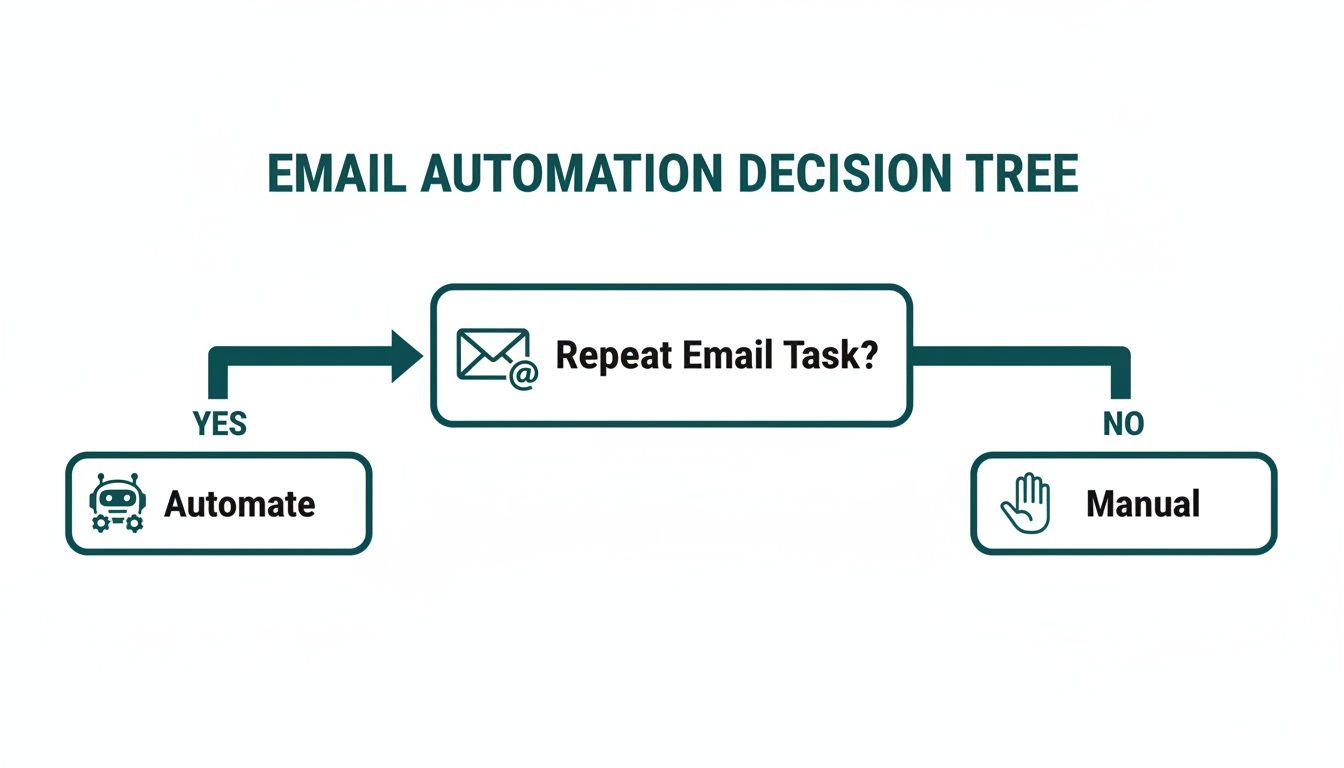
This simple decision tree nails it: if a task repeats, you should automate it. If not, do it manually. The methods below are a sort of middle-ground—semi-manual, but way better than starting from scratch every time.
Ultimately, automating repetitive tasks is the best way to save time and avoid silly mistakes. Let's look at how you can get started right inside Outlook.
Using Templates With Recurring Task Reminders
One of the most reliable native methods is a classic combo: Email Templates + Tasks. It’s a two-step dance. You create the perfect email once, save it as a template, and then set up a recurring task to remind you to send it.
First, write the email you plan to send over and over. Get the subject line just right, polish the body text, and attach any files that always need to be included. Instead of hitting "Send," go to File > Save As and choose Outlook Template (.oft).
Next, head over to your Tasks in Outlook and create a new one. This is where the magic happens. Set a recurring schedule—maybe every Friday at 10:00 AM. In the task description, leave a note for your future self like, "Send weekly report using the 'Weekly Report' template."
When the task reminder pops up, it’s your cue. Just open the template, make any quick updates, and hit send.
The real beauty of this method is its simplicity and control. You get the final say before the email goes out, which is perfect for messages that need a little last-minute personalization each time.
The Recurring Calendar Invite Trick
Another sneaky workaround involves using a recurring calendar invitation. I've seen this used for sending simple, text-based reminders to the same group of people, like an internal team or a specific client. You're basically hijacking the meeting invitation's body and using it as your recurring email.
Here’s how you do it: create a new calendar appointment and set it to repeat on your schedule (daily, weekly, whatever you need). Add your recipients to the "To" field and just type your message into the main body of the invite.
When they get it, they can add it to their calendars, and the recurring event itself becomes the reminder. The obvious downside is that it looks like a meeting invite, not a normal email, which can definitely confuse people or get caught in filters. It's best reserved for informal, internal notes where format doesn't really matter.
To help you decide which of these built-in tricks might work for you, here’s a quick breakdown.
Comparing Native Outlook Repetition Methods
| Feature | Templates + Task Reminders | Recurring Calendar Invites |
|---|---|---|
| Best For | Messages needing personalization before sending | Simple, text-only reminders to a group |
| Appearance | Looks like a standard, professional email | Looks like a calendar/meeting invitation |
| Recipient Experience | Seamless, just a regular email in their inbox | Can be confusing; adds an event to their calendar |
| Automation Level | Semi-manual; requires you to hit "Send" | Semi-manual; sends an invite, not an email |
| Control | Full control to edit before sending | Limited; edits send updates to all attendees |
Both of these are clever ways to bend Outlook to your will, but they have clear limitations. They’re a starting point, not a complete automation solution.
For a deeper look at more powerful strategies, check out our guide on how to send recurring emails.
Achieving True Automation with Power Automate
So far, the tricks we've covered are great for semi-manual reminders, but they all share one critical weakness: they need you. If your computer is off or you just happen to miss a notification, that email simply isn't going out.
For a true "set it and forget it" solution that works around the clock, you need to step up to Microsoft's own automation engine, Power Automate.
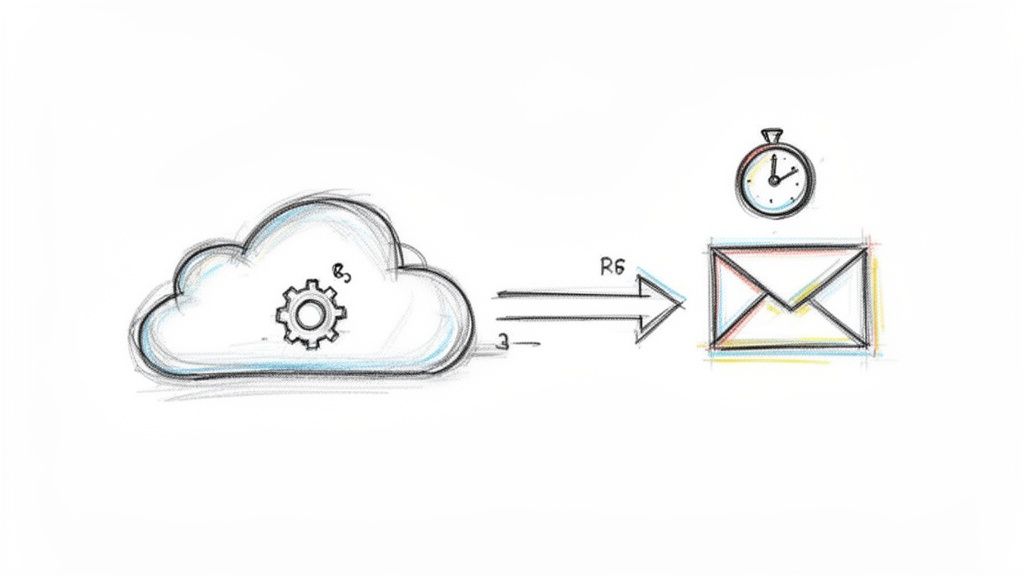
This is the official, modern way to create a fully automated Outlook repeat email. The massive advantage here is that it's a cloud-based service. This means your automations—or "flows," as they're called—run on Microsoft's servers, not your local machine. Your scheduled email will send at the correct time, every time, whether your laptop is open or sleeping soundly in its bag.
Building Your First Automated Email Flow
Jumping into Power Automate might look a bit intimidating at first glance, but setting up a basic recurring email is surprisingly straightforward. The whole thing is built around a simple trigger-and-action model. You just tell it when to run, and then you tell it what to do.
The magic starts with the Recurrence trigger. This is where you get to define your schedule with incredible precision. You could set up a flow to run:
- Every Monday at 9:00 AM to send out the weekly team check-in.
- On the 15th of every month to gently nudge clients about upcoming invoices.
- Every single weekday at 4:30 PM to ask your direct reports for their daily summaries.
- On the last Friday of the month for that recurring company-wide update.
Once you’ve locked in your schedule, you add the action: "Send an email (V2)." From there, you'll fill in the familiar fields—To, CC, Subject, and Body—just like you would in Outlook. You write the email just once, and the flow handles sending it forever. If you want a more detailed walkthrough, you can learn more about how to automate sending emails using these kinds of powerful tools.
Power Automate even offers a whole gallery of pre-built templates, so you don't have to start from scratch. These are fantastic for seeing how you can connect different services, like automatically sending an email whenever a new file is dropped into a specific folder.
Beyond the Basics
The real power of this platform is its ability to tap into the entire Microsoft 365 ecosystem. While our goal here is a simple outlook repeat email, you can build workflows that are much, much smarter.
Think about this: a flow could automatically grab a specific report from a OneDrive folder, attach it to your recurring email, and send it to your distribution list without you lifting a finger. That's not just a reminder anymore; it's a fully automated business process.
Of course, this extra muscle comes with a bit of a learning curve. While creating a basic scheduled email is easy enough, adding conditional logic or pulling in data from multiple apps requires more technical confidence. It's the ultimate solution if you need rock-solid, reliable, hands-off automation and you're already living in the Microsoft world.
Going with a Third-Party Tool for Simplicity
While something like Power Automate offers some serious automation firepower, let's be honest—it can feel like using a sledgehammer to crack a nut.
For most of us, the goal isn't to architect a complex, multi-step business workflow. We just want to send a simple outlook repeat email without pulling our hair out. This is exactly where dedicated third-party tools come into their own.
These tools are built for one thing and one thing only: making recurring emails ridiculously easy to set up and manage. They cut out all the noise and focus on a clean, intuitive experience. Instead of a steep learning curve, you get a solution that just works.
The "Invisible Tool" Approach
Take a tool like Recurrr for example. It’s a perfect case of a small productivity hack that feels more like an invisible tool than a whole new system you have to learn. It’s one of those hidden gems designed to solve a very specific, common pain point with a bit of elegance, which you can use in addition to your other tools.
Unlike the big, broad automation platforms, these focused add-ins give you:
- Painless Setup: You can create a new recurring email in just a few clicks, often right from your inbox, without ever having to leave Outlook.
- Flexible Scheduling: Set up daily, weekly, or custom schedules with a simple calendar interface that actually makes sense.
- Easy Management: A single dashboard shows you all your scheduled emails at a glance. Pausing, editing, or deleting them is a breeze.
This is the ideal route for anyone who values their time and would rather not get bogged down in technical settings. It’s perfect for personal reminders, quick team check-ins, or sending out those monthly invoices without the usual fuss. Many people find this is a simpler alternative to Zapier for recurring emails as well.
The Power of Doing One Thing Well
The real magic of a dedicated tool is its singular focus. By concentrating only on the outlook repeat email function, these apps deliver a reliable and smooth experience that bigger platforms often can't match for this specific job. You don't have to click through endless menus or learn a new technical language.
A dedicated tool should feel like a natural extension of Outlook, not some separate, complicated piece of software you have to fight with. It’s about adding one powerful feature and doing it exceptionally well.
The impact of this simplicity is bigger than you might think. Automated emails aren't just a convenience—they're revenue machines. Some pretty striking data shows that automated flows, which make up just 2% of all emails sent, are responsible for a massive 41% of all email revenue.
They pull in open rates of 48.57% compared to 25.2% for one-off campaigns and deliver four times more revenue per send. For someone using a simple tool, this means automating routine messages can seriously boost your efficiency without the headache. You can see more insights on how automated emails drive revenue on Flowlyn.com.
This focused approach removes the friction, letting you set up your automations in minutes and get back to more important work.
Troubleshooting Common Automation Hurdles
Setting up an automated Outlook repeat email feels like a superpower—right up until it breaks. We've all been there. You craft the perfect automation, hit "go," and then… nothing. Or worse, something goes wrong.
The good news is that most of these snags are pretty common and, thankfully, fixable with a little bit of know-how.
Whether your Power Automate flow is refusing to trigger or a simple template is misbehaving, figuring out the potential weak spots is the first step toward building a reliable system. Let's walk through some of the most frequent issues I've seen and how to sort them out.
Why Your Automated Email Is Going to Spam
This is probably the most frustrating problem. You build a beautiful, helpful automated email, and it lands straight in the recipient's junk folder. Ouch. This almost always comes down to triggering spam filters.
To keep your messages in the inbox where they belong:
- Watch your language: Ditch the spammy-sounding words. Phrases like "act now," "free," or a parade of exclamation marks in the subject line are major red flags.
- Balance your content: An email made up of just one big image is a classic spam filter trigger. Always make sure you have a healthy amount of plain text to go along with any visuals.
- Get your domain verified: If you're doing this on a larger scale, it's worth making sure your sending domain is properly authenticated with SPF and DKIM records. This tells email providers you're legitimate and seriously boosts deliverability.
Fixing Formatting Issues in Power Automate
Ever sent an email through Power Automate, only for it to arrive looking like a complete mess? This happens all the time. The issue is usually how the system handles the switch from a rich text editor to the final email.
The secret is to get comfortable with the HTML view in the "Send an email (V2)" action. Instead of typing your message directly in the standard body field, click the code view icon (</>). From there, you can use basic HTML tags like <p> for paragraphs and <br> for line breaks to get full control over how your email actually looks when it arrives.
Repeat, automated reminders are a game-changer for staying consistent. And with email marketing delivering a jaw-dropping average ROI of $36 for every $1 spent (that's a 3600% return), automation makes it even more powerful. But here's the catch: with nearly 50% of users deleting emails that aren't mobile-friendly, clean, reliable formatting is absolutely critical. You can find more stats and email marketing benchmarks at Verified.Email.
Long-Term Best Practices for Success
Fixing problems is great, but preventing them in the first place is even better. To keep your recurring emails humming along for the long haul, you can't just set them and forget them forever.
Make it a habit to periodically review your automations. Are the recipient lists still accurate? Prune out anyone who no longer needs the emails. It's also a smart move to refresh the content every few months to keep it from feeling stale. A robotic, unchanging message is far more likely to be ignored or marked as spam over time.
Think of your automations as living processes, not static commands. A little maintenance goes a long way in making sure they remain genuinely useful tools instead of just adding to the digital noise.
Your Questions About Outlook Repeat Emails, Answered
Once you start diving into automating emails, a few practical questions always seem to pop up. It's totally normal. Getting these sorted out is the key to picking the right method and managing your automated messages without any headaches.
Think of this as a quick-reference guide. I've pulled together the most common questions I hear about setting up an Outlook repeat email so you can find a fast solution and get back to your day.
Can I Set Up a Recurring Email From My Phone?
The short answer is no, not directly through the Outlook mobile app itself. It just doesn't have that feature built-in.
But here’s the good news: cloud-based tools like Microsoft Power Automate or other web-based services run completely on their own, separate from your phone or computer. Once you set up the automation—which you'll usually do on a desktop—it just works. The emails will send on schedule whether your phone is on, off, or at the bottom of a lake. That's the real magic of using a cloud service for this.
How Do I Include Attachments in a Recurring Email?
This one really depends on the path you choose. Each method handles attachments a little differently, so it's a good thing to know before you commit.
- Outlook Templates: Easy. You can attach a file when you're creating the template. It gets saved right along with it and will be there every single time you use it.
- Power Automate: This is more dynamic. You'll need to add an action step to your flow, something like 'Get file content' from a cloud drive like OneDrive or SharePoint. It's a bit more work, but it means you can grab the latest version of a file automatically.
- Third-Party Tools: It's a mixed bag. Some dedicated tools are built for simple, text-based reminders and don't support attachments at all. Others do. You'll have to check their features.
What Is the Best Way to Stop a Recurring Email?
To kill an automation, you have to go back to the place where you first created it. This sounds obvious, but it’s the number one reason people get frustrated when unwanted emails keep sending.
If you used a recurring task or calendar event in Outlook, all you have to do is find it and delete the series. If you built a flow in Power Automate, you’ll need to log into the Power Automate website and either switch the flow off or delete it entirely. Using an add-in? You’ll manage it from that tool's dashboard.
The classic mistake is deleting a calendar reminder but completely forgetting you also set up a Power Automate flow to trigger from it. Always retrace your steps to the actual source of the automation to shut it down for good.
Will My Email Send if My Computer Is Turned Off?
This is probably the most important distinction between the different methods.
If your setup relies on your desktop—like using Outlook templates with task reminders or a VBA script—then yes, your computer must be on and Outlook has to be running. If it's off, nothing happens.
On the other hand, cloud-based services like Power Automate or a web tool like Recurrr run on their own servers. They don't care what your computer is doing. They’ll fire off your email right on schedule, giving you that true "set it and forget it" peace of mind.
If you're looking for a simple, reliable way to manage your recurring emails without the technical gymnastics, Recurrr is designed to be the invisible tool that just works. It helps you automate your routines so you can stress less and focus on what matters most. Get started with Recurrr today!