


If you're here, you've probably discovered that setting up a recurring email in Outlook isn't as simple as it should be. You can schedule a recurring meeting in your sleep, but a "send this email every Monday" button is nowhere to be found. It’s a surprisingly common frustration for anyone just trying to automate simple, routine messages.
This guide will walk you through the methods that actually work, from quick workarounds to more robust automation.
Why Can’t I Just Set a Recurring Email in Outlook?
It’s a fair question, and one that pops up constantly online. Why make something so seemingly basic so difficult? The answer really comes down to what Outlook was originally built for. It was designed as an enterprise communication tool, focused on calendars, contacts, and one-off messages—not automated, scheduled sending.
The core design prioritizes direct user action and security over "set it and forget it" workflows.
So, while you can easily schedule a single email to be sent later, creating a repeating sequence—like a weekly project update request or a monthly rent reminder—forces you to get creative. Microsoft's preferred solution is often to nudge you toward more powerful (and complicated) tools like Power Automate.
It's a strange oversight when you consider that Outlook is the email engine for over 400 million active users. Despite this massive audience, users are stuck with hacks like saving email templates or tying reminders to calendar events. It's a clunky process for a very common need. If you want to dig deeper into Outlook's market position, HiverHQ has some great insights.
Finding the Right Method for Your Task
Choosing the best approach really depends on what you’re trying to accomplish. Are you sending a simple reminder to yourself once a month, or do you need to chase up a client for a report every single day? This decision tree can help you quickly figure out which path makes the most sense.
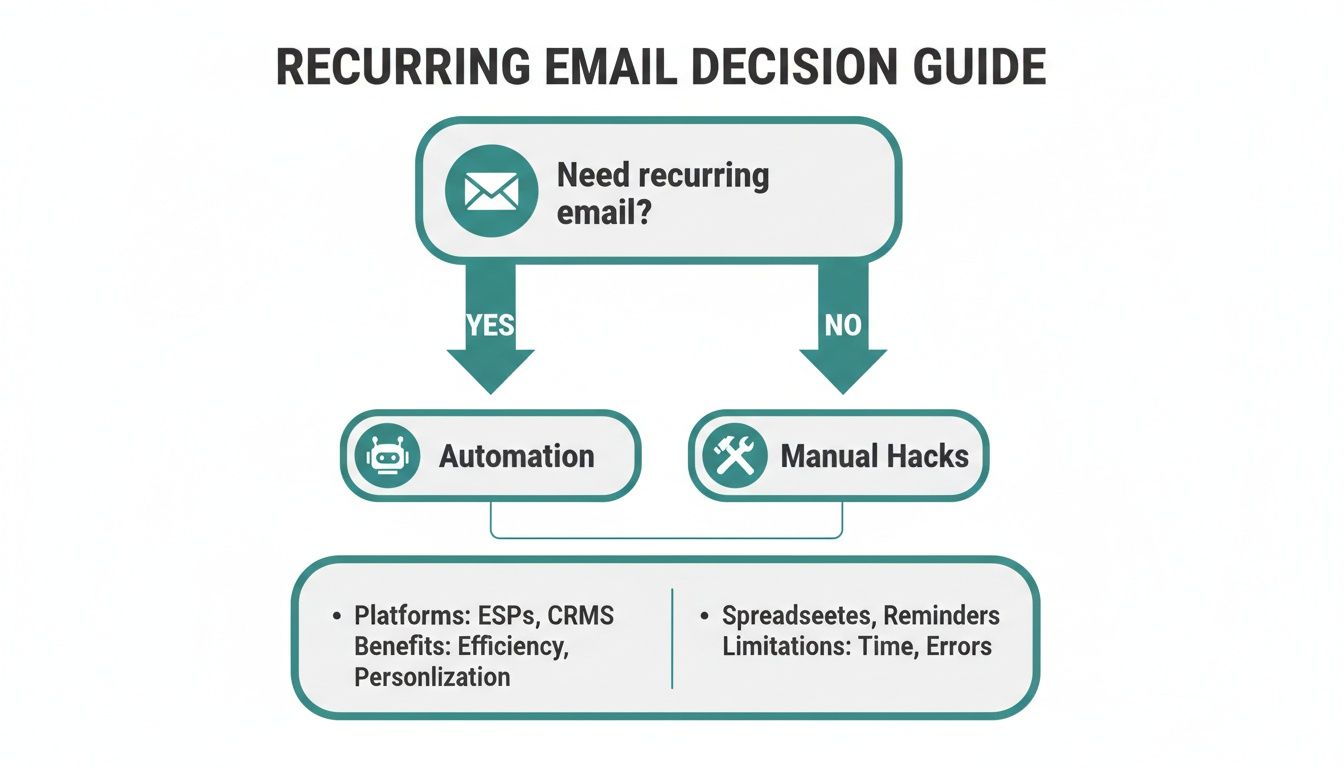
As you can see, it boils down to a choice: a quick, manual fix inside Outlook or a more powerful, automated system that runs without you having to think about it.
To help you decide, let's break down the main options we'll cover. Each one has a different learning curve and is built for different kinds of tasks.
Quick Guide to Outlook Recurring Email Methods
Here’s a quick summary of the five main ways to send recurring emails in Outlook, so you can see at a glance what might work for you.
| Method | Best For | Complexity | Flexibility |
|---|---|---|---|
| Templates & Quick Steps | Infrequent, simple reminders you send manually | Low | Low |
| Delay Delivery | One-off scheduled sends or very simple repeats | Low | Low |
| Power Automate | Reliable, hands-off automation for any schedule | Medium | High |
| VBA Scripts | Highly customized sends for tech-savvy users | High | High |
| A Dedicated Tool (like Recurrr) | The easiest, most reliable "set & forget" option | Very Low | High |
Ultimately, the goal is to match the tool to the task. A project manager who needs to send a daily report request has very different needs than a freelancer sending a handful of monthly invoices. There isn't a single "best" method—it's about finding the right one for your specific workflow.
Mastering Manual Workarounds in Outlook
Let's be honest, Outlook doesn't have a big, shiny "Send Recurring Email" button. It’s a huge oversight, but with a little creativity, you can rig up your own solutions using the tools already built-in.
These manual workarounds are perfect if you only need to send a repeating email once in a while. They take a bit of setup and you still have to be in the driver's seat for the final step, but they get the job done without any extra software.
We'll walk through two of the most effective methods I've seen people use: pairing Outlook Templates with recurring tasks, and another clever trick using Delay Delivery with calendar appointments. Neither is a "set it and forget it" system—you still have to click the final "Send" button. But they're surprisingly handy.
The Template and Task Reminder Method
This first approach is all about preparation. You’ll create a reusable email template and then link it to a recurring task. Think of it like pre-chopping all your vegetables for dinner—when it's time to cook, most of the work is already done.
Crafting Your Reusable Email Template
First things first, write the email you want to send again and again. Just open a New Email and fill out the subject and body. You can even add the recipients now if they'll always be the same, or you can leave that part blank to fill in each time.
Once your message is perfect:
- Head over to File > Save As.
- In the "Save as type" dropdown, make sure you select Outlook Template (*.oft).
- Give it a clear, memorable name like "Monthly Invoice Reminder" and save it.
That's it. You now have a master copy of your email, ready to go whenever you need it.
Linking Your Template to a Recurring Task
Now, you need something to nudge you when it's time to send it. This is where Outlook's Tasks feature comes in.
Create a new task and give it a straightforward name, like "Send Client Invoices." Then, look for the Recurrence button in the ribbon at the top. This is where you set the schedule—daily, weekly, monthly, you name it. For example, a freelancer could set this to repeat on the 15th of every month.
Pro Tip: Here's the magic trick. Find your saved .oft template file on your computer and simply drag-and-drop it directly into the body of the task you just created. This embeds a shortcut to the email.
When the task reminder pops up on your screen, just double-click that attachment. Your pre-written email will open instantly. All you have to do is double-check the recipients and smash that Send button. It's not fully automated, but it cuts out all the tedious retyping.
Using Delay Delivery with Calendar Appointments
Here's another clever workaround. This one uses a recurring calendar appointment to remind you to schedule an email with Outlook's Delay Delivery feature. It's a great option for messages that need to go out at a very specific time, like a team report reminder that has to land in everyone's inbox at 4 PM every Friday.
Imagine you need to remind several clients about an upcoming payment each month. You can create a recurring calendar event to act as your trigger.
Setting Up the Recurring Appointment
Jump over to your Outlook Calendar and create a new Appointment.
- Set the start date and time for when you want the very first email to be sent.
- Click Recurrence and set up the schedule (for instance, "Monthly" on day 15).
- You can even add notes to yourself in the appointment body, like a list of who to email.
Scheduling the Email with Delay Delivery
Next, compose the email you want to schedule. But before you hit Send, click on the Options tab and find Delay Delivery.
A properties window will pop up. Just check the box for "Do not deliver before" and set the date and time to match your calendar appointment. Click Close, then hit Send. The email will just sit patiently in your Outbox until it's time to go.
The big catch here? You have to manually repeat the "Delay Delivery" part for every single email. The calendar event is just a reminder for you to go in and schedule the next one. It's a reliable prompt, but it's very easy to forget and definitely not automated.
While these manual methods can work in a pinch, it's worth exploring all your options. Our comprehensive guide on setting up a recurring email in Outlook can help you find the most efficient solution for your specific needs, whether it's a simple workaround or a more powerful tool.
How to Use Power Automate for Recurring Emails
If the manual workarounds feel like a bit too much juggling, you're ready for the most powerful free solution out there: Microsoft Power Automate. This is the official, Microsoft-approved way to create a truly automated recurring email in Outlook. It might look a little intimidating at first glance, but it's surprisingly straightforward once you get the hang of it.
Think of Power Automate as a digital assistant that follows a set of instructions—a "flow"—without you needing to lift a finger. You'll build a simple "Scheduled cloud flow" that triggers on whatever schedule you set. The best part? It all runs in the cloud. That means your emails send on time, every time, whether Outlook is even open on your computer or not.
Building Your First Scheduled Cloud Flow
Let's walk through a real-world scenario to make this concrete. Imagine you're a property manager who needs to send a friendly rent reminder to all tenants on the first of every month. Sending dozens of emails by hand is tedious and a recipe for mistakes, making it a perfect job for automation.
To get started, head over to the Power Automate website and sign in with your Microsoft account.
- From the menu on the left, click Create.
- Next, choose the Scheduled cloud flow option. This tells Power Automate you want to kick things off based on a time schedule, not some other event.
A new window will pop up asking you to name your flow—something like "Monthly Rent Reminder"—and set the initial schedule. You can have it repeat every minute, hour, day, week, or month. For our property manager example, we’d set it to repeat every 1 month on day 1. Don't worry, you can always fine-tune this later.
Configuring the Email Action
Once you create the flow, you'll land on a simple two-step canvas. The first step is the Recurrence trigger you just set up. Now you just have to tell it what to do next.
Click the + New step button and search for "Send an email (V2)." This is the standard Outlook action in Power Automate. Clicking it will open up a box where you'll compose your message.
This is where you'll plug in the details of your recurring email:
- To: Add your recipients' email addresses here. You can add multiple addresses, just separate them with semicolons.
- Subject: Write a clear subject line, like "Friendly Reminder: Rent is Due."
- Body: This is where you compose the email message itself. The editor supports rich text, so you can use bold, italics, and even add links.
Here's a look at what the Power Automate canvas looks like when you're setting up the email action.
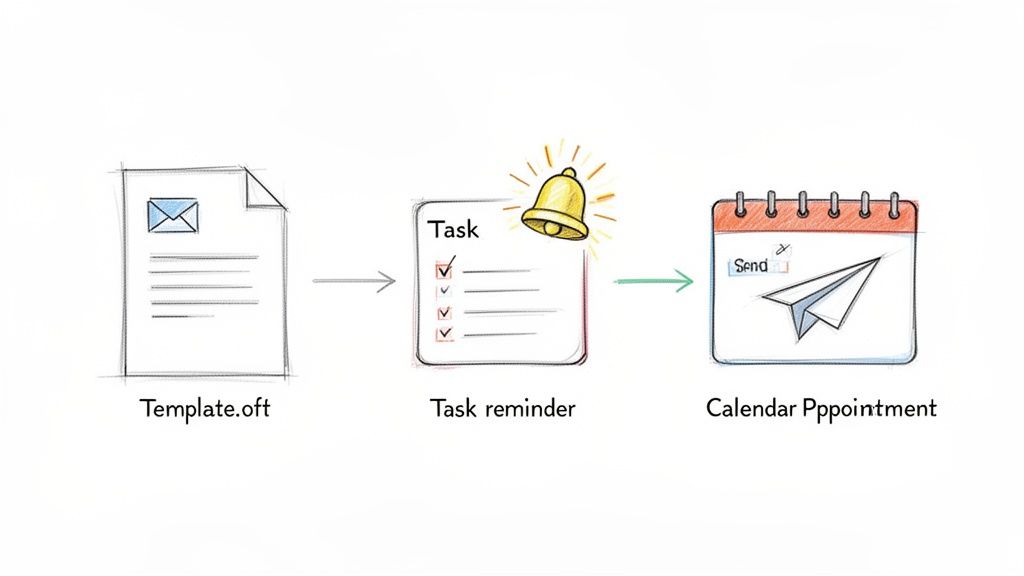
This visual interface shows how a simple trigger leads directly to an automated action—the core of your new recurring email system. Once you save the flow, it's live and will run automatically on the schedule you set.
Pro Tip for Reliability What happens if your flow fails? By default, you might not even know. To avoid sending emails into the void, set up failure notifications. Click the three dots on the "Send an email (V2)" action, go to Settings, and turn on the timeout and retry policies. You can even add another step that emails you specifically if the main flow fails.
Why Power Automate Is the Superior Free Method
By 2024, Power Automate has truly become the hero for anyone needing a free, reliable way to automate tasks in the Microsoft ecosystem. It lets you build cloud flows for just about anything, from monthly newsletters to daily team check-ins, in a matter of minutes.
The main benefits are crystal clear:
- True Automation: It's a completely hands-off system after the initial setup. Set it and forget it.
- Reliability: Since it runs in the cloud, it’s not dependent on your computer being on or Outlook being open.
- Flexibility: The scheduling options are far more advanced than anything you can rig up with manual workarounds.
However, it's not without a learning curve. If the idea of building flows and connecting actions feels a bit too technical, you're not alone. Power Automate is powerful, but it's not always the fastest or simplest solution when all you need is a straightforward, recurring message.
For those looking for an even simpler path to automate a recurring email in Outlook, you can learn more about how to send a repeat email in Outlook using simpler tools in our dedicated article.
Using VBA Scripts for Advanced Automation
Alright, for those who want to roll up their sleeves and get their hands dirty with code, we're diving into the deep end: Visual Basic for Applications, or VBA. This is hands-down the most technical way to set up a recurring email in Outlook, but it also gives you complete, granular control. Think of it as turning Outlook into your personal, programmable email machine.
This method is perfect if you have a very specific, complex automation in mind that the other, simpler methods just can't handle.
A quick word of warning, though. When you start working with VBA, you're directly manipulating Outlook from the inside. This means you’ll have to adjust your security settings to allow macros, which, if you're not careful, could expose you to security risks. It's an incredibly powerful tool, but that power comes with responsibility.
Getting into the VBA Editor
First things first, you need to open the VBA editor. It's tucked away, but easy to access. Just hit Alt + F11 from the main Outlook window, and the editor will pop right up.
Look for the project pane on the left side (it's usually called "Project1"). Expand that, find "Microsoft Outlook Objects," and then double-click on ThisOutlookSession. This opens a blank window—that’s where the magic happens. Your script will live here.
A Real-World Script: Daily Report Reminders
Let's walk through a common business scenario: you need to send a daily reminder to your team to submit their end-of-day reports. It needs to go out at the same time every workday, no exceptions and no manual effort.
The script below is built to do exactly that.
Just copy the entire block of code and paste it into the ThisOutlookSession window you opened a moment ago.
' VBA Script to Send a Daily Recurring Email ' This script runs when Outlook starts and schedules the first email.
Private Sub Application_Startup() ' This calls the main procedure when Outlook opens. SendRecurringReportRequest End Sub
Private Sub SendRecurringReportRequest() Dim mail As Outlook.MailItem Set mail = Application.CreateItem(olMailItem)
' --- CUSTOMIZE THESE VALUES ---
mail.To = "team@example.com"
mail.Subject = "Daily Report Submission - " & Format(Date, "dddd, mmm d")
mail.HTMLBody = "Hi Team,<br><br>Please submit your end-of-day reports by 5 PM. Thank you!<br><br>Best,"
' --- END CUSTOMIZATION ---

' Schedule the email for today at 4 PM (16:00).
mail.DeferredDeliveryTime = CDate(Format(Date, "yyyy-mm-dd") & " 16:00:00")

' This sends the email to the Outbox to wait for the scheduled time.
mail.Send

' Clean up the object.
Set mail = Nothing
End Sub
After pasting the code, make sure to tweak the mail.To, mail.Subject, and mail.HTMLBody fields with your own recipient, subject line, and message. Save it, and the script will be armed and ready to run the next time you launch Outlook.
But hold on—there's one last, crucial step.
Why You Absolutely Must Sign Your Macros By default, Outlook’s security settings will block any unsigned macros from running. To get around this, you need to create a digital certificate and use it to sign your VBA project. This essentially tells Outlook, "Hey, I wrote this code, I trust it," allowing it to run smoothly every time without those annoying security pop-ups.
This VBA method gives you unparalleled flexibility, but it's not a "set it and forget it" solution; it often requires a bit of maintenance.
If coding feels like bringing a tank to a knife fight for what you need, it might be worth exploring other forms of email automation and how to send recurring emails that don't require writing a single line of code. VBA is the ultimate power tool for bending Outlook to your will, but for most everyday tasks, a simpler approach is usually more practical.
After wrestling with complex workarounds and technical scripts, you might be thinking, "Isn't there a simpler way to send a recurring email in Outlook?" I get it. For a lot of people, the native methods feel like trying to assemble IKEA furniture with a Swiss Army knife—sure, it's possible, but it's way more complicated than it needs to be.
This is exactly where dedicated tools come into the picture. They offer a focused, no-fuss solution to this one specific problem.
These tools aren't trying to be your next all-in-one productivity suite. They're designed to be a small, almost invisible hack that slots right into your workflow. They do one thing, and they do it exceptionally well: send repeating emails on a reliable schedule.
Why a Dedicated Tool Is Often the Better Choice
Let's be honest about the Power Automate method. It's powerful, it's free, and it’s deeply integrated into the Microsoft world. But it also forces you to learn a new interface, understand "triggers" and "actions," and build an entire "flow" just to send a simple weekly reminder. For anyone who isn't a tech enthusiast, that's a pretty big ask.
A dedicated tool completely flips that experience around. The entire setup is built for a single goal: scheduling your email. No complex menus, no new jargon to learn. You just write your message, pick a schedule from a simple calendar, and you're done.
This "set it and forget it" approach is perfect for all sorts of everyday tasks:
- Households sending reminders for shared chores or bill payments.
- Students trying to build consistent study habits with daily check-ins.
- Solopreneurs sending out monthly client updates without fail.
- Small teams needing simple, repeating nudges for things like timesheet submissions.
The idea isn't to replace your other tools. It's about taking one tedious task off your plate so you can focus on work that actually matters.
Choosing Your Method: Outlook Hacks vs. Recurrr
To really see the difference, let’s compare setting up the same recurring email—a weekly team update every Monday at 9 AM—using both an Outlook workaround and a dedicated tool.
This table breaks down what you can expect from each approach.
| Feature | Outlook Workarounds (like Power Automate) | Recurrr |
|---|---|---|
| Setup Time | 10-20 minutes for a first-timer, often more. | 2-3 minutes, tops. |
| User Experience | Technical. Involves building a workflow with triggers and actions. | Simple and intuitive. Feels just like writing an email. |
| Learning Curve | Moderate. You need to grasp basic automation logic. | Practically zero. If you can send an email, you can use it. |
| Flexibility | Extremely high—can connect to hundreds of apps for complex workflows. | Focused entirely on sending recurring emails perfectly. |
| Reliability & Support | High, but troubleshooting errors can feel like you need an IT degree. | High, with simple error notifications and support focused on this one feature. |
For anyone who just wants a reliable way to send repeating messages without needing a crash course in automation, a dedicated tool is the clear winner. It’s a straightforward, stress-free path to getting the job done.
Reclaim Your Time from Mind-Numbing Admin
The real cost of manual work isn't just the minutes you spend clicking around; it's the mental energy those repetitive tasks drain from you day after day. This is especially true for small teams and solopreneurs who are already juggling a dozen different things.
Think about it: small teams of under 50 people often handle 60% of their light operational tasks right inside Outlook. This can lead to big problems when things get missed. For instance, property managers report that up to 40% of late rent payments are due to forgotten reminder emails.
A specialized tool doesn't just save you a few minutes a week—it buys back your focus. By putting a recurring email on autopilot, you're freeing up cognitive bandwidth for creative thinking, strategic planning, or just being more present in your work.
It's one of those small changes that delivers a huge return on your most valuable asset: your attention.
And if you've ever found platforms like Zapier a bit too much for simple email automation, it's worth exploring other options. You might be interested in checking out this simpler alternative to Zapier for recurring emails to see how different tools stack up.
Answering Your Top Questions
After digging through everything from manual hacks to full-blown automation, you probably have a few practical questions. It's one thing to get a system set up, but it's another to understand how it behaves day-to-day. This is where the rubber meets the road.
Let's tackle the most common questions that pop up once you actually start automating your emails.
We've pulled together the queries we hear most often to give you direct, no-fluff answers.
Does Outlook Need to Be Open for Emails to Send?
This is the big one, and the answer completely depends on the method you've chosen. It’s the single greatest difference between client-side tricks and true cloud-based tools.
-
If you're using a manual workaround or a VBA script, then yes, Outlook absolutely must be running. These methods are client-side, which is a fancy way of saying they need the Outlook program on your computer to be open to fire off the command. If your PC is asleep or Outlook is closed, that email is just going to sit in your Outbox until you're back online.
-
If you're using Power Automate or a dedicated tool like Recurrr, then no, Outlook can be completely closed. These are cloud-based solutions that run on remote servers, totally independent of your local machine. This is the "set it and forget it" dream. Your emails send on schedule, whether your laptop is open on your desk or powered off in your bag.
Honestly, for anyone who needs 100% reliability, a cloud-based method is the only way to fly. It completely removes the risk of a send failing because your computer was asleep or you forgot to launch the app.
Can I Include Attachments in Recurring Emails?
You can, but how easy it is varies wildly. Trying to send the same file over and over again adds a new layer of complexity.
With Outlook Templates, for example, you can embed an attachment right into the .oft file. Every time you pop that template open, the attachment is there waiting for you. Power Automate can pull files from cloud storage like OneDrive, which is incredibly powerful but does require some extra configuration in your flow.
This is where dedicated tools really shine. They usually let you upload an attachment directly into the scheduling interface, making sure the right file goes out with every single send, no extra steps required.
How Can I Track if My Recurring Emails Are Being Opened?
This is a major blind spot for Outlook's native methods. None of the built-in workarounds—not templates, not Delay Delivery, not even VBA—offer any kind of open tracking. Sure, you can request a read receipt, but that depends on the recipient actually clicking "yes," which is far from reliable.
Power Automate also lacks a native feature for tracking opens or clicks. You could technically rig up a complex system with tracking pixels and other services, but it's a huge headache and definitely not a straightforward process.
This is a key advantage of purpose-built scheduling tools. Many offer simple, built-in analytics that show you open rates at a glance. For anyone sending important reminders or follow-ups, that feedback is invaluable. It's how you confirm your messages are actually being seen.
Ready to stop wrestling with complicated workarounds and set up truly reliable recurring emails in just a few minutes? Recurrr is the hidden gem that makes it effortless. It's the small productivity hack that gives you back your time and mental energy.