


Sending the same weekly report or monthly reminder by hand is more than just a drag—it's a quiet thief of your focus and productivity. Sure, Outlook doesn't have a big, shiny "send recurring email" button, but the hidden costs of not automating these tasks are just too high to ignore. We're talking about mental burnout and simple human error.
The Hidden Costs of Sending Manual Emails
Every repetitive task you do has a price tag, and manual emails are no different. The obvious cost is your time, but the real damage goes much deeper. It’s the slow, steady drip of small, repetitive distractions that eats away at your most valuable, productive hours.
Does any of this sound familiar?
- The Project Manager: It's Friday afternoon, and you have to stop what you're doing to pull together and send the weekly status update. It's the same group of stakeholders and the same basic template every single week, but you still have to consciously remember to do it. One chaotic week, it slips your mind completely, and now there’s a communication breakdown.
- The Freelancer: On the first of every month, you brace yourself to send out invoices to your three main clients. The process itself is easy, but it feels a little awkward every time, and you waste precious mental energy just psyching yourself up to hit "send."
- The Team Lead: Your day starts with sending a "daily stand-up summary" request at 9 AM. It's a tiny task, but it completely torpedoes your morning flow, pulling you away from high-level planning right when you're hitting your stride.
These little moments are more than just lost minutes; they represent a total loss of momentum. This constant context-switching shatters your attention, making it incredibly difficult to focus on the complex, creative problems that actually matter. It's the mental friction of remembering, drafting, and sending that really drains your battery.
Each manual email is a small decision you are forced to make over and over again. Automating these communications isn't just about convenience—it's about reclaiming your mental bandwidth for the work that actually moves the needle.
Ultimately, setting up a system for a recurring Outlook email is an investment in your own focus. When you take these mind-numbing duties off your plate, you create more breathing room for high-impact work. This is a core idea behind effective productivity, and getting a grasp on what is workflow automation shows how tiny changes like this can lead to massive gains. The goal is to build a system where crucial communications just happen reliably in the background, freeing you up to concentrate on what's most important.
Setting Up Recurring Emails with Outlook's Built-In Tools
Let's get one thing straight: Outlook doesn't have a big, shiny "Send Recurring Email" button. It’s a baffling omission, but it is what it is. The good news? You can get surprisingly close by getting creative with the tools you already use every day.
We're talking about clever workarounds that repurpose Outlook's calendar and task functions into makeshift email schedulers. It’s not a perfect system, but for many internal reminders and prompts, it works like a charm.
The most popular technique by far is what I call the "recurring meeting trick." You’re essentially turning a standard calendar invitation into an automated message that lands in someone's inbox on a regular schedule. It's a hack, but it's an effective one.
This little decision tree sums it up nicely. You can keep doing the same manual task over and over, or you can find a workaround and free up your focus for things that actually matter.
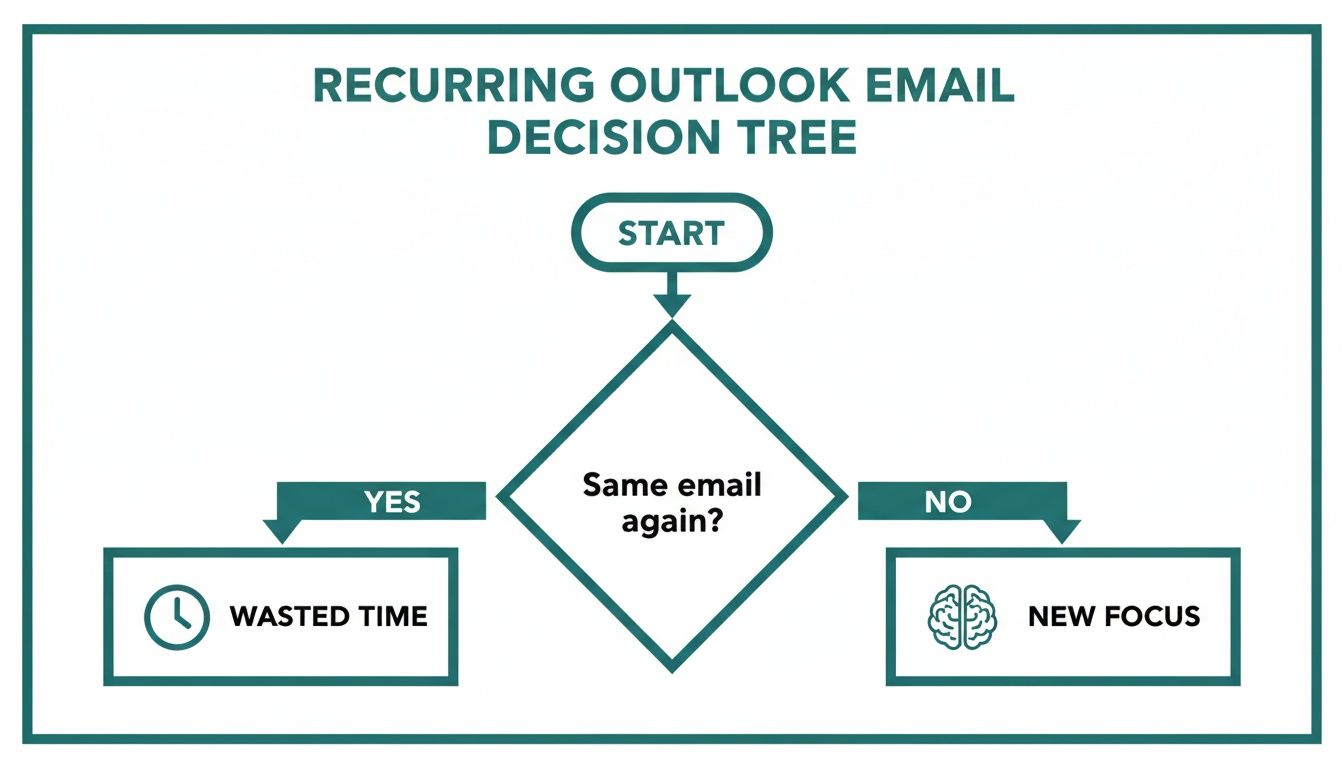
As you can see, the path of manual repetition is a dead end that just eats up your time. The alternative is carving out more mental space for the work that drives results.
The Recurring Meeting Method on Desktop
If you're using the classic Outlook for Windows or Mac, the recurring meeting method is your best bet. You can craft a message that looks almost identical to a regular email, complete with a subject line, detailed body text, and even attachments. The only real giveaway is that it lives on the recipient's calendar.
Here's a classic real-world scenario: A manager needs to remind her team to submit their weekly timesheets every Monday morning.
Instead of typing that same email for the 50th time, she can:
- Open the Outlook Calendar and click New Meeting.
- Pop all the team members into the "Required" field (this acts as your "To" line).
- Give it a clear, action-oriented subject like "Reminder: Weekly Timesheets Due Today."
- In the body, write the message: "Hi team, a friendly reminder to please submit your timesheets for last week by the end of the day. Thanks!"
- Hit the Recurrence button. This is where the magic happens. Set it to repeat weekly on Monday and choose "No end date."
- Pro Tip: Under Response Options, uncheck "Request Responses." This stops your inbox from getting flooded with "Accepted" notifications every single week.
Once set up, everyone gets a calendar notification every Monday morning without you lifting a finger. If you want to dive deeper, we cover more tips in our complete guide on setting up a recurring email in Outlook.
Adapting for Outlook on the Web
Using Outlook on the Web (OWA)? No problem. The process is nearly identical, just with a slightly different layout. The core logic of hijacking a recurring event is exactly the same. The big advantage here is that your scheduled "emails" are synced to the cloud, so they work no matter which computer you're on.
The main difference you'll spot is the Recurrence option is usually just called "Repeat." It’s often a simple dropdown menu where you can pick Daily, Weekly, Monthly, or a custom schedule. The principle is the same: set it once, define the schedule, and let Outlook’s calendar handle the rest.
One major caveat: This method will always show up as a calendar invitation. For internal team reminders, that's perfectly fine. But if you're communicating with clients or external partners, it can look a bit unprofessional. Keep your audience in mind.
Using Recurring Tasks for Personal Reminders
What if the reminder is just for you? Maybe you need to pull a specific report every Friday afternoon or follow up on a long-term project on the first of the month. Sending yourself a recurring email is total overkill.
A recurring task is a much cleaner and more efficient solution for this.
- Jump over to the "To Do" or "My Tasks" section in Outlook.
- Create a new task, like "Review Monthly Analytics Report."
- Just like with the meeting invite, find the Recurrence option and set your pattern (e.g., "Repeats on the first day of every month").
- Use the notes section to drop in links, instructions, or any other details you'll need when the time comes.
This task will pop up in your To Do list right on schedule, acting as a personal, private nudge without cluttering up anyone's inbox. Looking beyond these simple tricks, exploring how to set up automated reminders can unlock even more hands-off communication strategies.
Comparing Native Outlook Recurring Email Methods
So, you have two primary workarounds built right into Outlook: recurring meetings and recurring tasks. They both get a job done, but they're suited for very different purposes. Choosing the right one depends entirely on who the message is for.
This table breaks down the pros, cons, and best use cases for each method.
| Method | Pros | Cons | Best For |
|---|---|---|---|
| Recurring Meeting | Can be sent to multiple recipients. Supports attachments and rich text formatting. Looks similar to a real email. | Shows up as a calendar invite, not an email. Can clutter calendars. Can generate unwanted response notifications. | Sending group reminders to a team, like weekly reports, timesheet submissions, or meeting prep tasks. |
| Recurring Task | Private and personal to you. Keeps your calendar clean. Integrates with Microsoft To Do. Simple and quick to set up. | Cannot be sent to other people. No notification for others. Limited formatting options compared to an email. | Personal prompts and individual to-dos, like checking reports, making follow-up calls, or monthly admin. |
Ultimately, recurring meetings are your go-to for broadcasting a message to a group on a schedule. For anything that’s just for your own eyes, a recurring task is the cleaner, more sensible choice.
Go Beyond Workarounds with Scripts and Quick Steps
When the recurring meeting trick starts to feel clunky, it’s time to roll up your sleeves and look at more powerful, custom solutions inside Outlook. If you're comfortable with a bit of technical tinkering, you can build a much more robust system for sending recurring emails.
These methods move beyond simple calendar hacks and put you firmly in the driver’s seat.
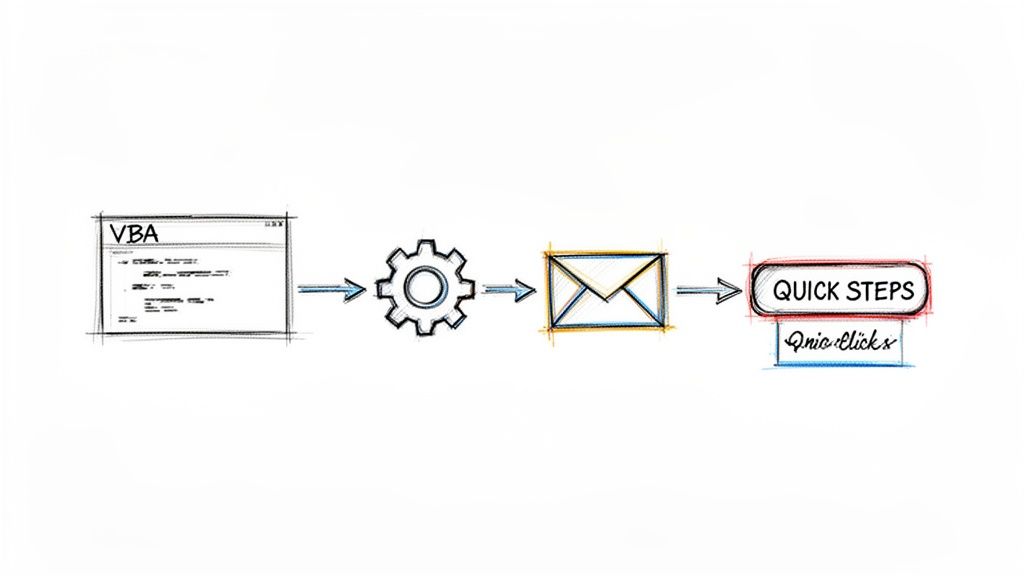
We're going to dive into two advanced techniques: Visual Basic for Applications (VBA) scripts and the seriously underused Quick Steps feature. While they aren't fully "set it and forget it" like a dedicated tool, they give you way more control and efficiency than sending everything by hand.
Use VBA for Genuine Email Automation
Visual Basic for Applications (VBA) is a scripting language baked right into Microsoft Office apps, including Outlook. With a simple script, you can tell Outlook to automatically create and send an email based on a specific trigger—like the moment you open the application. This is as close as you can get to true automation without ever leaving Outlook.
Let's say you need to send a daily project update email first thing in the morning. A VBA script can be set to run every single time you launch Outlook, getting that email ready to go.
Getting it working involves a few stages:
- Enable the Developer Tab: First, you'll need to make the Developer tab visible in your Outlook ribbon. It's hidden by default but easy to turn on in the options menu.
- Open the VBA Editor: This is your command center. It's where you'll write or paste the code that defines the email's content, recipients, and sending logic.
- Create a Procedure: You'll use a special procedure like
Application_Startup()to tell the script to fire up the moment Outlook opens.
It definitely requires some initial setup and a willingness to get your hands dirty with a little code. But the payoff is a massive degree of customization. You can define exact recipients, subject lines, and body text, making it a powerful tool for consistent, professional communication.
A huge plus for the VBA method is that the result is a real email, not a calendar invitation in disguise. This is crucial for maintaining a professional look when sending to external clients or stakeholders.
Speed Up Repetitive Sends with Quick Steps
If coding just isn't your thing, don't worry. Outlook’s Quick Steps feature is a fantastic middle ground. It's not a scheduler, but it turns a tedious, multi-step process into a single click.
Think of it as creating a supercharged email template.
You can set up a Quick Step to perform a whole chain of actions at once. For instance, you could create a "Monthly Report Reminder" Quick Step that does all this for you:
- Opens a brand new email.
- Instantly populates the "To" and "CC" fields with your project team.
- Sets a predefined subject like "Action Required: Monthly Performance Report."
- Inserts pre-written body text reminding everyone of the upcoming deadline.
Once you save it, this Quick Step appears right in your Home ribbon. From now on, instead of manually drafting that email every month, you just click one button. The email draft appears instantly, fully addressed and written—all you have to do is hit "Send."
This method slashes the time and mental energy spent on repetitive emails without you ever having to look at a line of code.
Of course, if you want to go even further and build truly hands-off automation, you might look at tools like Power Automate. There are some great guides out there on creating Power Automate workflows for non-technical teams that really show what’s possible.
Ultimately, both VBA and Quick Steps let you bend Outlook to your will, building a much smarter system for your recurring messages.
Troubleshooting Your Automated Outlook Emails
Even the slickest automation can hit a bump in the road. It's frustrating when your recurring Outlook email workaround doesn't quite work as planned, but don't worry—the fix is usually pretty simple. Let's walk through some of the most common headaches and how to solve them.
A classic issue I see all the time is when recurring meeting invites, which are really just emails in disguise, get completely ignored. People see a calendar event pop up, and their brain just files it away differently than a direct email. This isn't a technical glitch; it's a human one.
Another pain point pops up when you need to make a change. Modifying a recurring series in Outlook can be a minefield. If you just edit one event, Outlook forces you to decide: change just this one occurrence or the entire series? Choosing the entire series blasts an update notification to everyone, which is just noise, especially for a tiny text change.
Why Your Emails End Up in Spam
The most alarming problem? When your automated reminders land straight in someone's spam folder. This usually happens if the content is too generic, uses certain trigger words, or if you're sending to a big list of external contacts who haven't really engaged with you before.
Email providers are constantly on patrol for spammy behavior. An email sent over and over with the exact same subject and body can definitely raise some red flags.
- Mix Up Your Subject Lines: Instead of a stale "Weekly Report Due," try something more dynamic like "Report for Week of Oct 7."
- Watch Your Wording: Ditch the excessive exclamation points, ALL CAPS, and sales-y language that spam filters hate.
- Your Sender Reputation Counts: If your domain has a poor reputation, even perfectly good emails can get flagged. This is less of an issue for internal sends but can be a real problem for external communication.
Don't forget the obvious stuff. Sometimes the culprit is as simple as a typo in an email address, causing delivery to fail. Always give your recipient list a quick once-over, especially when setting up a new series.
Managing Your Recipient List Gracefully
So, what happens when someone leaves the team? You've got to get them off the recurring email list. If you're using the recurring meeting method, just open the series from your calendar, pull their name from the attendee list, and save the changes for the entire series.
This stops them from getting future pings. But adding new people mid-stream can be less smooth. Sometimes, you're better off just canceling the old series and starting a new one to make sure everyone is properly synced up. If you run into really sticky situations where emails get stuck, understanding how to stop an endless email loop can offer some helpful perspective on email delivery behavior.
At the end of the day, troubleshooting these native workarounds is just part of the deal. They're powerful but definitely have their quirks. By knowing what to look out for, you can keep your automated system running without any major drama.
Upgrading to a Dedicated Recurring Email Tool
Let's be honest. After jumping through all the hoops with Outlook's native "solutions," a pretty clear picture starts to form. Whether you're wrangling recurring meetings, fiddling with tasks, or even dipping your toes into simple scripts, every single method demands some kind of ongoing babysitting. They’re clever fixes, for sure, but they’re a far cry from true “set it and forget it” automation.
This is exactly where specialized third-party tools come into play. They aren't just another option; they're the logical next step for anyone who’s serious about getting time back in their day.
Moving to real automation isn’t just about making life easier—it’s about getting better results. The numbers don't lie. While recurring automated emails make up only about 2% of all emails sent, they pull in an incredible 41% of all email orders. Their open rates are a staggering 42.1%, which absolutely demolishes the 25.2% average for one-off campaigns. For any busy professional, the takeaway is simple: consistent, automated touchpoints work.
The Power of an Invisible Tool
This is where a small but mighty productivity hack like Recurrr really shines. It's not trying to be a massive, complex project management app or a habit tracker. Think of it more as an invisible tool or a hidden gem you can use in addition to your main productivity suite. Its entire job is to send a recurring Outlook email on time, every time, without you ever having to think about it again after the initial setup.
The payoff is immediate:
- It Sends Actual Emails: Unlike the Outlook workarounds, this sends a genuine email, not a thinly disguised meeting invite or a task reminder. This is huge for maintaining a professional look, especially when you're talking to clients.
- Rock-Solid Reliability: The whole system is built for one purpose, and it does it perfectly. You set the schedule—daily, weekly, monthly, whatever you need—and you can trust that it will just run on autopilot.
- Dead-Simple to Use: The interface is clean and straightforward. You don't need to be a developer or wade through a sea of complicated settings to get it working.
When you hand off your repetitive email chores to a dedicated tool, you're not just saving a few minutes here and there. You're cutting out a source of constant friction and mental clutter from your day, freeing you up to focus on the work that actually matters.
When to Make the Upgrade
If you're tired of constantly managing Outlook’s workarounds or just find yourself wishing there was a more direct way to get this done, it’s probably time to look at a dedicated tool.
For anyone who relies on consistent follow-ups—think accountants sending monthly payment reminders or property managers chasing rent—this kind of hands-off automation is a total game-changer. It’s a far simpler alternative to Zapier for recurring emails that finally removes the friction for good. This one small upgrade to your toolkit can lead to massive wins in both productivity and peace of mind.
Got Questions About Recurring Outlook Emails?
We've walked through a ton of options, from the simple meeting trick to the more techy VBA scripts. To tie it all together, let's tackle the questions that always seem to come up when you're trying to put your Outlook emails on repeat.
Can I Send a Recurring Email in Outlook Without It Being a Meeting Invite?
Not really, no. If you're sticking to what Outlook offers out of the box, there’s no direct "send this email again next Tuesday" button. The most common trick is to set up a recurring meeting and then dress it up to look like an email.
But let's be honest, it's still a meeting invite. Your recipients will see a calendar event, not a simple message in their inbox. If you want to send a true recurring Outlook email, you'll need to either roll up your sleeves with a custom VBA script or use a dedicated tool built for the job.
How Do I Stop a Recurring Email Series I Already Set Up?
This depends entirely on how you started it. Each method has its own "off" switch.
- For Recurring Meetings or Tasks: Head over to your Outlook Calendar or Task list. Find any instance of the recurring item, right-click it, and hit "Delete." Outlook will then ask if you want to delete just "This occurrence" or "The entire series." To stop it for good, choose "The entire series."
- For VBA Scripts: This is a bit more hands-on. You'll have to open the VBA editor in Outlook again. From there, you can comment out the code, disable it, or just delete the script altogether to prevent it from running.
A quick heads-up: when you cancel a recurring meeting, Outlook sends a cancellation notice to everyone you invited. It's a clean way to clear their calendars, but it does mean one last notification goes out.
Are There Any Free Tools for This?
Absolutely, but "free" comes with different strings attached. The workarounds using Outlook’s native recurring meetings or tasks are completely free and available to everyone right now.
Writing your own VBA script is also free if you don't count your time, but it definitely requires some technical confidence to get it running and keep it maintained. Some third-party services also have free plans, which are great for a test drive. Just keep an eye on the limitations—they usually cap how many recurring emails you can send each month.
Ready to ditch the workarounds and automate your recurring emails for real? Recurrr is the set-it-and-forget-it tool that sends your emails on schedule so you can get back to your actual work. Get started in minutes and take back your time. Try Recurrr today and see how simple it can be.