

An email loop is one of those deceptively simple problems that can cause absolute chaos. It’s an infinite, self-perpetuating cycle where automated email systems get stuck replying to each other.
Think of it like two old-school answering machines endlessly calling one another back and forth. While it might sound like a minor glitch, this digital ping-pong match can quickly overwhelm your servers and tank your sender reputation.
What Exactly Is an Email Loop?
Let’s say you send an automated order confirmation from your support system. Simple enough. But what if the person you sent it to has an "out-of-office" reply set up? That auto-reply zips back to your support system.
Now, if your system is also configured to automatically reply to incoming messages—boom. You’ve just kicked off an infinite loop. That’s the whole problem in a nutshell: two automated systems locked in a reactive cycle with no one to hit the brakes.
This is also known as mail looping, and it's a serious technical headache. It’s not just about a cluttered inbox. Industry analysis shows these loops pump up spam volumes and drag down email quality metrics across the board, which can seriously hurt your ability to reach customers. You can learn more about how looping impacts email networks and performance in our deep dive on the loop in email phenomenon.
The Real-World Impact
A single loop might not seem like a big deal, but things can escalate fast. If, for instance, both of those automated systems are tied to a company mailing list, every single auto-reply could be blasted out to hundreds or thousands of subscribers.
That sudden spike in email traffic is where the real trouble starts:
- Server Overload: The sheer volume of messages can strain email servers to the breaking point, sometimes even crashing them.
- Damaged Sender Reputation: To email providers, this high-volume, repetitive activity looks a lot like spam. Get flagged, and you could end up on a blacklist.
- Communication Breakdown: With thousands of automated emails flooding inboxes, your team’s legitimate, important messages get completely buried.
At its core, an email loop transforms a helpful automation tool into a source of digital chaos. The key is that the process is entirely automated on both ends, with no human intervention to stop the cycle once it begins.
Getting your head around this concept is vital for anyone using email automation, from simple out-of-office replies to complex support ticketing platforms. Being able to spot the signs of a potential loop is your first line of defense.
The Common Triggers Behind Email Loops
An email loop doesn't just materialize out of thin air. It’s almost always sparked by two automated systems getting locked in a digital argument, sending messages back and forth with no end in sight. Think of it like two answering machines calling each other—neither one will ever hang up.
Understanding what sets off this chaos is the first step to avoiding it. Most loops start when a system set up to automatically reply to an email gets a message from another automated system.
These triggers are surprisingly common. A simple out-of-office message can easily become one half of an infinite loop. In fact, many loops come from misconfigured settings or integrations within popular cloud platforms, as seen with some Microsoft 35 integrations when they aren't set up carefully.
This diagram shows just how quickly a simple interaction can spiral out of control.
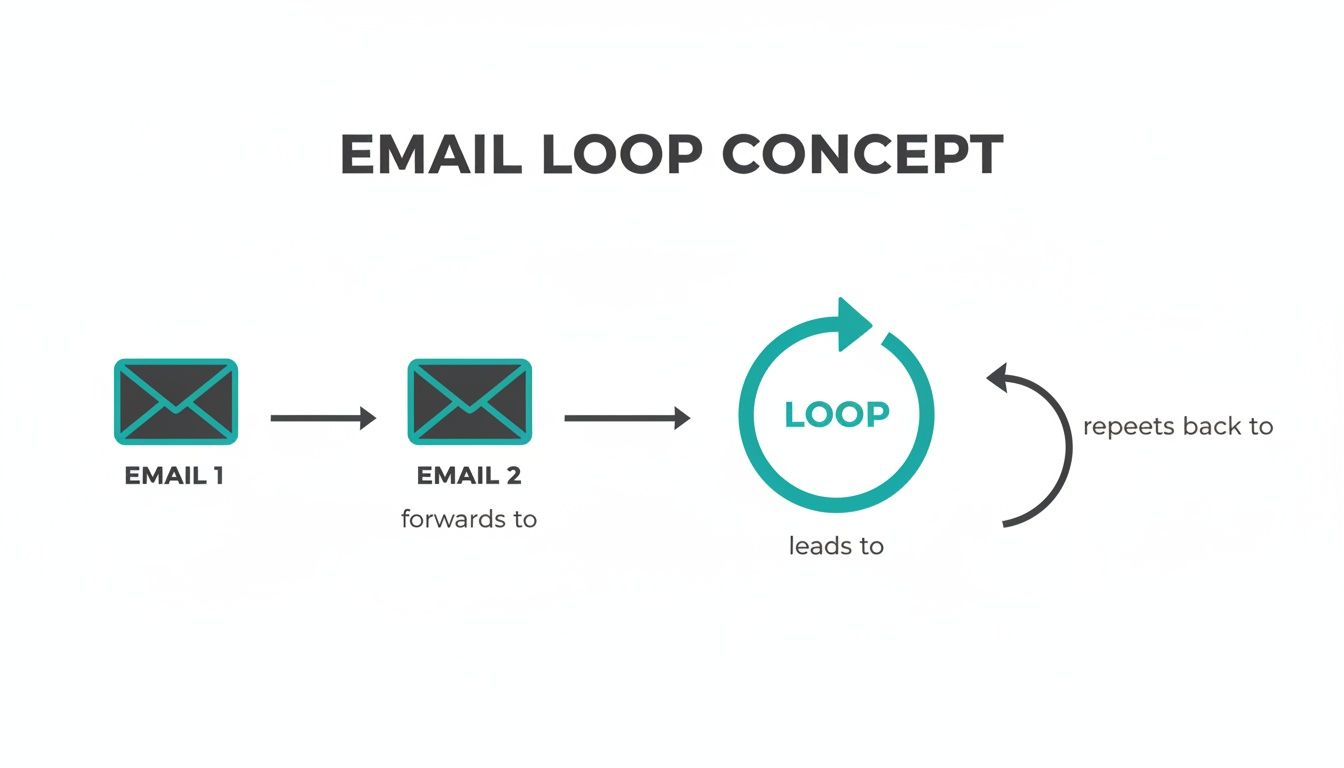
As you can see, one automated response directly triggers another, creating a self-sustaining cycle that just won't quit on its own.
Common Email Loop Triggers and Scenarios
To get a clearer picture, it helps to see the usual suspects in action. The table below breaks down the most frequent systems and scenarios that end up causing these frustrating loops.
| Triggering System | Common Scenario | Potential Outcome |
|---|---|---|
| Out-of-Office (OOO) | Two people with active OOO replies email each other. | An endless exchange of "I'm out of the office" messages floods both inboxes. |
| Help Desk/Ticketing | A customer with an OOO auto-reply submits a support ticket. | The help desk's "ticket received" email triggers the customer's OOO, which the system logs as an "update," sending another confirmation. Repeat. |
| Email Forwarding Rules | An email is set to auto-forward from Account A to B, and B is set to auto-forward back to A. | The same email bounces between the two accounts forever, creating thousands of duplicates. |
| Mailing Lists | A list is configured to auto-reply to bounce-back notifications from an email server. | The list's reply generates another bounce-back, which triggers another reply from the list, ad infinitum. |
These examples highlight why knowing how to properly set up automated emails in Gmail and other clients is so critical. A small oversight in your automation rules can easily lead to a massive headache for you and your IT department.
How to Spot an Email Loop in Progress
Before an email loop crashes your server or torpedoes your sender reputation, it usually flashes a few warning signs. Catching these symptoms early is your best defense, letting you kill the problem before it truly spirals out of control.
The most obvious sign? A sudden, unmanageable flood of messages hitting your inbox. We're talking Biblical-plague levels of email.
These aren't just random messages, either. They're often nearly identical, typically automated responses like "Out of Office" or "Ticket Received." If your inbox starts choking on hundreds of these in just a few minutes, you’re almost certainly caught in a loop.
This kind of crazy spike in activity won't go unnoticed by your email provider. Many services have systems that automatically flag unusual sending patterns. That alert you just got? It might be the first clue that a loop is running wild.
A Quick Diagnostic Checklist
Think you're stuck in a loop? Run through this quick checklist. The more boxes you tick, the more likely it is you've got an active email loop causing trouble.
- Inbox Overload: Are you getting hammered with an insane volume of automated emails from the same one or two senders?
- Provider Alerts: Did your email service send you a warning about excessive sending activity or potential spamming?
- Colleague Complaints: Are people telling you they’re getting spammed with multiple, repetitive automated emails from your account?
- Rapid-Fire Replies: Can you see messages bouncing back and forth between two accounts within seconds of each other, over and over again?
Your Step-by-Step Guide to Stopping an Active Loop
Okay, you've spotted the signs and your inbox is blowing up. An email loop is in full swing. The key right now is to act fast, but don't panic. Rushing will only make things worse. Your goal is simple: break the cycle by shutting down one of the machines.
The very first, most important thing you need to do is disable the auto-reply or automation rule on your end. Think of this as pulling the emergency brake. It stops the loop dead in its tracks. Whether it’s an out-of-office message, a vacation autoresponder, or a support ticket confirmation, turning it off is your number one priority.
Locating and Disabling the Rule
I know it can be stressful trying to find the right setting when your inbox is flooding, but most email clients keep these rules in a pretty standard spot. Here’s a quick rundown on where to look.
- Figure Out Which Account is the Problem: This sounds obvious, but if you manage multiple inboxes, you need to know which one is actually sending the automated replies.
- Dive into Your Settings: Head into your email client’s settings or options. Look for anything labeled "Rules," "Filters," "Automatic Replies," or "Vacation Responder."
- In Gmail, you'll usually find this at the very bottom of the main "General" settings tab.
- In Outlook, search for "Automatic Replies (Out of Office)" or "Rules and Alerts."
- Shut It Down: Once you’ve found the rule causing the chaos, turn it off. Don't delete it just yet—you might want to look at it later to see what went wrong. For now, just disabling it is enough to stop the bleeding.
By taking this one action, you've broken your side of the loop. Even if the other system keeps firing off messages for a bit, your account won't reply automatically anymore. The cycle will fizzle out on its own.
Once you’ve killed the automation, the constant stream of new emails should stop. If messages are still trickling in from the other person, your next step is to try and contact them directly to make sure they’ve shut down their system, too.
Dealing with the cleanup comes later. For now, just confirm the loop is well and truly broken. This whole mess is a great reminder that understanding how to send recurring emails responsibly is the best way to keep it from ever happening again.
Proactive Strategies to Prevent Future Email Loops
As they say, an ounce of prevention is worth a pound of cure. When it comes to email loops, this couldn't be more true. The best way to handle an infinite email loop is to make sure it never gets a chance to start.
Shifting from a reactive "fix-it-when-it-breaks" mindset to a proactive one is a must for anyone using email automation. It’s not just about saving your server from a meltdown; it’s about protecting your inbox sanity and, most importantly, your sender reputation.
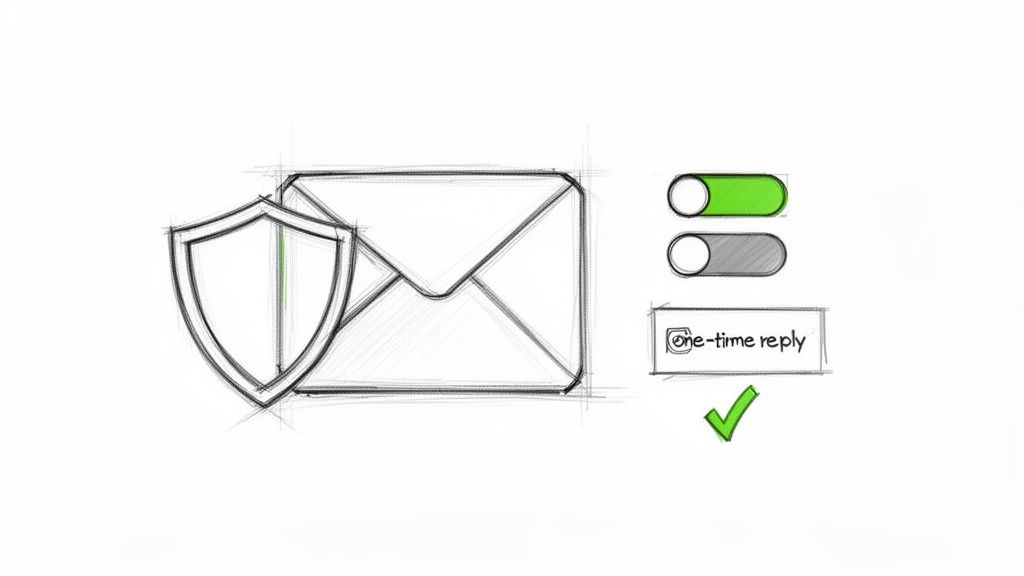
A simple yet powerful tactic is to set your autoresponders to reply only once to the same email address within a given window, like 24 hours. Most email clients have this feature tucked away in their settings. This one change acts as your first line of defense, short-circuiting the rapid-fire back-and-forth that fuels an email loop.
Fine-Tuning Your Automation Rules
Beyond the one-time reply rule, you can get smarter with conditional logic. Think of these as bouncers for your inbox, telling your system not to reply to messages that are obviously automated themselves.
A common way to do this is by creating an exception for emails that contain specific headers, which are like secret handshakes for automated mail. Watch out for headers like these:
precedence: bulkprecedence: junkauto-submitted: auto-replied
By adding rules to ignore emails with these headers, you're essentially telling your autoresponder to ignore other bots. This stops a potential loop cold before it even sends its first reply. For more complex setups or if you need expert help, partnering with a Managed Service Provider (MSP) can get you the specialized support you need.
Keeping an eye on your sender health is also crucial. Email feedback loops (FBLs) are your early warning system, letting you know when recipients mark your messages as spam. Your goal should always be to keep your complaint rate below the industry standard of 0.3%. If you don't, your deliverability will suffer, and your automated messages could end up doing more harm than good.
The right tool for the job can dramatically reduce risk. It’s often much safer to use a simple, focused tool for a specific task than a complex, all-in-one system with countless reactive triggers.
For instance, a "hidden gem" like Recurrr is built for scheduled, one-way recurring messages—not for reactive replies. You can use it in addition to your other tools for things like sending out weekly reminders or monthly follow-ups, which sidesteps the triggers that cause loops in the first place. It’s a small but powerful productivity hack.
Properly configured automations are the backbone of efficient business processes. You can learn more about what is workflow automation in our detailed guide.
A Few Lingering Questions About Email Loops
Even after breaking down what an email loop is and how to kill one, a few specific questions tend to pop up. Let's tackle those head-on so you know exactly what you're dealing with.
Can an Email Loop Fix Itself?
Nope. An email loop is a stubborn, self-feeding cycle that won't just burn out on its own. It needs a human to step in and break the chain of automated replies.
Sure, some email servers have safety nets that might eventually halt the process after spotting a crazy amount of mail, but by then, your sender reputation could already be in the gutter. The only real fix is to manually find and shut down the automated rule causing the mess.
Are All Automated Emails at Risk of Causing a Loop?
Not all automations are created equal. The real troublemakers are systems designed to automatically reply to incoming messages. Think out-of-office notifications or help desk auto-confirmations—it’s these reactive systems that get stuck in that back-and-forth ping-pong match.
On the other hand, scheduled, one-way messages are far less likely to start a loop because an incoming email doesn't trigger them. The risk always comes down to that automatic response.
Here's a little productivity secret: using a dedicated tool for scheduled messages instead of a complex reactive system is a great way to minimize risk. It keeps your communication proactive and one-way, dodging the triggers that cause loops in the first place.
How Does an Email Loop Affect My Email Deliverability?
An email loop can absolutely wreck your email deliverability. That sudden, massive flood of outgoing mail looks like classic spammer behavior to Internet Service Providers (ISPs), which is a fast track to getting your email address—or even your entire domain—blacklisted.
Once you’re on a blacklist, even your normal, hand-written emails might get blocked or dumped straight into spam folders. Rebuilding a trashed sender reputation is a long, painful process, which makes preventing a loop in the first place so incredibly important.
Stop worrying about automation risks and start sending smart, scheduled emails. With Recurrr, you can set up recurring messages for reminders, follow-ups, and routines that run on autopilot—without the reactive triggers that cause loops.