

When you "loop someone in" on an email, you're simply adding them to an ongoing conversation. The idea is to keep them in the loop or ask for their input. It's a daily ritual in modern work, but when it's done wrong, it creates a productivity-killing nightmare of tangled threads and blown deadlines.
The True Cost of a Messy Email Loop
We’ve all been there. A simple project update somehow morphs into a chaotic, never-ending chain of replies. What began as a quick "loop in" has become a digital black hole, clogging up inboxes and bringing progress to a screeching halt. The hidden costs here aren't just a minor annoyance; they're a massive drain on your team's focus and efficiency.
Let's picture a marketing team kicking off a new campaign. The project manager loops in the lead designer, the copywriter, and a junior marketer for some initial thoughts. Great start. But then the copywriter hits "reply-all" to ask the designer a question, who then adds an external vendor to the thread, who then asks the entire group for clarification.
The Downward Spiral of Communication
Just like that, the original, focused conversation is gone. It's been replaced by a confusing mess where nobody knows who's accountable for what, and the important details are buried under a mountain of replies. The junior marketer, now totally lost, just goes silent. The project manager has to waste an hour just trying to piece together the timeline and figure out who owns which task. This isn't some far-fetched story; it's what happens every single day in offices everywhere.
This all-too-common situation shines a light on some serious problems:
- Information Overload: When too many people get looped in without a clear reason, it just creates noise that drowns out the actual message.
- Accountability Gaps: As the recipient list balloons, that sense of individual ownership shrinks. It's a classic "bystander effect"—tasks get dropped because everyone assumes someone else has it covered.
- Wasted Time and Focus: Every single unnecessary email is a distraction. Professionals burn hours digging through irrelevant threads, which shatters their concentration and kills any chance for deep work. It's why so many people are trying to figure out how to stay organized at work just to get back on track.
A messy email loop isn't just a communication problem; it's a productivity problem. It creates friction, delays decisions, and fosters a culture of reactive, unfocused work that undermines project success.
These endless chains have been a professional headache since email became a thing. And it's only gotten worse. By 2022, the world was sending 333 billion emails every single day. A huge chunk of that—estimated at 15-20% in corporate environments—comes from these messy, inefficient loop-in conversations, according to research from the Radicati Group. The simple act of adding someone to an email, when done carelessly, is a direct contributor to this massive digital mess.
Choosing Your Tools: CC, BCC, and Forwarding
Mastering the art of looping someone into an email really comes down to choosing the right tool for the job. Your choice between CC, BCC, or forwarding isn't just a technical one; it’s a strategic move that dictates how information flows and how people see their role in the conversation.
Picking the wrong option can create a mess of confusion. But the right one? It brings clarity and shows you respect everyone's time.
CC, BCC, or a Fresh Start with Forwarding?
The Carbon Copy (CC) field is your best friend when you need transparency. When you CC someone, you’re publicly saying, "I want you to see this, and I want everyone else to know you're seeing it." It's perfect for keeping team members or managers in the loop on a project's progress, especially when they don’t need to take any direct action. It's a simple way to maintain visibility and a shared sense of context.
On the flip side, Blind Carbon Copy (BCC) is your go-to for privacy. Use it when you need to bring someone in discreetly, without plastering their email address for all other recipients to see. This is non-negotiable for mass emails like newsletters or announcements where protecting privacy is a must. It’s also a subtle way to keep your boss informed without making a team member feel like you're micromanaging them.
Then there's forwarding, which creates a clean break from the original conversation. Instead of just dumping someone into a long, messy thread, forwarding lets you start fresh. It's hands-down the best approach when you need to give someone a quick summary or specific instructions.
A clean forward with a summary is almost always better than a chaotic "Reply All."
By forwarding, you get to control the narrative. You can distill a long, confusing thread into a few key takeaways and a clear call to action. You’re saving the new person the headache of digging through the entire history to figure out what's going on.
This simple decision tree can help you choose the right path for your next project update.
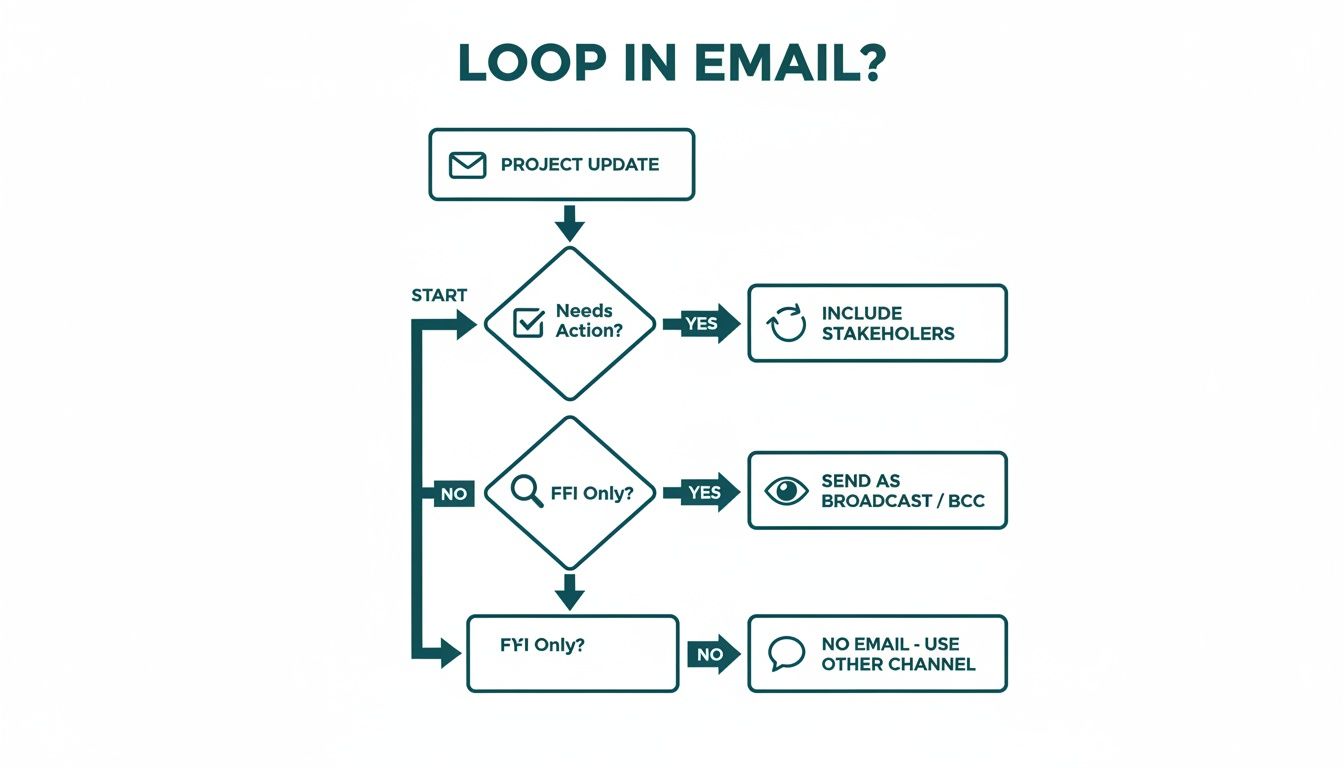
The flowchart makes a clear distinction between updates that require action and those that are just for informational purposes, pointing you toward the most efficient method. Thinking this way doesn't just improve clarity; it helps tame the inbox chaos for your entire team. And if you want to be sure your important messages are seen without adding more clutter, it’s worth understanding the nuances of tools like read receipts in Gmail.
A Strategic Guide to CC vs BCC vs Forwarding
To make the choice even clearer, let's look at a practical comparison. Getting these distinctions right will make your email communication a whole lot more effective.
| Method | Best For | Key Etiquette | Common Mistake |
|---|---|---|---|
| CC (Carbon Copy) | Keeping people visibly informed when no action is needed from them. | Use it for team-wide transparency or to keep your manager in the loop. | CC'ing half the company, which just creates inbox noise and dilutes responsibility. |
| BCC (Blind Carbon Copy) | Protecting the privacy of recipients on a mass email. | Great for newsletters or discreetly sharing information with a supervisor. | Using BCC to secretly "tattle" on a colleague. It's a quick way to break trust. |
| Forward | Providing a clean summary and specific instructions to a new person. | Always add a brief note at the top explaining why you're forwarding the email. | Forwarding a long, messy thread without context, forcing the recipient to do all the hard work. |
Ultimately, choosing the right method comes down to your goal. Are you aiming for transparency, privacy, or clarity? Answering that question first will tell you exactly which tool to use.
How to Craft the Perfect Loop In Email
Getting the "loop in" email right isn't just about adding another name to the CC line. It's a bit of an art form, really—a mix of clarity, purpose, and good old-fashioned professional courtesy. When you nail it, you save everyone time and kill confusion before it starts. The secret is being intentional, right from the very first thing anyone sees: the subject line.
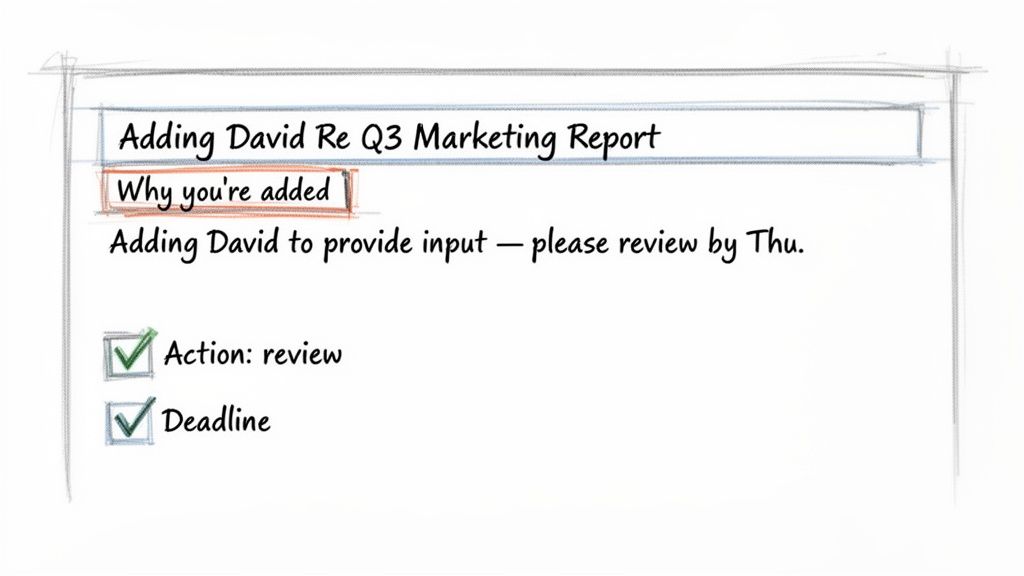
A vague subject line is practically an invitation for your email to be ignored. Don't just leave the original subject as is. A tiny tweak to signal the change can make all the difference, especially for the person you're adding.
For instance, a subject like "Re: Q3 Marketing Report" is fine, but it doesn't help the newcomer. Changing it to "Adding David // Re: Q3 Marketing Report" is a simple, powerful move. It gives instant context before they even open the message.
The All-Important Opening Line
Once they've opened the email, that first sentence has to do all the heavy lifting. The worst thing you can do is make the person you just added dig through a long, messy thread to figure out what's going on. Get straight to the point, right at the top.
Your opening needs to answer two basic questions, fast:
- Why am I here? Be specific. Are you adding them for approval, for their expertise, or just to keep them in the loop?
- What do you need from me? Make it crystal clear if you need them to take action, provide feedback by a certain time, or if this is just an FYI.
A strong opening is like a mini-briefing. Something like, "Looping in Sarah from Legal to review the attached vendor contract and share her feedback by Friday," leaves absolutely no room for confusion.
This direct approach shows you respect everyone's time and sets clear expectations from the get-go. If you're looking to brush up on the finer points of digital communication, it's always a good idea to master workplace email etiquette.
Practical Templates for Common Scenarios
Let's be honest, having a few go-to templates in your back pocket makes life easier. Think of these less as copy-paste formulas and more as proven frameworks you can quickly adapt to fit your situation.
1. Bringing a Manager Up to Speed This is usually for visibility or getting a final sign-off. The key is a concise summary so they don't have to wade through the entire email history.
- Subject: Adding [Manager's Name] for Approval on Project Alpha Launch Plan
- Body: "Hi [Manager's Name], looping you in for final approval on the Project Alpha launch plan. The team has nailed down the key dates and budget, summarized in the attached doc. Please let us know if you have any feedback by EOD tomorrow."
2. Introducing a New Team Member to a Project Here, your goal is to provide crucial context and clearly define their role so everyone knows who to talk to about what.
- Subject: Introducing [New Member's Name] to the Q4 Social Media Campaign
- Body: "All, please welcome [New Member's Name], who's joining us to manage the analytics for this campaign. [New Member's Name], looping you into the thread below for context. Going forward, please direct all questions about performance metrics her way."
This kind of clear hand-off is vital. It's the same level of clarity you'd want in any recurring communication, which we break down in our guide on creating a solid project status update email template.
3. Requesting Input from a Technical Expert When you need a specialist's brainpower, be direct and specific about the problem you're trying to solve.
- Subject: Adding [Expert's Name] for Input on API Integration Issue
- Body: "Hi [Expert's Name], looping you in for your expertise on this. We're hitting an authentication error with the new API (details in the thread below). Could you take a look and advise on the best path forward? I've attached the relevant logs."
Common Mistakes to Avoid When Looping Someone In
Knowing how to properly loop in email recipients is a real skill. But sometimes, the fastest way to get better is to understand what not to do. I’ve seen a lot of common slip-ups that can turn a well-intentioned update into a professional headache, killing clarity and wasting everyone's time.
Spotting these bad habits is the first step toward cleaner, more effective communication.
One of the most common blunders is the "vague loop." This is when you add someone to an email thread with zero explanation, leaving them to scratch their head and wonder, "Why am I here?" They're then forced to dig through a long chain of messages just to find a shred of context, which is a frustrating and inefficient way to spend their time.
The Ambiguous Ask and the Late Arrival
Just as bad is looping someone in way too late in the game. Imagine a project team has been debating a marketing budget for a week. They finally add the finance manager to the thread, expecting an immediate decision. The problem? The manager is missing all the necessary background from earlier discussions, instantly creating a bottleneck.
A clear, actionable fix prevents this kind of chaos.
- The Vague Loop Fix: Always include a brief, direct sentence right at the top of your email. Something simple like, "Looping in Maria for her final review on the Q3 numbers."
- The Late Arrival Fix: If you absolutely have to add someone late, give them a concise summary of the key points and decisions made so far. Never make them excavate the entire thread for context.
By tackling the "why" and "what" upfront, you're showing respect for their time and ensuring they can jump in and contribute effectively right away. It's a simple courtesy that dramatically improves the flow of information.
The goal of a loop-in is to accelerate progress, not to delegate your responsibility for providing context. A successful loop-in provides clarity, not a puzzle for the recipient to solve.
These little errors might seem small, but they have a massive impact, especially at scale. In marketing, for example, poorly managed email loops can be seriously costly. Inbox providers like Gmail use sophisticated AI to filter repetitive or irrelevant messages into spam. While the average unsubscribe rate hovers around 0.1%, campaigns with confusing loops can see that number spike by 3-5 times. That's a quick way to burn through a valuable contact list. You can find more insights about the future of email marketing trends on verticalresponse.com.
The Overcrowded CC Field
Another classic mistake is the "overcrowded CC." It’s tempting to add everyone even remotely connected to a project "just in case." But this usually leads to the bystander effect—individual responsibility gets diluted because everyone just assumes someone else will handle it.
Instead of copying the entire department, be selective. Ask yourself: "Does this person truly need to be on this email, or am I just covering my bases?" A focused recipient list ensures the people who need to act feel a clear sense of ownership, leading to faster and more decisive outcomes.
Automating Recurring Updates to Save Your Sanity
We all have those repetitive "loop in" tasks that seem to multiply on the to-do list. Think about the weekly stakeholder updates, monthly performance reports, or even just those simple Friday check-in emails. They're important, but they’re also the exact kind of thing that drains your mental energy and clogs up your schedule.
This is where a small productivity hack can make a massive difference. You don't need some heavy, complex system to solve this. Instead, a hidden gem like Recurrr can be your invisible tool, working quietly in the background to handle the repetitive loops so you can focus on work that actually matters.
Setting Up Your First Automated Loop In Email
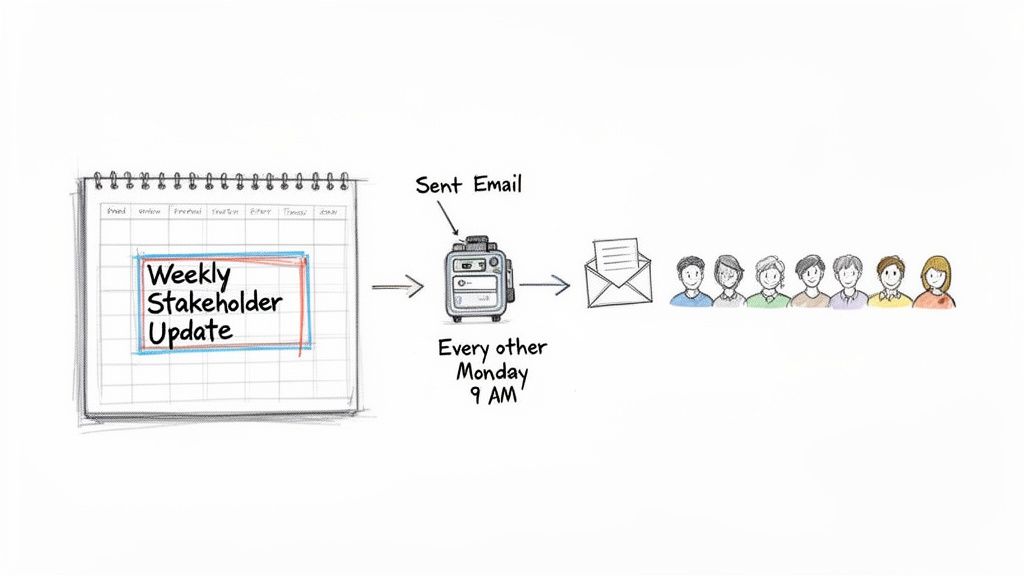
Imagine looping in your project team every other Monday at 9 AM without ever having to remember to hit "send." That's the real power of setting up a simple automated routine. The best part? The process is straightforward and doesn't force you to overhaul how you already work.
It all starts with creating a recurring email template. This isn't some static, one-size-fits-all message; it's a flexible draft you can fine-tune as needed. From there, you just define a schedule that makes sense for you.
Here are a few schedules I've seen work really well:
- Weekly Project Updates: Send every Friday at 4 PM to keep key stakeholders in the loop on progress.
- Bi-Weekly Reminders: Dispatch a reminder every second Tuesday to a team about a recurring meeting or deadline.
- Monthly Reports: Automatically send performance summaries on the first business day of each month.
The final piece is just adding your recipient list—the people you need to loop in email after email. Once you've set it, the system takes over. It ensures your communication is consistent and timely, all without you lifting a finger. If you're new to this idea, our detailed guide on how to send recurring emails walks you through the entire setup, step-by-step.
This isn't about replacing your project management app or your main communication platform. It’s about using a smart, focused tool to handle the mundane stuff, freeing you from the tyranny of the recurring to-do item.
Beyond Simple Updates
Getting this kind of automation in place is a fantastic starting point for reclaiming your time. By taking care of the predictable "loop in" tasks, you build a much more reliable communication cadence with your team and stakeholders. Everyone gets the information they need, right on schedule, which builds trust and cuts down on all those manual follow-ups.
And this is just the beginning. To go beyond simple recurring updates and truly save your sanity, you can explore the broader world of automated customer service, which can transform how all kinds of routine communications are handled. The core principle is the same: let technology manage the repetitive work so your time and attention can go where they matter most—on creative problem-solving and strategic thinking that actually drives results.
Your Loop In Email Questions Answered
Even when you know the rules of the road, you'll eventually hit a weird intersection that makes you second-guess yourself. Email is no different. Let's tackle some of the most common, real-world questions that pop up when you need to loop in email participants.
Here’s how to navigate these tricky moments with confidence.
What Is the Best Way to Loop Someone Into a Long Email Thread?
Whatever you do, don't just forward a massive, messy thread with a "See below" and hope for the best. That’s just offloading your work onto the other person, and it’s a surefire way to cause confusion and get a slow (or no) response.
The right way? Start a completely fresh email.
Write a new, clear subject line that explains exactly what you need. Then, in the body, give a super concise summary—think bullet points—covering the essential history, what’s been decided, and any open questions. Only then should you explicitly state why you’re looping them in and what you need from them.
You can still attach the original email thread for reference, but add a simple note like, "Full history attached if you need the nitty-gritty context."
A quick summary isn't just polite; it's smart. You're taking control of the narrative and making it dead simple for the other person to jump in and contribute effectively from the moment they open your email.
Is It Rude to Move Someone to BCC Without Telling Them?
Ah, the stealth BCC. Context is everything here.
Quietly moving your manager to BCC to spare them from a dozen "Reply All" pings about scheduling is often seen as a professional courtesy. You're keeping them in the loop without drowning their inbox. No harm, no foul.
But—and this is a big but—moving a collaborator to BCC in the middle of a project discussion can feel secretive and exclusionary. It's a quick way to damage trust.
The best practice is always transparency. A simple, upfront note at the top of your email solves this instantly. For example: "(Moving Jane to BCC to save her inbox)." Everyone's on the same page, and there are no weird vibes.
How Do I Politely Ask to Be Removed From an Email Loop?
Being trapped in an irrelevant email chain is a massive productivity killer. Escaping gracefully is a skill.
First, wait for a natural pause in the conversation. Don't jump in and interrupt an active back-and-forth.
When the time is right, reply directly to the sender—never hit "Reply All." A polite and professional request that works every time sounds something like this:
"Thanks for including me in this discussion! I don't think my input is needed from this point forward, so feel free to take me off the thread. This will help keep the conversation focused for the core team."
This approach is direct, respectful of everyone's time, and shows that you're focused on efficient communication. No one can argue with that.
Stop letting repetitive emails drain your day. With Recurrr, you can automate your recurring updates, reminders, and follow-ups in minutes, freeing you to focus on what truly matters. Start automating your routines and save your sanity today.