

Ever found yourself writing an email late at night, knowing it's the wrong time to hit send? Gmail has a simple fix for that. When you've finished composing your message, don't just click "Send." Look for the little arrow right next to it, give it a click, and select "Schedule send."
From there, you can pick one of Gmail's suggested times or set a completely custom date and time. It’s a straightforward way to make sure your email lands in their inbox at the perfect moment, no matter when inspiration strikes you.
Why Scheduling Gmail Emails Is a Productivity Game Changer
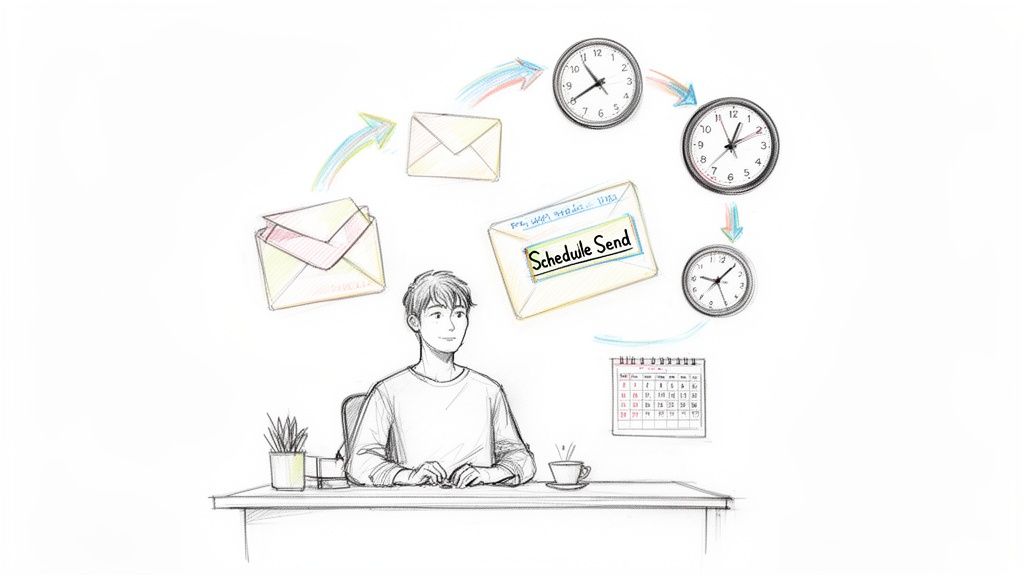
We all know the feeling of being buried under a mountain of emails. But what if you could actually control the flow instead of just reacting to it? Learning to schedule emails in Gmail isn't just a neat trick; it's a core strategy for taking back your day and cutting down on stress. It’s about moving from a reactive to a proactive mindset.
This one skill pays off in so many real-world situations. Think about sending project updates to teammates in different time zones so your message is the first thing they see in the morning. Or what about scheduling invoices to go out like clockwork on the first of the month? No more manual reminders, just timely payments.
Take Control of Your Communication
When you master email scheduling, you're sending messages on your terms, not just whenever you happen to be in your inbox. This simple adjustment can have a huge impact on your workflow and how you're perceived professionally.
- Respect Time Zones: Make sure your messages arrive at a reasonable hour for recipients, whether they're across the country or on the other side of the world.
- Maintain Professionalism: You can stop sending work emails at 11 PM. This helps set healthier work-life boundaries for both you and your team.
- Improve Message Timing: Send birthday wishes, event reminders, or crucial follow-ups at the exact moment they’ll have the most impact. Timing your sends strategically is also a great way to improve email open rates.
Reclaim Your Most Valuable Asset: Time
The numbers don't lie. The average professional spends a staggering 4.1 hours a day on email, and simply managing the Gmail inbox takes up around 28 minutes of that.
Even a 10% boost in email efficiency saves you about 25 minutes every single day. That adds up to over two hours a week. By using scheduled sends, you can batch your email tasks and protect your focus while still communicating effectively.
Scheduling your emails isn't just about delaying a message. It's a system for batching your work, protecting your deep-focus time, and communicating more thoughtfully. It’s a small change that delivers a big return on your productivity.
This guide will walk you through exactly how to do it, from Gmail's built-in features to more powerful automation tools. You can also explore our other resources on the best practices for email management to get your inbox in even better shape.
Using Gmail's Native Schedule Send Feature
Gmail's built-in "Schedule send" feature is one of those simple, brilliant tools that puts you back in the driver's seat of your own inbox. Instead of firing off a message the second you hit "send," you can tell Gmail exactly when you want it to land.
This is a game-changer. It means your email can arrive at the perfect moment for the recipient, no matter their time zone or your own weird work hours.
The whole process is incredibly intuitive. Once your email is ready to go, you just look for the little dropdown arrow right next to the main "Send" button. Clicking it reveals the "Schedule send" option, opening up a whole new way to think about your communication.
Scheduling on Your Desktop
Sending a timed email from your computer is a breeze. Gmail keeps the interface clean, giving you a few smart suggestions and the option for total control.
It’s just a few clicks:
- Compose Your Email: Write your message, add your subject line, and attach any files, just like you always do.
- Find the Scheduler: Instead of clicking the blue "Send" button, click the small arrow right next to it.
- Pick Your Time: A little menu will pop up with preset times like "Tomorrow morning." For more precision, click "Pick date & time" to pull up a calendar where you can set the exact delivery moment, right down to the minute.
Think about it: you're in New York finishing up a report. You can write it at 5 PM your time and schedule it to arrive for your boss in London at 9 AM their time. It's thoughtful, professional, and ensures your email is at the top of their list when they start their day.
This screenshot shows the scheduling options that pop up right after you click the arrow.
As you can see, Gmail gives you some handy one-click options, but the "Pick date & time" choice gives you complete freedom for any scenario you can think of.
Scheduling on the Gmail Mobile App
This awesome feature isn't just for your desktop. The Gmail mobile app for both iOS and Android has the same scheduling power, making it easy to manage your emails when you're on the move.
The steps are pretty much the same. After you've written your email in the app, just tap the three vertical dots in the top-right corner. A menu will slide out—select "Schedule send" and pick your time, just like on the web.
How to View, Edit, or Cancel a Scheduled Email
What if you have second thoughts? Plans change, and sometimes you need to tweak a message before it goes out. Gmail makes this super easy by keeping all your pending messages in a dedicated folder.
To find your scheduled emails, just look for the "Scheduled" label in the left-hand sidebar of Gmail. On mobile, you'll find it in the main menu. Clicking it shows you a list of every email waiting in the wings.
From this folder, you have two main options:
- Cancel the Send: Open the email and click the "Cancel send" button at the top. The message immediately gets moved back to your Drafts folder.
- Edit the Content: You can't edit a scheduled email directly. First, you have to "Cancel send" to move it back to your drafts. From there, you can change anything you want—the body, the subject, the recipients—and then schedule it all over again.
This simple system means you're never locked in and always have full control over your outgoing messages. If you're interested in taking this kind of automation a step further, check out our guide on how to get started with automated emails in Gmail.
Automating Recurring Emails in Gmail
Gmail’s built-in scheduler is a lifesaver for one-off messages. But what about the emails you send like clockwork? Weekly team reports, monthly rent reminders, or bi-weekly client check-ins—scheduling those manually every single time is a drag. This is where automating your recurring emails can seriously level up your productivity.
Fortunately, there are a few ways to tackle this. You don't always need a massive, complicated system. Sometimes a simple workaround or a small, focused tool is all it takes to put these regular communications on complete autopilot.
This flowchart gives you a quick way to decide on the best scheduling method based on your device and what you're trying to do.
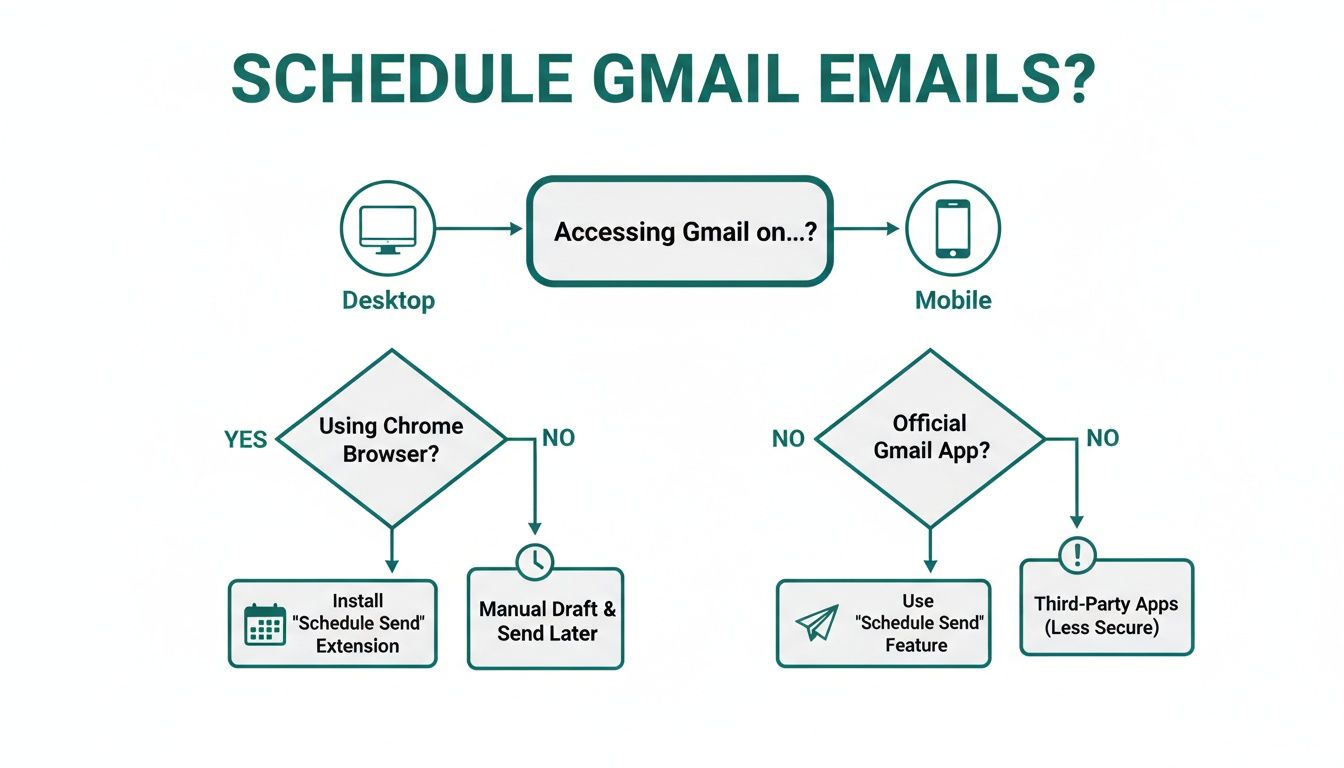
The main point is that whether you're on a desktop or your phone, you've got solid options, from native features to specialized third-party tools for more advanced needs.
Comparing Methods for Recurring Gmail Sends
Let's quickly break down the different ways to set up recurring emails in Gmail. Each approach has its own strengths and weaknesses, so the "best" one really depends on what you need.
| Method | Ease of Use | Flexibility | Best For |
|---|---|---|---|
| Google Calendar | Easy | Low | Simple, no-cost reminders where you still want to hit "send" yourself. |
| Google Apps Script | Hard | High | Tech-savvy users who need total control and custom sending logic. |
| Third-Party Tools | Very Easy | High | Anyone who wants a simple, "set it and forget it" solution without coding. |
As you can see, the trade-off is often between ease of use and customization. For most people, a dedicated tool strikes the perfect balance.
Using Google Calendar as a Clever Workaround
One of the simplest tricks for recurring reminders doesn't require any new software at all—it just uses Google Calendar. Now, it won't actually send the email for you, but it creates a rock-solid reminder system that tees it up perfectly.
Here's how you do it:
- First, create a new event in Google Calendar at the time you want the email to go out.
- Set that event to repeat on whatever schedule you need (e.g., weekly on Tuesdays, or monthly on the first Friday).
- In the event’s description field, paste the entire body of the email you need to send. You can even include the subject line and who it's going to.
- Finally, set up a notification for the event. When the time comes, a reminder will pop up with all the content ready to go. Just copy, paste, send.
This method is fantastic if you want a lightweight, zero-cost solution and don’t mind the final manual step. It’s perfect for tasks where you might want to give the email a quick final look before it goes out anyway.
Exploring Google Apps Script for a DIY Solution
If you're comfortable with a little bit of code, Google Apps Script gives you a path to build a completely custom, automated recurring email sender right inside your Google account. It's a JavaScript-based platform that lets you control Google Workspace apps, including Gmail.
You can write a simple script with a function that sends a specific email. Then, you set up a "time-driven trigger" to run that function automatically on your schedule. This route offers maximum flexibility—you can customize absolutely everything, from the email content to really complex sending logic.
The catch? This method definitely requires some comfort with coding and debugging. If writing scripts isn't your jam, this option will feel more like a weekend project than a quick fix.
Leveraging Third-Party Extensions for Ultimate Simplicity
By far the most user-friendly and powerful option for automating recurring emails is to use a dedicated third-party browser extension or tool. These are built specifically for this job and have intuitive interfaces that don't require a single line of code.
For example, a tool like Recurrr is a small productivity hack you can use alongside your other tools. It's an invisible assistant for those repetitive email tasks, designed to do one thing exceptionally well: put your recurring emails on autopilot. Setting up a weekly or monthly schedule takes just a few clicks, and it runs quietly in the background without cluttering up your workflow. If you're curious, you can learn more about how to send repeat emails with this kind of focused tool.
Believe it or not, the timing of these sends can make a real difference. Some research shows that emails sent on the 2nd and 26th of the month get the highest click-through rates at 14.33%. For things like monthly rent reminders, aligning your automated sends with these peak windows could seriously improve your response rates.
Smart Scheduling Strategies for Professionals and Teams
Knowing how to schedule an email in Gmail is a start, but understanding when and why is what turns a neat trick into a productivity game-changer. When you move beyond one-off sends and start building smart workflows, you reclaim your most valuable asset—your time.
The real goal is to let automation handle the routine stuff so you can focus on what actually matters. Honestly, this is becoming less of a luxury and more of a necessity. Gmail is massive, processing over 121 billion emails every single day for its 2.5 billion users. With the average professional drowning in messages, scheduling isn't just helpful; it's essential for staying afloat.
This is where the magic happens—moving from manual, reactive communication to an automated, proactive system.
Workflows for Freelancers and Solopreneurs
If you're running your own show, consistency is everything. Scheduling your emails means you never drop the ball on critical tasks that directly impact your client relationships and, just as importantly, your cash flow.
A great place to start is setting up a recurring schedule for client communications.
- Monthly Invoice Reminders: Forget the awkward follow-ups. Schedule invoices to go out on the same day each month, and you’ll get paid faster.
- Bi-Weekly Check-Ins: For long-term projects, automate a quick "just checking in" email. It keeps clients in the loop, shows you’re on top of things, and cuts down on them chasing you for updates.
- Onboarding Sequences: Got a new client? Schedule a series of welcome emails to drip out over their first week. You can outline next steps, set clear expectations, and get the relationship started on the right foot.
Aligning Small Teams with Automated Updates
For teams, clear and consistent communication is the glue that holds projects together. Using scheduled emails for routine updates ensures everyone gets the info they need without another notification from a chat app or a last-minute calendar invite.
Think of scheduled emails as your silent project manager. They distribute information reliably in the background, freeing up meeting time for strategic discussion instead of repetitive status reports.
Try weaving these automated workflows into your team's process:
- Weekly Status Reports: Schedule an email to go out Friday afternoon asking for everyone's highlights and roadblocks. Then, schedule a summary of those replies to hit stakeholders' inboxes first thing Monday morning.
- Meeting Agenda Distribution: Automate the meeting agenda to go out a full 24 hours in advance. It’s a simple move that prompts everyone to show up prepared, making the meeting itself far more productive.
Personal Productivity and Protecting Boundaries
Smart scheduling isn't just for your 9-to-5. It’s a fantastic way to manage personal tasks and relationships without adding to your mental load. You can schedule birthday wishes for friends and family months in advance so you never forget an important date again.
It's also a powerful tool for setting boundaries. Let's say you like to clear your inbox on a Sunday evening. Instead of hitting send right away, schedule your replies to arrive at 8:30 AM on Monday. This lets you get ahead of the week without signaling to your colleagues that you're working on weekends.
Of course, a key part of this is knowing the best time to send emails to actually get them opened and read. By adopting these small habits, you make your tools work for your schedule, not the other way around.
Troubleshooting Common Gmail Scheduling Problems
Even a rock-solid feature like Gmail's "Schedule send" can hit a snag now and then. It’s frustrating when an email doesn't go out as planned, but the fix is usually pretty simple once you know what to look for.
Nine times out of ten, when a scheduled email doesn't send, it's because the message got moved out of the "Scheduled" folder. If you accidentally delete it or file it away somewhere else, Gmail cancels the instruction.
To check, just look for the "Scheduled" folder in the left-hand sidebar on your desktop. Make sure your pending emails are still sitting there, waiting for their moment.
Solving Time Zone and Sending Limit Issues
Time zone settings are another common source of confusion. Here’s the key thing to remember: Gmail schedules sends based on your time zone at the moment you schedule it, not the recipient's.
If you schedule an email for 9 AM while you're in New York, it sends at 9 AM Eastern Time. It doesn’t matter if your recipient is in London or Los Angeles. To avoid any mix-ups, I always do a quick mental conversion for the recipient's location before I hit schedule.
Pro Tip: When scheduling for international colleagues, use a world clock tool to double-check their local time. This tiny step can prevent your important message from waking them up at 3 AM.
Lastly, you have to keep Google's sending limits in mind. A standard Gmail account lets you send up to 500 emails in a 24-hour period, and your scheduled messages count toward that daily total.
If you've got a big batch of emails scheduled to go out, the system might pause them until your limit resets. If a message just seems stuck in limbo, you can often find some answers in our guide on what to do when an email is queued in Gmail. Keeping these few points in mind will help you sort out most scheduling hiccups with ease.
Your Top Questions About Scheduling Gmail Emails, Answered
Even after you've mastered the basics of scheduling emails in Gmail, some specific questions tend to bubble up. Getting these sorted out will help you use the feature like a pro and sidestep any common frustrations. Let's dig into what people usually ask.
Can I Schedule an Email to a Google Group or Mailing List?
Yes, you sure can. The process is exactly the same as sending to a single person. Just pop the Google Group’s email address into the "To" field, write your message, and hit "Schedule send."
This is incredibly handy for things like team-wide announcements, weekly newsletters, or project updates that need to land at a specific time. One thing to keep in mind, though: be aware of the group's posting permissions and Google's overall sending limits, especially for larger lists, to make sure everything goes through smoothly.
What Happens if My Computer Is Offline When an Email Is Scheduled to Send?
Nothing at all—your email will still go out right on schedule. The moment you click "Schedule send," the command is sent to Google's servers, not your own machine.
So whether your computer is powered down, your laptop is closed, or your phone is in airplane mode, Google's system takes care of the rest. This is one of the huge perks of using a cloud-based tool like Gmail's native scheduler.
Your recipient will never know the email was scheduled. It will show up in their inbox just like any other message, timestamped with when it was delivered—not when you wrote it.
Are There Limits to How Far in Advance I Can Schedule an Email?
Gmail offers a ridiculously long window for scheduling—you can set an email to send up to 49 years from now. While it's hard to imagine a real-world use for that, there are a couple of more practical limits to know about.
You can have a maximum of 100 scheduled emails in your queue at any given time. Also, your regular daily sending limits still apply. For a standard Gmail account, that's typically 500 emails per day, and that total includes both your scheduled and immediately sent messages. If you hit that cap, your scheduled emails might get delayed until the 24-hour clock resets.
But what if you need to send the exact same email on a recurring basis, like a weekly report or a monthly invoice reminder? That's where a simple, focused tool makes all the difference. Recurrr was built specifically to handle those repetitive sends, putting your routine communication on autopilot so you can get back to more important work. Learn how to set your recurring emails and forget them at Recurrr.