


Learning how to send repeat emails is the key to freeing yourself from tedious, manual tasks and getting a huge chunk of your day back. The basic idea is to use native scheduling features in clients like Gmail, browser add-ons for simple automation, or—even better—dedicated tools built just for this purpose.
These solutions let you set up an email once and have it send automatically on a schedule you decide.
Why Sending Repeat Emails Manually Is Holding You Back
If you’ve ever found yourself copying and pasting the same message for weekly reports, monthly invoices, or client check-ins, you know the grind. It completely breaks your focus. While saving time is the most obvious win, the real benefits of automation go way deeper. Manually sending the same emails over and over isn't just inefficient; it's a bottleneck that's actively holding you back.
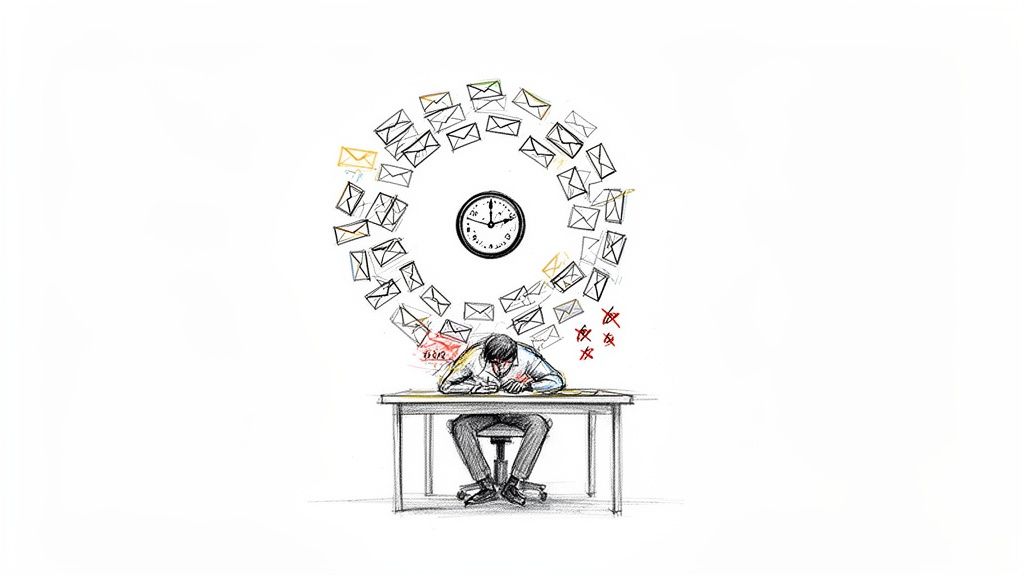
The price of manual repetition is more than just lost minutes. Every single time you copy, paste, and send, you're rolling the dice on human error. A forgotten attachment, a typo in the client's name, or just sending it a day late. These little slip-ups can chip away at your professional credibility and cause headaches you just don't need.
The True Cost of Repetitive Tasks
When you automate these communications, you flip the script from reactive to proactive. Just think about these real-world examples:
- A project manager makes sure every team member gets a prompt for their status update every Friday morning, right on cue. No exceptions.
- A freelancer sends polite, consistent payment reminders to clients exactly on their due dates, without fail and without the awkwardness.
- An accountant distributes monthly financial summaries to stakeholders on the first business day of the month, like clockwork.
In every one of these cases, automation completely removes the mental load of having to remember these tasks. This frees up your brainpower for the strategic work that actually requires creativity and critical thinking. You can learn more about how to automate repetitive tasks in our detailed guide.
This isn't just a small productivity hack; it's a huge shift. Automated email workflows are a cornerstone of modern efficiency, and the returns are staggering. Recent marketing data shows that automated workflows generate up to 30x more revenue per recipient compared to standard campaigns. Even though they only make up 2% of total email sends, they drive a massive 41% of total email orders. Check out more insights from this marketing automation data.
Using Your Email Client’s Built-In Scheduling Tools
Most of us have probably used the built-in scheduling tools in our email clients. Whether you’re on Gmail or Outlook, you’ve got basic features that can handle simple, one-off scheduling.
They're fantastic for those moments when you need to write an email now but send it later. Think drafting a message on Sunday night to land in a colleague's inbox first thing Monday morning. It’s a great first step away from sending everything manually.
Gmail has its "Schedule Send" feature, and Outlook offers "Delay Delivery." Both are pretty straightforward. You write your email like you always do, but instead of smashing the "Send" button, you find the little arrow or menu to pick a future time and date. It's functionality baked right into the platform you use every day.
The Limits of Native Schedulers
While these built-in tools are handy for a single, delayed message, they fall apart when you need real automation. Let’s be clear: they are not designed for recurring emails.
If you have to send the same project update every single Friday, you'll be right back to square one, manually setting up that scheduled send each and every week. There is no "set-it-and-forget-it" option.
The core problem is that these features are schedulers, not repeaters. They’re built to execute a one-time command: send this email at a future point. That’s fundamentally different from a recurring workflow that sends a message over and over on a schedule you define, without needing you to intervene every single time.
This image shows the standard "Schedule send" options you get in Gmail.
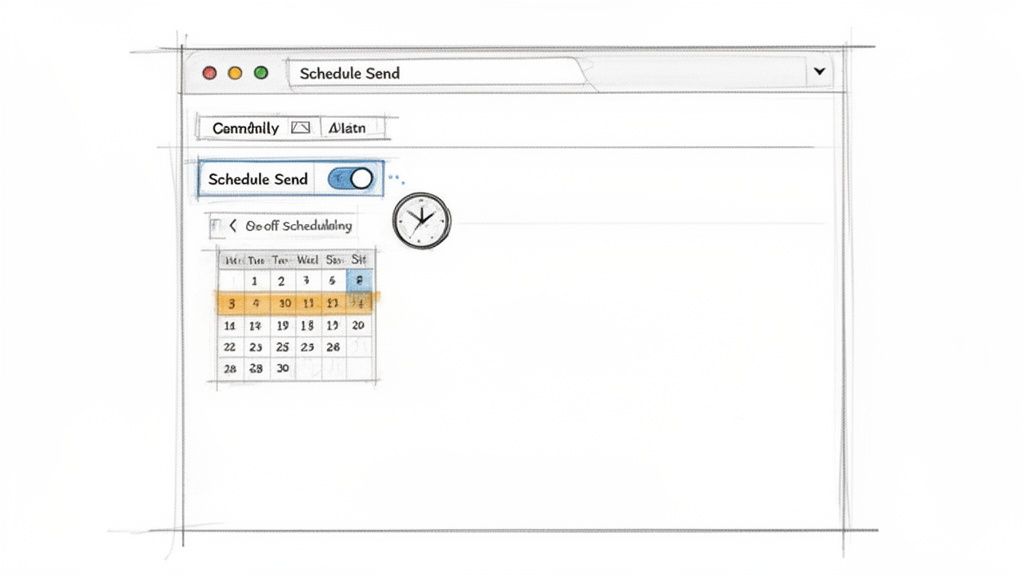
Notice anything missing? You can pick a specific date and time, sure, but there's no option for "every Monday" or "the first of the month." This manual loop re-introduces the very thing you're trying to escape—the repetitive admin task that drains your time and focus. If you want to master the basics, you can learn more about how to send scheduled emails in Gmail in our in-depth article.
Native Email Scheduling Features at a Glance
To make it easier to see what you're working with, here's a quick comparison of the built-in scheduling features in the major email clients. It highlights what they can and can't do, especially when it comes to sending emails on repeat.
| Feature | Gmail (Schedule Send) | Outlook (Delay Delivery) | Best For |
|---|---|---|---|
| Basic Scheduling | Yes, allows you to pick a specific future date and time for sending. | Yes, you can set a "Do not deliver before" date and time. | One-off emails you need to time perfectly. |
| Recurring Emails | No. You must manually reschedule each occurrence. | No. This feature is strictly for a one-time delay. | Not suitable for any kind of repeating task. |
| Ease of Use | Very simple, integrated directly next to the "Send" button. | A bit more hidden in the "Options" tab, but still straightforward once you find it. | Quick, simple sends without needing a third-party tool. |
| Platform | Web, iOS, and Android. | Primarily the desktop client; behavior can vary on the web and mobile versions. | Users who work mostly from one environment (web for Gmail, desktop for Outlook). |
| Use Case Examples | Timing an email for a colleague's morning, sending a birthday wish. | Holding an email until you're back in the office, sending a follow-up the next business day. | Single instances where timing is important for professional courtesy or strategic communication. |
As you can see, both platforms are great for single sends but hit a hard wall with anything repetitive. They solve the immediate problem of "send later," but not the ongoing problem of "send again."
When to Stick with the Built-in Tools
So, when do these native features make sense? They’re perfect for timing a single, important message. I use them all the time for things like:
- Respecting Time Zones: Sending a proposal to a client in another country so it arrives at the start of their business day, not mine.
- Managing Impressions: Making sure a follow-up email after a job interview shows up the next morning, not at 11 PM when I happened to write it.
- Batching My Work: I often power through a bunch of emails on a Sunday night and schedule them to go out at different times on Monday so I don't overwhelm people's inboxes.
But for any task that requires you to send a repeat email on an ongoing basis, you will hit the ceiling of what these schedulers can do, and you'll hit it fast. They handle the "when" for a single email perfectly, but they completely miss the "how often" for a sequence. That distinction is critical, and it’s usually the reason people start looking for a more powerful, dedicated solution.
Powering Up Your Inbox with Browser Extensions
When your built-in email tools feel too basic, but a full-blown automation platform seems like overkill, browser extensions hit that perfect sweet spot. These are third-party add-ons that plug right into your Gmail or Outlook, acting like a little productivity superpower that finally unlocks the recurring email function you’ve been missing.
Instead of just delaying a single message one time, these extensions are built specifically to send emails over and over again. They live inside your browser, adding new buttons and menus directly into the window where you compose your emails. It makes setting up a repeat message feel like a natural part of your workflow, not some clunky workaround.
What Can You Actually Do with an Extension?
These tools are surprisingly versatile for all sorts of routine communication. Think of them as the invisible assistant that handles the repetitive stuff, ensuring you stay consistent without a complicated setup.
Here are a few real-world scenarios where they’re a lifesaver:
- Daily Stand-up Nudges: Automatically send a message to your team every morning at 8:45 AM, asking, "What are your top 3 priorities for today?"
- Weekly Reports: Schedule an email to your manager that goes out every Friday afternoon with a link to your completed weekly report. No more forgetting.
- Monthly Client Invoices: Set up an email to a client that sends on the 1st of every month with their invoice attached. You'll never be late asking to get paid again.
- Bi-weekly Check-ins: Automate a friendly "just checking in" email to a new customer every two weeks for their first month. It’s an easy way to offer support and build a relationship.
These examples show how extensions handle the kind of simple, consistent automation that native schedulers just can't touch.
The Trade-offs to Consider
As powerful as extensions are, they aren't perfect. It's smart to weigh the good and the bad before you commit, especially since you’re giving a third-party service access to your inbox.
The biggest hurdle is often a mental one: you're trusting an external tool with your private communications. Always, always review an extension's privacy policy to see exactly how your data is handled and what permissions it needs.
Beyond privacy, keep these practical points in mind:
- Subscription Models: Many of these tools run on a "freemium" model. The free version might cap you at a small number of active recurring emails, pushing you to a paid plan for more serious use.
- Browser Dependency: Some of these tools need your browser to be open and running for the email to actually send. If you’re someone who frequently closes your laptop, this can be a dealbreaker. The more advanced ones, however, operate from the cloud and don't have this limitation.
- Potential for Bugs: It's third-party software, after all. Extensions can occasionally have bugs or clash with other add-ons you have installed, which could mess with your scheduled sends.
At the end of the day, browser extensions are a fantastic step up for anyone who needs to send the same email on a regular schedule. They fill the gap between basic scheduling and complex automation platforms, making them a true hidden gem for boosting your productivity.
Ditching the Workarounds for a True Automation Tool
Look, the built-in schedulers and browser extensions we've covered have their place. They're okay for one-off tasks. But when you rely on them for anything important, you start to feel the compromise. Functionality is either too basic, or you're piggybacking on an add-on that brings its own baggage.
Sometimes, the best solution isn't some massive, do-everything platform. It's a small, sharp tool that does one thing incredibly well. A true productivity hack.
This is exactly where a dedicated tool like Recurrr comes in. It’s not trying to be your project manager or habit tracker. Think of it more like an invisible tool—a small productivity hack that works alongside your other apps. It's built from the ground up with one mission: make sending repeat emails completely painless and reliable.
A Quick Walkthrough with Recurrr
Let's run through a real-world scenario. You're a consultant, and you need to send bi-weekly progress updates to a major client. We all know that "every other Tuesday" is the kind of thing that's easy to remember... until it isn't. It's the perfect small, repetitive task to slip through the cracks during a busy week.
With a dedicated tool, this whole process becomes foolproof. You set it up once, and it just works.
This simple flow shows just how easy it is to plug an automation tool right into your existing inbox.
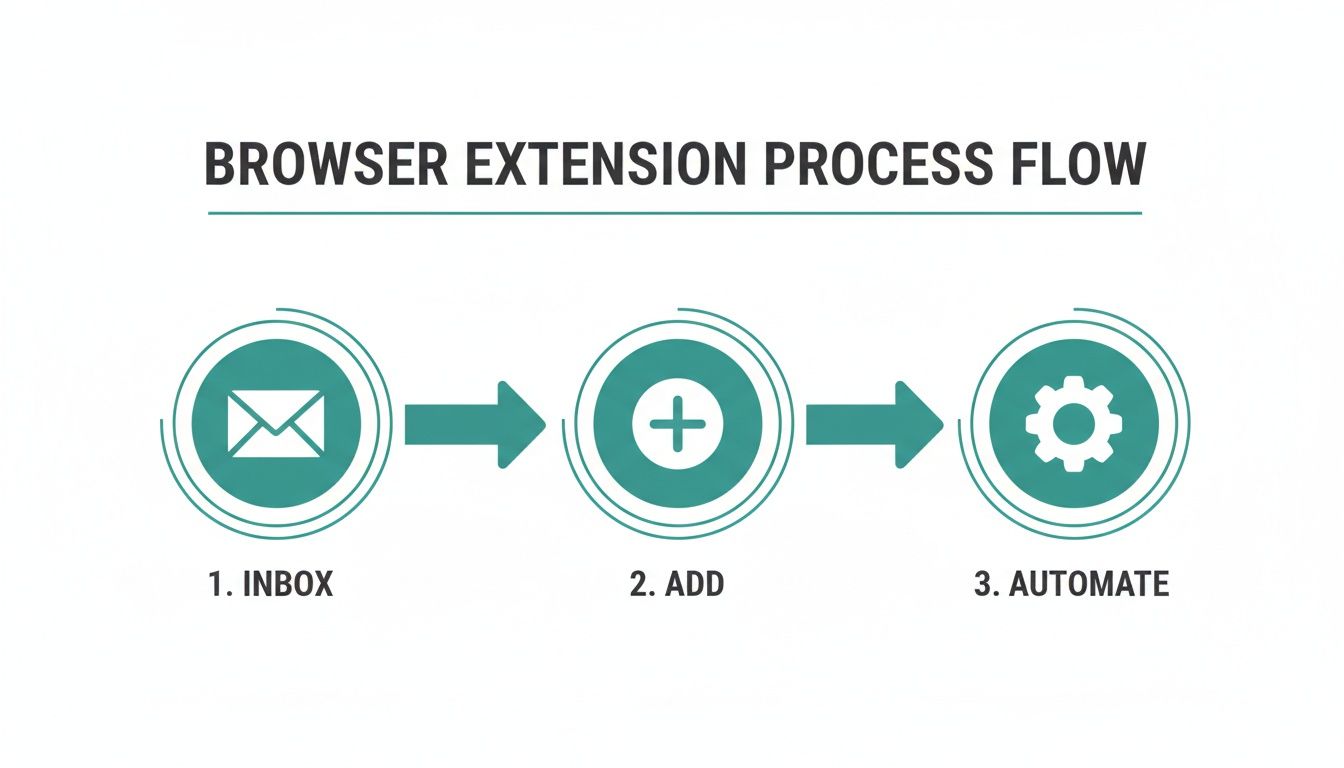
The big takeaway here is how you can go from a manual, standard inbox to a fully automated one in just a couple of clicks.
First, you'd create a template for your check-in email. The real power here is using dynamic fields like {client_name} or {project_name}. This simple step makes sure every automated email feels personal and relevant, not like some generic robot sent it.
Next up, you define the schedule. This is where dedicated tools really pull ahead of the pack. Instead of just picking a single date, you can set a genuinely flexible schedule, like "every other Tuesday at 10:00 AM." The system figures out the rest.
Gaining Real Control Over Your Automation
But what happens when your client goes on vacation, or a project milestone gets pushed back? This is where most basic automation falls apart. With a tool like Recurrr, you have fine-grained control. You can easily pause, skip, or reschedule a single email without breaking the entire recurring sequence.
This is what separates a simple scheduler from a proper automation tool. You get all the benefits of "set and forget" without losing the ability to step in when life happens.
The ability to intervene without breaking the entire chain is what makes a tool like this invaluable. It provides the perfect balance of automation and human oversight, ensuring your communications remain timely and appropriate, no matter what changes.
And the demand for tools like this is exploding. The email automation market, valued at $11.6 billion in 2025, is projected to hit $21.3 billion by 2033. This growth shows a clear need for platforms that let people put their routine communications on autopilot.
For anyone looking for their own "hidden gem" of efficiency, a bit of understanding workflow automation can open your eyes to what's possible beyond just email. Often, a focused tool is a much better fit than a clunky, oversized system. If you're looking for that kind of focused solution, it's worth checking out a simpler alternative to Zapier for recurring emails.
Best Practices for Sending Automated Emails
Getting your recurring message set up is just the technical part. The real art is making sure it actually works—for you and for the person on the other end.
The whole point is to build relationships and get things done more efficiently, not to flood someone's inbox with robotic spam. Getting a few key practices right from the start will make all the difference.
Personalization is non-negotiable. An email that kicks off with "Hi {first_name}" is always going to land better than a generic, one-size-fits-all greeting. Little details like this show there’s a human behind the automation.
And that personal touch can go way beyond just using a name. If you can, reference a specific project, a previous chat, or something you have in common. It's a simple way to remind them that your automated message is just one piece of a real, ongoing conversation.
Finding the Right Rhythm
One of the fastest ways to get your automated emails ignored—or worse, flagged as spam—is sending them too frequently. Nailing the right cadence is absolutely crucial for staying on someone's radar without becoming a nuisance.
Think about the context:
- For Accountability: A daily nudge might be perfect for a personal habit you're trying to build, but a weekly check-in is usually much better for team projects.
- For Financial Tasks: Monthly reminders for things like invoices or rent are pretty standard. Anything more frequent can start to feel aggressive.
- For Client Nurturing: A bi-weekly or monthly check-in is often just right to stay top-of-mind without overwhelming them with messages.
The trick is to match your schedule to the task's urgency and what the recipient would reasonably expect. You can get more ideas for setting up auto email reminders in our dedicated guide.
The best automated emails feel helpful, not intrusive. They show up exactly when they're needed and offer clear, immediate value. Anything less risks chipping away at the professional relationship you've worked hard to build.
Keeping Your Automations Effective
Your priorities and projects are always changing, so your automated workflows should, too. It’s a smart move to audit your recurring emails every few months.
Ask yourself: Are they still relevant? Is the information still accurate? Is the schedule still working?
A quick review can save you from sending out-of-date information and ensures your system stays a genuinely useful tool, not just another source of digital noise. If you want to zoom out and look at the bigger picture, the core principles of effective Email Marketing are a great place to start.
Finally, and this is a big one, know when not to automate. While learning how to send repeat email is a game-changer for productivity, automation can't replace a real, personal connection.
Sensitive feedback, complex negotiations, or a heartfelt thank-you should always be written and sent by you, personally. The most effective people I know are masters at balancing the efficiency of automation with the irreplaceable impact of a personal touch.
Common Questions About Sending Repeat Emails
Even with the best tools, jumping into email automation can feel like you're missing a few pieces of the puzzle. It's totally normal. Getting those nagging questions answered helps you move forward and make sure your automated messages hit the mark every time.
Here are a few of the most common things people ask when they're figuring this stuff out.
Can I Send Recurring Emails with Attachments?
Yes, you absolutely can—but it all comes down to the tool you're using.
Most dedicated platforms and browser extensions are built with this in mind. They make it a breeze to tack on a file, like a monthly invoice PDF or a weekly report template, and have it go out with every scheduled send.
This is where native features fall short, though. Things like Gmail's "Schedule Send" or Outlook's "Delay Delivery" can't handle attachments on a repeat basis. They’re designed for one-off scheduling, so you'd have to manually attach the file every single time, which kind of defeats the whole purpose of automating.
What Is the Difference Between a Scheduled and a Recurring Email?
This is a really important distinction. Think of it this way:
A scheduled email is a one-and-done deal. You tell it to send a specific message at a future date and time, it goes out once, and that's it. The job is finished.
A recurring email is a living, breathing workflow you set up once. You define a schedule—maybe "every Monday at 9 AM" or "the 15th of every month"—and the system sends that message for you over and over again without you lifting another finger. That true recurrence is where you save huge amounts of time and mental energy.
Are There Free Tools for Sending Repeat Emails?
Definitely. And honestly, that's where most people dip their toes in the water.
Your email client's built-in scheduling is always free, but as we've covered, it’s pretty barebones and can't do true recurrence.
A lot of browser extensions offer a free tier, which can be a great starting point. Just be aware they usually have limits, like capping how many active recurring emails you can have. For something more powerful without those caps, dedicated tools often have a free plan for basic use, with paid options that unlock the more advanced features and higher sending volumes.
How Do I Keep My Automated Emails Out of the Spam Folder?
This is the big one, right? Deliverability is everything. If your emails don't get seen, what's the point?
The single best way to stay out of the spam folder is to provide real value and stick to good email etiquette. It’s not about tricking the filters; it’s about being a good sender.
Always try to personalize the greeting and, if you can, parts of the email body. Steer clear of spammy trigger words in your subject line, especially stuff like "free offer!" or "act now!" in all caps. Using a reputable sending tool also gives you a massive leg up, since these platforms have better sending reputations and infrastructure, which seriously boosts your chances of landing in the primary inbox.
Ready to stop sending the same emails over and over? Recurrr is the hidden gem that puts your routine messages on autopilot. It's a simple, focused tool designed to save you time and eliminate manual repetition. Start automating your emails with Recurrr today.