

The simplest way to make an email repeat is by using a dedicated automation tool or a built-in scheduling feature. This lets you write an email just once, set it on a recurring schedule—say, weekly or monthly—and let it send automatically without you ever touching it again.
Why You Should Automate Repetitive Emails
Sending the same email over and over isn't just a minor hassle; it's a huge drain on your productivity and focus. Every minute you spend digging up an old email, copying the text, pasting it into a new one, and hitting send is a minute you could have spent on work that actually matters.
Putting these routine communications on autopilot is about more than just clawing back some time. It’s about building a reliable, consistent system that works for you.
The impact is massive, especially in a business setting. Automated email workflows can deliver ridiculously higher returns than manual campaigns. In fact, research shows that top-tier automated email flows can bring in $16.96 in revenue per recipient. Compare that to the measly $1.94 generated by average, one-off campaigns. That's the power of sending the right message at exactly the right time.
This guide will walk you through setting up recurring emails, step by step. We'll look at a few different ways to get it done, each with its own pros and cons:
- Native Features: We'll dig into the hidden (and sometimes clunky) options inside popular clients like Gmail and Outlook.
- Simple Workarounds: You'll learn how to use tools you already have, like your calendar, to create surprisingly effective reminder systems.
- Dedicated Tools: We'll explore specialized apps designed from the ground up to make your emails repeat with as little fuss as possible.
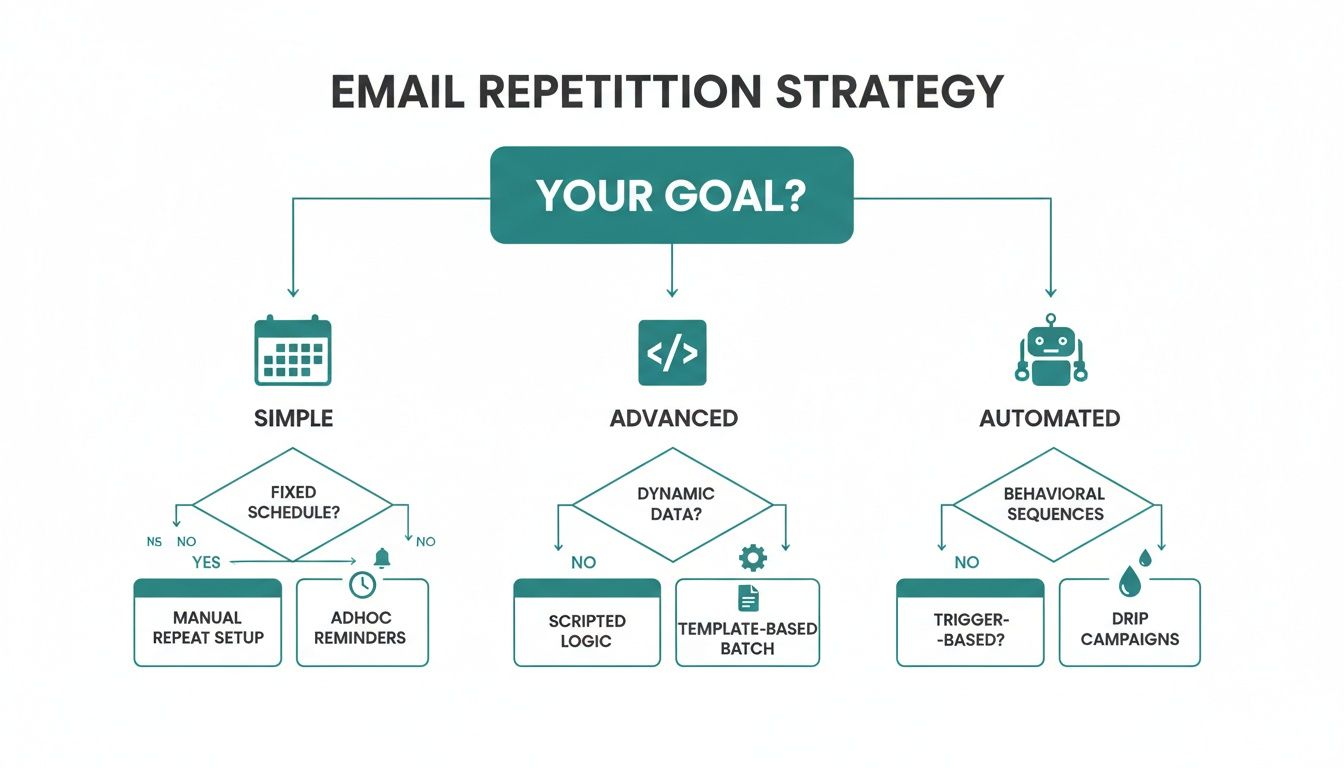
This flowchart gives you a quick visual to help you decide which path makes the most sense for what you're trying to accomplish.
Here's a quick breakdown to help you pick the right tool for the job.
Choosing Your Method for Recurring Emails
This table gives you a quick overview of the different ways you can make an email repeat, so you can pick the one that fits your needs best.
| Method | Best For | Setup Difficulty |
|---|---|---|
| Native Features | One-off scheduled sends or very simple, fixed repeats within a single email client. | Low to Medium. Depends on the client; some are straightforward, others are hidden in scripts. |
| Calendar Workarounds | Creating personal reminders to send manual emails. Good for non-critical, infrequent tasks. | Low. It's easy to set up, but you still have to do the sending yourself. |
| Dedicated Tools | Complex schedules, sending from any email account, and "set it and forget it" reliability. | Medium. Requires a one-time setup (like connecting your email account), but is simple to use afterward. |
Ultimately, the best method really depends on how complex your goal is and how comfortable you are with a little bit of tech.
By the time you finish this guide, you’ll have a full toolkit to get your routine emails sending themselves. Learning to automate repetitive tasks is a game-changer for productivity, freeing up your time and mental energy for the work that truly matters.
Digging Into Gmail and Outlook’s Hidden Features
Most of us practically live in our email inboxes, but we rarely peek under the hood to see what they're truly capable of. Your go-to email client—whether that's Gmail or Outlook—probably has a way to send repeating emails, but the options aren't exactly front and center. They often feel more like a workaround than a built-in feature, requiring a bit more hands-on effort than a simple "send recurring" button.
Still, these native solutions are great if you'd rather not add another app to your tech stack and don't mind getting your hands a little dirty with the setup. It's all about making the most of the tools you already have.
Taming Gmail with Google Apps Script
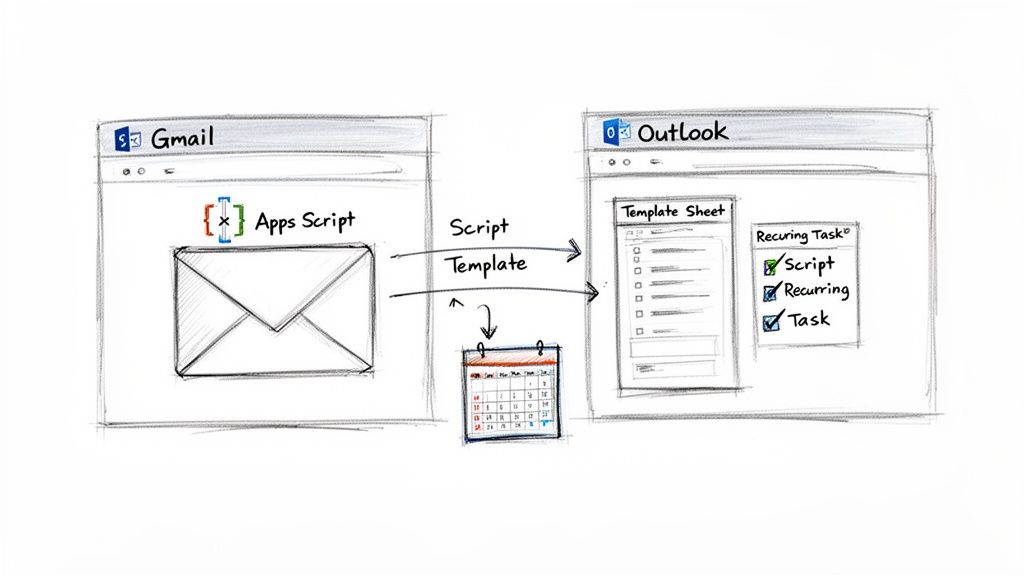
For all the Gmail power users out there, the secret to recurring emails lies in Google Apps Script. It’s a scripting platform built by Google that lets you create lightweight automations across the entire Google Workspace. It might sound a bit intimidating, but it’s surprisingly straightforward for setting up custom email schedules.
Think of it as giving Gmail a small, specific set of instructions to follow. You can tell it what to send, who gets it, and exactly when to fire it off—daily, weekly, monthly, you name it. This method gives you an incredible amount of flexibility without needing any third-party software.
Here’s a quick look at how it works:
- Jump into the Script Editor: From a Google Sheet, just go to
Extensions > Apps Script. - Write Your Function: You'll whip up a simple function that lays out the recipient, subject line, and the body of your email.
- Set Up a Trigger: This is the magic step. You create a "time-driven trigger" that tells the script how often to run, which is what puts your email on a recurring schedule.
The real beauty of this method is its precision. You can schedule an email to send at 8 AM on the first Monday of every single month—a level of control many simpler tools just can't match. Once you've got it configured, it’s a true “set it and forget it” solution.
The Outlook Method: Templates and Tasks
Outlook folks can rig a semi-automated system by stringing together two familiar features: email templates and recurring tasks. It's less of a pure, hands-off automation and more of an incredibly efficient reminder system that handles most of the heavy lifting for you.
First up, you draft the email you want to send repeatedly and save it as an Outlook Template (.oft) file. This keeps it on deck and ready to go.
Next, you create a recurring task in your Outlook calendar. In the task's description, you can pop in a direct link to your saved email template. When the task reminder pops up on your screen, all it takes is one click on the link, and your pre-written email appears, ready for a quick review before you hit send.
Sure, it's not a completely hands-off process, but it drastically cuts down on the friction of sending the same message over and over. You get consistency without having to type out the same content from scratch, which is where most of the time gets wasted anyway. For anyone who still wants that final look-over before an email goes out, this is the perfect middle ground.
If you're curious about diving deeper into these kinds of setups, you can learn more about creating automated emails in Gmail and other platforms.
Clever Workarounds with Calendars and Simple Rules
If you're not quite ready to jump into dedicated scripts or third-party apps, you can still make an email repeat using the tools you already have open all day. The goal here isn't true, hands-off automation, but rather creating a simple, reliable system that prompts you to act.
These tricks are perfect for anyone who just wants a periodic reminder without adding another piece of software to their tech stack.
Sometimes, the best solution has been staring you in the face the whole time. Your digital calendar, for instance, is a powerhouse for scheduling a whole lot more than just meetings.
You can set up a recurring calendar event to build an incredibly effective reminder system. Instead of just a vague title like "Send Invoice," you can load up the event description with everything you need: the recipient's email, the exact subject line, and the full body of the message.
Using Calendar Events as Your Prompt
This little hack turns your calendar notification into a complete, ready-to-go task. When the reminder pops up, all the pieces are right there. All you have to do is copy, paste, and hit send.
Think about how a freelancer could use this for client invoicing:
- Event Title: Send Bi-Weekly Invoice to Client X
- Recurrence: Every other Friday at 10:00 AM
- Description:
- To: client@email.com
- Subject: Invoice #1234 for Project Y
- Body: Hi [Client Name], please find attached the invoice for the last two weeks of work. Thank you!
It's a small productivity trick that guarantees consistency. You never have to rethink the wording or hunt down the right email address. The calendar event itself becomes your personal template and trigger.
The key is to remove as much friction as possible. By pre-loading your calendar event with the exact email content, you eliminate the mental energy needed to draft the message from scratch every single time. It’s a simple but powerful way to maintain momentum.
Creating Simple Rules in Your Email Client
If you're using a desktop client like Apple Mail or Thunderbird, you have another option: creating simple "if-then" rules. While these don't typically allow for time-based sending, they can automatically reply with a template when a specific trigger email arrives.
This approach works surprisingly well for predictable inbound requests. For example, if a team member emails a weekly report with the exact same subject line every Friday, you could set up a rule to automatically fire back a templated "Thanks, received!" email.
It’s definitely a niche use case, but it's a handy way to automate certain predictable responses.
Ultimately, these workarounds are about building on habits you already have. Whether it's a manager scheduling a weekly team check-in reminder or an individual remembering to send a monthly rent notice, these simple systems bring a bit of order to repetitive communication without overcomplicating things.
Effortless Automation with Dedicated Tools
When the built-in options and clever workarounds start to feel clunky, it’s time to call in the specialists. Dedicated automation tools are built from the ground up to make an email repeat, and they do it with a level of polish that your standard email client just can't touch. These tools take all the manual reminders and technical guesswork off your plate, giving you a true "set it and forget it" system for your recurring messages.
This kind of focused automation makes sense when you look at the bigger picture. The global email marketing industry is set to be worth a massive $17.9 billion by 2027. That growth is powered by email's incredible reach—with 4.6 billion users around the world—and its ridiculous ROI, which can be anywhere from $36 to $42 for every dollar spent. When a communication channel is that valuable, you need the right tools for the job.
The Power of a Focused Tool Like Recurrr
You could wrestle with a massive, all-in-one automation platform, but they often come with a steep learning curve and a price tag to match. For something as specific as sending a repeating email, a focused tool is almost always the better choice. Think of a tool like Recurrr not as a complex project management suite, but as a small productivity hack—an "invisible tool" that just works in the background in addition to your other tools.
It’s not trying to run your whole business. It just does one thing, and it does it exceptionally well: it sends the same email for you, on schedule, every single time.
This specialized approach has some serious perks:
- It's dead simple. The interface is clean and built for one purpose: scheduling recurring emails.
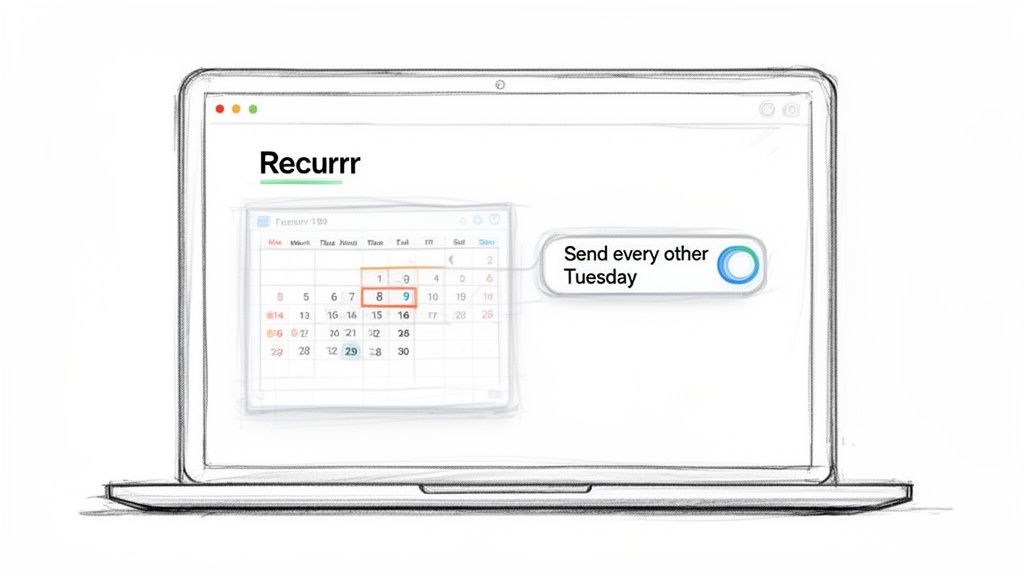
- It's flexible. Need to send an email on the "last Friday of every month" or "every other Tuesday"? No problem. That takes just a few clicks.
- It's reliable. Since this is its only job, the entire system is built to be dependable.
A tool like this basically acts as your silent administrative assistant. It handles the boring follow-ups, reminders, and check-ins, freeing you up to focus on work that actually requires your brainpower.
If you really want to lock in that consistency without the manual grind, it's worth the time to master email follow up automation with the right strategies and tools.
A Practical Example: Client Check-ins
Let's make this real. Imagine you're a consultant, and you need to send a bi-weekly check-in email to a client to update them on project progress. Trying to remember to do this manually is a recipe for disaster. One busy week and you’ve forgotten, breaking that consistent communication.
Here's how ridiculously easy it is to set this up in a dedicated tool:
- Write Your Message: You only have to write the email once. Use simple placeholders like
[Client Name]so it feels personal. - Set the Schedule: Tell the tool to send it "every other Tuesday at 9:00 AM."
- Connect and Forget: Link your Gmail or Outlook account, and you're done. The tool handles everything from here.
That email will now go out like clockwork. You'll look incredibly professional and consistent, and you won't have to think about it ever again. This is exactly where a focused solution beats out more complicated systems. If you've ever felt overwhelmed by giant platforms, you'll appreciate finding a simpler alternative to Zapier for recurring emails that just gets the job done.
Best Practices for Professional Recurring Emails
Okay, so you've figured out how to set up a recurring email. That's the easy part. The real trick is making sure that automated message doesn't turn into inbox spam that people instantly archive or ignore.
When you make an email repeat, you're starting a conversation that happens on autopilot. And just like any good conversation, you need to put some thought into it so it doesn't get old fast.
This isn't just a nifty trick anymore; it's a fundamental business practice. The email automation market is on track to hit a whopping $21.3 billion by 2033, growing at a solid 12% each year. That kind of money tells you one thing: businesses are leaning heavily on automation to build communication systems they can count on. You can read more about this market shift on HTF Market Insights.
So, how do you make sure your recurring emails are actually effective?
Nail the Subject Line and Preview Text
Think of your subject line as the handshake. It’s the first impression, and for a recurring email, clarity is king. A good one instantly tells the receiver what this is and why it's landed in their inbox again.
Forget generic stuff like "Update" or "Check-In." Get specific and stay consistent.
- For project updates: "Weekly Sync Report for Project Phoenix"
- For financial reminders: "Monthly Rent Reminder for Unit 4B - Due Dec 1st"
- For team check-ins: "Daily Stand-Up Notes - November 28th"
This simple habit builds trust, sets expectations, and makes it way easier for people to find your emails later when they need them.
Give Recipients Control
Nothing screams "spam" louder than an email that feels like a trap. Always, always give people an easy way to opt out or adjust how often they hear from you, even if it's just an internal memo.
A simple footer like, "Want to stop receiving these weekly reports? Just let me know," shows you respect their time and their inbox. For anyone outside your company, this isn't just polite—it's often a legal must-have. A clear unsubscribe link is non-negotiable for keeping your sender reputation clean.
The goal is to create a sense of partnership, not interruption. When people know they can easily opt-out, they're more likely to stay engaged with the messages they do want to receive.
Personalize and Keep It Relevant
Automation should save you time, not make you sound like a robot. Use placeholders or merge tags like [First Name] or [Project Name] to add that small human touch. It makes a world of difference in how your message lands.
More importantly, an automated email is not a "set it and forget it" magic bullet. The content has a shelf life.
- Review it quarterly. Seriously, put a reminder in your calendar to read over your recurring emails every few months.
- Hunt for outdated info. Is that link to the project brief still correct? Are the team members listed still on the project?
- Do a quick tone check. Does the message still sound helpful and appropriate, or has it gone stale?
A quick content audit ensures your automated messages stay valuable. There's no faster way to get ignored than by sending irrelevant information. For some great examples of how to craft messages that feel timely and personal, check out our guide on meeting reminder email samples.
Common Questions About Repeating Emails
Once you start exploring ways to automate your emails, a few questions always pop up. It's only natural. You're setting something up to run on its own, so you want to be sure it's going to work exactly as you expect.
Let's walk through some of the most common things people ask when they start setting up recurring messages. Getting these answers sorted out is the last step before you can sit back and let your new, reliable workflow do its thing.
Can I Make an Email Repeat to Multiple People?
Yes, you absolutely can. Every method we've talked about—from tinkering with a Google Apps Script to using a dedicated tool—is built to handle more than one recipient. You just add multiple addresses to the 'To', 'CC', or 'BCC' fields, the same way you would with any normal email.
If you're dealing with larger groups, proper automation tools really shine. They often let you build and manage entire recipient lists. This is a massive time-saver for things like sending weekly reports to your team or monthly check-ins to a client group. No more manually typing out a dozen email addresses every time.
How Do I Stop a Recurring Email?
Knowing how to turn off an automated email is just as critical as knowing how to turn it on. The "how" really depends on the method you used to set it up in the first place.
- Google Apps Script: You'll need to head back into the script editor. Find the "trigger" you created for that specific email schedule and simply delete it. That'll stop it for good.
- Calendar Workarounds: This one's easy. Just navigate to the recurring event in your calendar, delete it, and make sure you select the option to "Delete all future events."
- Dedicated Tools: This is usually the simplest way. Tools like Recurrr give you a dashboard where all your scheduled emails are laid out. You can pause, edit, or delete any of them with just a click or two.
My best advice? Try to stick with one system for all your recurring emails. It makes managing them so much easier down the road and prevents you from forgetting about an automation you set up months ago.
Will My Automated Emails Go to Spam?
They shouldn't, as long as you're sensible about it. Spam filters are pretty sophisticated these days, and they're looking for red flags—not just automation. To stay in their good graces, make sure your content is genuinely useful and relevant to the people receiving it. Avoid using spammy phrases or a ton of exclamation points in your subject line.
The most important rule is to only send recurring emails to people who expect them. Think team members, active clients, or subscribers who have explicitly opted in. It's also a great practice to give people an obvious way to opt out. That signals to email providers that you're a legitimate sender who respects the inbox.
Ready to finally stop sending the same email over and over? Recurrr is a hidden gem that acts as a small but powerful productivity hack. It lets you automate your recurring emails without the overwhelming complexity of bigger platforms. You can get it set up in minutes and get back to what really matters. Start automating your emails with Recurrr today.